




The test configuration:
As we said in the introduction, we’ve updated all our graphics using the latest drivers from NVIDIA, AMD and, of course, INTEL. We also took the opportunity to slightly modify our test configuration and add some new games to our protocol. So here we go again, with a new series of tests and graphics on this slightly modified configuration:
- Motherboard: ROG Maximus Z790 APEX Encore
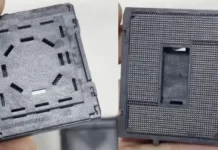
- Processor : Intel Raptor Lake i9-14900K delid
- Cooling system: EK-Nucleus AIO CR360 Direct Die D-RGB – 1700
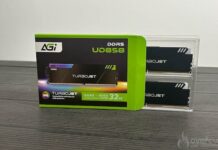
- Memory: 48 GB Corsair Dominator Titanium 8000 MT/s CL38
- Graphics card: NVIDIA RTX 5070 FE, MSI RTX 5070 Ti Ventus 3X OC, NVIDIA RTX 4070 Ti Super FE, NVIDIA RTX 4070 Ti FE, NVIDIA RTX 4070 Super FE, NVIDIA RTX 4070 FE, AMD RX 7900 GRE and AMD RX 7800 XT
- SSD: Western Digital Black SN750 2 TB radiator EKWB
- Power supply: Corsair AX1600i
- Operating system: Windows 11 64-bit 24H2 (26100.2894)
For this test, we used a fairly high-end configuration based on a delided i9-14900K processor and DDR5 memory. Depending on the definition tested, we’re using either an MSI Oculux NXG253R or a ROG Strix XG27UCS on loan from ASUS France.
Our test protocol:
All the cards are tested at stock frequencies and without any optimisation. For the various benchmarks, whether for synthetics or games, we will opt for 1080p, 1440p and 2160p resolutions depending on the card’s performance.


Here, with this NVIDIA RTX 5070 Founders Edition model, there’s no doubt about the definition: it’ll be 1440p! Of course, in some older, less heavy games, it’s quite possible to envisage 2160p definition, but we’re convinced, especially with ray tracing, that this model is more suited to 1440p. We’ll be using the DLSS Super Resolution in Performance mode, with image generation and ray tracing where available.
As you can see, we’re now running Windows 11 and we’ve activated the ‘ ReSize BAR ‘ in the BIOS, which can be seen in GPU-Z. Now that you know everything about our test configuration, it’s time to get started!