
2021 was a busy year for Intel XOC motherboards with the arrival of the Z590 and Z690 chipsets. The Z590 series marked Gigabyte’s return to the scene with the Z590 Tachyon.
Today we’re focusing on its sibling, the Aorus Z690 Tachyon, the second Gigabyte Z690 motherboard to go through the lab after the Z690 Extreme. Just like its competitors previously tested by CornerJack, namely the Asus Z690 APEX and MSI Z690 Unify-X, this motherboard is geared towards competitive overclocking and, like the other two boards mentioned above, is available for around €600 in France/Belgium
 We would also like to take this opportunity to thank Hicookie for their support during the lab tests. [nextpage title=”The Aorus Z690 Tachyon:”] As we said in the introduction, this is the second card in the Tachyon range that we are testing. And, along with the Z690 APEX and Z690 Unify X, the Tachyon is the third XOC Z690 card to pass through our hands. Let’s see what it has to offer against the competition.
The bundle:
A quick look at the Gigabyte Aorus Z690 Tachyon bundle to see if it’s well equipped. Alas, we find something rather modest: SATA cables, drivers CD, manual, IO shield, RGB extension cable, thermistor, sound probe….
On the paper side, the manuals are complete and we also have stickers to customise your hardware. And so, no XOC tool, no motherboard support, we would liked to have seen a CPU frame in the bundle to solve the CPUbend problem for example, or a USB key with OC tools, bios and drivers for XP / Win 7…


The architecture :
This Z690 Tachyon is built around Intel’s new Z690 chipset, and this motherboard changes its socket from LGA-1200 (Z490/Z590) to LGA-1700 . The reason is simple, the CPU size is bigger.

Above, a screenshot detailing the difference between the two sockets (source Igor’s Lab). The LGA-1700 socket has 1700 pins, compared to 1200 for the previous one. You may need to invest in a new cooling system. Some brands, like Noctua, offer an adapter for your current cooler. Make sure you ask about this, as it is often free. The Z690 chipset officially supports PCIe 5.0, offering higher storage performance than the previous generation. However, at the moment there are no components that support this standard. The other big change is the support for DDR5.
The different heatsinks:
The dimensions of the board are 305 mm x 270 mm, which corresponds to the E-ATX format. The dominant colours on the PCB are black and grey. There is a slight touch of RGB here in the Z690 chipset. Let’s start the tour with the heatsinks, of which there are five! First of all, we have the two heatsinks on top of the motherboard that cover the power supply stages. These heatsinks are massive, especially the one covering the IO. The third covers the chipset and has RGB lighting. The fourth and fifth heatsinks for the M.2 SSDs can also be said to be part of the chipset, as the SSDs are attached to them.
Four m.2 SSD slots :
Although the card is largely uncluttered with parts of the PCB visible, we still have all the M.2 slots cooled by heatsinks. We start with the M.2 slot connected to the CPU in 4.0 which is placed above the first PCIe slot. This is cooled on both sides. Then we have the three M.2 slots connected to the Z690 chipset, and again we have heatsinking on both sides. Technically, there are three PCIe 4.0 x4 slots and one PCIe 4.0 x4/SATA. You should not be short of storage slots.
The socket and PCIe :
The space around the socket is very clear and will be very easy to insultate for testing under Dice/LN2 . It is noticeable that the capacitors used are low profile tantalum which will help enormously when insulating. This tachyon can accommodate a maximum of two DDR5 memory modules. I invite you to read the page dedicated to DDR5 in our article on Alder Lake. And don’t forget that the Z690 chipset supports motherboards that will still run DDR4.


This Tachyon supports dual channel memory kits up to 7000 MHz+ (OC) and up to 64 GB. There are two PCIe 5.0 16x slots that will work in x8/x8 if you opt for CrossfireX – no SLI here. A third PCIe 3.0 x4 slot is also available. To power all this, the card has a 24-pin connector and two 8-pin connectors next to the power stages. And, as a bonus, a 6-pin PCIe slot for multi-GPU configurations. [nextpage title=”The PCB and connectors:”]
Overclocking tools:
Let’s start with the elements inserted on the PCB / IO shield and which can be interesting tools for overclockers. And it must be said, Gigabyte spoils us with this Tachyon. This is very much a motherboard dedicated to overclocking.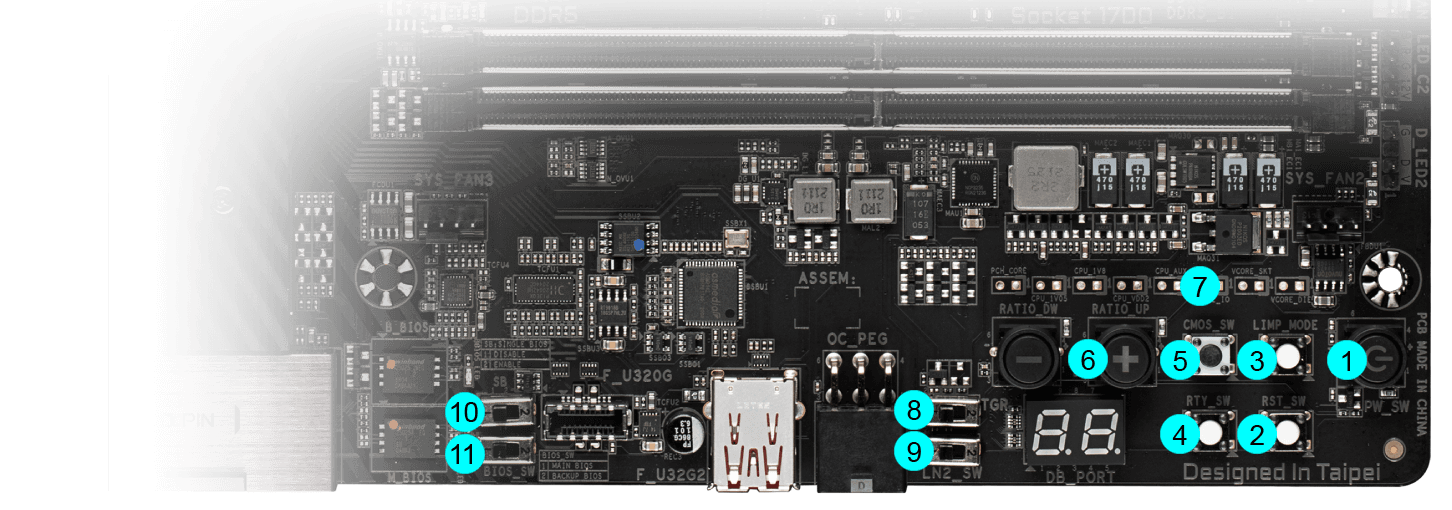
- The power button: to power up the motherboard.
- The reset button: allows the motherboard to be restarted in case of failure.
- The LIMP mode: similar to the “Safe Boot” on Asus, this button allows to restart the board even if the parameters chosen in the BIOS do not allow it to boot. This avoids having to do a CMOS Clear to reboot and thus lose your chosen settings. The board will then reboot with default settings.
- The Cold Reset button: this button allows you to force a reboot and is more efficient than the reset button, it can be compared to the “ReTry” button on Asus. It is often used to force a boot when the memory is overclocked and reaches its limits. During cold tests, sometimes the OS freezes and a reset does not allow the motherboard to restart: the only solution is to hold down the START button for 6 or 7 seconds. With this button, it restarts immediately.
- The Clear CMOS: allows you to erase the BIOS parameters in order to return to the default ones.
- CPU Ratio Switch: allows you to directly increase or decrease the multiplier of your processor as well as the BCLK.
- Voltage points: allows you to measure voltages with a multimeter directly on the PCB.
- The OC Trigger Switch: a button similar to “slow mode”, it will allow you to decrease the processor frequency and thus lower the CPU temperature before launching a benchmark and thus increase the chances that it will pass. You turn it on, the temperature drops, you put it back in its original position just before running your benchmark.
- The Enhanced LN2 mode switch: allows the CPU to boot at the lowest possible temperature. This is a feature to be used when testing under LN2 to avoid cold boot problems.
- The SB switch: allows you to disable or enable the Dual BIOS function.
- The BIOS switch: allows you to switch between the two bios. You can thus choose to have an “overclocking” bios and a more stable bios for a daily configuration.

The PCB :
Let’s move on to the PCB, which is built in 10 layers. This Z690 Tachyon is based on a 15+1+2 phase power supply (VCORE + VCCGT + VCCAUX). The first controller used is a Renesas RAA2291131 which directly drives the 15 phases dedicated to the CPU. The 15 CPU mosfets are all 105A Renesas RAA220105. The GT part is managed by 1 Renesas RAA220105 of 105A. The IMC and PCIe part is managed by 2 MPS MP87992 of 70Aeach.
Connectors:
The rear panel has the following elements. Firstly, the Clear CMOS and the button to flash the bios from a USB stick. As with all XOC motherboards, there are PS/2 keyboard and mouse slots. But why are we still using this type of connector in 2022? Simply because some benchmarks perform better under XP (e.g. SuperPi) and using non-USB devices makes the OS installation much easier. Then, in terms of USB ports, this Z690 Tachyon has two USB 2.0, three USB 3.2 gen 2 type A, four USB 3.2 gen 1 type A and one USB 3.2 Gen 2×2 type C. Then there’s the networking part with antenna support, dual band WI-FI and Intel 2.5GbE Ethernet socket.
The audio part is managed by a Realtek ALC1220-VB chip with an optical output and 5 jacks. The interesting thing about this motherboard is the HDMI socket which allows the use of the Intel Alder Lake UHD 770 CPU IGP. In our trio of XOC Z690 motherboards, this is the only one with a video output. We’ll come back to this in a sub-ambient IGP OC session. [nextpage title=”The BIOS”]
The BIOS :
As far as the BIOS is concerned, by default, you land on a page with the basic information of your BIOS. In order to access all the settings, you will have to press the F2 key. The first available tab is “Favorites” which allows you to have direct access to the settings you modify most often, as always very useful. The “Tweaker” section, as its name suggests, will be full of options allowing you to set up your processor, your memory kit but also to manage the different voltages. A small “Favorites (F11)” menu allows you to access favourite bios settings.


The “Tweaker” tab contains the various settings for your memory kits and also for your processor. Most of the parameters for adjusting voltages are also found in this section. As a bonus, Aorus offers custom XMP profiles here but nothing really interesting. No complete profiles in this bios… Still in the “Tweaker” tab, we continue the tour of the bios with the part dedicated to the CPU settings. In the “Advanced CPU settings” menu you will have access to :
- Changing the core count
- Activation of AVX 512
- Adaptive overclocking
- Hyper threading
- And other processor-related options


- “Force Training” in the “Extreme Overclocking Setting” menu to be enabled.
- “Round trip Latency” in the “Memory Training Settings” menu to be activated.


Still in the “Advanced Memory Settings” menu, we have the “SPD Setup” menu where it is possible to flash custom XMP. Because yes, with DDR5, we have the possibility to create our own XMP. Here, you just have to enter the timings and frequencies in the XMP 4 and 5 columns. Then SET them and save with F10. You will then have to clear cmos for these to appear. And this on all motherboards because the xmp profile is stored in the memory kit.


Finally, in the “Advanced Voltage Settings” menu, you will have access to additional voltage settings for the CPU. Namely the LLC for static overclocking and the AC/DC load line for adaptive overclocking.


[nextpage title=”The test configuration:”]
Here is the configuration that will be used for the test:
- Motherboard: AORUS Z690 Tachyon (Bios X3i)
- Processor: INTEL CORE I9 12900K
- Memory : 32 GB Adata Lancer RGB 6000 MT/s CL40
- Graphics Card: ASUS GT 210
- Cooling system: Watercool Heatkiller IV basic + MO-RA3 420
- SSD : Western Digital sn850 500gb
- Power supply : BeQuiet! Dark Power Pro 12 1200W
- Operating system: Windows 11 64 bits (version 21H2)
- Display: DELL S2421NX

[nextpage title=”CPU overclocking:”] Our CPU overclocking section will focus on the performance of the i9-12900K. As with the Z690 Unify-X, we will post overclocking results under dry ice. With the same pot used, namely the Bartx Copper ECO Pot.
Protocol:
Before starting, it is necessary to have one or more reference scores with our i9-12900k at stock frequencies, i.e., without having made any modification except for having activated the XMP profile in the case of an Intel processor. Concerning the test voltages, we decided to put the voltage in fixed mode, the adaptive mode will be detailed later in a dedicated article.
It is also very important to have a sheet of paper or spreadsheet to hand. This will allow you to note down all the tests you are going to perform as well as the results or failures. During this series of tests, I will always have in mind to compare the performance obtained by CornerJack during the test of the MSI Z690 Unify-X with which he had also tested an i9-12900k.
Load-Line Calibration:
Before we start, we need to set the LLC. In the case of this motherboard, we set it to “Turbo” mode. In the tables above you can see the differences between the selected voltage, the idle voltage and the load voltage  This is an important point, here the “turbo” mode gives us a good stability on the voltage without impacting us too much with idle voltages too high or in load too low.
Benchmark Scores :
Let’s start by noting the results under Cinebench R15 and R20, taking care to note the voltage(vcore), the maximum temperature during the benchmark, the power consumption and, of course, the score obtained. During the benchmark, the HWinfo window is open which has a slight negative impact on the score.
Overclocking under watercooling in steps :
To start with, I leave the BIOS on auto by just setting the RAM to XMP 6000C40. First, we read the vcore voltage and load frequency during the benchmarks on Cinebench R15 and R20 (4900 at 1.2v). I therefore opted for a starting frequency of 4900 MHz with a multiplier of 49, a BCLK of 100 and a voltage of 1.2 volts. The Ecore and the cache are placed at 4000 MHz.
The idea is then, in the OS, to test the stability on several runs of Cinebench R15 and R20 multithreaded. If it’s stable, I increase the frequency by 100 MHz while rechecking the stability. If the benchmark crashes, I increase the voltage by 0.05 volt increments in order to regain a stability allowing to run the benchmark. The objective is to get a “quick” idea of the maximum benchmarkable frequency  Thus, my 12900k manages to reach 5.3GHz with a voltage of 1.38 volts (1.33 volts for R15) but with a very high temperature. As for the Vrm’s, they do relatively well, without additional airflow they manage to stay below 46°C.
After that we raised cache and the Ecore multiplier, which required more voltage. And finally we tested this overclocking without the Ecore. And here are the results on R20. As you can see, 5300MHz is way too high in temperature, so for normal use I would opt for 5200MHz frequency.

Here are the two screenshots of our tests with Ecore with the i9-12900k.


And, those without Ecore.


[nextpage title=”Memory overclocking:”] Just like any good motherboard dedicated to overclocking, this Tachyon presents itself as one of the best Z690s on this point. Many records have been achieved with this board on almost every Alderlake CPU model. No liquid nitrogen here, the tests were done under air with the Adata XPG Lancer RGB 6000C40 kit modified with a custom heatspreader. And, as I write this article, the tests are still ongoing and new results are coming in. Because yes, this motherboard is constantly evolving – between the purchase of this one in December and the writing of this test in April, increases of no less than 400 Mhz gain in boot and as much in bench with the same memory kit have been tuned in.
Now let’s get to the heart of the matter, all the memory tests were carried out with a CPU frequency of 5200MHz, Ecore at 4100MHz and a cache at 4400Mhz. At the end the hardware was pushed to its limit with or without Ecore.
Test on aida64 :
To start with, on aida 64 we managed to reach a frequency of 3500Mhz or 7000Mt/s in gear 2. As we can see, the increase in frequency and the decrease in timings can be seen directly in the throughput figures. As far as latency is concerned, we see a gain, but Aida64 is not a reliable benchmark on this point 
Test on Geekbench 3 :
In parallel, we performed benchmarks on Geekbench 3. Here we can see the gain in memory and CPU scores. Note that the values above 6800Mt/s are obtained with BCLK increase. And, that the 7000Mt/s point is at 5250 Mhz on the CPU, 4150 MHZ on the Ecore and 4450 MHz on the cache. Here the frequency limit was 7000Mt/s, the benchmark cut off at 7070C30  Here is the best Geekbench 3 score obtained with this motherboard with the Ecore active
  To go further, we also pushed the motherboard without Ecore with an even higher CPU frequency and a very high cache. This results in a memory score of almost 14500 pts at 7000C30!
  It goes without saying that this motherboard is cut out for overclocking, whether it be CPU or memory, as its records attest. Its main asset is undoubtedly Hicookie, who is constantly working to improve it. And, as we can see, the results are there. [nextpage title=”Conclusion:”] We’re coming to the end of this test, and it hasn’t been all rosy between the chaotic beginnings and the 7 memory kits tested on it. But finally, this Aorus Z690 Tachyon proves to be a good vintage that improves with time. We have a motherboard that is as good for daily use as for competitive overclocking. And, unlike its competitors, it offers an HDMI out port. It will therefore be possible to test the overclocking of Intel IGPs under DDR5 with a motherboard that is designed to reach high frequencies. We are aware of the price, however. But for less than €600, you will be able to take full advantage of Alderlake.
The important points
Just like its predecessor, the Z590 Tachyon, this motherboard has many tools dedicated to overclocking on the PCB. This one makes the experience more pleasant and some things not present on competitors will make me consider the next Z790 tachyon or the next Tachyon AM5. I’m thinking in particular of the Q-code placed at 90° on the PCB making it more readable but also of the USB socket on this same slice which I use all the time. Then there is the bios, very well designed, with the possibility to change the Microcode on the fly for non-K overclocking or for access to the AVX 512. If we add to this the shortcuts, especially F1-F12 which remind me of my good experience of EVGA bios, then this Z690 Tachyon is my first crush since the little X299 Micro 2.
It’s finally almost a faultless performance for this Aorus Z690 Tachyon! Why almost? To begin with, the very limited bundle did not make us think that we had the flagship of Gigabyte in our hands. A USB stick and a figurine would not have been too much. Secondly, my debut with this motherboard was catastrophic in terms of memory overclocking, which sometimes made me want to stop everything with DDR5. But this feeling is generalized to many DDR5 savvy users. Partly because of hardware that doesn’t perform at the level touted by marketing-binned motherboards, sold at exorbitant prices. Fortunately, motherboards like this Z690 tachyon exist to give you the desire to push overclocking to its limit.
Gigabyte Aorus Z690 Tachyon
We liked
- The unusual design
- High-performance power supply
- Video output
- LN2 mode
- The presence of 2 BIOS
- Well thought-out XOC Bios for dailyuse
- PS/2 socket for XP
- 90° Qcode
- The overclocking area with USB port
- Overall performance: processor, memory and SSD
- Quality 10-layer PCB
- The price
- And… support from the Aorus overclocking division
We would have liked :
- A USB stick in the bundle and special Tachyon goodies
- An additional SATA controller for XP
 Gigabyte offers with this Aorus Z690 Tachyon a motherboard designed for overclocking. We are in the presence of a good vintage that improves with time. It will be as comfortable in XOC as in daily use for gaming. Then, concerning overclocking, we have a motherboard that is good on all terrains with an absolutely royal Hicookie support. Finally, as far as price is concerned, the 600€ price tag makes it the most affordable and complete XOC motherboard available today, if we exclude SLI support.

