
Hello everyone, thanks to overclocking.com for giving me the opportunity to test and tinker with this configuration. For those of you who don’t know me, I’ve been a PC and gaming enthusiast for many years, but I confess to having a passion for custom keyboards…If you’d like to ask me any questions, you can find me on my social networks:
And of course you can ask me all your questions on the overclocking.com Discord
I’m going to start with a review of the components that make up this PC:
- i5 14600k: A very good, versatile CPU that’s at home in gaming and will delight 90% of users

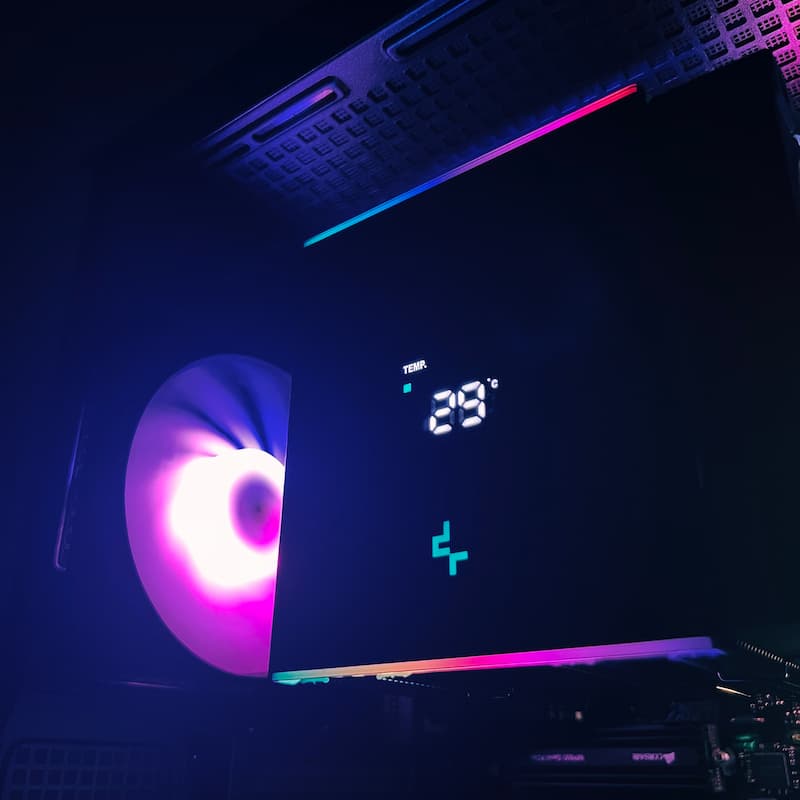
- AK620Digital: The screen is a nice addition, performance is good, the fans are quiet at low and mid-range, but make their presence felt at full load.
See this post on Instagram
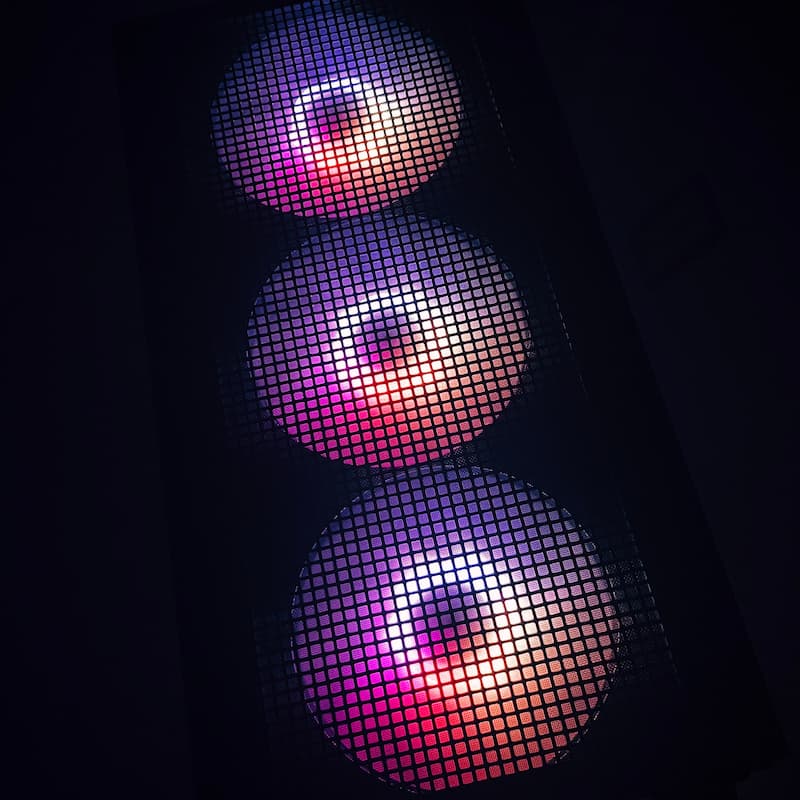
CH560 Digital: The display is handy for quickly getting a visual on CPU and GPU temperatures, but partly duplicates the AK620 Digital. Comes with 4 ARGB fans, which is rare and appreciated. A 2nd USB on the front panel and a dedicated reset button would have been a plus.

- RAM and SSD: Corsair’s reputation for memory is well established. Logical choices that will satisfy everyone.
See this publication on Instagram
See this post on Instagram
- Thermal Grizzly Kryonaut: a logical choice for performance and OC. The perceived quality just by unpacking the product makes an impact…
See this post on Instagram
- ASUS 4060 DUAL: Simple, sober design, no frills. I particularly appreciated its silence and its default fan curve, which seems perfectly staggered
See this publication on Instagram
ASUS TUF B760 Plus Wifi: Simple, effective design, we’d have appreciated a more high-end chipset to unlock 100% of the config’s OC potential, but there was a budget to be met.
View this publication on Instagram
[nextpage title=”Assembling the configuration”]
With components of this quality, assembly is relatively simple and straightforward. As the AK620 is very clever, be careful with RAM compatibility. The CH560 Digital offers ample space for a decent management cable.
As usual, we’ll be careful to align the processor and socket markings to avoid any accidents. The small spatulas supplied with the thermal paste make installation simple and straightforward, and ensure that the paste is applied as evenly as possible.
See this publication on Instagram
To install the SSD, you have 2 choices. Either keep the original heatsink, or replace it with the one on the motherboard. This has no impact on performance. I personally chose to keep the Corsair heatsink, to avoid unnecessary manipulation. If you want a more aesthetic result, I suggest you use the CM heatsink. DeepCool promises simple assembly of its ventirad, what’s the verdict? It’s true that assembling the ventirad is relatively easy, as the manual is perfectly clear. However, you’ll need to be careful when dismantling and reassembling the screen section, as you’ll need to route the cables carefully through the ventirad.
See this publication on Instagram
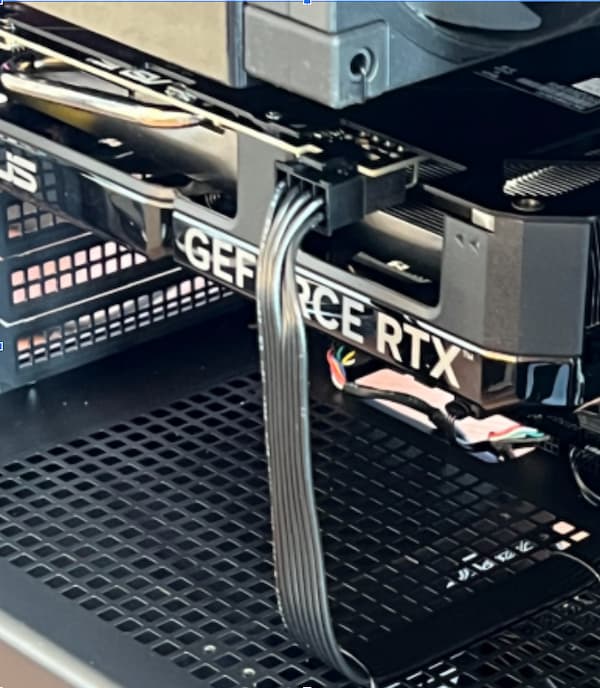
Power supply and graphics card mounting are perfectly standard, and the CH560 offers no special features in these areas. Note that a small graphics card holder is included in the case as standard. Unnecessary for this featherweight RTX4060, but may be useful for those lucky enough to mount a large video card.
See this publication on Instagram
On the cable management side, the CH560 Digital features a main trough for the main cables. Rilsans and scratches are supplied, so you won’t need any additional hardware for a clean result.
Assembly tips: as the power supply cover is perforated, you can play with the rilsans to pass the PCI-E cable through, for a super-clean finish (just be careful not to put too much strain on the cable)
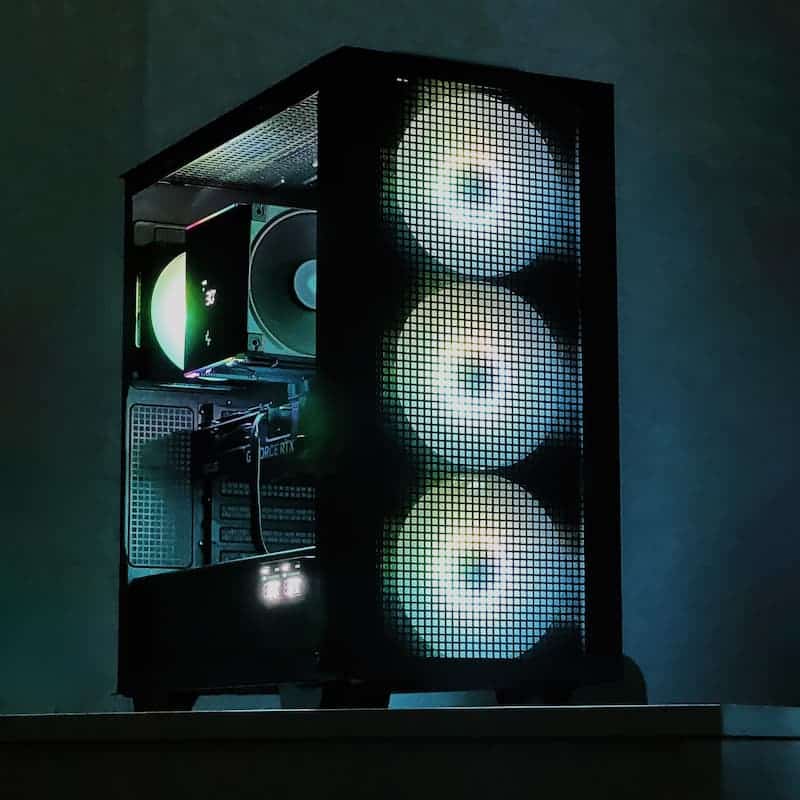
And here’s the final result, all in light. A good PC is great, but if it looks good too, it’s TOP! So what do you think?
[nextpage title=”Config Bios and Windows installation”]
- First boot :
Check the usual parameters: check that the boot order is correct, update if necessary, activate XMP, modify the fan curve, check that the components are at their normal settings.
- After stock benchmarks and before OC benchmarks:
I decided to follow vertex’s and other members’ recommendations on RAM profiles:
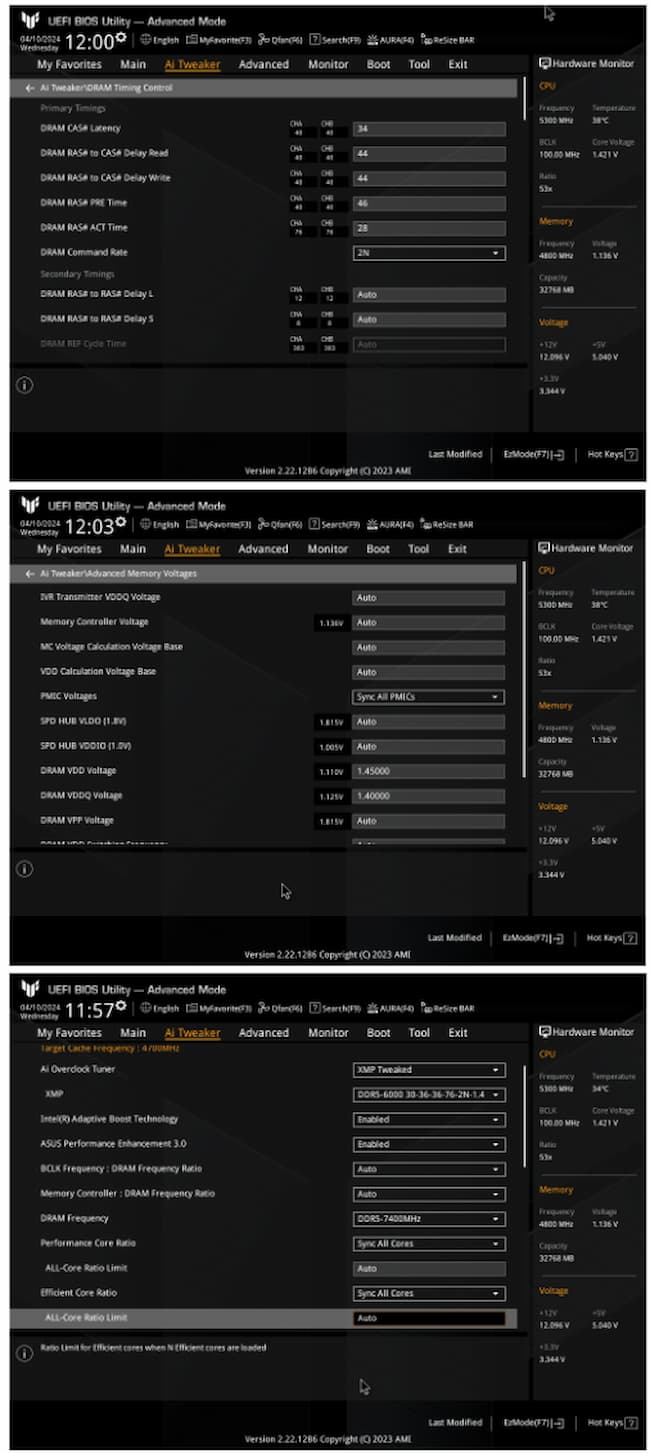
These recommendations seem to be right on target. Can RAM be pushed even further? Probably, but let’s not forget that we’re aiming for an optimization that’s stable and viable in everyday use.
Windows installation
Very much in vogue in recent years, optimizations are, in my opinion, far too over-the-top. In my experience, they bring more problems than real benefits…
I leave you with this nugget:
However, there are a few parameters to take into account and it’s still possible to make an easy, cleanly optimized installation.
To create the bootable USB key, I used a well-known utility, RUFUS. Unlike other competing tools, RUFUS offers a number of options to help you get the most out of your Windows installation:
- Remove the need for a Microsoft Online account
- Create a local account with an existing username
- Disable data collection
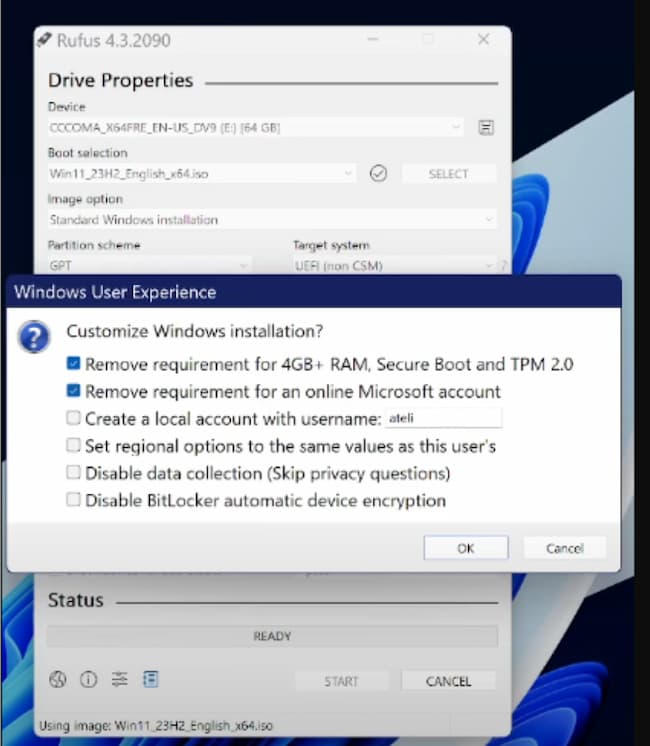
Important: before any manipulation of windows, remember to make a backup of your windows/data, you never know..
As far as Windows settings are concerned, I’m aiming for stability and improved user experience. Here’s what I do (it’s all in the settings panel):
- Deactivate notifications
- Activate clipboard history (often activated by default). It seems pointless here, but believe me, it can save your life
- Hide the search bar in the taskbar
- Enable game mode
- Disable device localization
- Disable startup of certain applications (depending on your needs)
- In the privacy settings, there’s plenty to disable:
- General: disable all
- Handwritten input: disable
- Diagnostics and comments: Disable
- Activity history: disable and clear history
- Voice: Disable
- Camera/Microphone: You can deactivate them for apps you’re sure you’ll never use, to avoid unpleasant surprises
- Voice activation: you can leave it enabled, but remember to disable the option allowing apps to use voice activation when the device is locked!
- Phone calls/messages/radio: of course, deactivate
- Other devices: unless specifically required, deactivate
- Set power mode to high performance
- In the PC advanced settings, performance tab, you can disable unwanted visual effects. The impact on performance is derisory, but it can be interesting on an old, worn-out machine.
[nextpage title=”My benchmarks”]
The settings applied in the bios, especially for Ram, are already having a measurable effect when I use Cinebench.


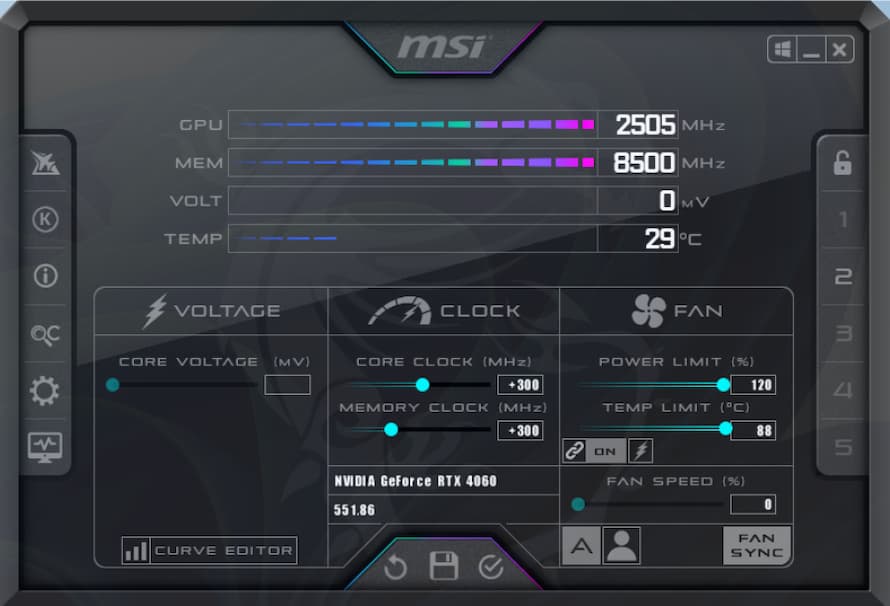
To boost the graphics card, I wanted to use a simple tool, accessible to everyone, namely, MSI Afterburner.
Once the software is open, the work begins. The software is very visual, so we’ll start by concentrating on the “Fan” section, on the right:
– Increase the power limit to 120%
– The same goes for the temp limit, which we increase to the max
Once we’ve done that, let’s move on to the OC. We’ll concentrate on the middle section, “Clock”:
- The aim of the game is to progressively increase, step by step, the Core Clock (CC) and Memory Clock (MC) values.
- I’ve chosen a 20Mhz increment for both CC and MC. You’re free to use a higher or lower value, but don’t go overboard! It’s better to increment little by little with small values, rather than trying to reach the limit right away.
- Between each increment, I run a bench (in this case, kombustor was the most practical) to validate my OC. If all goes well, I don’t have any crashes and the temperatures are acceptable, then I increase the speed by a further 20Mhz, and so on… Once again, don’t skip any steps, these intermediate benchmarks are essential!
- When I reached 320Mhz on the CC and MC, my PC systematically crashed. So I know that my limit on the CC and MC is 300Mhz.
- The OC can further refine this by reducing the increment.
- Note that not all cards are created equal, and limits may vary slightly from one card to another, so if you also have a 4060, don’t copy/paste our values, take the time to do the above steps!
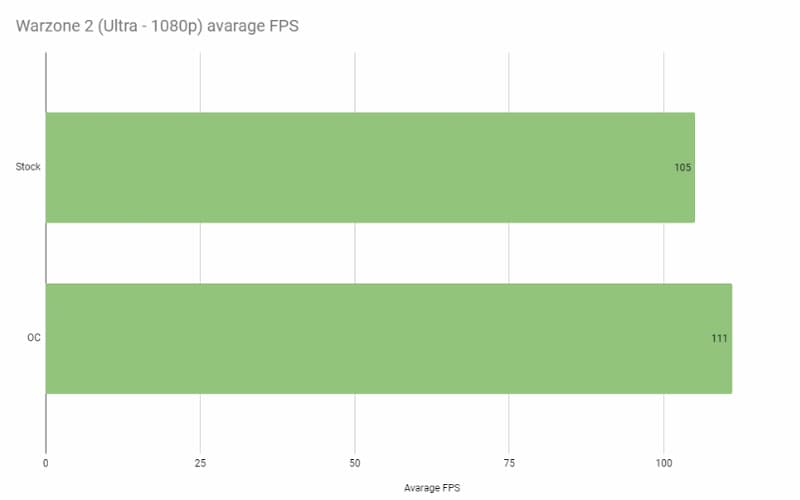
Here are my game winnings:
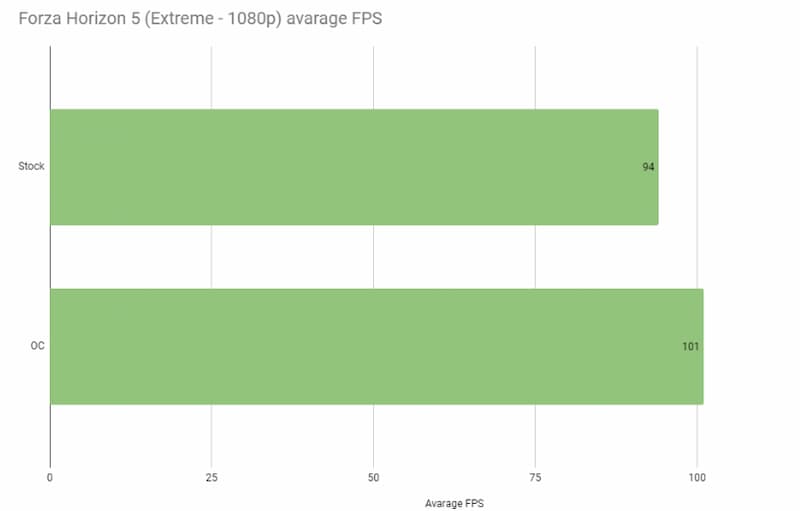
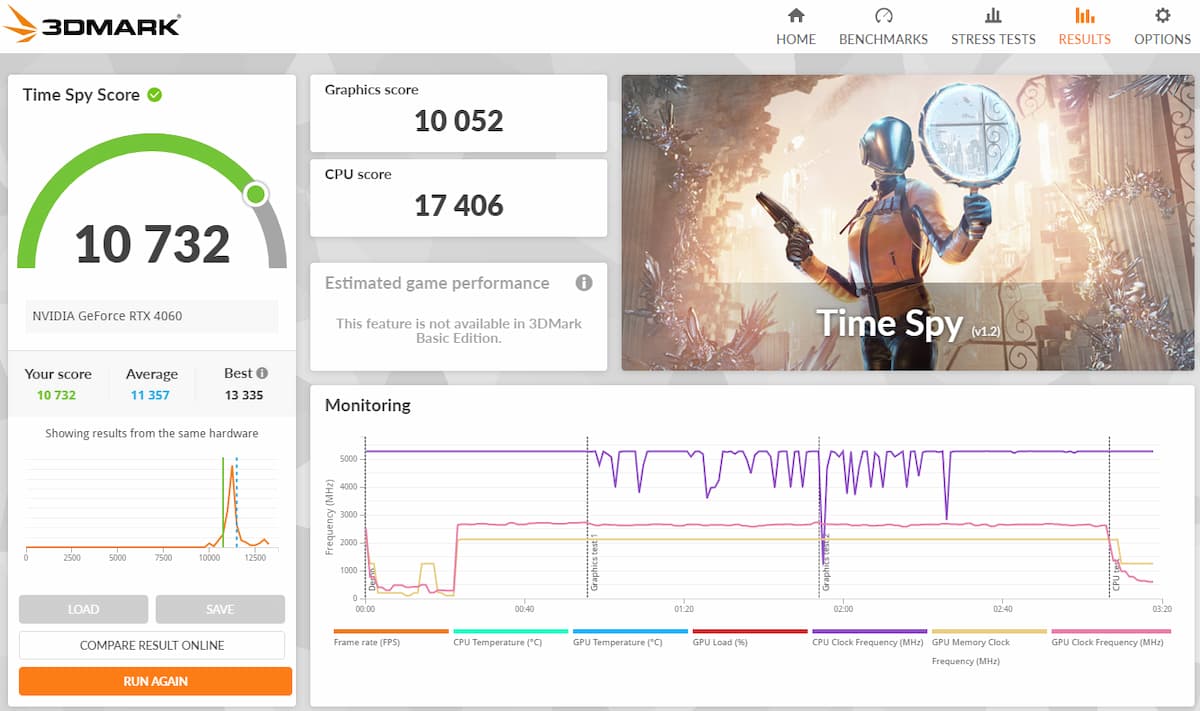
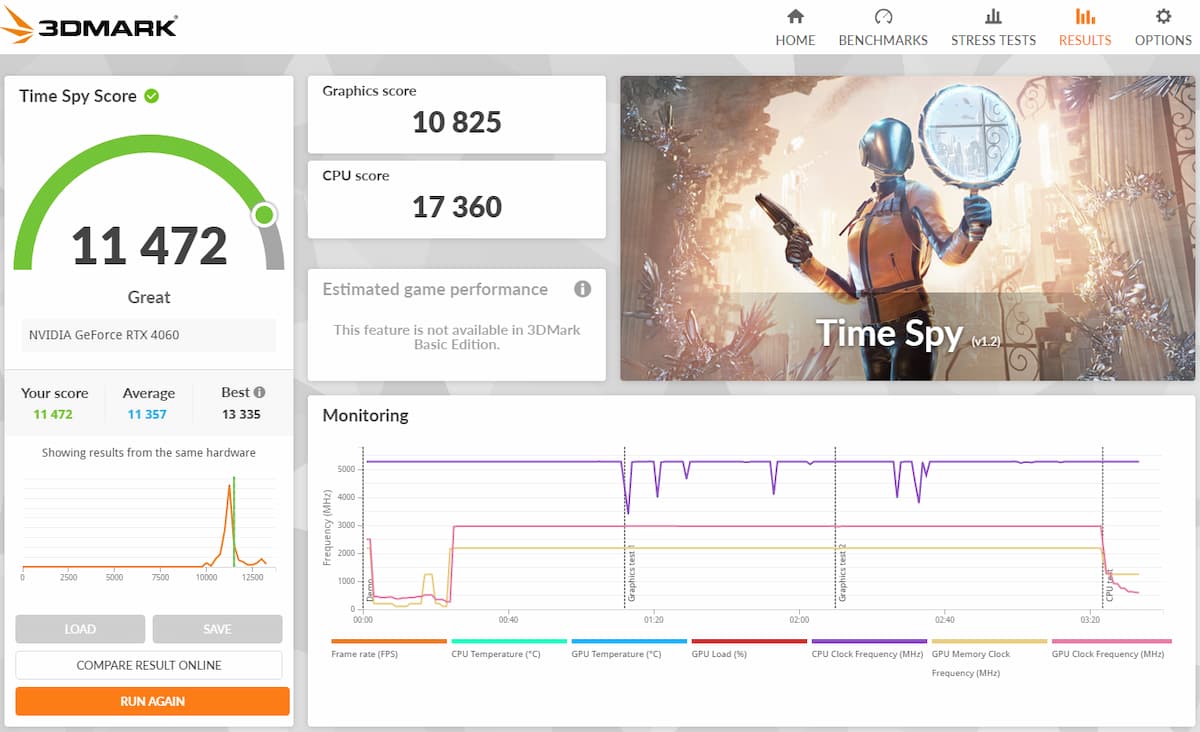
I also wanted to cross-reference all this with a good old 3D Mark from the families:
Before optimizations:
After optimization :
I took the opportunity to make a little video recap of my benchmarks here :
See this post on Instagram
[nextpage title=”My Conclusion”]
It was a real pleasure and a great experience. As I’m more on the overclocking.com Facebook, I also discovered the community on Discord and it was really great! In the end, what more could you ask for than a beautiful, high-performance PC? Even if the PC is satisfactory overall, depending on your budget, it may be worth fine-tuning the choice of components to get a configuration that matches your expectations as closely as possible – that’s what optimization is all about. Here, for example, the choice of components could have been optimized. The DIGITAL versions of the AK620 and CH560 are somewhat duplicates. Personally, I would have chosen the classic version of the AK620, saving a few euros. The same goes for the SSD: a cheaper SSD without a heatsink would have worked just as well, since the motherboard already features a heatsink.
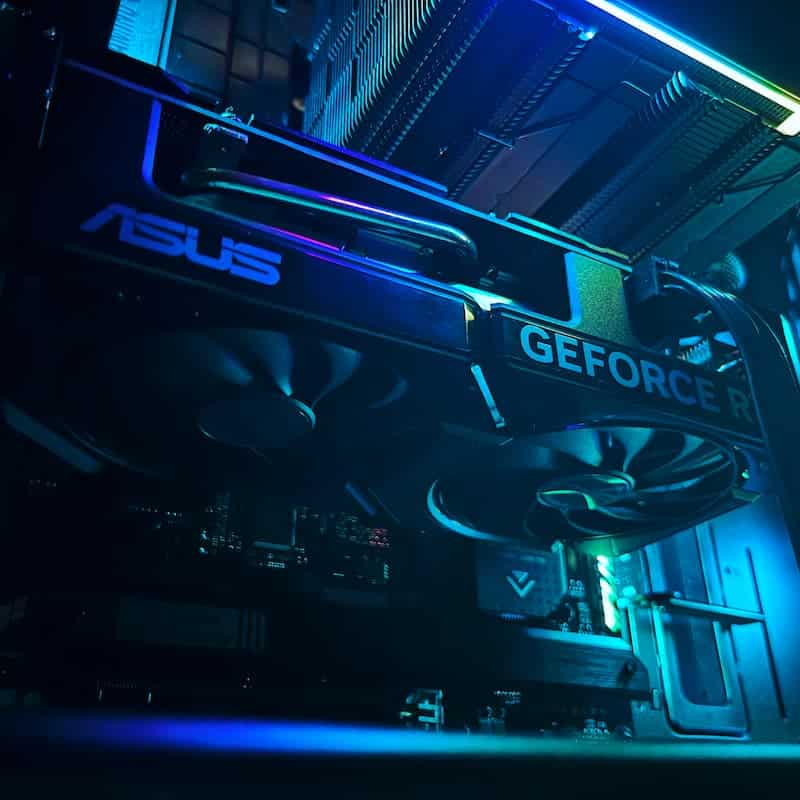
Beyond performance, when you put a certain amount of money into a PC, you also have the right to have something you like visually… And in this case, it’s a success. The fans, RAM and cooler are ARGB-compatible and manageable via the motherboard: plenty to enjoy, and as we all know, the presence of RGB is very beneficial to the performance of our PCs 😉 !