




Test protocol (to be read):
We’re pleased to present our new test protocol. It was time to update it and, above all, to expand the benchmark series we use. It was also an opportunity to update our test platforms with the arrival of the X870E and Z890 chipsets. We also took the opportunity to give our graphics a facelift to make them visually clearer. And don’t forget that we’re going to be adding even more in the coming weeks, with the addition of the Ryzen 7000 series as well as other 14th Gen Intel processors such as the i5 14500, i5 14400F and i3 14100.
We have also equipped our OBT Edition V2 benchmark table with the Benchlab measurement tool, which will now enable us to correctly measure the single voltage of the processor and soon also of the graphics cards via the Benchlab PR 1.0 software.
Test configurations :
Here are the details of the different test configurations that will be used for all the benchmarks :
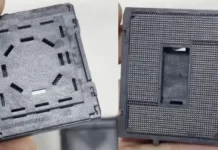
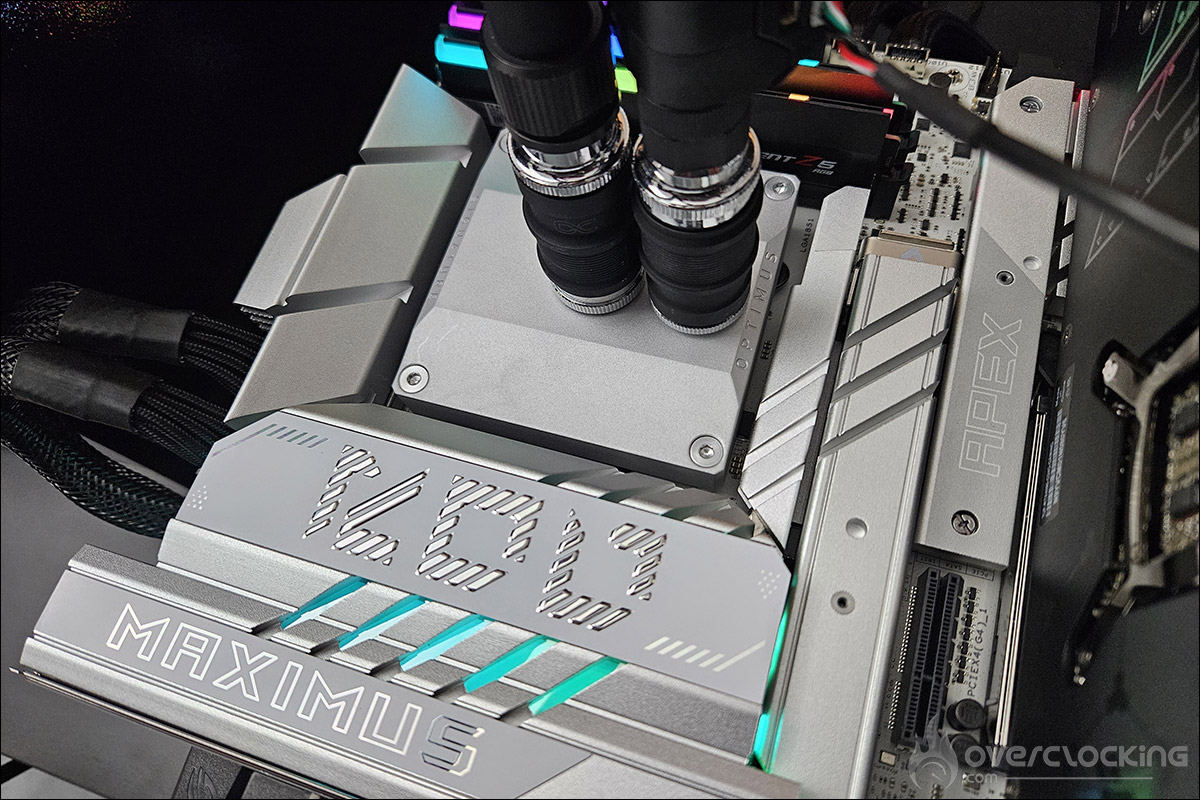
- Intel motherboard: ROG Maximus Z790 APEX Encore (BIOS 1602) for Intel 14th GEN, ROG Maximus Z890 APEX (BIOS 0805) for Core Ultra and ROG Crosshair X890E HERO (BIOS 0501) for Ryzen 9000/7000.
- Processor: Intel Raptor Lake 14e GEN, Intel Core Ultra 200S and AMD Ryzen 9000/7000
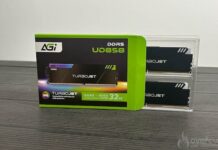
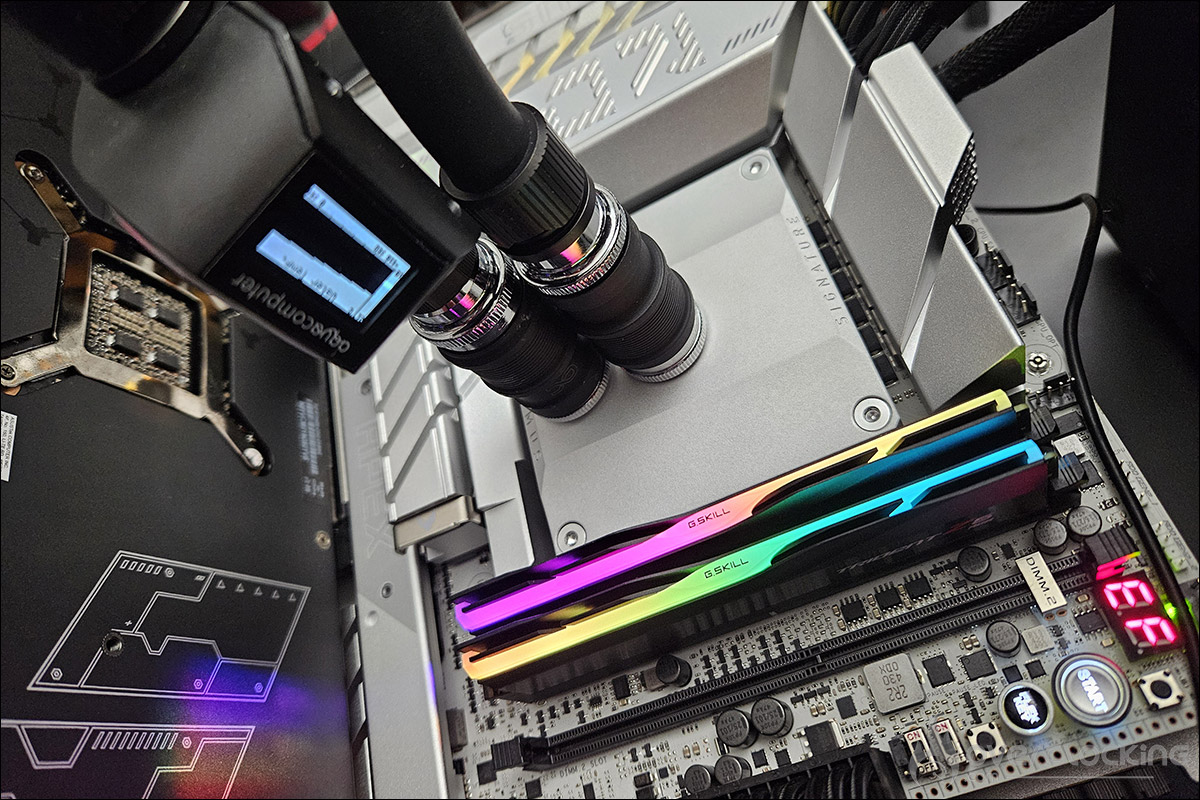
- Memory: 48 GB G.SKILL Trident Z5 8000 MT/s CL40 and 32 GB G.SKILL Trident Z5 Royal Neo 8000 MT/s CL38
- Graphics card: ROG Strix RTX 4090 OC
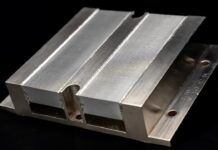
- Cooling system: Optimus V3 Intel or AMD waterblock with Alphacool Eiszeit 2000 chiller
- Power supply: be quiet! Dark Power 13 1000w
- Operating system: Windows 11 64-bit (24H2) without optimisation
The BIOS for Ryzen 9000X processors:
The BIOSes used are the latest, i.e. with the option to increase the TDP to 105 watts for the Ryzen 7 9700X and Ryzen 5 9600X. We carried out the tests at 65 and 105 watts to highlight the differences in results.
The BIOS of the Intel 14e Gen :
Since the patches and latest BIOS updates, Intel has inserted itself into manufacturers’ BIOSes with recommendation settings for the use of its processors under the name: ” Intel Default Settings “. There are two options, either Performance or Extreme for high-end processors, and just Performance for the i7 and i5.
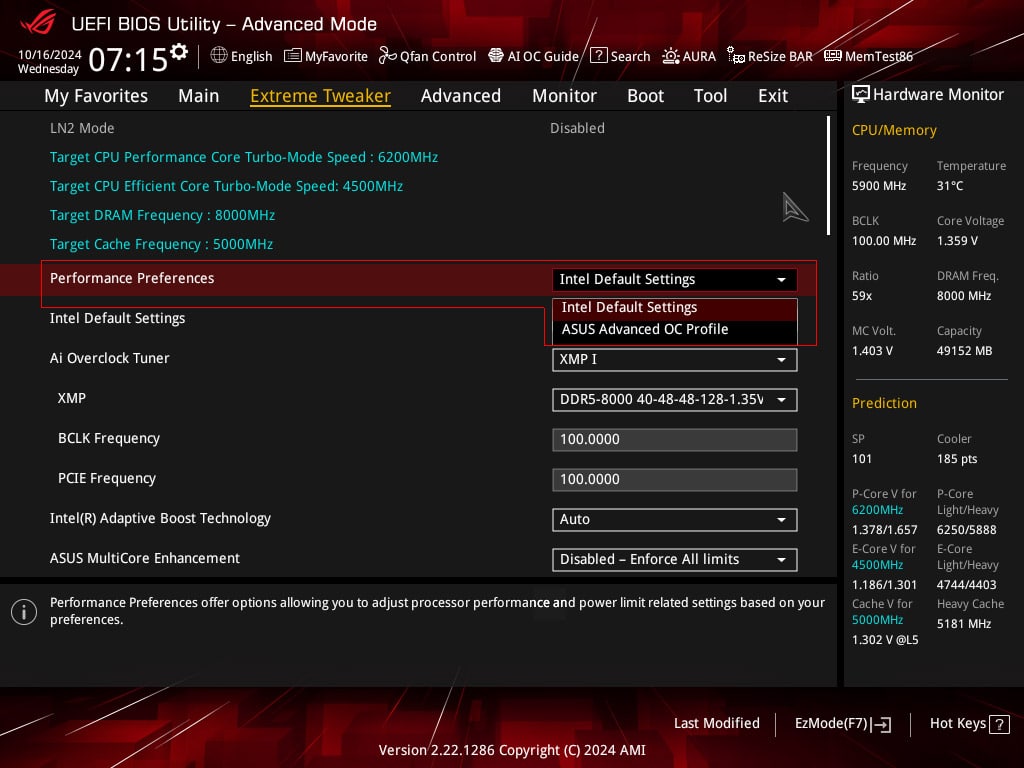
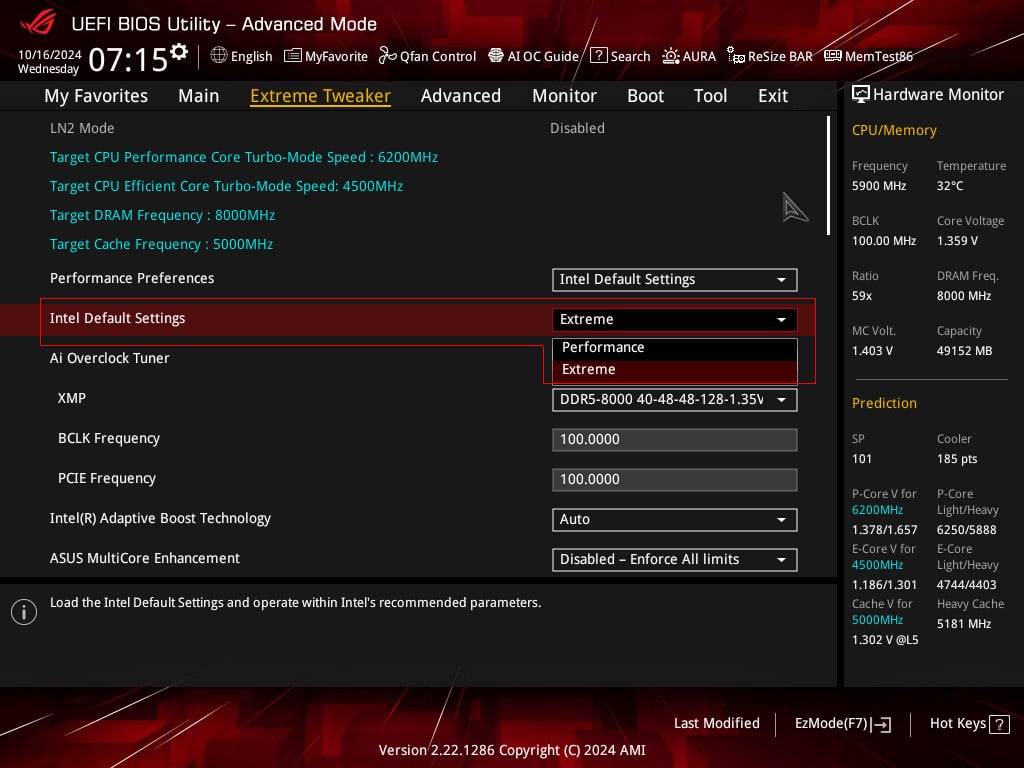
We tested the i9-14900Ks with these three different profiles so that you can see for yourself the differences in performance between these three operating modes.
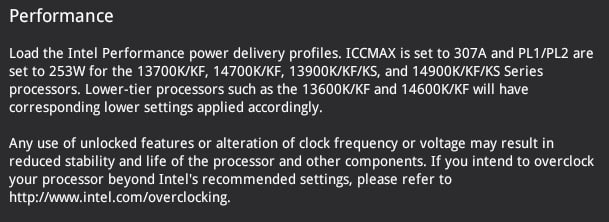
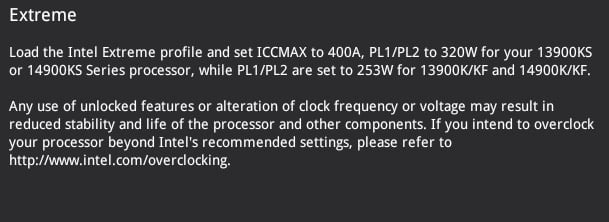
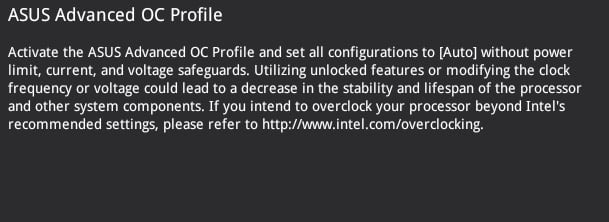
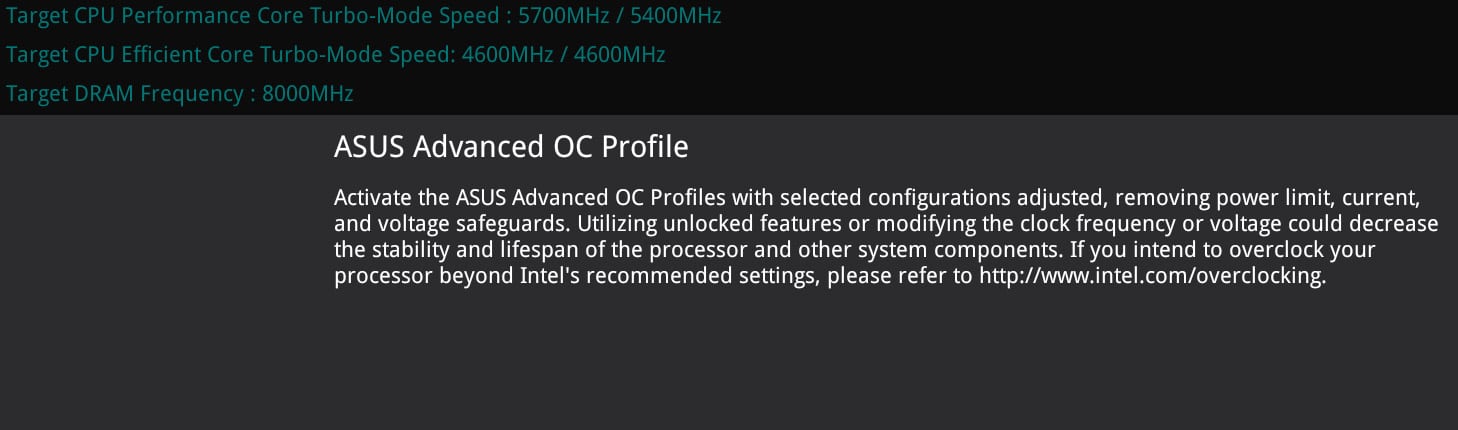
For the other two processors in the Intel 14th Gen range, the i5-14600K and i7-14700K, we have always opted for the ” ASUS Advanced OC Profile”.
The BIOS of the Intel Core Ultra 200S processors :
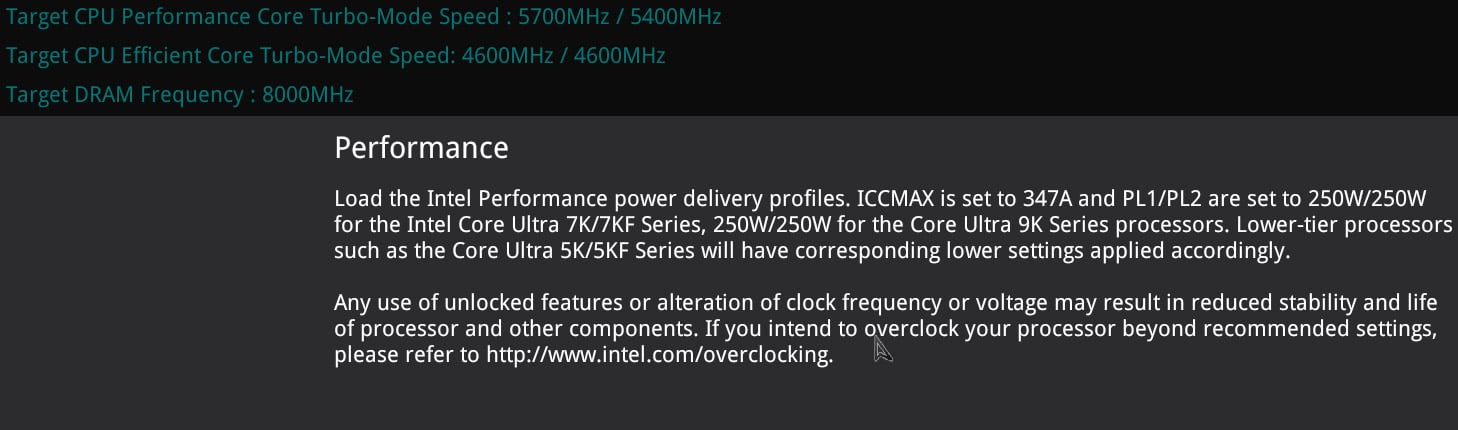
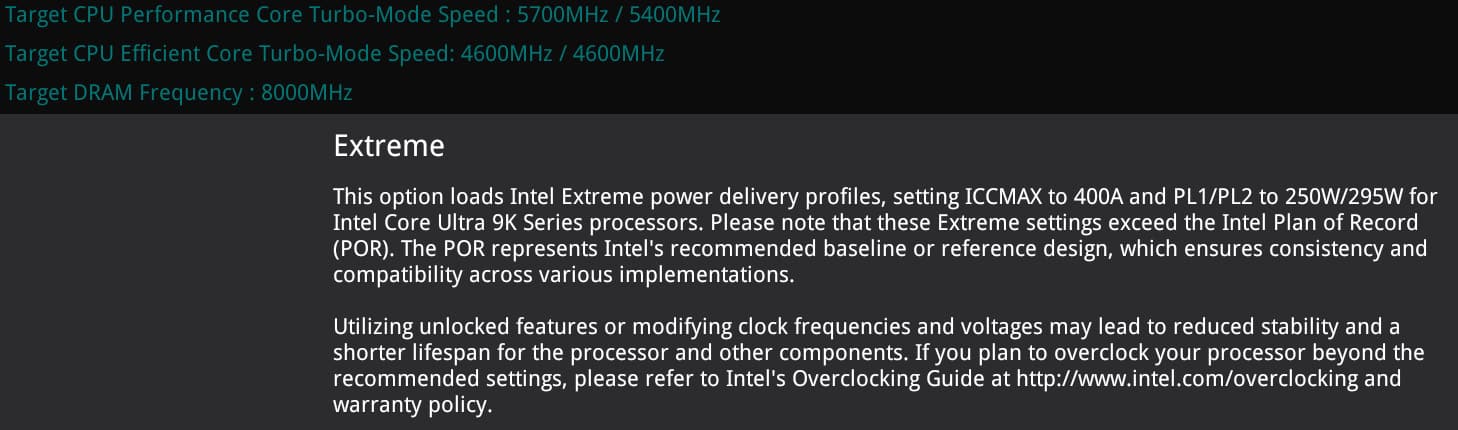
In the BIOS of our ROG Maximus Z890 APEX, we find the ‘ Intel Default Settings ‘ profiles with the Performance and Extreme options for the Core Ultra 9 285K and just Performance for the Core Ultra 5 245K. We’ll be using all three modes in our tests.
Memory kits :
We weren’t able to use the same memory kits, as we hadn’t yet received the 48 GB Trident Z5 Royal Neo 8000 MT/s model from G.SKILL. We therefore used the kit consisting of 2 x 16 GB for the AMD configuration and 2 x 24 GB for the Intel configurations.
The cooling system :
The use of the Alphacool Eiszeit 2000 chiller will allow us, with the temperature of the liquid set at between 19.5 and 20.5°C, to test all the processors under the same conditions. The idea is to judge how the processor will perform under optimum conditions, i.e. with controlled temperatures. The waterblocks used to keep the various chips cool are both Optimus Signature V3 models, with the Intel model and the AMD version.