









Test
It’s time to get to grips with the Liv and Liv Plus Onyx White Wireless from Endorfy and give you our impressions of them. We’ve used it for video games, browsing and more traditional office work. What did we think? Find out now!
Getting started:
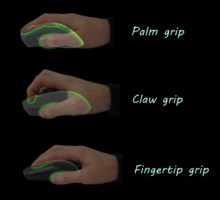
This is a mouse with a classic grip. It’s a right-handed mouse with 6 buttons. Personally, I used the Liv Plus Onyx White Wireless in a claw grip, i.e. with my index and middle fingers raised and the base of the mouse pressed against the palm of my hand. However, this model can also be used in palm grip or fingertip grip. It all depends on you and the size of your hand. With a claw grip, your thumb naturally comes to rest on the side of the mouse, ready to press the two buttons provided. Next to that, the ring finger is positioned at the end of the mouse, at the edge, while the little finger is positioned backwards on the side of the Liv Plus Onyx White Wireless. In my case, it’s really the thumb, ring finger and little finger that hold the mouse. This is clearly a right-handed mouse (given the layout of the buttons). However, apart from these two, the Liv is fairly symmetrical in shape, so it could be used by a left-handed person.
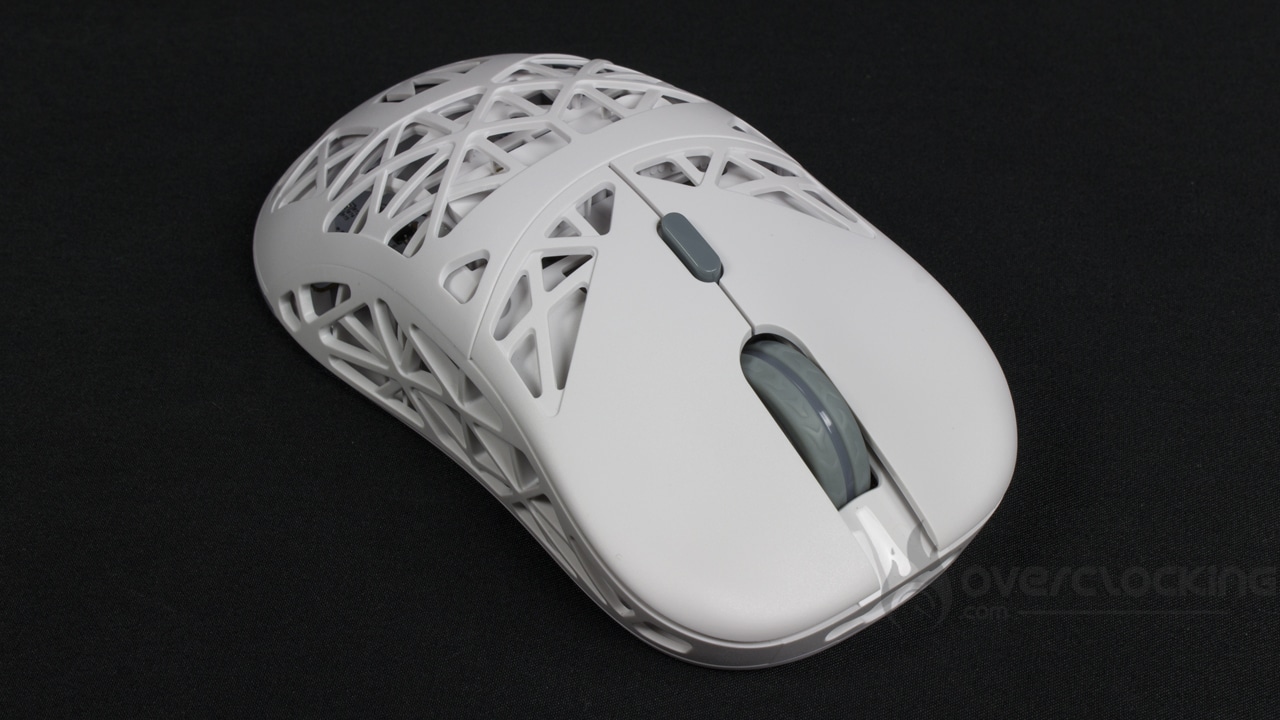
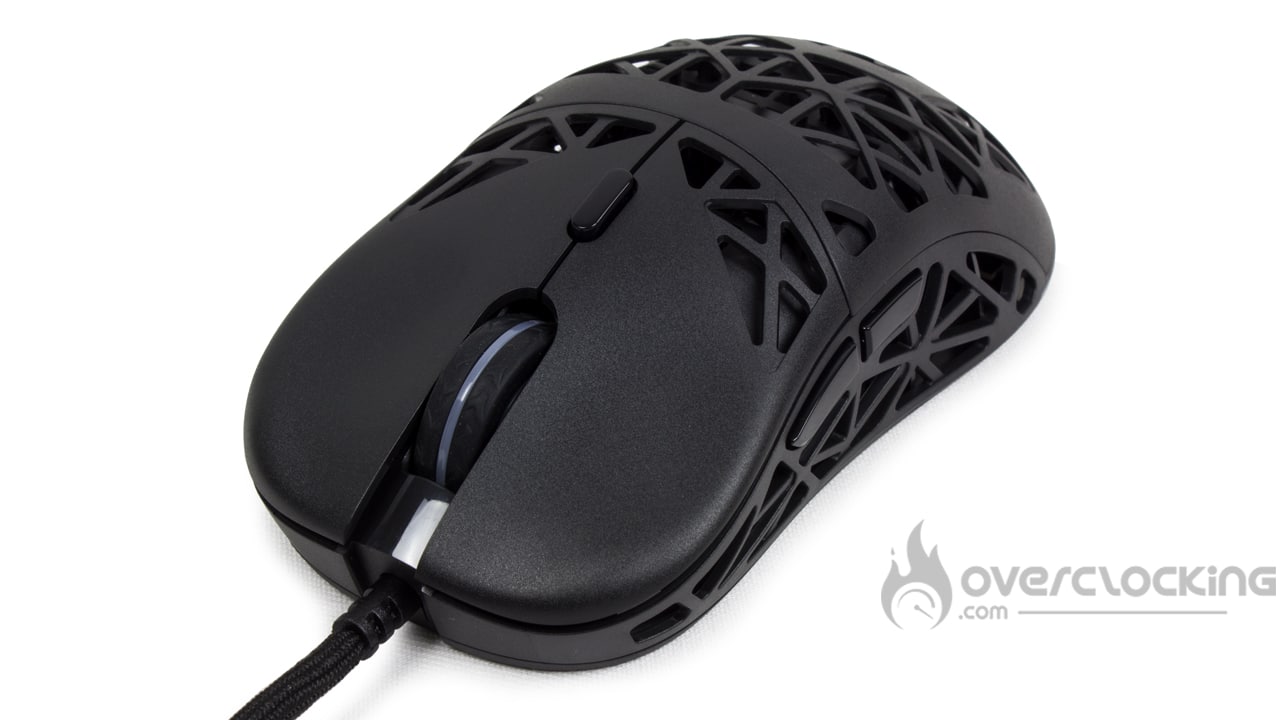
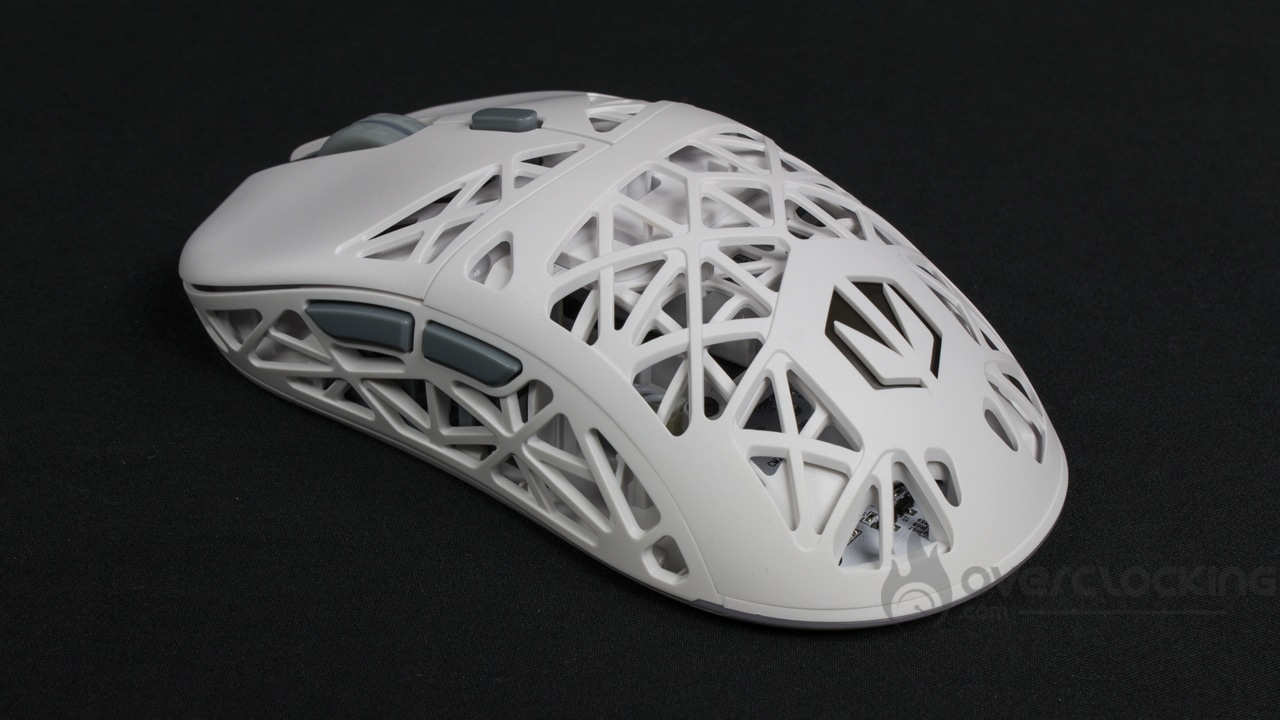

On this model, we’ve got nothing particular to say about the thumbwheel. It’s a good size, well serrated and doesn’t make any noise when in use. What’s more, the coating adheres well to the fingers.
Unlike the Lift Elite Wireless from NZXT, and despite using the Liv Plus Onyx White Wireless every day for around a month, I didn’t notice any stains or any deterioration in the mouse’s white colour. As a reminder, after using it every day for a month, the Lift Elite Wireless had turned yellow on its adhesive strips. They were completely unrecoverable!
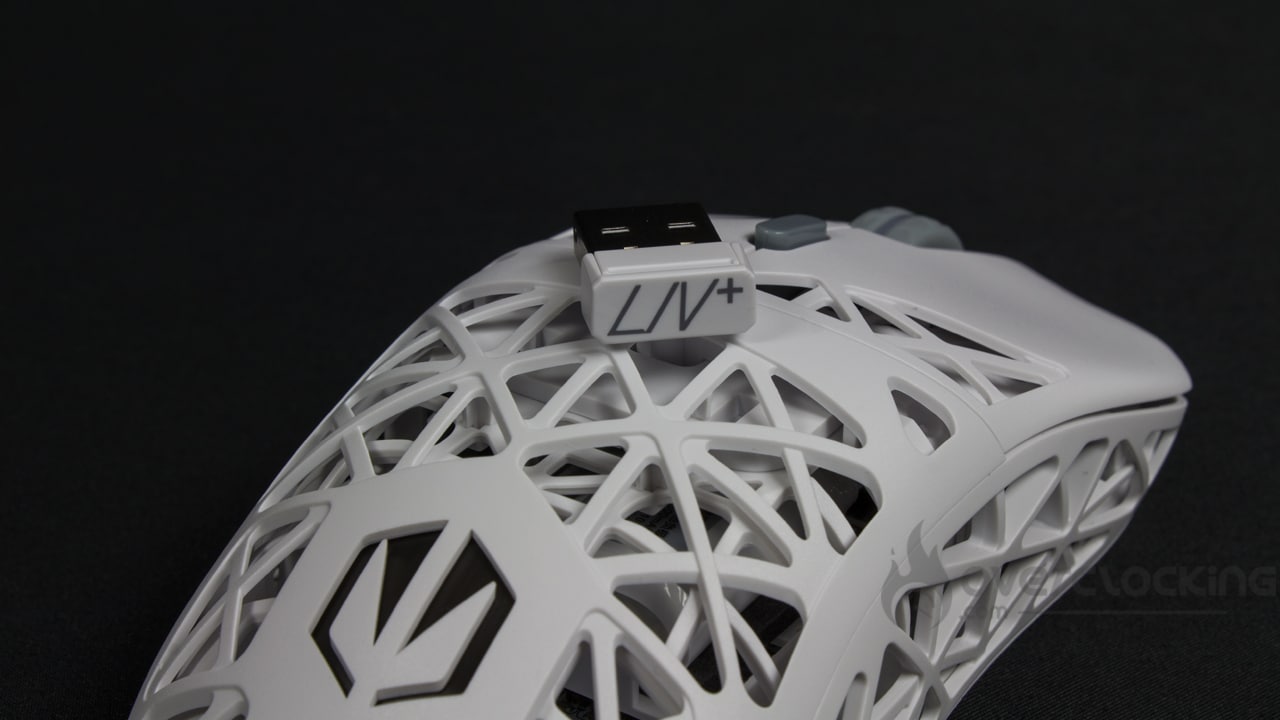
In use, the Endorfy mouse is really light, which makes it pleasant and easy to use on a daily basis. Not to mention the slightly grainy plastic of the shell and the cut-outs that give the fingers a perfect ‘grip’. There’s no need to force it into place.
Button noise:
Unlike other models we’ve seen on the site, the Liv Plus Onyx White Wireless isn’t particularly noisy in use. Its clicks aren’t too sharp. Similarly, the scroll wheel makes absolutely no noise when I ‘roll’ it. On the other hand, the thumbwheel click is more audible and resembles the noise of the two left and right clicks. All in all, though, it’s very discreet when you’re using it.
Feel free to listen to the recording below to get an idea:
Gliding :
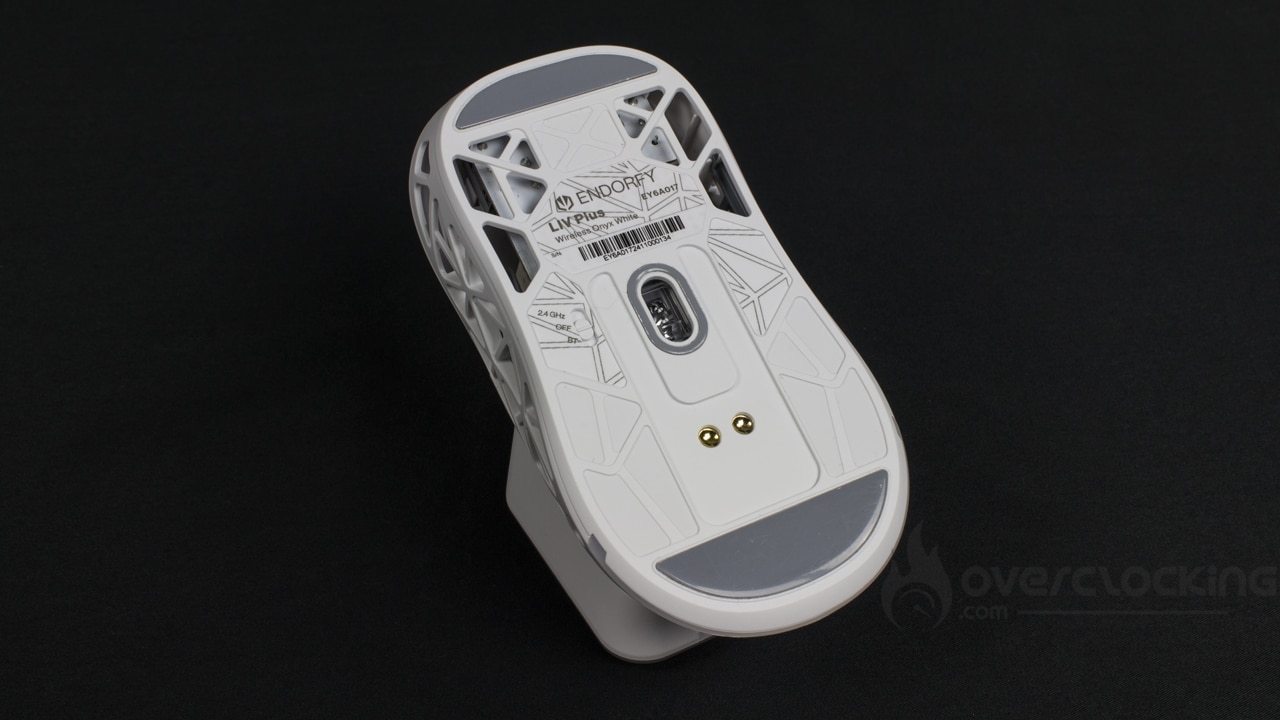
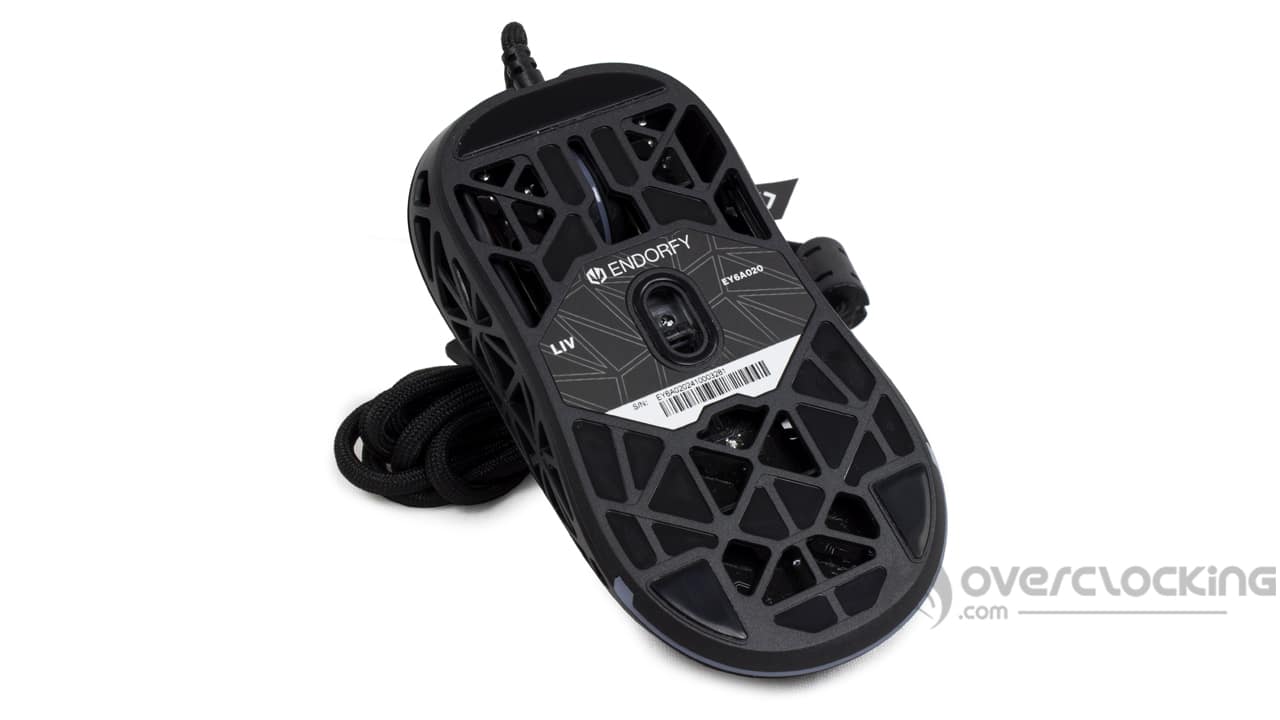
With the new Endorfy mice, I’m not worried about glide. On my XXL fabric mat (Corsair MM350 Extended XL), it’s fluid and I’m not held back by the PFTE glides. However, on my wooden desk, the large PTFE glides (at the top and bottom) will reduce the glide of our mouse of the day somewhat and give the impression that it glides less well. You’ll have to get used to this feeling if you’re using a rigid support, such as a wooden piece of furniture, or a rigid mouse pad, like the MM1000 Qi for example.
RGB:
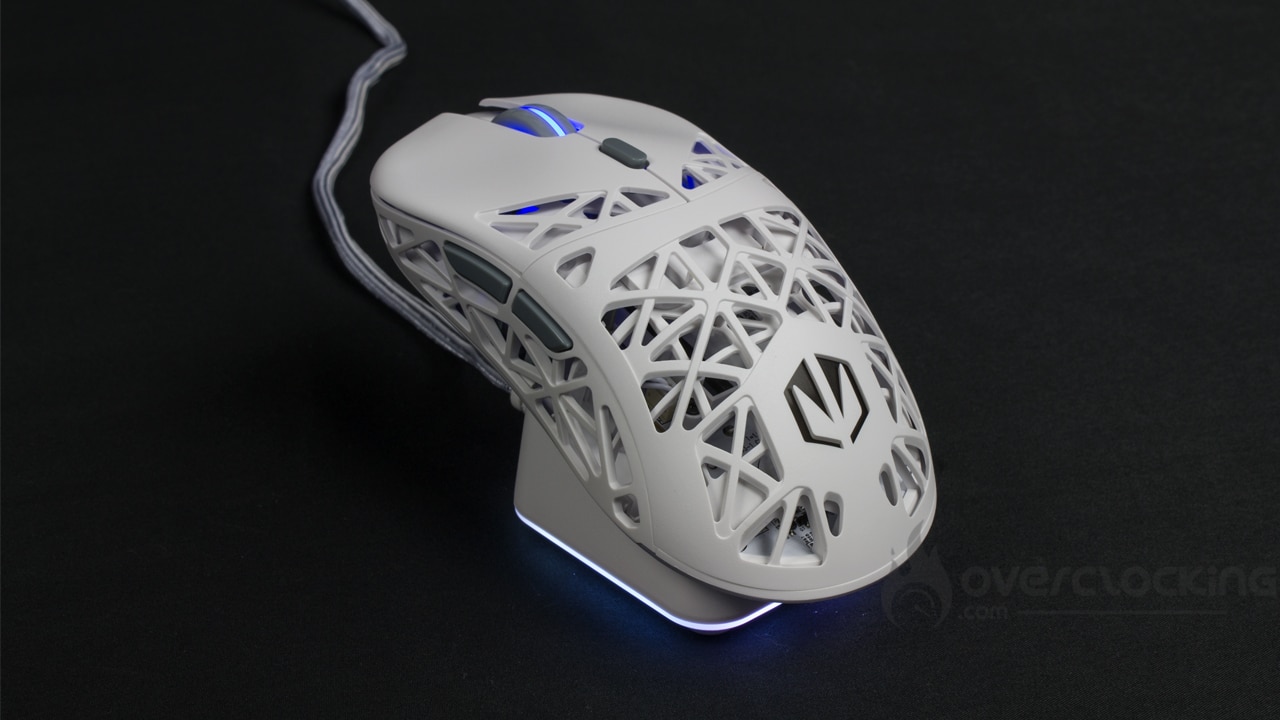
Even though we’re dealing with a wireless mouse, and unlike the Lift Elite Wireless, here we have pretty RGB LEDs. They’re pretty faithful to the real thing, with green and yellow coming out well, for example, and the same goes for white. On the wireless version of the mouse, the charging base is also illuminated with LEDs. It’s nice… but when your PC is switched off, the base continues to be illuminated. If you have this mouse in your bedroom, for example, you may have no choice but to turn off the lighting effects so as not to be disturbed at night!

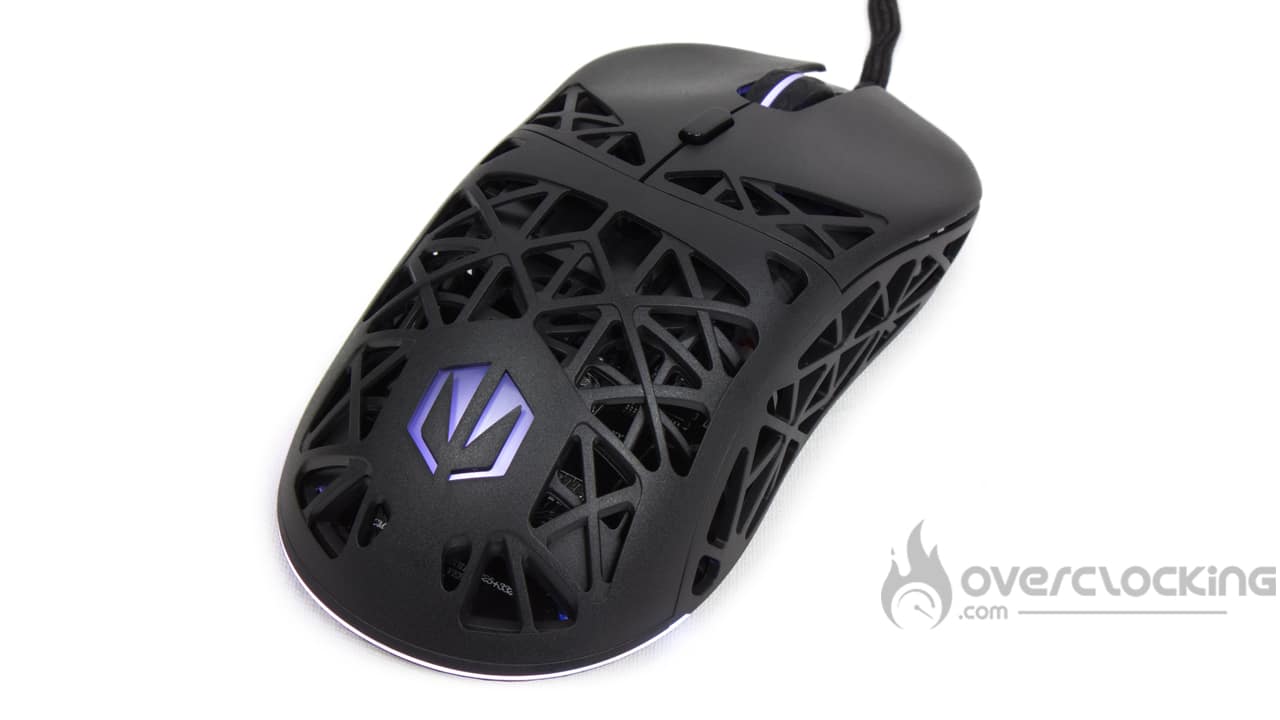
On the other hand, the lighting effects and colours stand out well, so if you like that, you’ll be delighted. And if, on the other hand, you hate RGB, download the software and deactivate them!