
Today we’re reviewing the MSI MPG Z790 Carbon Max Wifi, a complete high-end motherboard for gaming and creative use. This is the first MSI Z790 motherboard we’ve tested, here the Carbon’s “MAX” refresh brings Wifi 7 and an M.2 5.0 slot, but is it really limited to that? Let’s see what this board can bring us in terms of performance.
For the moment, this model is not yet available for sale in Europe, but we can expect a price tag of €479.

Thanks to MSI for providing us with a copy for this test.
[nextpage title=”The MSI MPG Z790 Carbon Max Wifi:”]
The bundle:
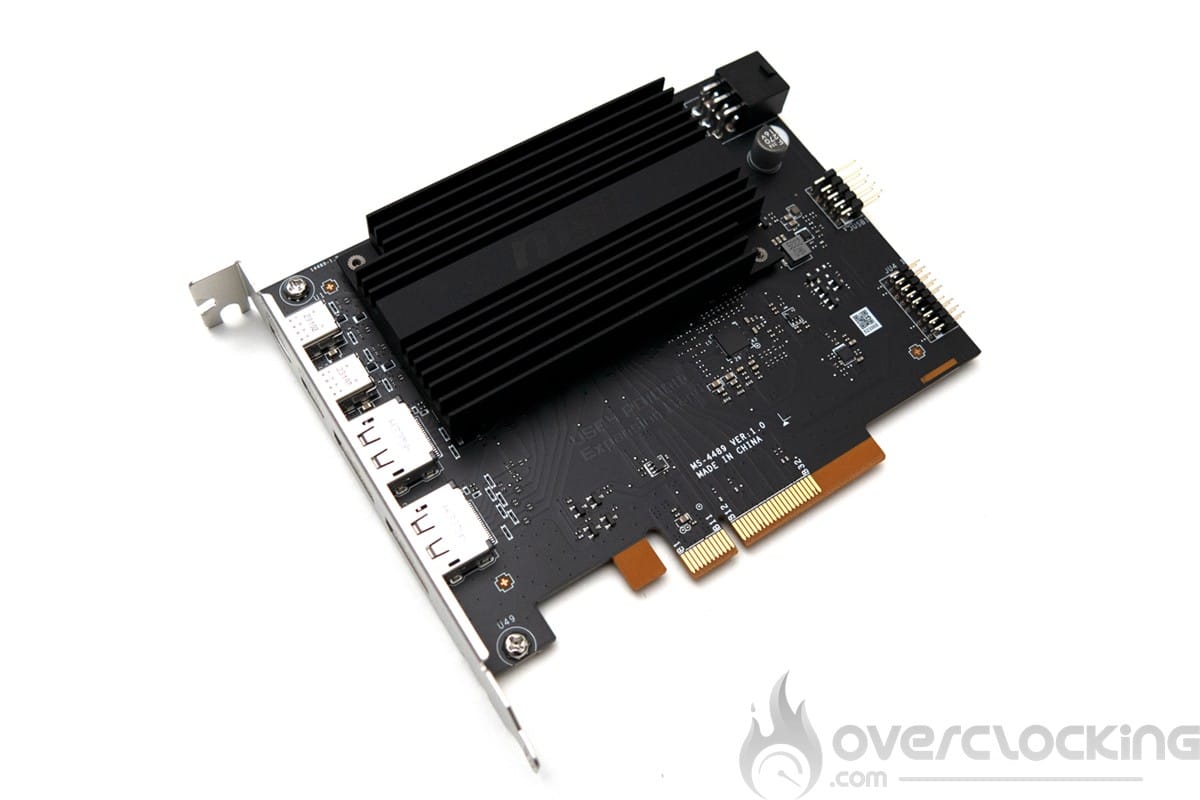
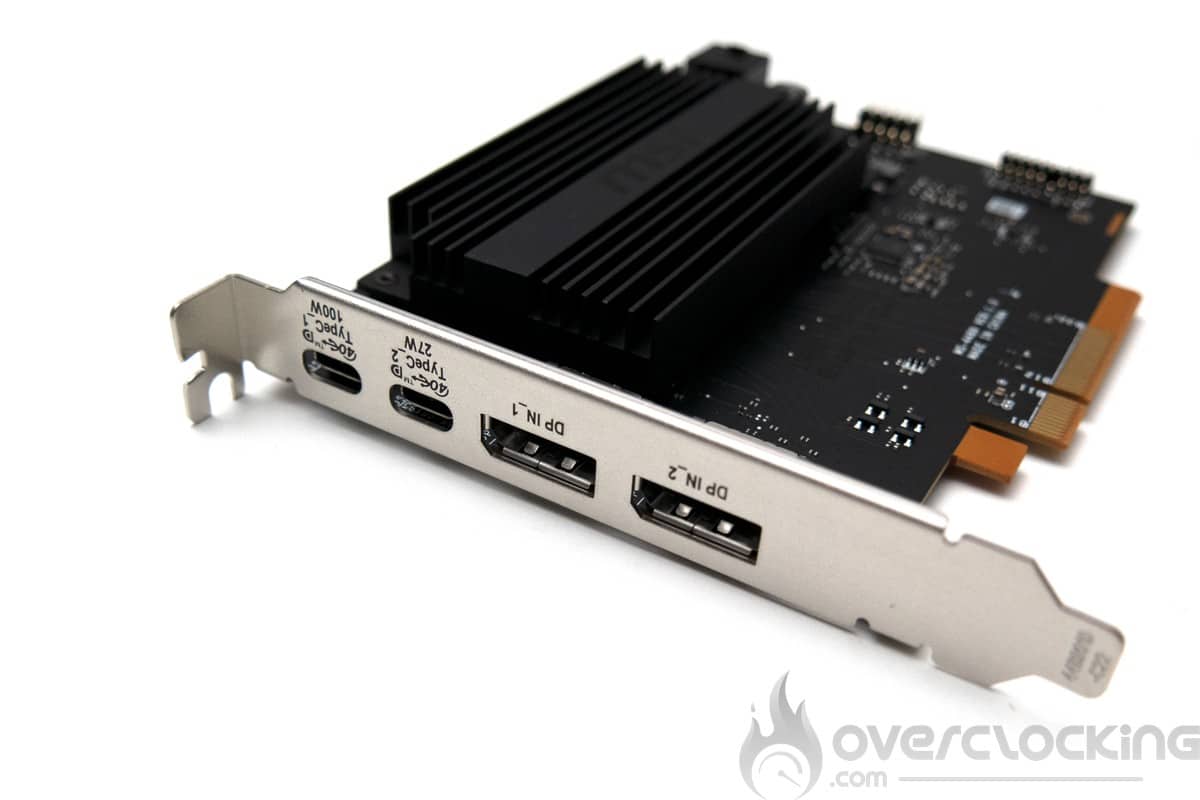
A quick look at the bundle for this Z790 Carbon Max to see how well supplied it is. Unsurprisingly, we find something fairly standard: SATA cables, manual, CD and Wi-Fi antenna. However, MSI also includes a PCIe card to add a Display port to USB 4 card to its bundle. This makes the card more interesting for graphic content creation.


Architecture:
This Z790 Carbon Max is still on a Z790 chipset, here the “MAX” refresh is just a marketing name to differentiate these two ranges. Here, we have DDR5 support, PCIe 5.0 with this time a M.2 5.0 slot on the PCB and, last but not least, native support for 14th-generation Intel CPUs.


The various heat sinks :
The dimensions of the board are 305 mm x 244 mm, corresponding to the ATX format. The dominant colors on the PCB are black, with touches of gray on the heat sinks. There’s very little RGB here, which makes it very sober, and there’s a switch on the PCB to disable RGB.

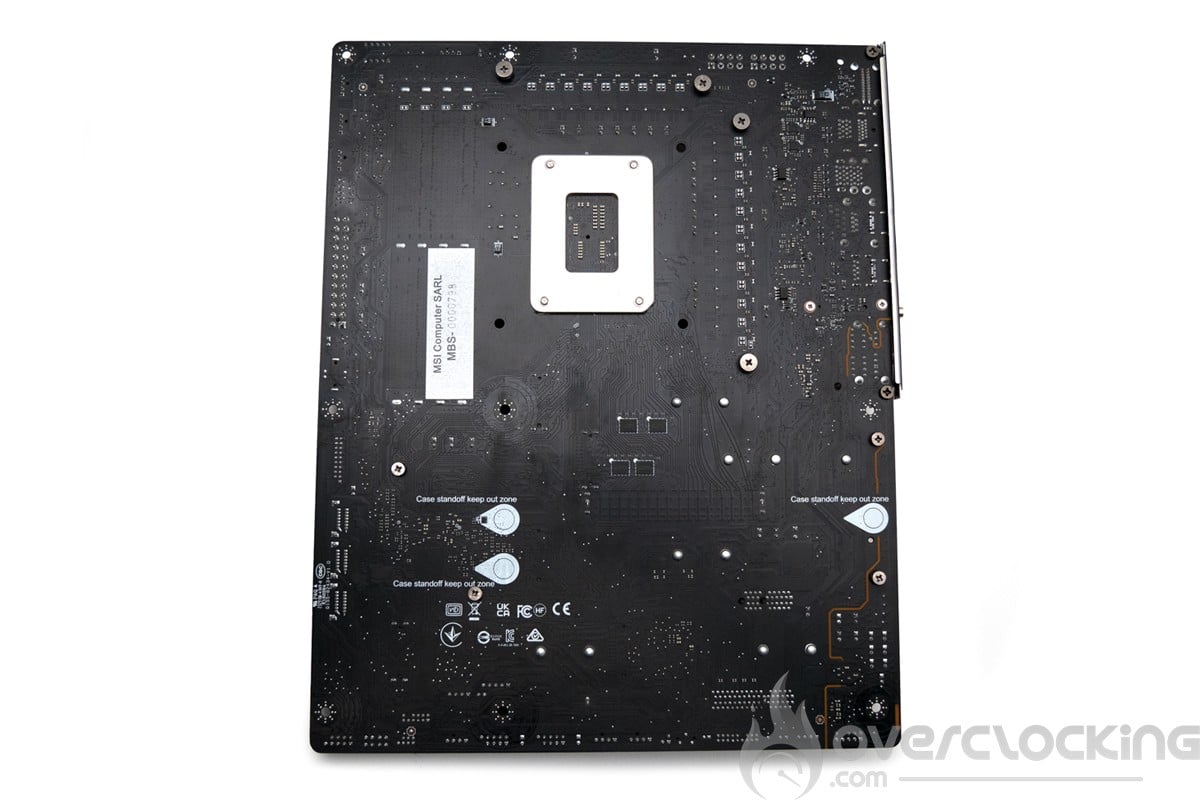
On the cooling side, for the VRMs we have two aluminum radiators covering the IO, connected by a heat pipe. For the chipset, we have a large radiator based on the design of the VRM radiator. For the M2 slots, we have 2 heat sinks for the M.2 slots located between the PCIe slots. The last heatsink for the M2 PCIe 4.0 slot is tool-free with the MSI magnetic system.


Five M.2 SSD slots:
We start with the first M.2 slot, connected to the CPU in 4.0, which sits on top of the first PCIe slot. This is cooled by a passive radiator with MSI’s tool-free system. The second slot just below is also wired to the CPU, but this time in PCIe 5.0. We then have three PCIe 4.0 M.2 slots between the PCIe slots, one of which supports SATA.
Technically, we have plenty of M.2 slots, but we’ll have to make do with the PCIe 5.0 line limitations of Intel CPUs, which limit the first PCIe 5.0 slot to x8 if the M.2 5.0 slot is used. As for SATA, we have 6 standard slots.
Socket and PCIe :
The space around the socket is clear to allow compatibility with a maximum number of cooling systems. For PCIe slots, we have a PCIe 5.0 x16 slot, a PCIe 3.0 x1 slot and finally a PCIe 4.0 x4 slot.


This Z790 Carbon Max supports dual-channel DDR5 memory kits up to 7800 Mt/s (OC) and for a maximum quantity of 256 GB.
To power all this, the board has a 24-pin connector and 8 8-pin connectors next to the power supply stages.
[nextpage title=”PCB and connectors:”]
Clocker tools :
Let’s start with the PCB and IO inserts that can be interesting tools for overclockers. They are quite varied on this motherboard, given its price.
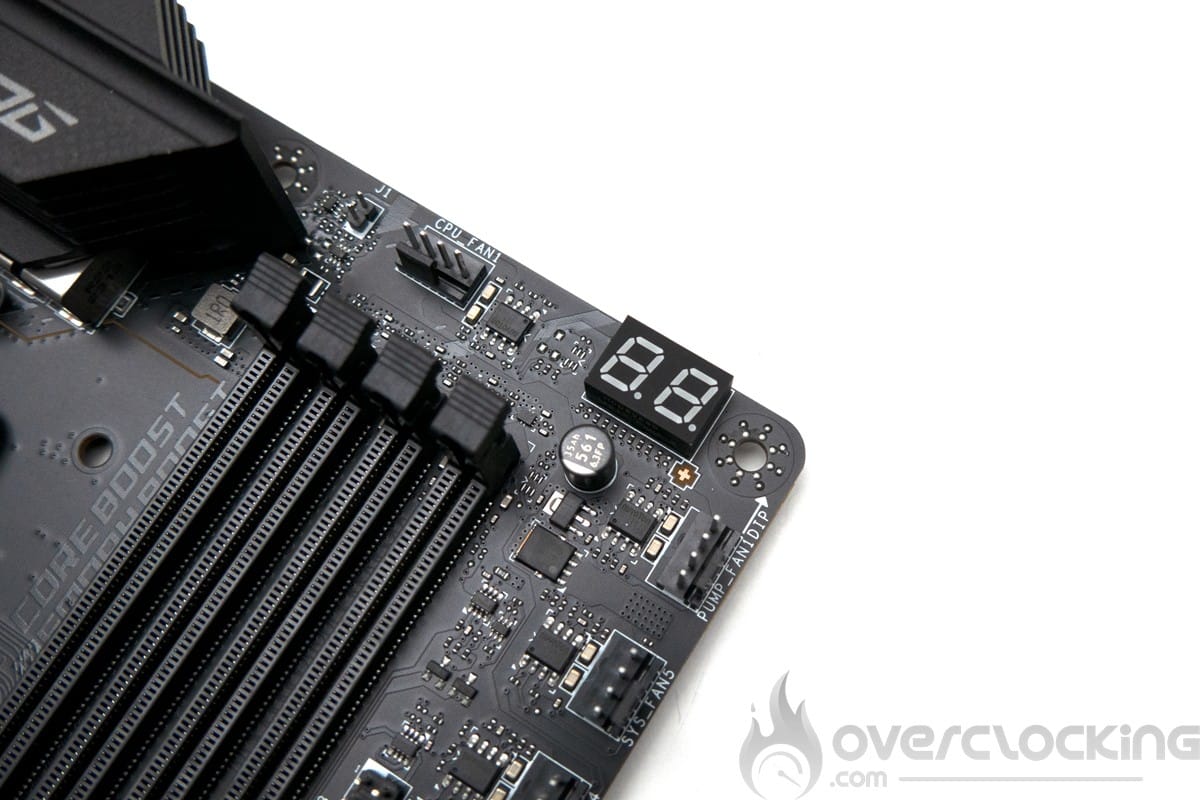
- Qcode: reads train sequence and error codes on a two-character display.
- SMART Button: once set in the Bios, allows you to either restart the configuration, access the Bios directly or start up in safe mode
- Clear CMOS Button : clears the Bios configuration
- Flash-BIOS button: to flash Bios without a compatible CPU or RAM.
- Status LEDs : depending on their color, they can be used to identify a problem or determine the voltage level of a component (CPU – DRAM – VGA – BOOT).
PCB:
This MSI MPG Z790 Carbon Max WiFi is pretty straightforward in terms of the PCB, we’re here on a well-designed and well-made motherboard, but with a real identity. On the PCB side, we’re on an 8-layer PCB.
The power supply stage is based on a 19-phase power supply for the CPU.
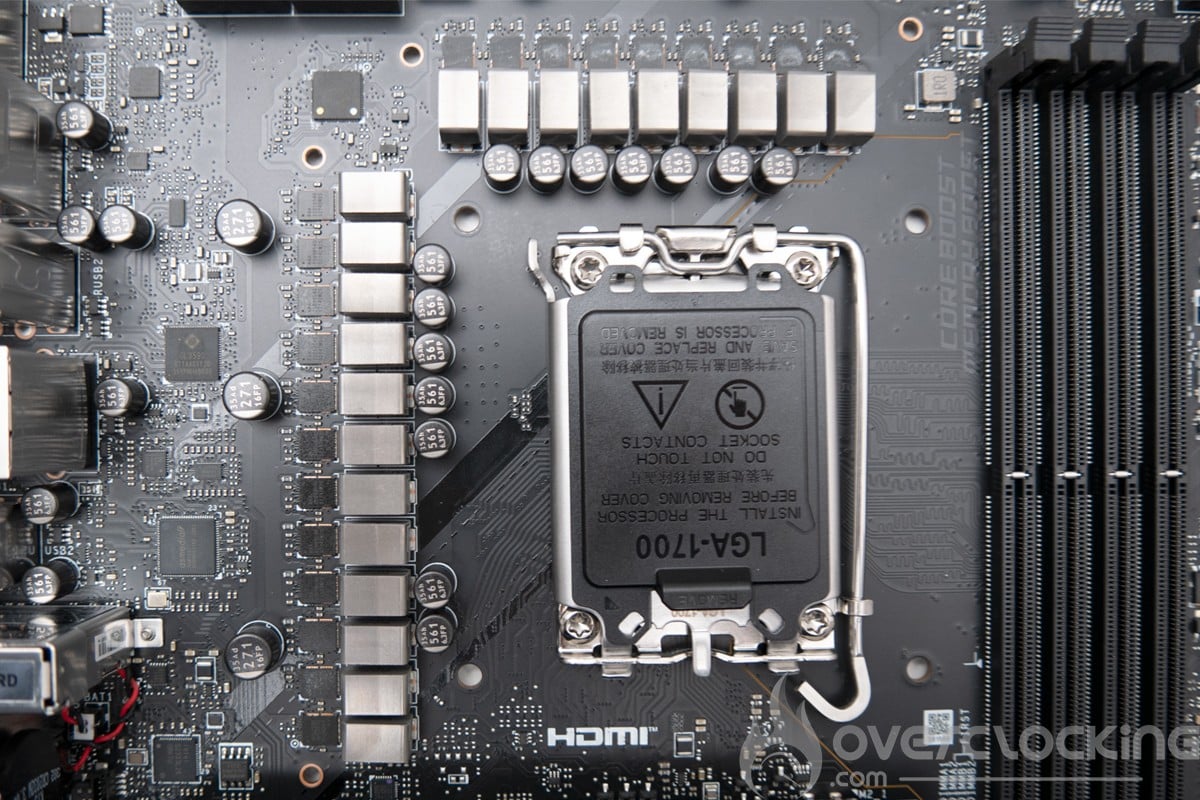
The controller used would be a Renesas RAA229131 capable of managing all phases. The 19 CPU phases are all 105 A Renesas RAA22010540s. The 19 VRMs are capable of outputting 2000 A, whereas the CPU only requires 300 A, even at 400 W. This is pure marketing hype. We then have the same configuration for the VCCGT (IGP) and VCCAUX (PCIe and IMC), each with an 80 A MPS 87670 phase.
Connectors :
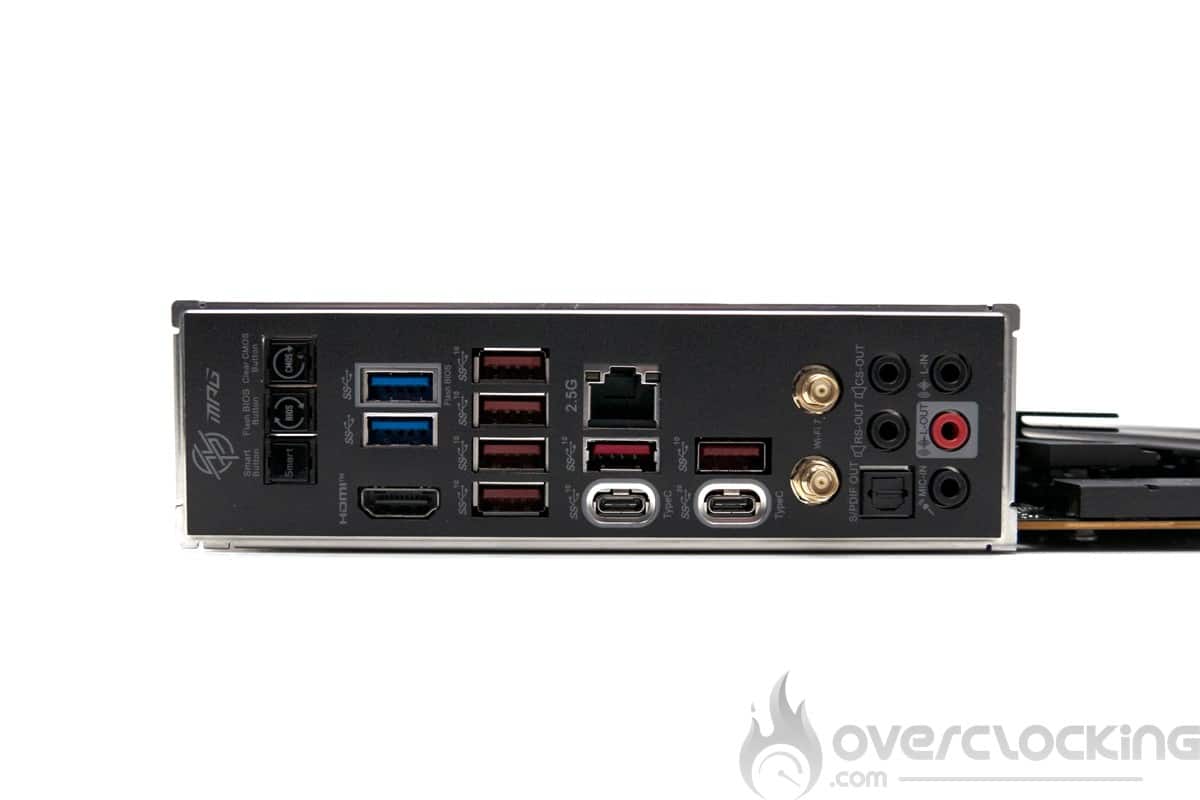
The rear panel features the following elements. Firstly, the bios / clear CMOS flash buttons and Smart Button. Then there are 2 USB 3.2 Gen 1 ports and 6 USB 3.2 Gen 2 Type-A ports. For USB C ports, we have a USB 3.2 Gen 2 port and a USB 3.2 Gen2x2 port. On the network side, we have an Intel-based 2.5GbE Ethernet port and Wi-Fi 7. The audio section features five jacks for microphone and line outputs, as well as an SPDIF out on a Realtek ALC4080 chip.
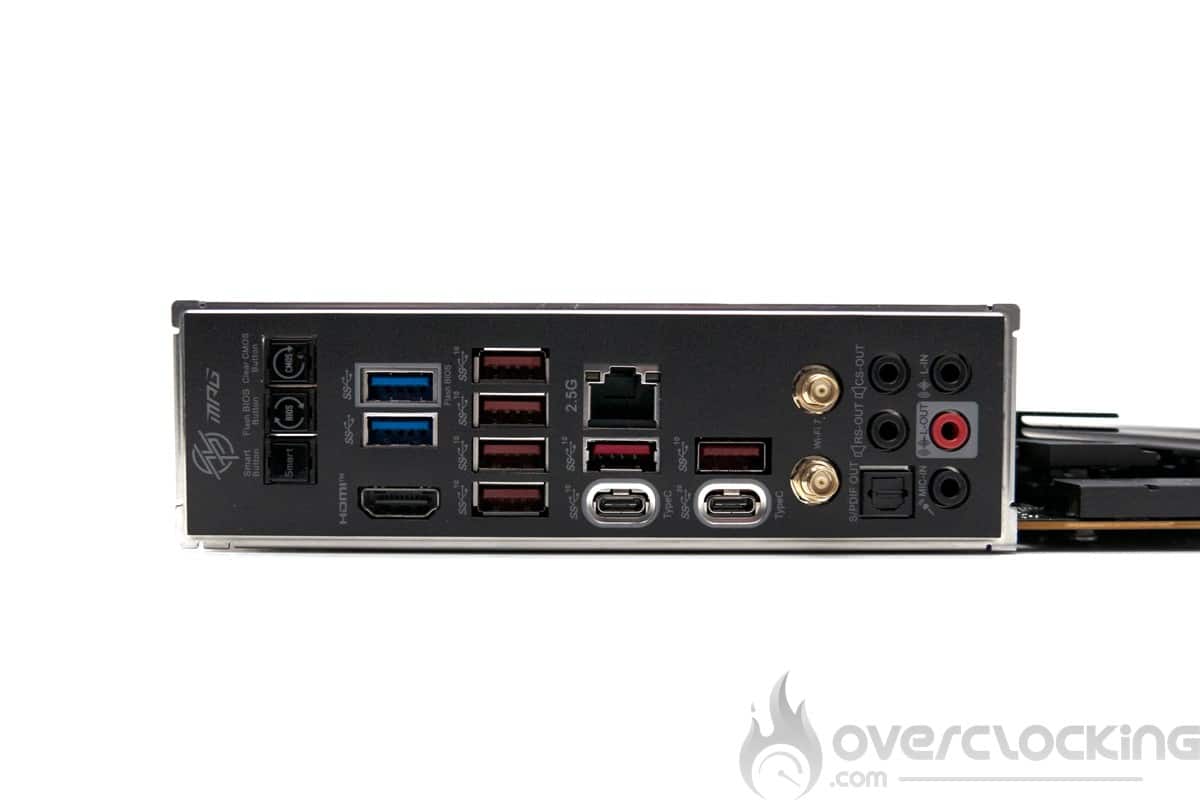
This motherboard’s connectivity could not be more complete for all types of use. With its additional USB 4 PD 100W bundle card, this is more a professional than a gaming motherboard. We regret the presence of a single Ethernet port and the absence of a 10 Gbps network card.
[nextpage title=”The BIOS”]
The BIOS :
The Bios of this MSI MPG Z790Carbon Max Wifi is very complete. However, the ergonomics and navigation between categories are not very intuitive.
For overclocking, you’ll find everything you need for a Z790 motherboard: LLC and CPU voltages, memory and IMC. It’s a good idea to activate the option to force the BCLK to 100 MHz in normal use. The BCLK can also be adjusted manually.
As for RAM, everything is accessible and the various elements bear their real names, XMPs work perfectly and we can even activate user XMPs n° 4 and 5. For memory overclocking, we used 1.2 V VCCSA, 1.35V VDDQ and 1.45V VDD2 for 8000 CL34 on the 14600KF. On the memory voltage side, we’re at VDD_mem = VDDQ_mem 0.1V. These are not definitive settings and will need to be adjusted for each use. We managed to reach 8266 CL34 by adjusting the VDDQ CPU and VDD2 to 1.4V and 1.4V.


Finally, don’t forget to activate your memory kit’s XMP! Of course, you can also modify timings and subtimings manually. Don’t hesitate to ask for advice on our forum and discord if you have any problems setting up your Bios.
We’ll come back to the overclocking section later in this article to show you the settings we’ve used.
[nextpage title=”Test configuration:”]
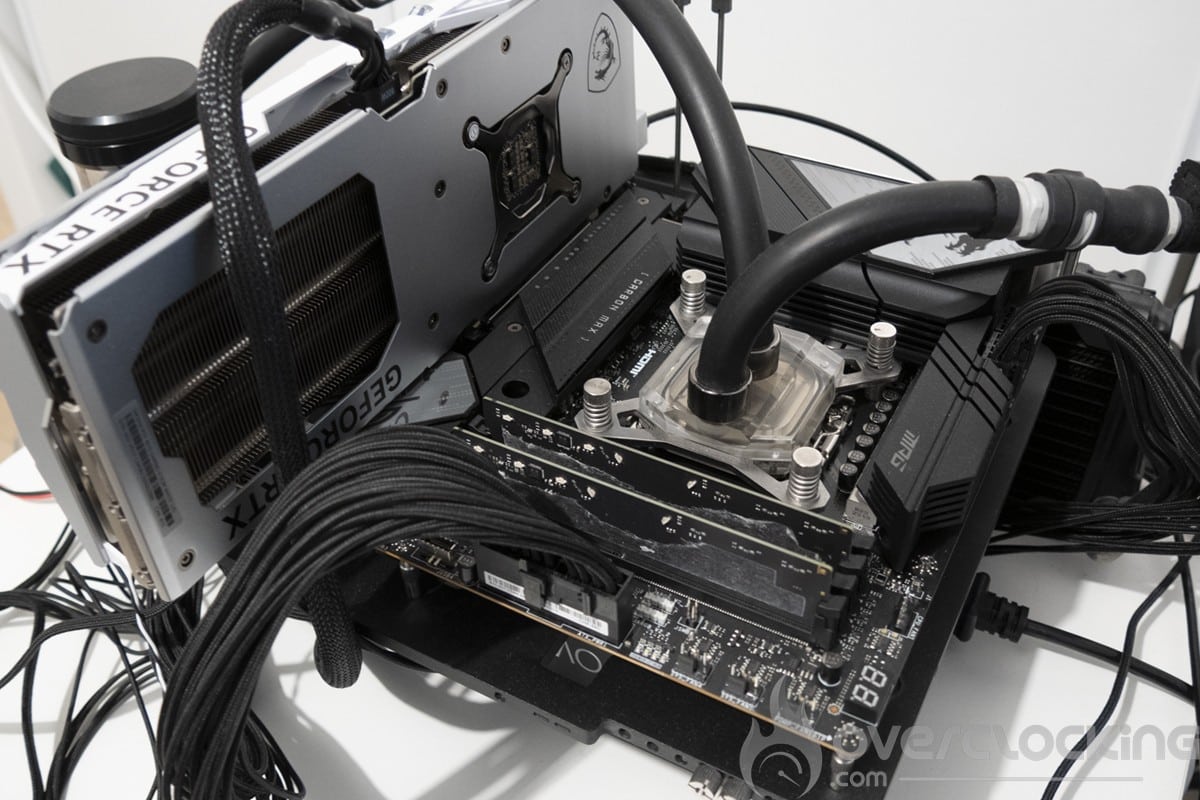
Here’s the configuration that will be used for the test:
- Motherboard: MSI MPG Z790 Carbon Max Wifi (7D89vA2)
- Processor: INTEL CORE I5 14600KF
- Memory : 2x16gb G.skill Trident Z5 7800C36
- Graphics card: MSI RTX 4070 gaming x slim white
- Cooling system: Watercool Heatkiller IV basic radiator 420mm
- SSD: PNY CS900 120 gb
- Power supply: Be Quiet ! Dark Power Pro 13 1600W
- Operating system: Windows 10 64-bit (version 21H1)
- Display: Dell S2721QSA
[nextpage title=”Overclocking CPU:”]
Our CPU overclocking section will focus on the performance of the i5-14600KF. It’s important to stress that this Z790 Carbon Max is not intended for advanced overclocking. But we’ll see that it does manage quite well, despite its layout, which doesn’t put it in the best conditions for this exercise.
Reference scores and effective frequencies :
Let’s take a look at the results obtained under Cinebench R20 and R23, taking care to note the voltage (vcore), max temperature during the benchmark, power consumption and, of course, the score obtained.
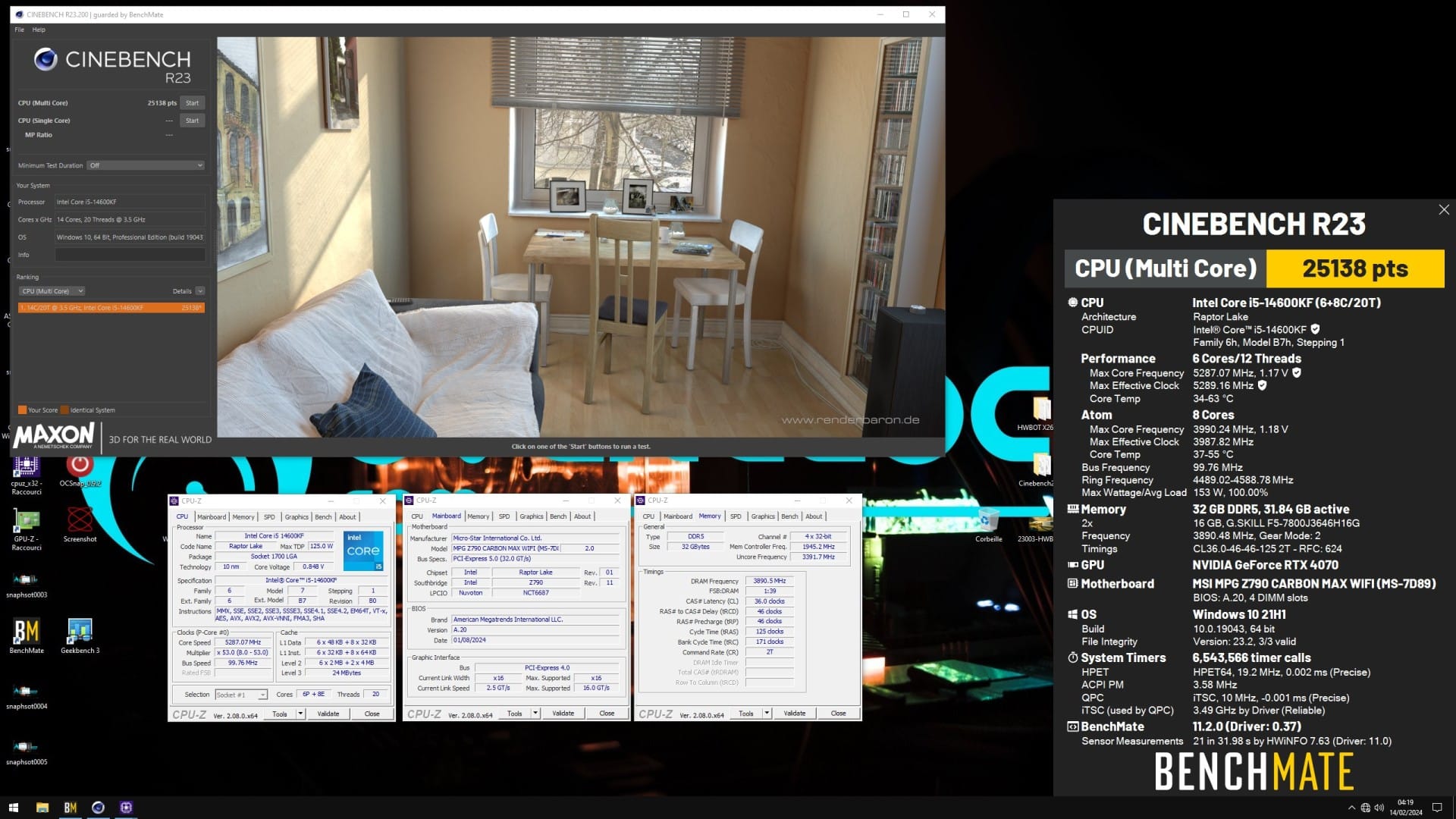
We’re taking advantage of this test to take a look at effective frequencies, voltages and temperatures. As we can see from the Benchmate window, the effective frequency is very close to the maximum frequency. Here, we’re at 99.73 Mhz at BCLK level, which has a negative impact on processor and RAM frequency. Fortunately, there’s an option in the BIOS to force the BCLK to remain at a constant 100 MHz. You’ll need to activate it to take full advantage of component performance.
Overclocking under watercooling:
To start with, I leave the BIOS on auto, setting the RAM to XMP, i.e. 7800 CL36. I therefore opted for a starting frequency of 5600 MHz with a multiplication coefficient of 56, a BCLK of 100 and a voltage of 1.25 volts. The Ecore and cache are set at 4500 MHz and 4900 MHz. The idea is then, in the OS, to test stability on several runs of multithreaded Cinebench R23.
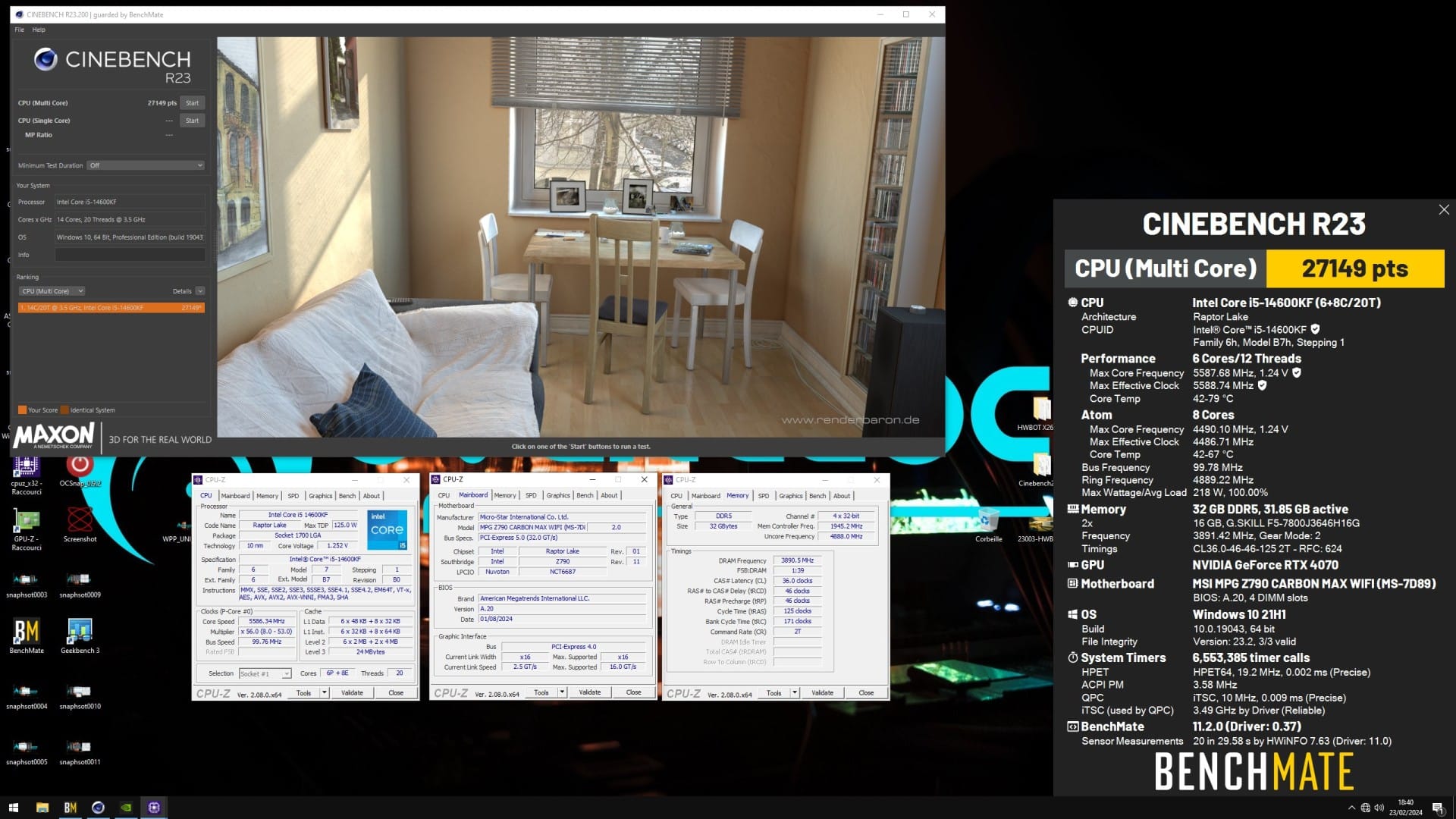
As you can see, it’s quite stable on Cinebench R23. Temperature is fairly contained at 79°C for a load voltage of 1.24V. We can therefore push the frequency even further, this time with 5900 MHz on the Pcore, 4500 MHz on the Ecore and 4900 MHz on the cache.
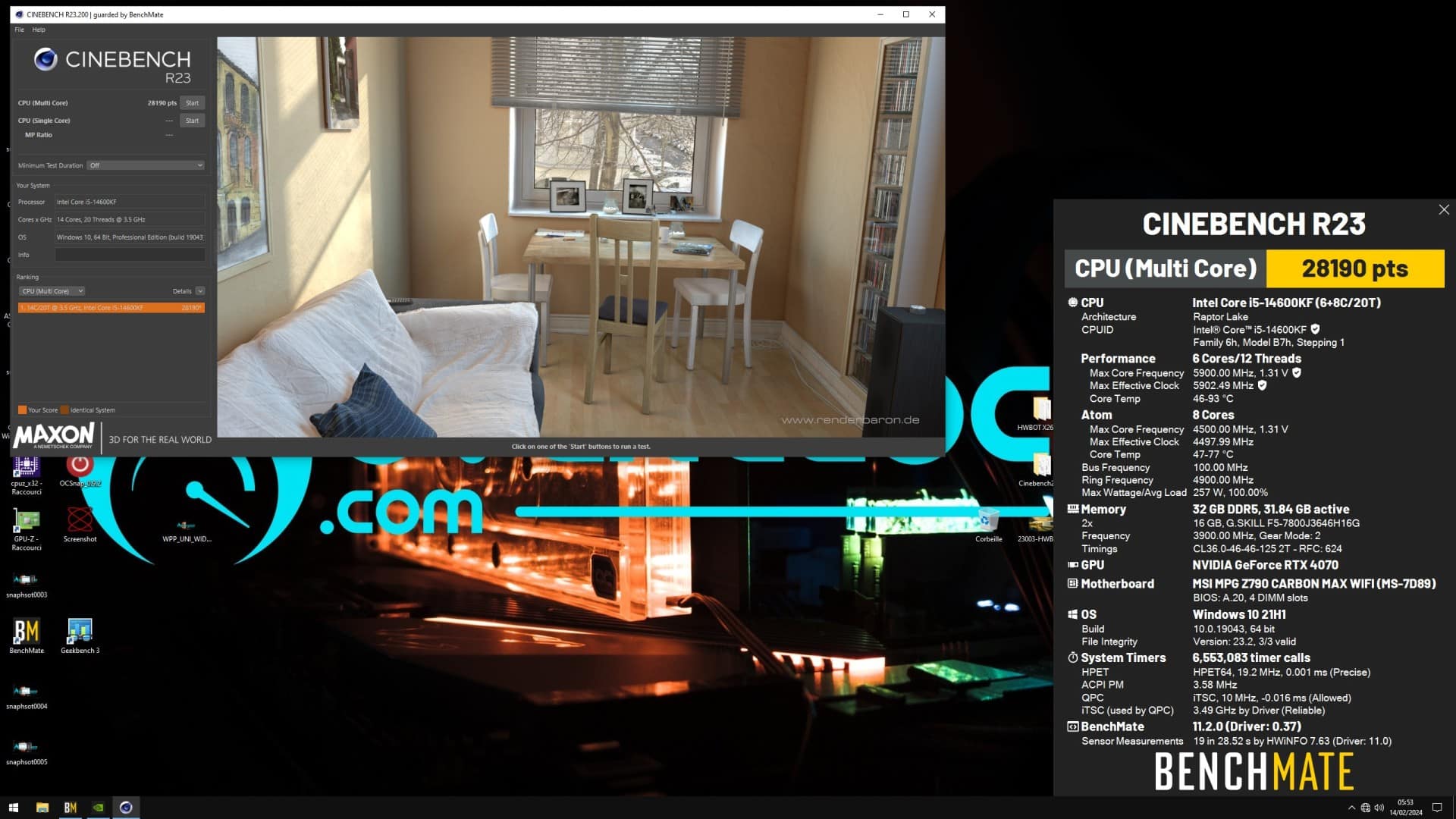
As we can see, the motherboard easily manages to keep up with this frequency. The actual frequency is on a par with the requested frequency. It’s worth noting that our I5 14600KF example is particularly good – many won’t hold such frequencies. The temperature is quite high, however, and the Vcore seems quite high under load. We’ll have to look further afield to gain in temperature, but the result is acceptable for moving on.
[nextpage title=”Memory overlocking”]
We now move on to the most interesting part of this test, namely memory overclocking. We’re expecting a lot from this motherboard, whose hardware could lead us to expect good memory performance.
All memory tests were carried out with a CPU frequency of Pcore 5800MHz, Ecore 4500MHz and cache 4900Mhz. The kit used is the GSkill Trident Z5 RGB 7800C36 equipped with Hynix Adie chips.
XMP test
We start with the Aida64 and Geekbench 3 tests with XMP memory. Here, performance perfectly reflects what you’d expect from the kit used.


Maximum overclocking
We pushed overclocking to its maximum with 8266 CL34. The gain is around 2250 points on the CPU score and over 4000 points on the memory score on Geekbench 3. On AIDA64, we reach 124 Gb/s and drop below 48 ns latency, which is excellent. We feel we’re at the motherboard’s limits after 8000 Mt/s, which is very disappointing for a Z790 motherboard in 2024, and a refresh version at that.


[nextpage title=”Conclusion:”]
Conclusion:
With the MPG Z790 Carbon Max Wifi, MSI offers an ultra-complete solution for content creators. The card will be perfectly at home in gaming too, but its great strength lies in its up-to-date connectivity. In terms of performance, you’ll have to stick to MSI’s maximum capacity of 7800 Mt/s in XMP. Memory overclocking is very disappointing for a motherboard costing around €500, and it’s not much better on the CPU side. The board offers features that could prove interesting for optimizing your machine, such as Qcode, but it’s a bit lonely on the PCB, with no power or reset buttons. MSI has made a real effort in this respect with the SMART Button, even though I didn’t use it at all due to its location on the IO shield.
For the moment, this model is not yet available for sale in France, but we can expect a price tag of €479.
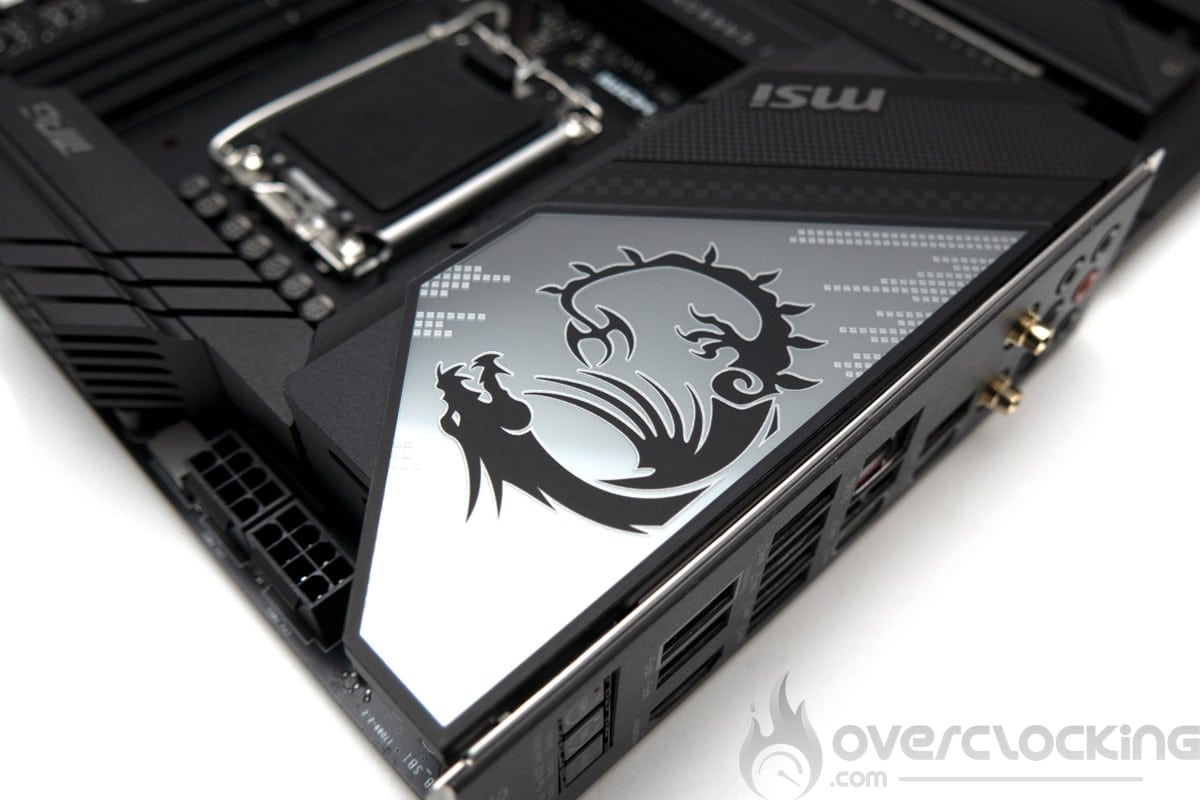
MSI MPG Z790 Carbon Max Wifi
We liked :
- Connectivity
- USB4 card bundle
- The design
- M.2 PCie 5.0 port on PCB
We would have liked :
- A real technical evolution vs Z690 and Z790
- Good memory stability at least at 8266 Mt/s
- A second 10 Gbps Ethernet card
- Power and reset buttons on the PCB (or as a bundle)

With the MPG Z790 Carbon Max Wifi, MSI offers a more than complete motherboard for professional and/or creative use. It’s no less interesting for setting up a gaming configuration if you’re looking for high-end connectivity. On the other hand, we have the impression that MSI is resting on its laurels with this refresh, which offers nothing new in terms of RAM or CPU performance.

