

[nextpage title=”Introduction:”]
As a follow-up to the brief we posted, Corsair France contacted us to offer us a copy of their new Corsair ThermalProtect PCIe 5.1 600W 12V-2×6 cable. This cable is designed not only to power, but above all to protect modern GPUs. The last protection we reviewed, albeit on a very different principle, was the Thermal Grizzly WireView PRO II.
If you’re equipped with an NVIDIA RTX graphics card featuring a 12V-2×6 power connector, you know that there’s “a risk” of it going up in smoke. Personally, I’ve already had the opportunity to test a number of RTXs with this power connector, without encountering the slightest problem. Unfortunately, it’s the top-of-the-range models that suffer from the above-mentioned problems, mainly the RTX 5090s and previously the RTX 4090s. In the event of a problem of this kind, the graphics card is often unusable, and sometimes the after-sales service is nowhere to be found! A number of brands have decided to take action, offering safety systems. These include MSI’s GPU Safeguard technology and ASRock.
Now Corsair has come up with its own solution with the arrival of the Corsair ThermalProtect PCIe 5.1 600W 12V-2×6 cable. Thanks to Corsair for sending us a copy.
[nextpage title=”Corsair ThermalProtect 12V-2×6 cable:”]
Bundle and packaging:
No particular bundle, our sample was delivered to us in a brown cardboard box with two documents, a guide concerning the guarantee and the conformity of the product.
The Corsair ThermalProtect PCIe 5.1 600W 12V-2×6 cable will be available in either white or black and priced at 17.90 euros. Corsair’s idea is to give you the peace of mind to get the most out of your graphics card. This new 12V-2×6 cable features integrated Over Temperature Protection technology. Measuring 650 mm in length, it is compatible with any power supply featuring a native 12v-2×6 connector. In other words, your power supply must have a 12V-2×6 slot.
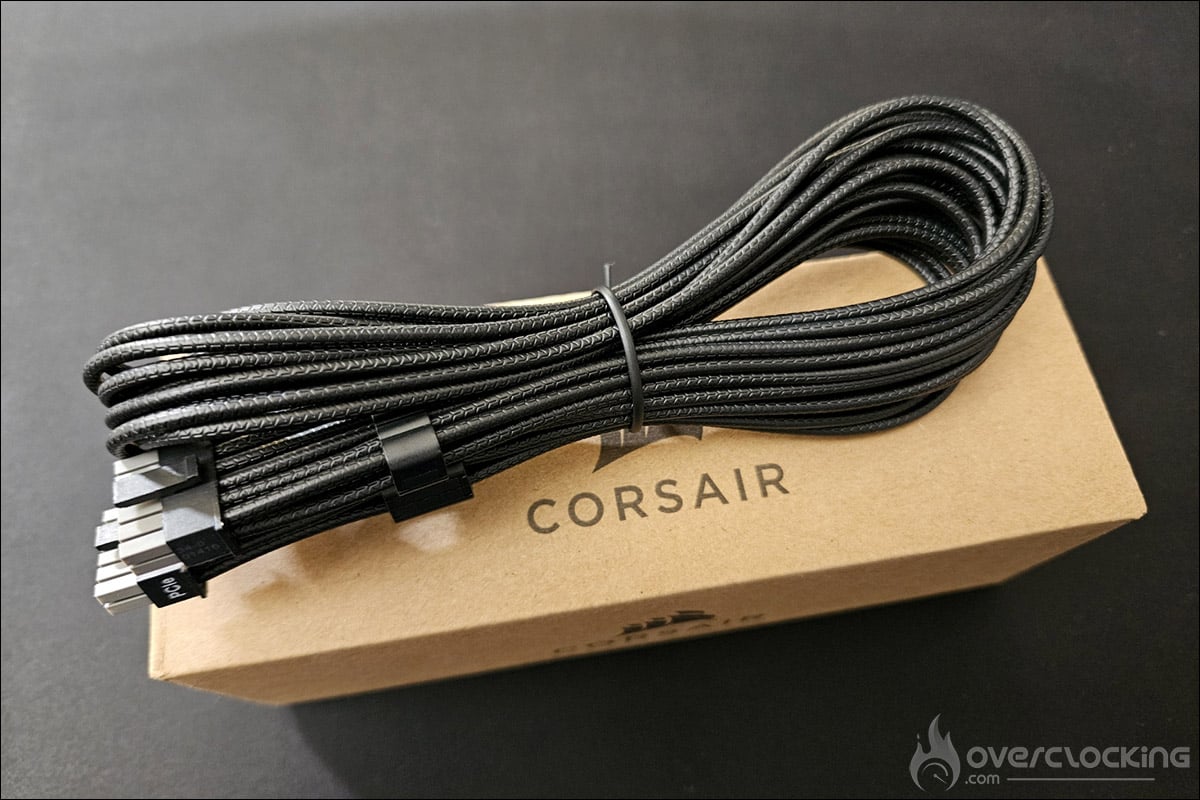
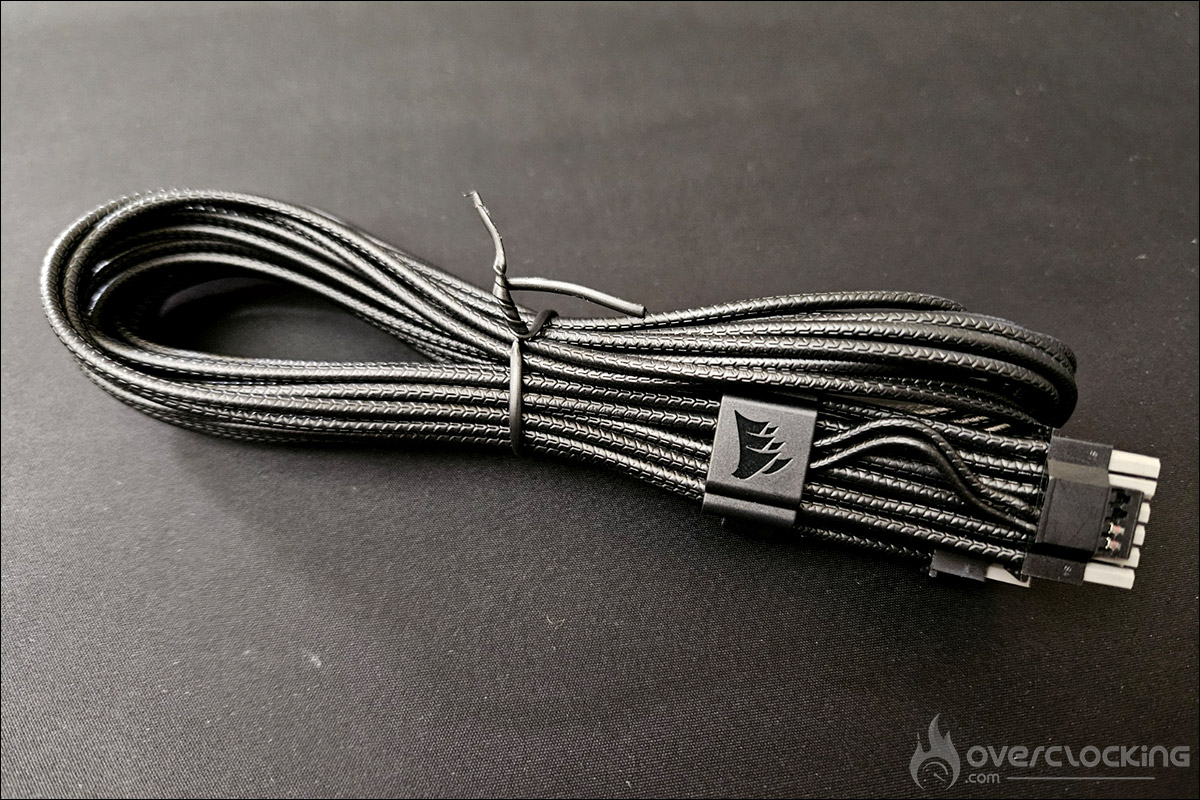
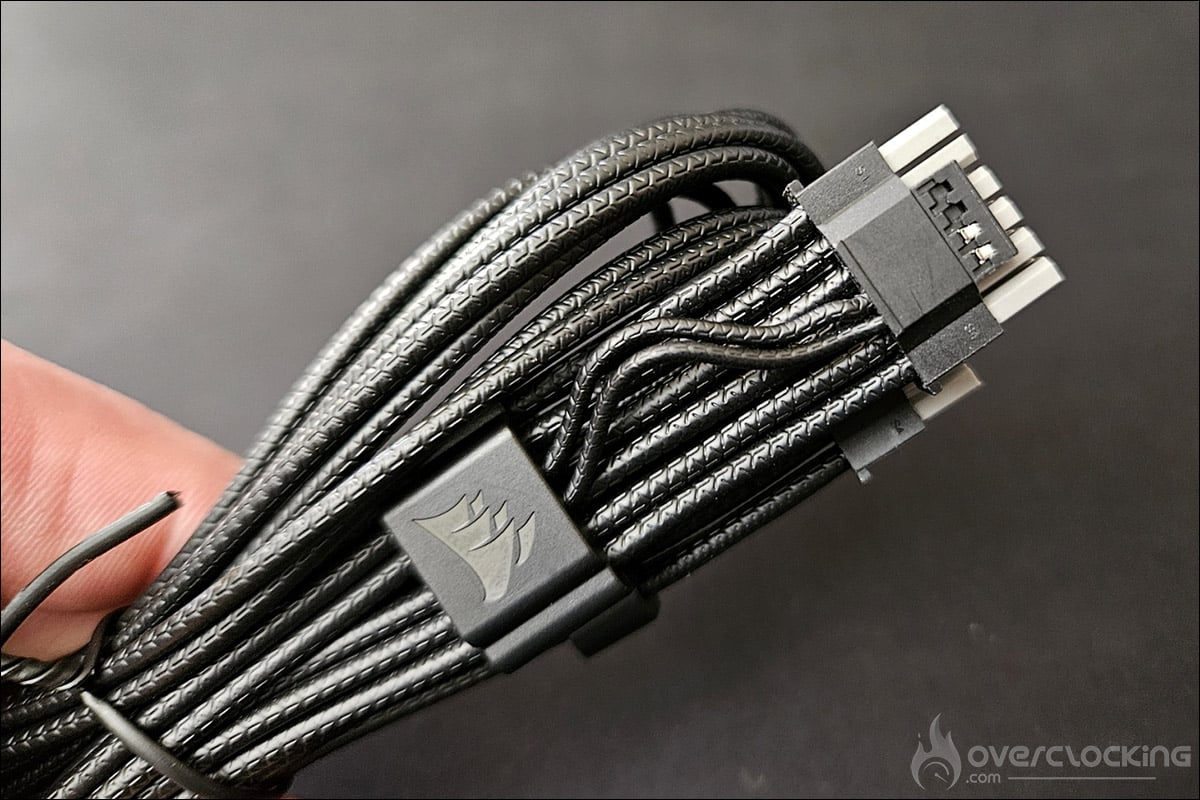
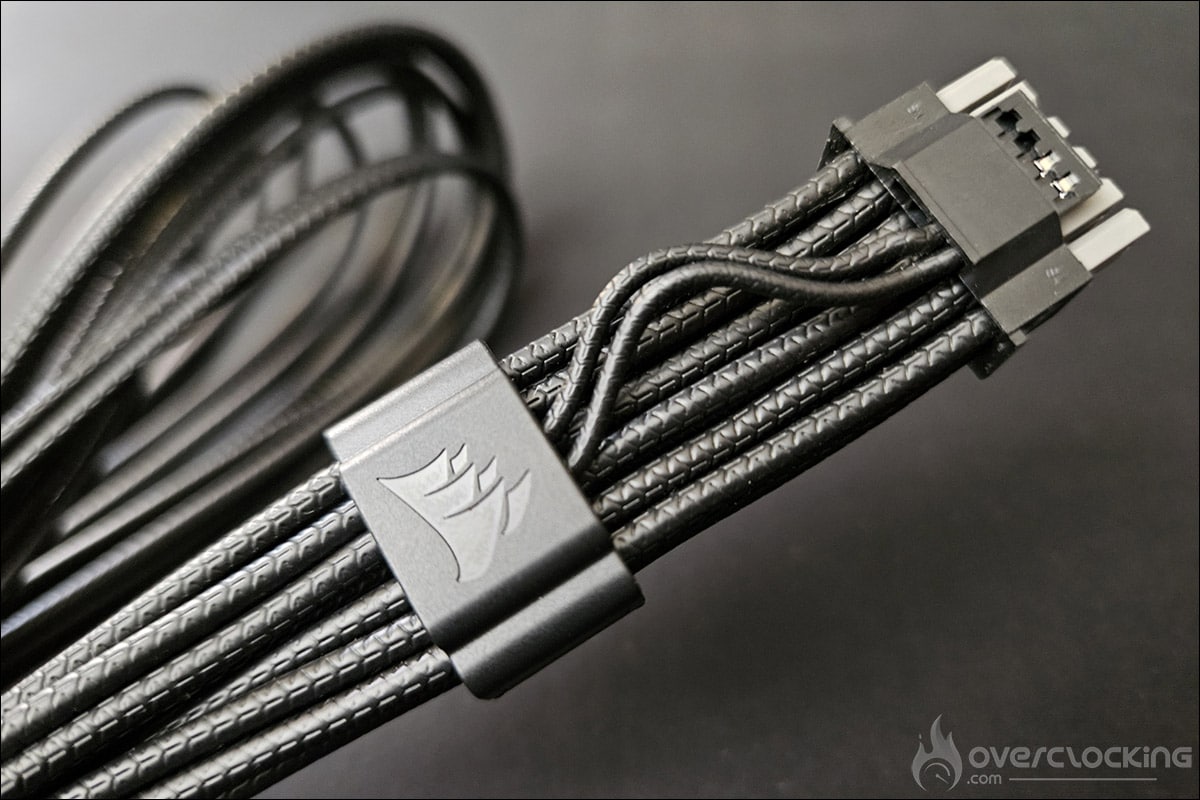
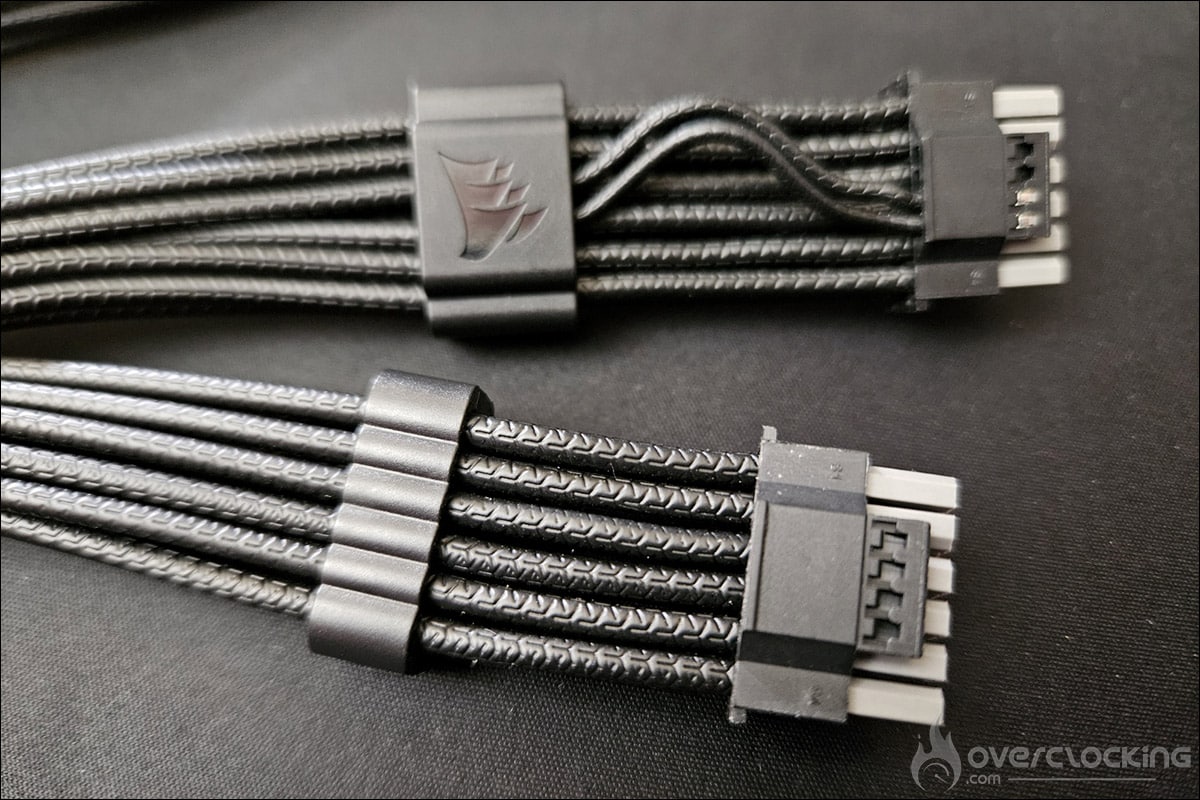
If you look closely at this new cable, you’ll see a comb on the side of the connector that will power your graphics card. This is equipped with an integrated temperature sensor (KSD sensor), whose role is to measure the temperature of the wires and not the current intensity, in order to protect the GPU and the cable. We can see that, starting from this comb, two wires will be integrated into the sensing pins of the 12V-2×6 connector, in sense 3 and sense 4 to be precise.
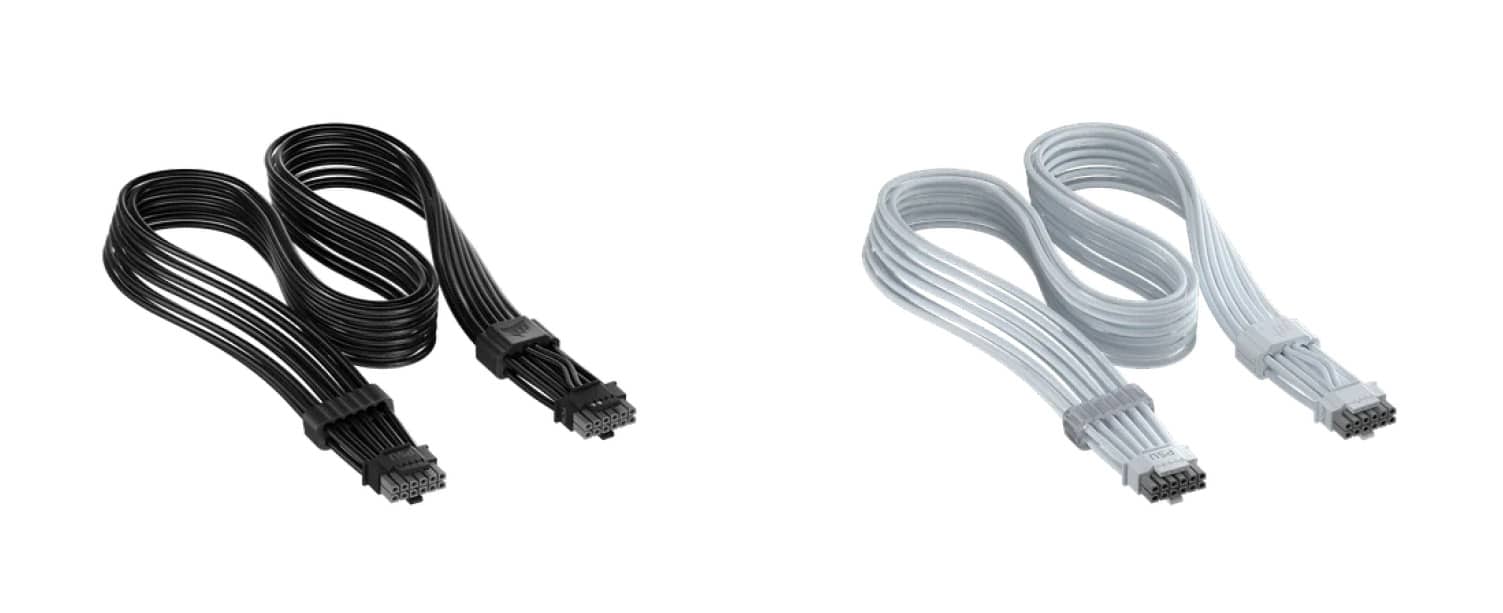
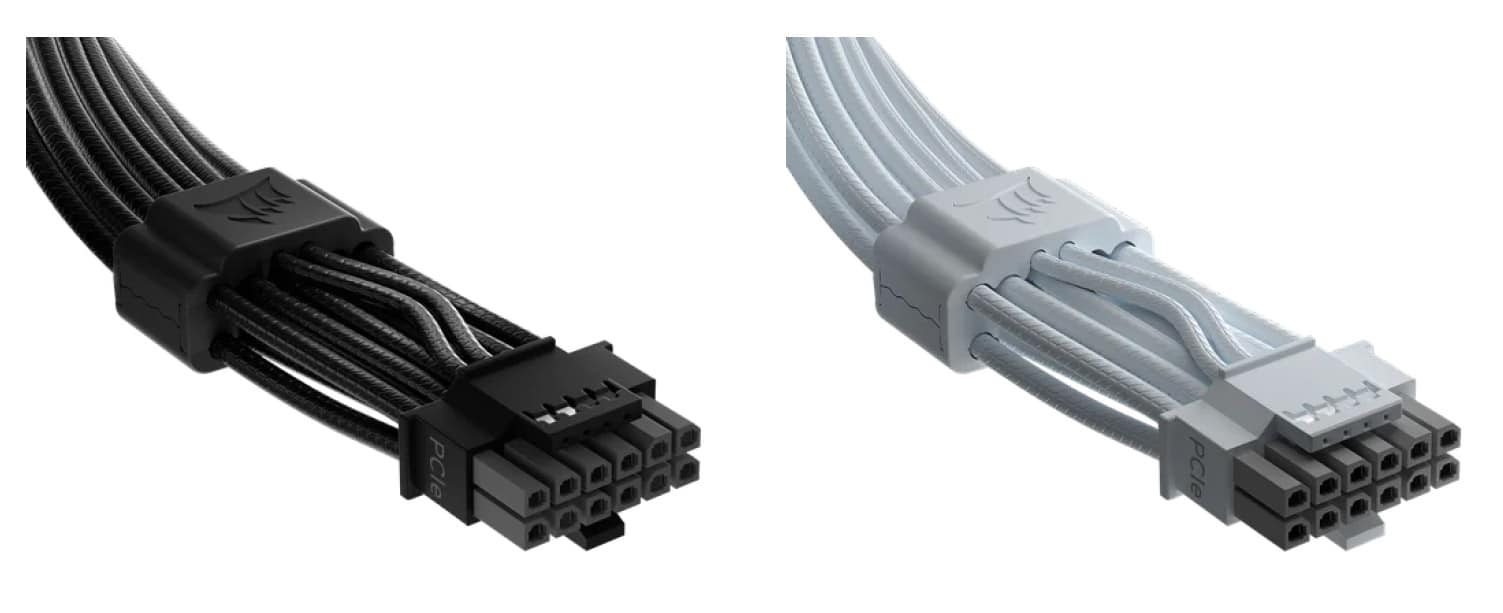
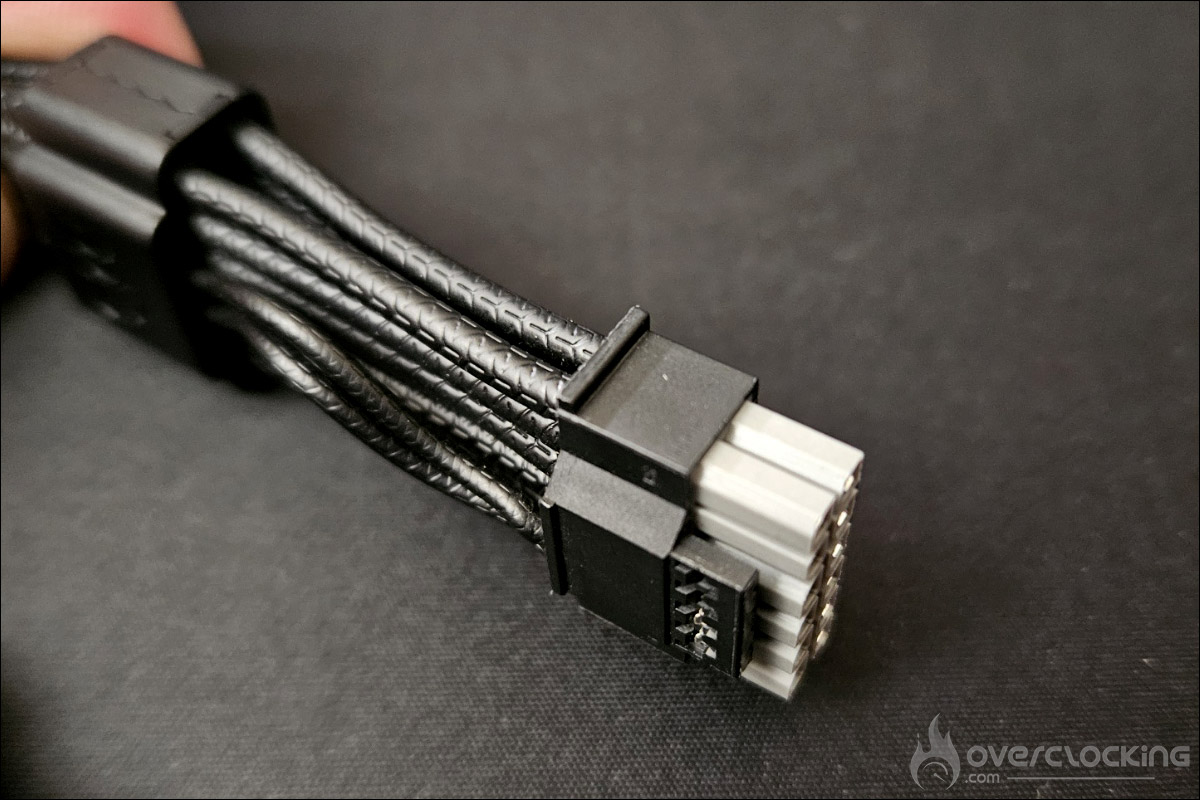
The two 12V-2×6 cables have their ends painted grey. So, no, it’s not for show. The principle is that if the connector is perfectly threaded, you should no longer see the gray end. The cable has an excellent finish.
How does the Corsair ThermalProtect 12V-2×6 cable work?
The ThermalProtect system monitors the cable temperature inside the comb, located 30 mm from the power connector. If the temperature of one of the cables exceeds 65°C, the OPT activates and sends a signal via the two detection pins, stopping the power supply to your graphics card in milliseconds to prevent damage.
The main reason for overheating problems is often an incorrectly connected 12V-2×6 connector cable, or one that is not sufficiently plugged into the connector. A tool like Thermal Grizzly WireView PRO II makes it easy to find out.
It’s important to understand how the Corsair ThermalProtect 12V-2×6 cable works. It will only stop the power supply to your graphics card. The screen will go black, but the rest of the system will still work. Your fans and the RGB backlight, if you have one, should still be working. So you can see that this is not a system crash, but a consequence of activating ThermalProtect.
What to do after ThermalProtect activation?
To switch off your PC, simply hold down the power button until your PC shuts down.
- When your PC is switched off, switch off the power supply and disconnect it from the power supply unit. Open the side panel of your case and bring the back of your hand, without touching, to the end of the power cable at the GPU. If it feels very hot, wait 20 minutes to allow it to cool.
- Once the cable has cooled down, check the connection to the GPU, as this is usually what causes the overheating. Remove the 12V-2×6 cable from your graphics card and inspect both the end of the cable and the GPU power connector. If there’s no sign of damage, reconnect it, making absolutely sure it’s fully inserted and secure. There should be an audible “click” sound as the connector retaining latch closes on the cable. To be on the safe side, repeat this process with the other end of the cable inserted into the power supply unit.
- Once the cable has been reinserted, the best way to make sure it’s properly connected is to inspect it closely. As the ends of the cable are gray, you’ll know when it’s fully inserted.
[nextpage title=”Tests and impressions:”]
Let’s be honest, we’re not going to take the risk of incorrectly threading the connector or failing to insert one of the connector cables in order to ensure that the Corsair ThermalProtect 12V-2×6 cable is working properly. We’re going to run several stress sequences and see how our cable reacts by measuring its temperature. To test the cable, we decided to use it in conjunction with the MPG Ai1600TS PCIE5 power supply, which is compatible with any power supply with a native 12v-2×6 connector.
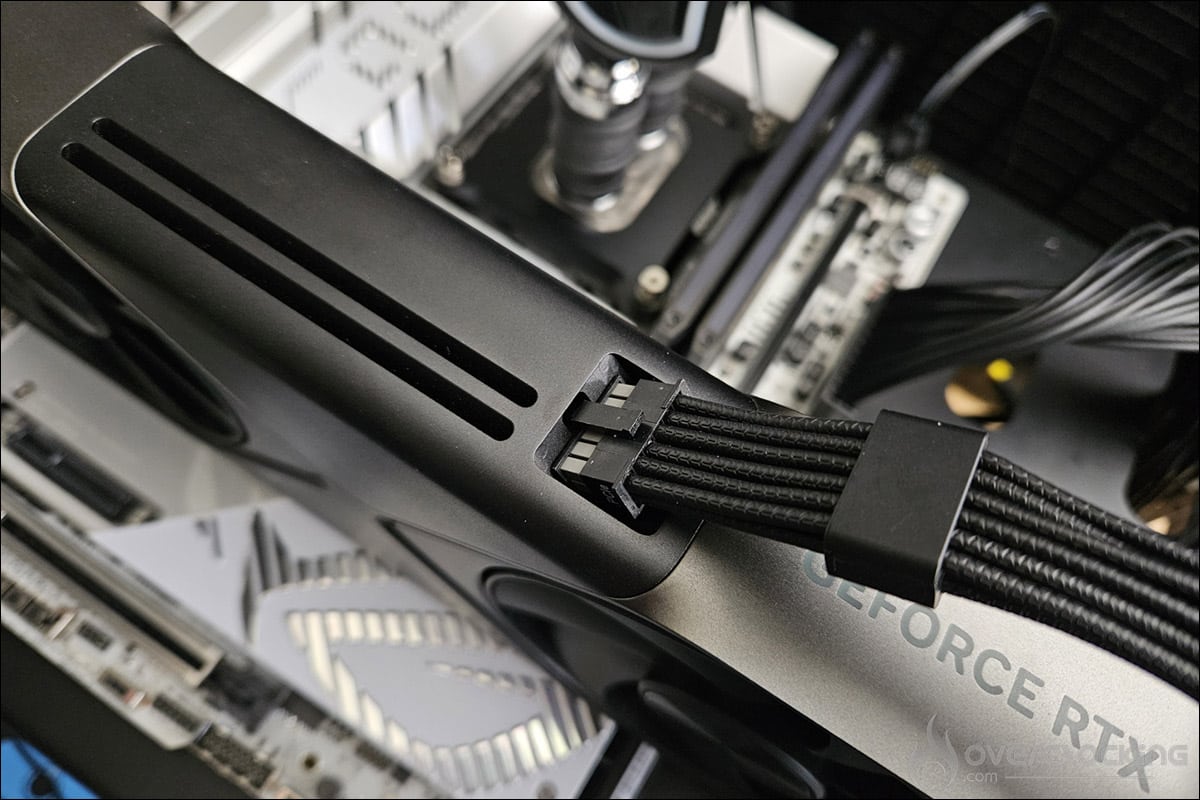
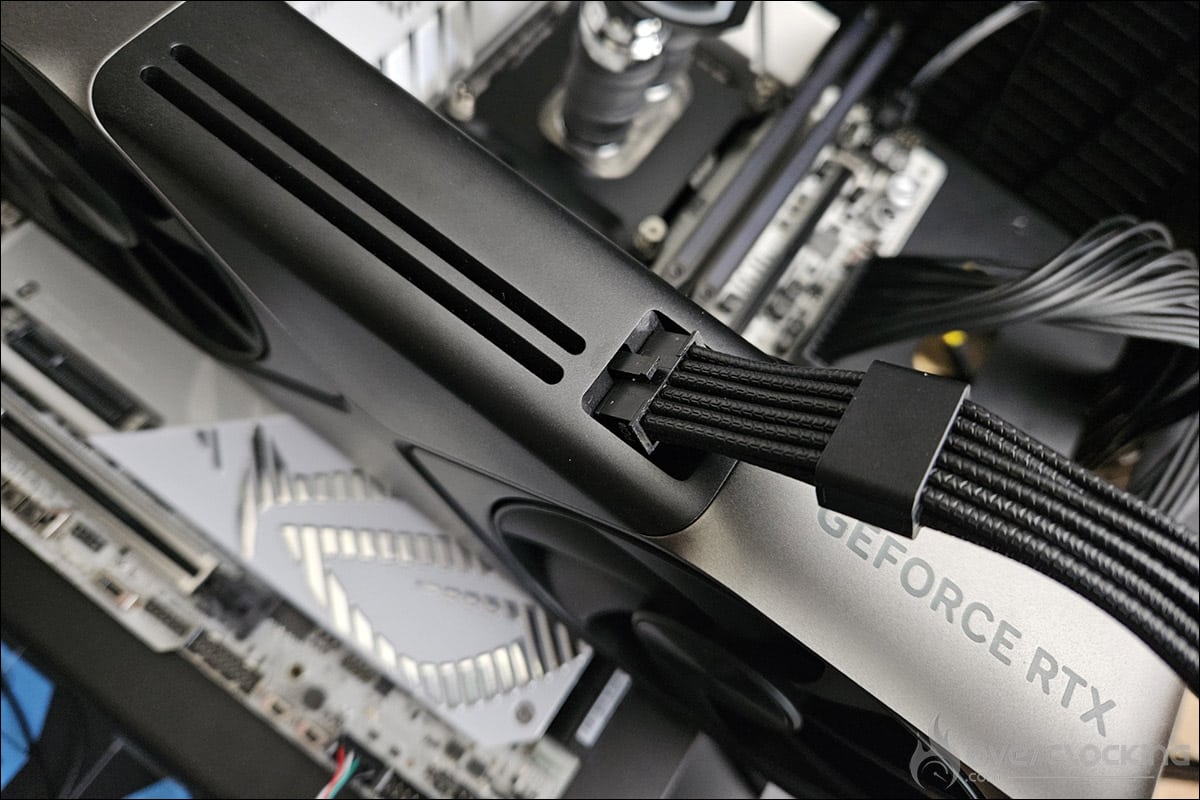
The photos above show, on the left, the cable not correctly inserted and, on the right, perfectly connected to our NVIDIA RTX 5090 Founders Edition. The gray end of the connector is invisible.
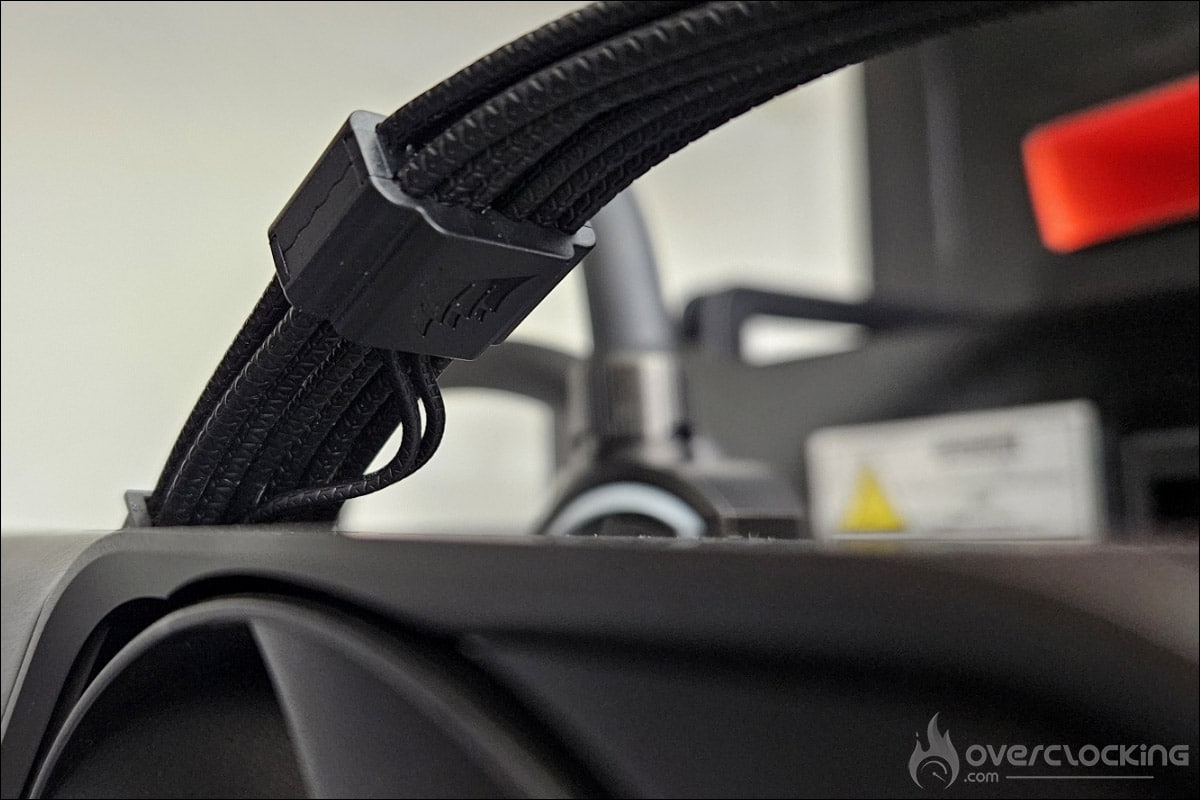
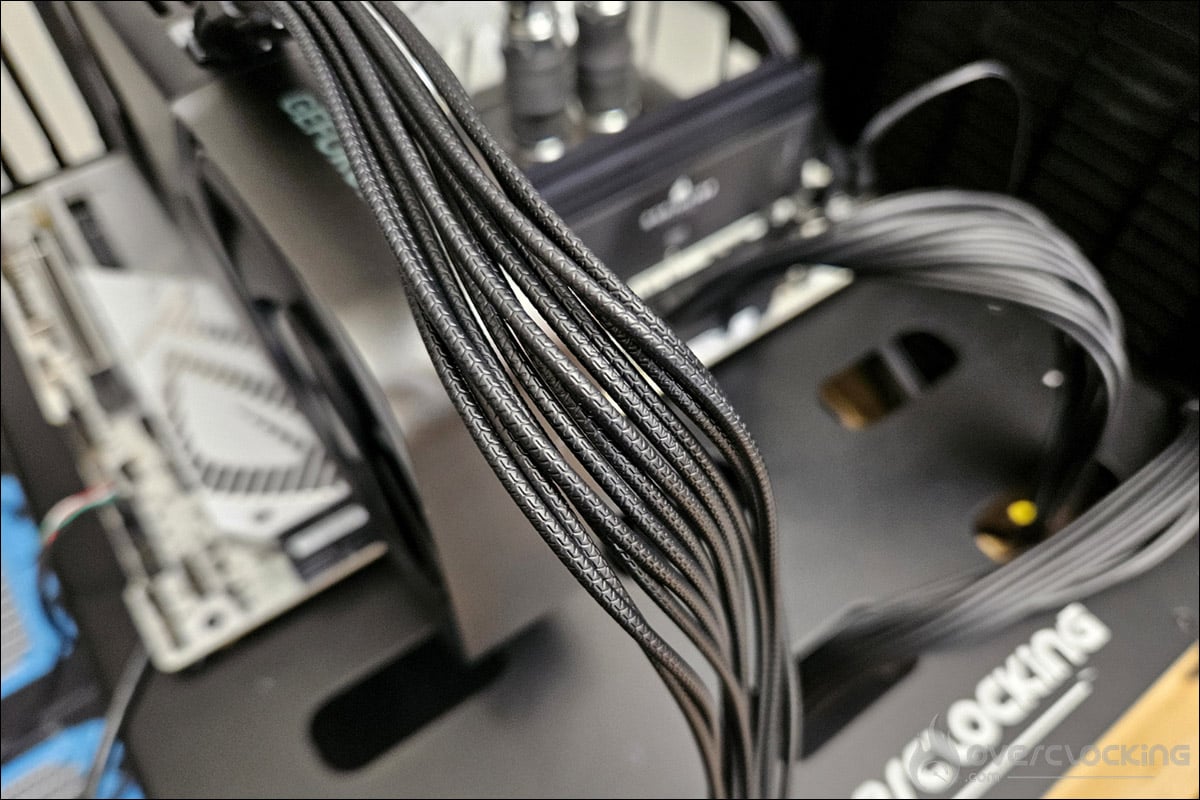
The various readings under FurMark 2.10.2.0 :
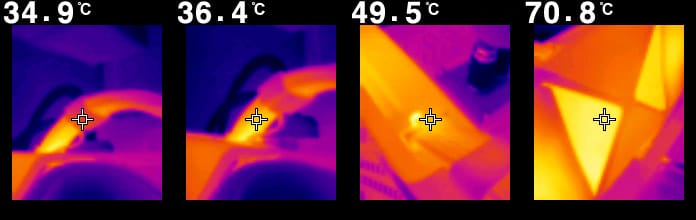
The idea of our tests is to put our NVIDIA RTX 5090 Founders Edition through its paces, in order to measure cable temperatures in normal use. As we’ve explained, the cable is perfectly inserted into our graphics card and power supply unit. We wouldn’t dream of deliberately damaging one of our components during this test. Despite a temperature of 77°C for the GPU, the various cable readings are excellent. After a third series of 20 minutes of stress, the temperature at the probe was 34.9°C, 36.4°C at the cables and 49.5°C at the connector. Let’s not forget that we’re drawing 577 watts at this point.
Throughout our series of tests, we encountered no compatibility problems between our Corsair cable and the MSI power supply.
Our impressions:
 Is it a reliable tool? It’s hard to say, since we didn’t take the risk of using it incorrectly to fault it. One thing’s for sure: for a price of 17.90 euros, we wouldn’t hesitate for a second to buy it. Compared to a “traditional” cable, there’s no doubt that it will be much more interesting and useful than the cable supplied with your power supply. There are also rumors of the arrival of new blocks that will also offer greater security for your graphics card. If you have an RTX 5090, this is a perfectly logical purchase, but even with a lower-end GPU, the price of this Corsair ThermalProtect 12V-2×6 cable is by no means a deterrent. Thanks to Corsair for sending us a test copy.