

In view of the new BIOS released in recent weeks, we thought it would be appropriate to take a look at the memory performance of our ROG X670E Gene motherboard. AMD has continued to work on BIOS upgrades, notably with AGESA 1.0.8.0, which makes all the difference, as we’ll see in this article. We’ll take a quick look at the basics of setting up your memory kit, as well as our settings to achieve the 8000 MT/s frequency. Of course, our motherboard isn’t just any motherboard – it’s certainly the best available today, based on the X670E chipset. We’re talking about our ROG X670E Gene, of course, although the Crosshair X670E Extreme should do just as well!

We were also able to evaluate AMD’s leap forward in memory frequency, reaching 7800 MT/s CL34 with the 128 GB ZETA R5 NEO EXPO kit from G.SKill.
[nextpage title=”The importance of the XMP/DOCP profile:”]
The importance of the XMP profile :
We can’t tell you enough, but the parameters of your memory kit are not automatically set after you’ve installed it. If this is the case for your processor, it’s not the case for your memory kit, and you’ll have to go through the BIOS!
You can then configure it manually, choosing the right frequency, timings and voltage for your kit. For ease of use, we recommend that you activate XMP (Intel) or DOCP (AMD) mode to set the parameters automatically.
Without this, your performance will be impacted in all areas, and you’ll end up with a kit that doesn’t exceed the CL40 frequency of 4800 MHz. The aim of this article is to show you the (poor) performance of a kit without settings.
Recovering and flashing the BIOS :
The first step is to always have an up-to-date BIOS. Manufacturers are constantly patching BIOS, and in order to get the best performance, regular updates are necessary. Go to the ROG website, and in particular the page dedicated to our Crosshair X670E Gene, to retrieve the BIOS.


This will download the latest BIOS and retrieve the BIOS file. Copy it onto a USB stick and insert it into a USB port. Then go to your motherboard’s BIOS to flash it. All manufacturers offer a flash tool integrated into the BIOS. In the case of our Crosshair X670E Gene, go to the “Tool” tab and then “ASUS EZ Flash 3 Utility”. Select your USB key, choose the BIOS you downloaded and launch the flash. The motherboard may reboot several times – this is perfectly normal.


Now that our BIOS is up to date, we can start testing.
Activate your XMP profile:
As we said, you’ll need to manually activate your XMP profile. It’s a very easy thing to do, but of the utmost importance. Go back to our BIOS, and in particular to the “Extreme Tweaker” tab, then to “AI Overclock Tuner”. Note that brands use the reference XMP for Intel configurations and DOCP/EXPO for AMD motherboards. Choose the EXPO 1 profile.


As you can see, once the EXPO profile is activated, the parameters are automatically detected. The frequency is indeed 6000 MT/s and the timings 30-38-38-96 for our G.SKill Trident Z5 NEO kit.
Overclock your memory kit:
The advantage of a card like the Crosshair X670E Gene is that it has built-in profiles within its BIOS. For our overclocking tests, we opted for another kit and chose the Teamgroup Delta RGB 7200 MT/s CL34. Indeed, the choice of kit is important, and here it boasts excellent overclocking potential thanks to its Hynix A-die memory chips.

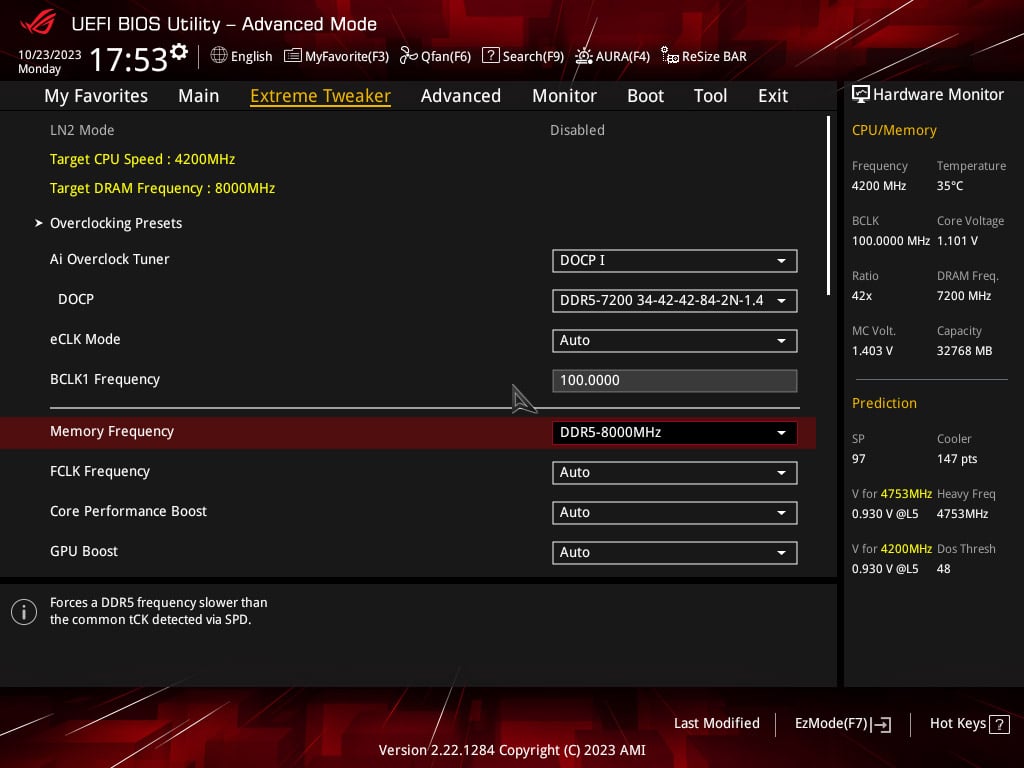
We’ll be testing several profiles to see how the scores evolve, and thus the gains brought about by the frequency and timings of the memory kit. We’ll be using the Hynix 8000 MT/s profile present in the BIOS, although this will be slightly modified.


You’ll also see on the next page that it’s still possible to improve performance by adjusting the FCLK frequency, but we recommend that you leave it as the default. Now that we’ve had a look at the BIOS and its parameters, it’s time for some comparative tests!
[nextpage title=”Comparative tests:”]
To highlight the gains obtained with different memory kit frequencies and timings, we’re going to use two benchmarks: AIDA64 and Geekbench 3. These are the two programs we use for our memory kit tests. We’ll run our tests at a frequency of 4800 MT/s CL40, which corresponds to the worst thing that can happen to you, i.e. a memory profile not enabled in the BIOS. Then, at the DOCP frequency of 6000 MT/s CL30 for our G.SKill kit, at the DOCP frequency of 7200 MT/s CL34 for our Teamgroup kit and finally at the overclocked frequency of 8000 MT/s CL34. As a reminder, before AMD introduced its new BIOS, the maximum stable frequency was 6400 MT/s.
Benchmark memory AIDA64 :
This software can provide you with a wealth of information about your configuration, but above all, it features a memory benchmark. This calculates the read, write and copy speeds, as well as the latency, of your memory kit. It is often used to compare memory kits. It’s an excellent tool if you want to compare the performance of your memory kit with those we’ve already had the opportunity to test. We used the latest beta version.


It’s true that it’s easier to get an overview by presenting the results in table form, but we wanted to show you the screenshots anyway.

The table speaks for itself, and performance is clearly improving. It’s already very important to note the impact of the DOCP setting. Here too, support for kits above 6400 MT/s brings a significant gain.
Geekbench 3.4.4 benchmark:
This benchmark is available in several revisions, version 6 having just been released a few weeks ago. It provides two scores: one single and one multi. Using this benchmark, we’re going to focus on the performance obtained on the ” Memory Multi-Core ” score, which also differentiates memory performance.


And the results in tabular form so that you can see the gains once again. As in AIDA64, we can also see the significant performance gain between a 6000 MT/s and a 7200 MT/s kit. We are now preparing a comparison of the gains obtained in gaming mode, so please wait a little longer.

Activating the DOCP profile once again shows its importance. Be aware that some online PC vendors forget to activate the profile within the BIOS. Use the CPU-Z software to check that this is active, and if not, head for your BIOS.
Go a step further:
If you’re in the mood for higher scores, you can also increase the FCLK frequency. This is also modified within the BIOS, but can alter the stability of your configuration. Here, we’ve increased the FCLK to 2133 MHz instead of 2000 MHz with our 8000 MT/s CL34 kit.


To conclude this short article, congratulations to AMD on their work, which enables them to support memory kits with high frequencies, as is the case with Intel. And finally, don’t forget to activate your XMP/DOCP profile in your BIOS!