

[nextpage title=”#1 Windows without bloatware”]
If you have a new PC or need to reinstall your system, here are 3 tips to Optimize your Windows 11 Installation. This method was used by Mischa as part of the Tweak League
1- Bloatware-free installation
Let’s start with the classic Windows installation. You don’t need to go very far, as you’ll have to do it on the first page, where you’re asked to choose the language. Choose Time and currency format. You’ll choose : English (World)

Once Windows is installed, you’ll need to set the right time, but if you go to the menu you’ll see that it’s very empty…and that’s exactly the point!

[nextpage title=”#2 Windows 11 without an account”]
2- Install windows without a microsoft account
If you’ve already installed Windows 11, you’ll have noticed that it seems impossible to do so without having or creating an account. However, there are several ways around this, and here’s one of them:
On the country selection screen, press Shift F10, and the console C: will appear. In the console, type OOBEBYPASSNRO
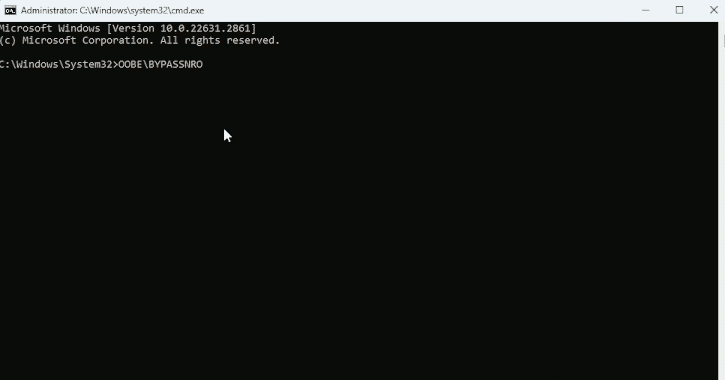
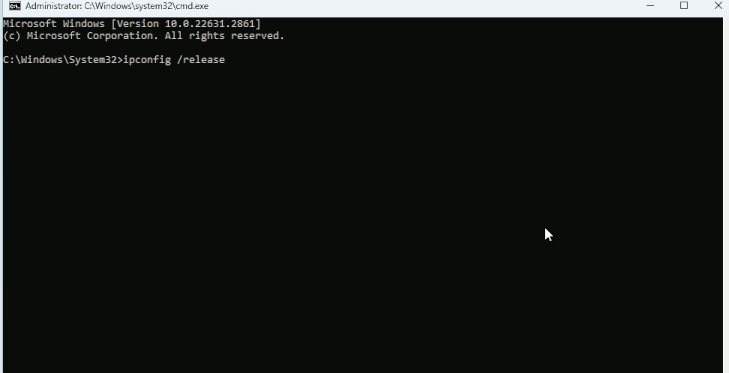
The computer should restart and when you return to the installation, press Shift F10 again and type ipconfig /release (This will block your Internet connection. Remember to reactivate it at the end of the installation)
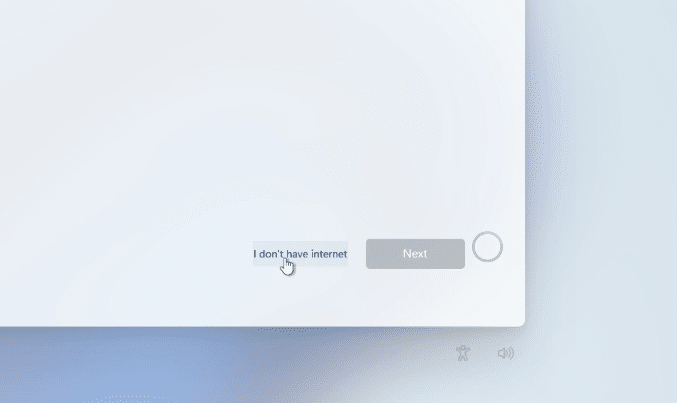
Continue installation and you’ll now have an I don’t have internet option when connecting to the network. This will allow a limited installation.
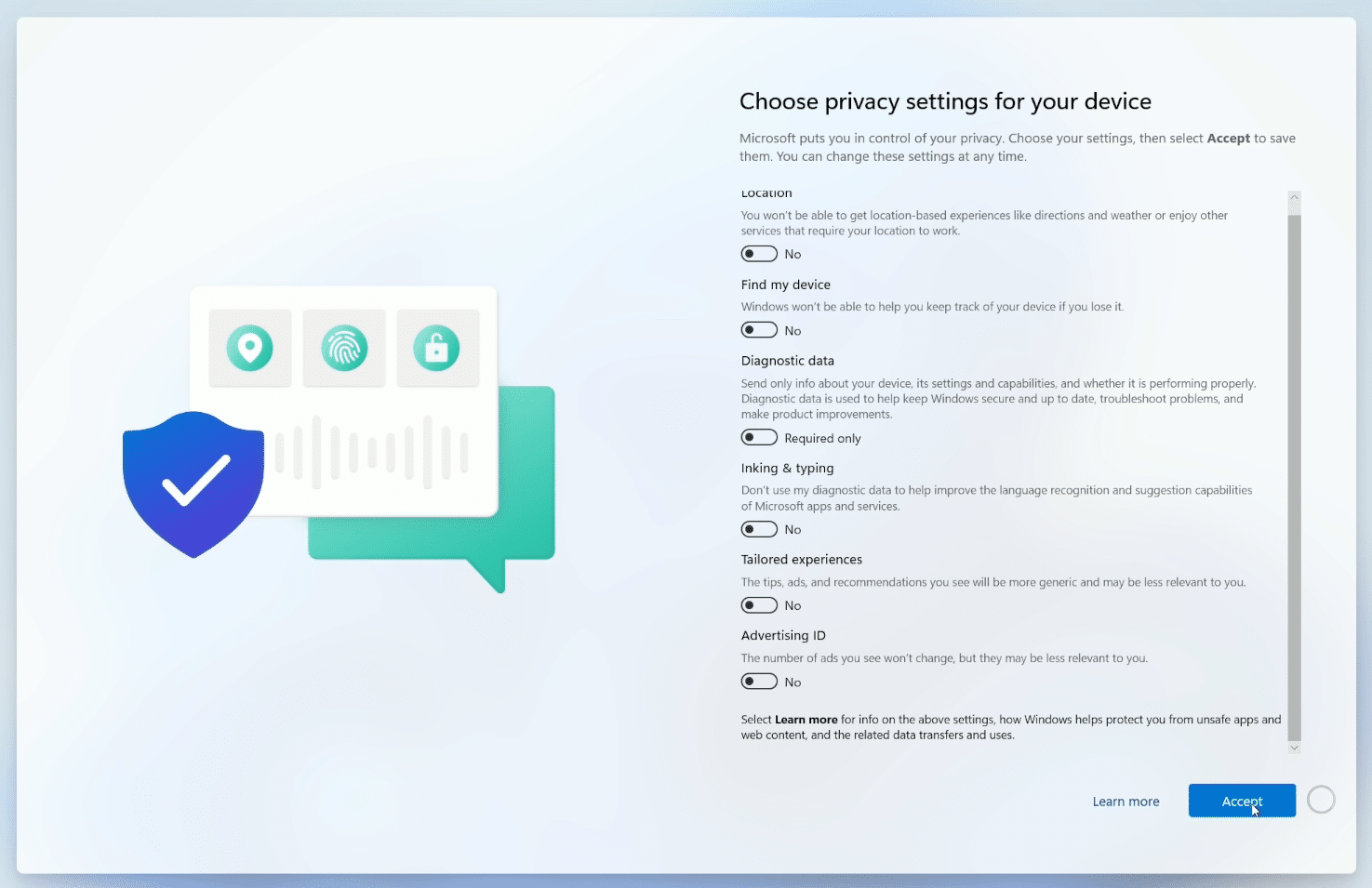
Remember to disable all options before completing the installation.
At the end of the installation, when you’re on the desktop. In the menu, search for CMD and click on Command prompt
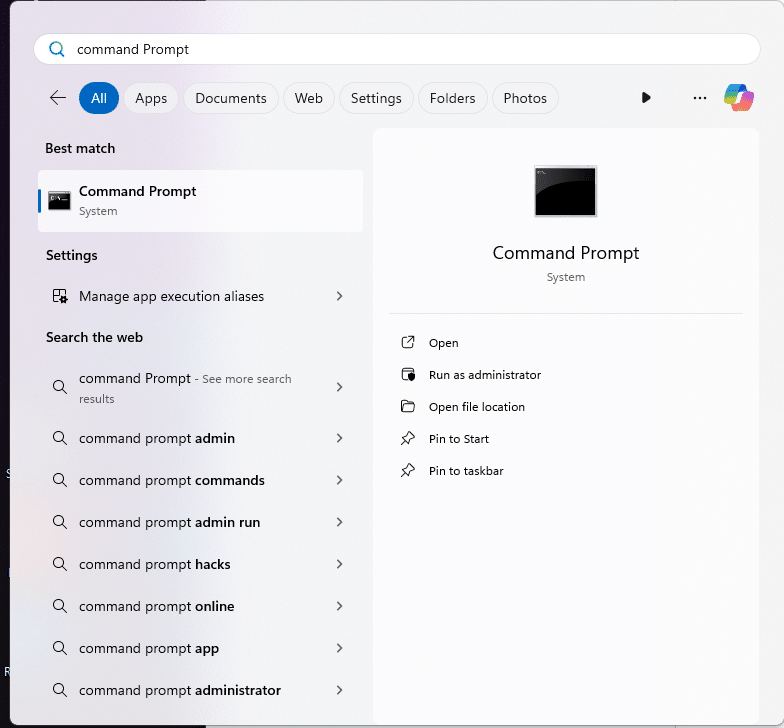
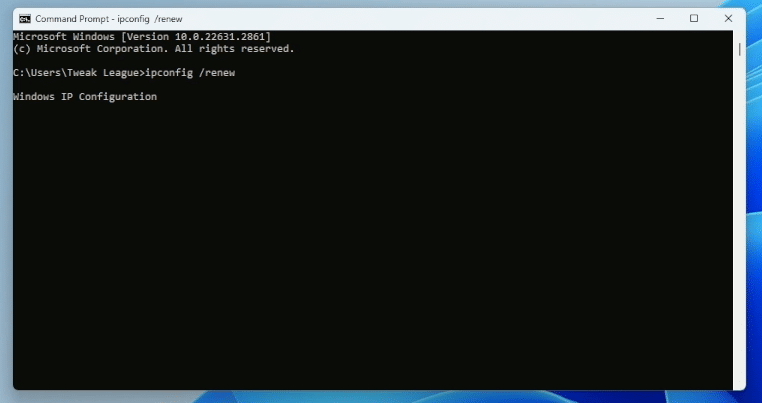
In the console, type ipconfig /renew
This will reactivate your network.
Now all you have to do is install your drivers.
[nextpage title=”#3 Quick software installation”]
3- Quickly install your favorite software.
Once you’ve installed your brand-new Windows, you’ll obviously be missing a lot of software.
Open Edge and go to Ninite.com
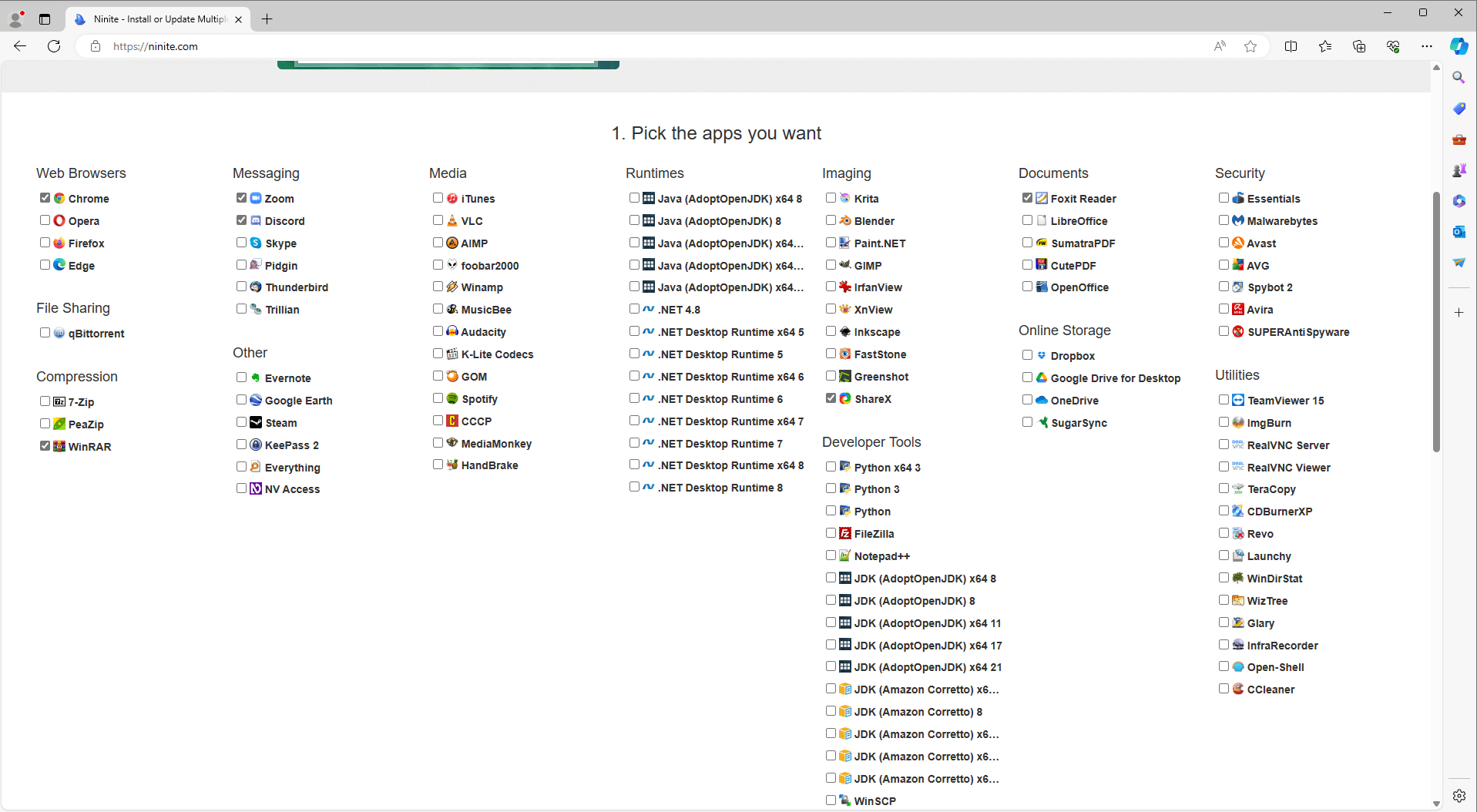
This site will enable you to quickly install lots of essential software.
And if you don’t know what to get, we recommend the following selection:
- Chrome or Firefox for your browser
- 7-Zip or WinRAR are essential for opening compressed files
- When it comes to messaging, you’ll probably want Discord if you’re a gamer, and Zoom if you’re a teleworker.
- Steam is a must-have for gamers
- VLC is a must
- Spotify if you use it
- ShareX lets you share images easily.
- Foxit Reader for reading pdf files
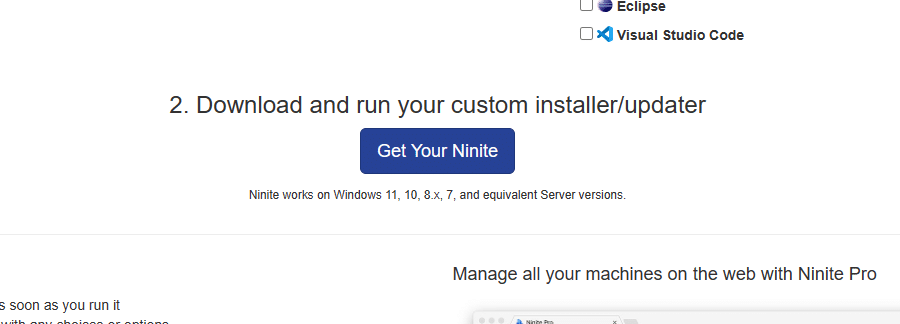
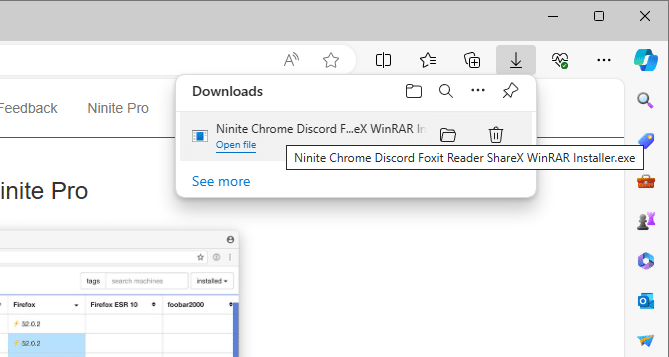
Once you’ve made your selection, download by clicking GET YOUR NINITE and open the installer. Everything else is automated.
If you want to go further in optimizing your copy of Windows 11, take a look at Matusalem’s Tweak League tips for installing ReviOS on Windows 11.