

It’s Matusalem who opens the ball to unveil his work as part of the Tweak League. Like all his comrades, he received the following hardware to build his PC:
- Intel Core i5-14600KF
- ASUS TUF GAMING B760-PLUS WIFI
- ASUS Dual GeForce RTX™ 4060 OC Edition 8GB GDDR6
- 2×16 GB DDR5 Corsair Vengeance RGB 6000C30
- Cooling DEEPCOLL AK620 DIGITAL
- DEEPCOOL CH560 DIGITAL case
- Grizzly Kryonaut Extreme Thermal Paste
Like all his comrades, if you’d like to dig deeper and/or ask Matusalem questions, don’t hesitate to visit our Discord server.
Let’s give him the chance to present his work:
I’m going to give you a detailed, step-by-step presentation of the procedure and the differences it makes.
Methuselah’s recommendations
I’d like to stress that I’m an ordinary user and that the optimizations I’m presenting here are currently adapted to my needs. I’m not a professional and my work may not be the best there is, but in my opinion it will be perfect for everyday use. You be the judge.
If you have any questions, don’t hesitate to contact me on the overclocking.com discord server.
For the rest, my work can be found here :
- https://twitter.com/matusalem_occ
- https://www.youtube.com/@matusalem_occ
- https://www.tiktok.com/@matusalem.hardware
[nextpage title=”The operating system”]
The operating system :
- First step: installation of the Windows operating system. In this case, we’ll be using Windows 11. Once you’ve installed it properly, you’ll need to optimize it to improve performance and overall latency (input lag, DCP latency), for greater responsiveness in games. But first, I recommend that you perform all system updates before making any modifications.
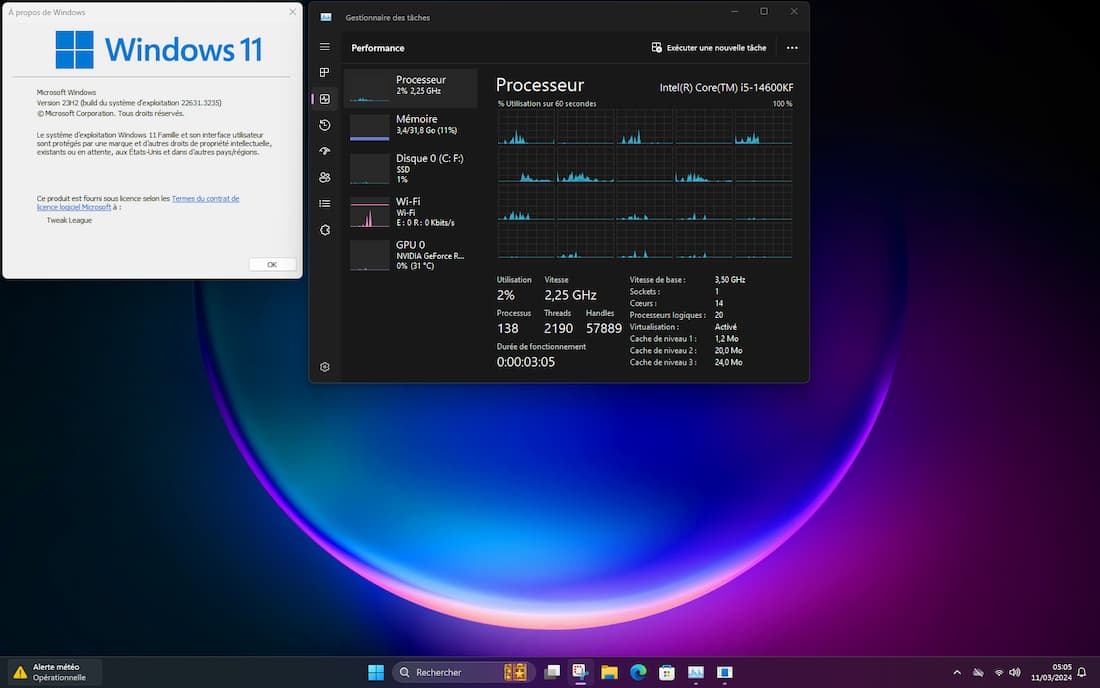
- Tweak 1: ReviOS I use a program that modifies the operating system after installation. It’s called ReviOs and includes 2 files to download, a playbook and the AME wizard program. This handy tool was created by the developers of Windows Ameliorated. With it, there’s no need to modify the Windows iso image, just install Windows 11 and follow the ReviOs installation instructions to get a custom system free of the frills and bloatware that unfortunately populate Windows.
You’ll find the tool here: https://revi.cc/revios/download/


Once installation is complete, the system reboots on its own and we’re back under Revios, with the first boot requiring a file scan. This is an important step after a major system update. To do this, open the terminal or powershell in admin mode and type the command sfc/scannow, which will indicate that corrupted files have been repaired.
- Tweak 2: Chris Titus
Then I personally use a tool to finish optimizing the system and get quick access to Windows settings, thanks to Chris Titus’ tool.
It’s not directly downloadable, but can be retrieved as an admin command via powershell or terminal. It can also be set as a desktop shortcut for easier access.
Now that ReviOs is installed, all that’s left to do is install the necessary drivers and programs. You’ll be able to fine-tune certain settings, which with the ReviOs panel will be much easier to access. Its unique control panel is a real plus, allowing you to manage essential options for security, performance and ergonomics. I really liked it – it’s ergonomic and multilingual.
A driver can be optimized, especially the graphics card driver, in this case an Asus RTX 4060 Dual OC. I recommend a program called NVcleaninstal to do the job: it removes bloatware overlays such as Geforce Experience, which are useless for my use, and modifies certain NVIDIA driver parameters
And finally, to optimize application latency, I use the SetTimerResolution tweak (Windows 11 only), as well as a latency test with Latencymon
[nextpage title=”Memory and processor bios settings”]
Memory and processor bios settings
Turningnow to the bios of this TUF GAMING B760-PLUS WIFImotherboard , the B760 chipset is great for everyday use, but very limited when it comes to processor overclocking. Unfortunately, the processor cache frequency on the B760 chipset can’t be modified either, even though it might be accessible and modifiable, but in reality it doesn’t apply.


But nothing to worry about, as the 14600KF boosts the Performance core to 5300 mhz and the Efficient core to 4000 mhz, which is very good for gaming and streaming. In my opinion, Intel is clearly the best solution for gaming and streaming.
Let’s move on to RAM, as this chipset gives us access to all the settings needed to create a fine-tuned DDR5 profile that will deliver performance gains.
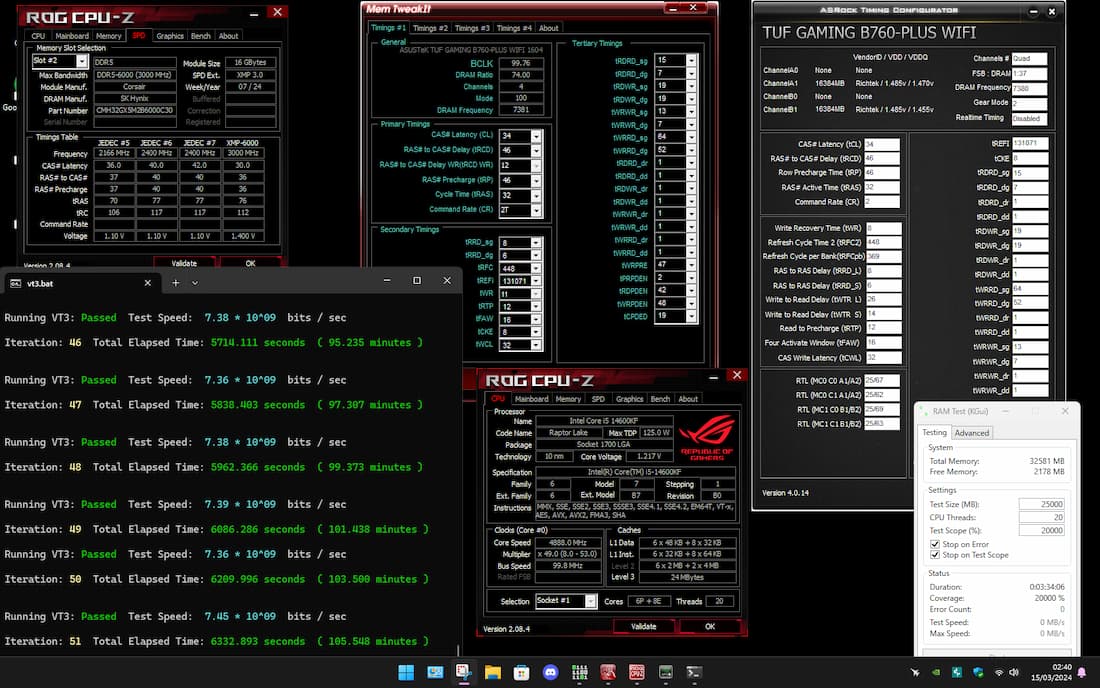
For those who aren’t really interested in overclocking ram, or who don’t have the time or the inclination, I’d simply say activate XMP Tweaked, and for the rest of you follow the guide 🙂
So I started by testing the maximum possible bootable frequency of the Corsair Vengeance 6000c30 kit with a fairly high test voltage of 1.47 VDD and 1.45 VDDQ, which I’ll adjust later.
After several hours of testing, I concluded that 7400 mt/s was the maximum stable 100% on this motherboard, for daily use without worry. To get to this point, I use the y-cruncher program and its vst or vt3 test, depending on the software version. It allows you to perform a stress test on the ram and cpu, but above all on the cpu’s memory controller.
That’s why testing the stability of the IMC (integrated memory controller) with the y-cruncher vst or vt3 stress test is really important, as it’s the basis of ram and cpu stability.
To get the right values, I obviously relied on our dear friends at the overclocking.com discord, whom I’d like to thank in passing. They may recognize themselves if they read this.
The profile I’m presenting contains common secondary and tertiary timings that you can easily use, adapting them according to the frequency you wish to use.
[nextpage title=”Graphics card optimization”]
Optimizing the graphics card
The ASUS Dual GeForce RTX 4060 OC Edition card doesn’t look like much, and once in your hand it feels very small compared to the RTX 4080 or 4090.
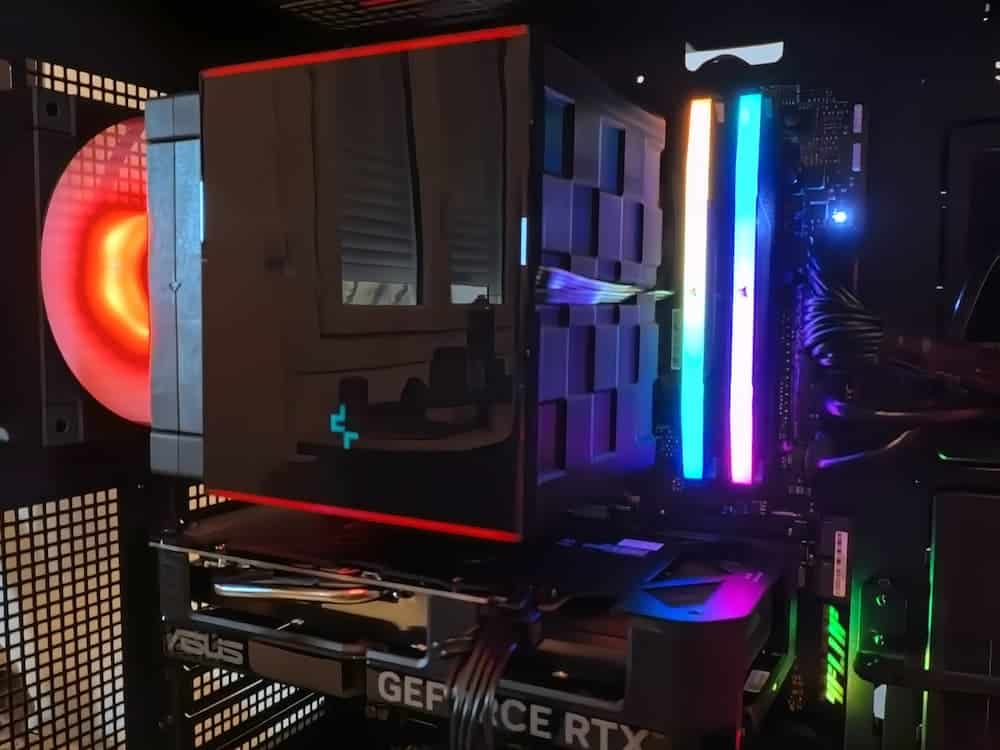
I’ve heard people complain about the RTX 4060 without really knowing what’s behind it, but generally without any real arguments in my opinion. It allows access to AV1 encoding, DLSS 3 and consumes practically nothing. Most of the criticism stems from the 128-bit memory bus, which may seem ridiculous for this generation. But let’s not forget that this is a graphics card designed for 1080p configurations.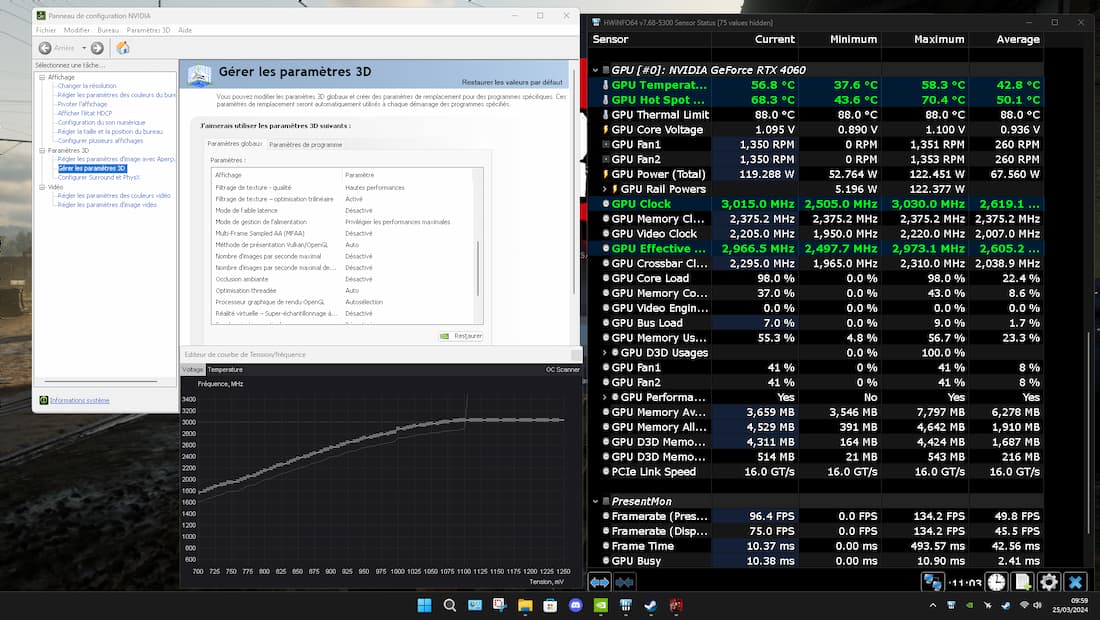
In terms of overclocking, I started by looking for the maximum stable gaming frequency using the MSI Afterburner tool. On this model, I managed to run most of the games I tested, such as Cyberpunk or Red Dead Redemption 2, at a frequency of 3000mhz at a voltage of 1.1v, which is the maximum voltage authorized by NVIDIA. In this configuration, temperatures never exceeded 75 degrees. The two fans on auto were almost inaudible. I spent several hours with no stability problems at this frequency. With an offest of 1000 on the vram, I really felt a very nice gain, which in the end allows me to say that this little RTX 4060 is clearly a recommendable card.
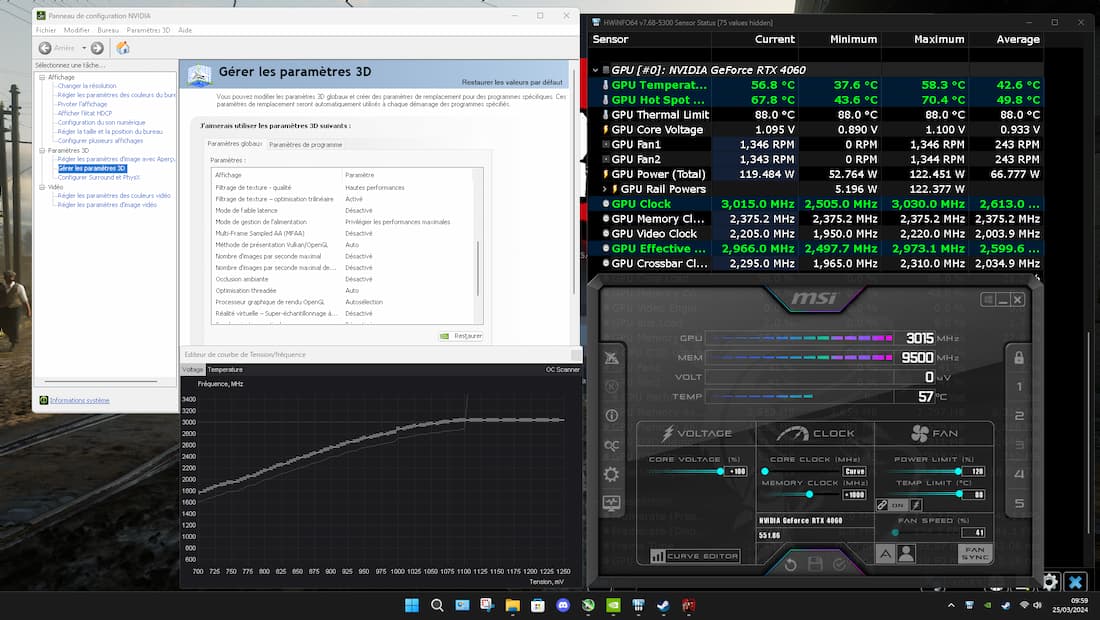
[nextpage title=”Benchmarks and tests”]
Benchmarks and tests
Even if the Intel i5-14600KF processor cannot show its full potential on the B760 chipset, it is possible to optimize it in order to gain in temperature and to apply a coefficient setting at its maximum authorized by the Intel B760 chipset of 53 on the core performance of 40 on the core Efficient and thus set a fixed voltage as well as a load line calibration of 6 in order to reduce the Vdroop (voltage difference between idle and full load)
When a processor is fully loaded, it consumes much more current, so the voltage drop also increases.
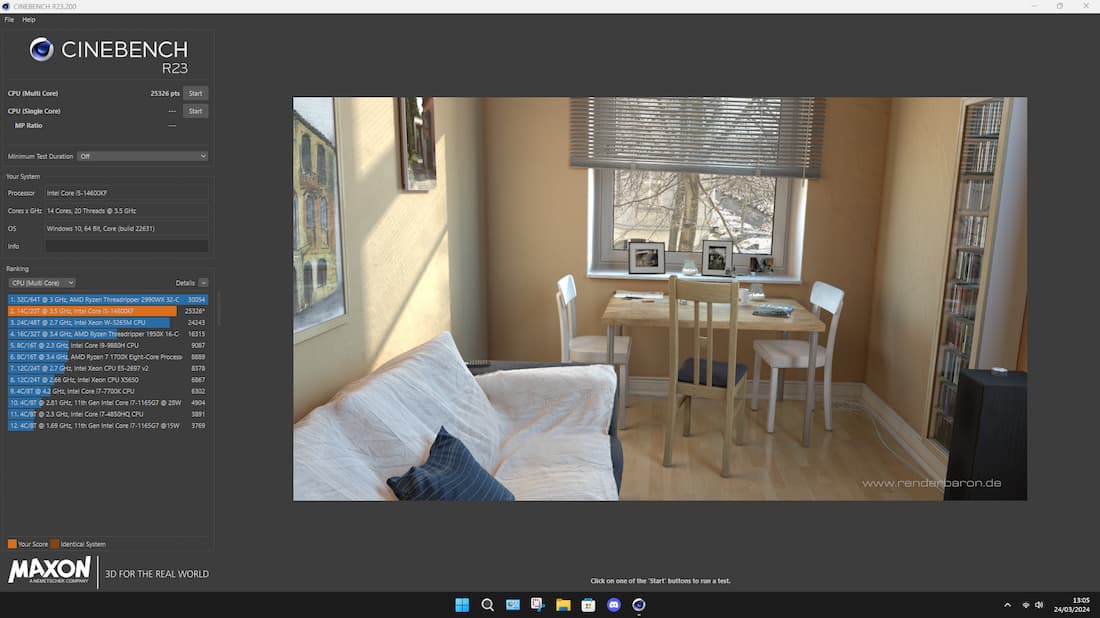
With this in mind, the cpu remains at 5300 mhz in the full-load benchmark on Cinebench R23, posting a score of 25326 in multi-thread, 10315 in multi-thread and 857 in single-thread on the cpuz bench.
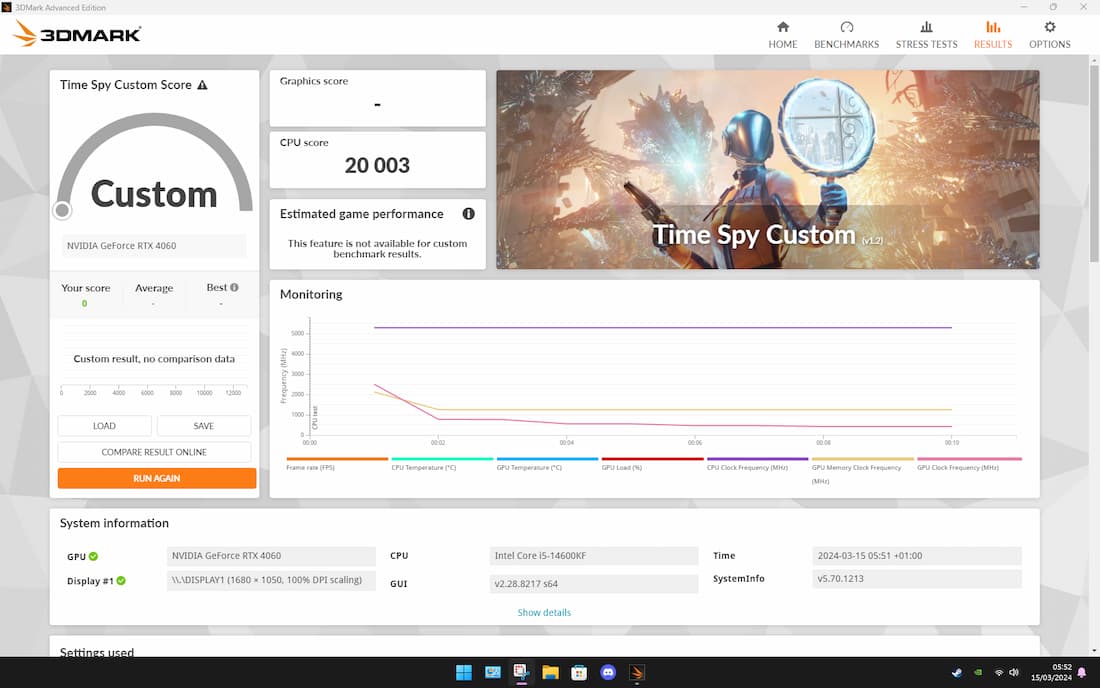
The Timespy cpu benchmark displays 20,000 points, which is also pretty decent.
On Aida64, the 7400c34 profile also does very well, with scores averaging 110 the 110 GB/s and a latency of 52,
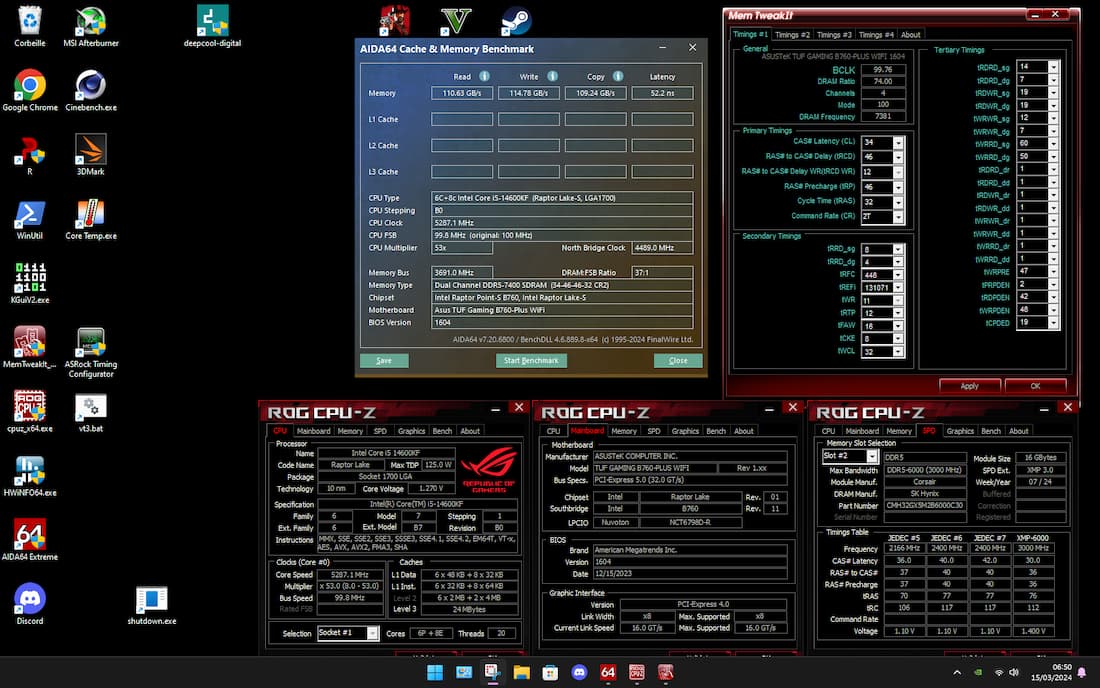
You’ll also notice that temperature-wise, the cpu profile is rather efficient, with a difference of around 10 degrees on the Performance cores and 6 degrees on the Efficient cores of the 14600KF, which is really quite appreciable for a processor on a B760 chipset.
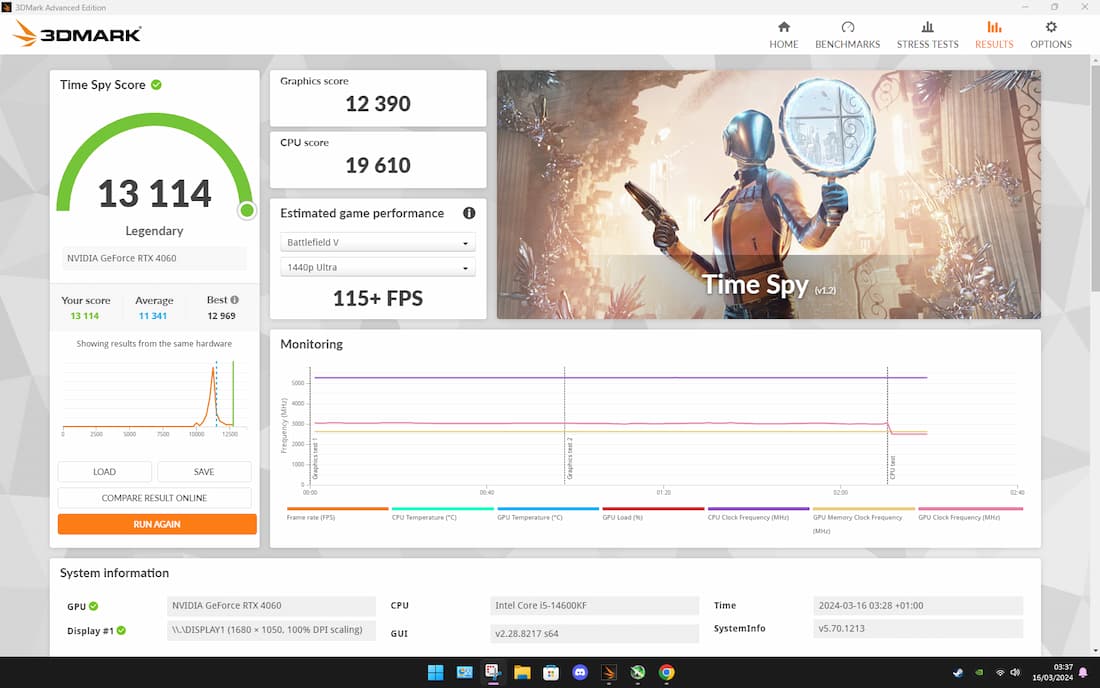
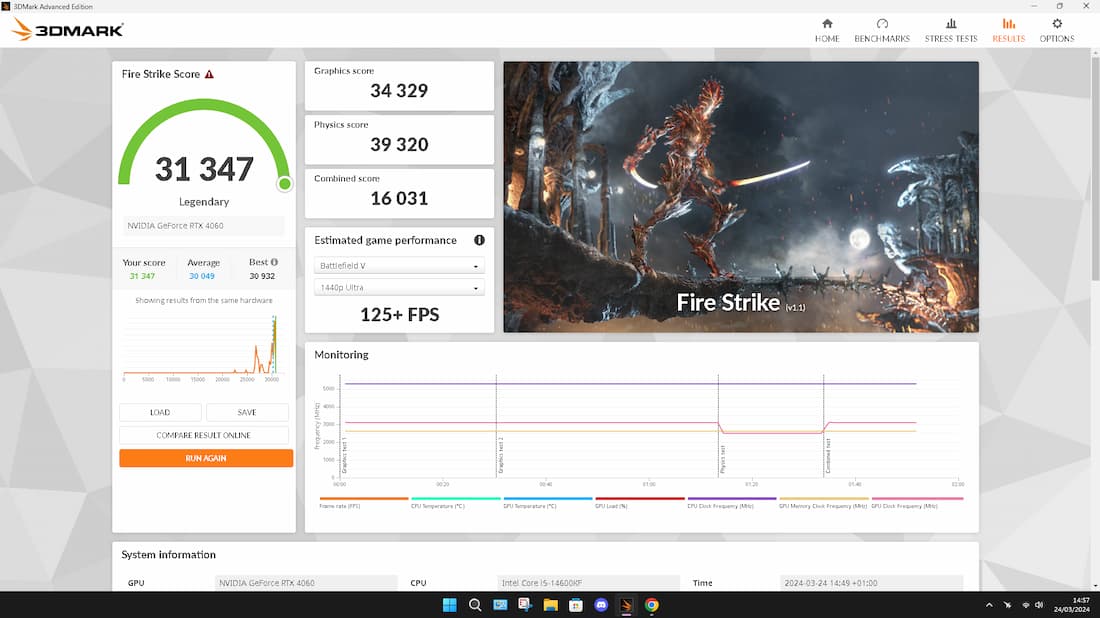
Graphical and global benchmarks like Timespy are doing very well, I managed to take first place on Timespy in this category as I write these words and some second place behind our colleague JapWhite on Port Royal and Firestrike, he had a better sample than me for sure 😉
[nextpage title=”Game tests”]
In-game tests
Overall, the fully optimized machine delivers efficiency gains at every level. Stability in gaming performance is quickly achieved. It’s clearly oninput lag and temperatures that we’ve made progress. An exercise that enabled us to play for long sessions in excellent conditions, far more efficient than a fully stock, non-optimized PC.

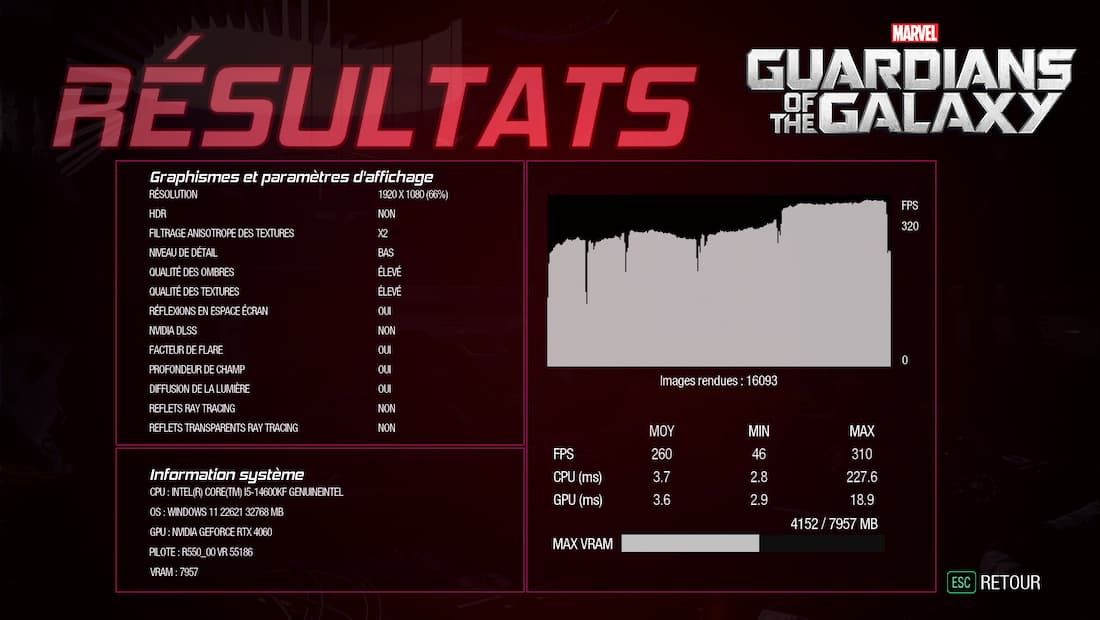
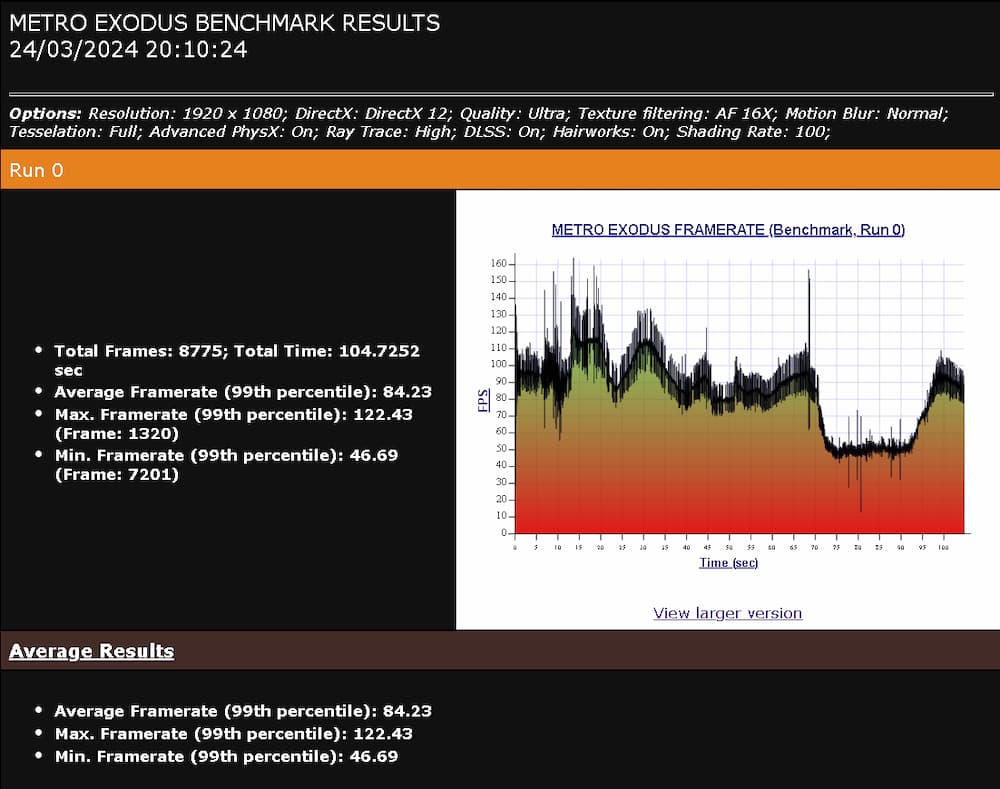
The test images shown here are in 1080p resolution on a 27″ screen. The games in question are in native resolution, with the original settings set to auto. Vertical synchronization is deactivated, of course, in order to exceed the screen’s refresh rate. It’s still a lever for progress, depending on your preferences, whether you’re playing a single-player game or a competitive game with high or low graphics settings.
[nextpage title=”Conclusion”]
Conclusion
I particularly enjoyed setting up this configuration.

-> The DEEPCOOL CH560 DIGITAL case is a very good choice in terms of quality and price. Neither too large nor too small, it accommodates the ASUS TUF GAMING B760-PLUS WIFI ATX motherboard very well, and can even accommodate E-ATX format. As for DEEPCOOL, which I had the opportunity to test on another case, I think it’s full of good things.

Their housings are really well built, very solid, the sheet metal doesn’t bend like some other brands. The air flow is well thought out. Finally, the overall layout is excellent, with plenty of space for access to the various cables. This greatly facilitates clean assembly. This space also allows for a really well-optimized layout between components.

-> Cooler DEEPCOLL AK620 DIGITAL is rather nice in terms of design, with its LED screen displaying cpu temperature and a touch of RGB, which I find rather sober. I particularly appreciated this sobriety.
In terms of performance, it rivals the big boys. You can move the fan to the right for full access and visibility of the RGB ram kit.
–> ASUS TUF GAMING B760-PLUS WIFI and ASUS Dual GeForce RTX 4060 OC: this combo goes particularly well with DEEPCOOL CH560 DIGITAL. Here again, it’s the sober design and the little touch of RGB on the bottom right of the motherboard that won me over. As the overall quality of Asus components is beyond question, it was a real pleasure to assemble and handle them in this PC. Special mention to the graphics card for its silent operation.
-> Kit 2×16 GB DDR5 Corsair Vengeance RGB 6000C30. This is a very well-made kit with Hynix A-Die chips at a reasonable price. It’s clearly the one that has boosted performance, with a 7400c34 profile that’s the motherboard’s limit. In fact, it was more the motherboard that limited me in this respect. I should point out, however, that the kit is blocked by the manufacturer at 1.51 VDD voltage, which drastically reduces overclocking possibilities on XOC platforms (extreme overclocking), but this is not for everyone, and for everyday use it will provide great satisfaction.
– > Intel Core i5-14600KF is for me, in terms of value for money, the best solution for gaming and amateur streaming. With undervolting, you can perform without overheating and with very modest power consumption.
-> Grizzly Kryonaut Extreme Thermal Paste. Nothing to say, true to their reputation, top performance, texture and application. Highly recommended.

My final personal note:
I particularly enjoyed this event organized for the OCC community. Part of the community followed and encouraged the participants, for which I thank them.
I obviously hope to be selected for round 2, so maybe I’ll see you soon for another review made by Matusalem ?