
[nextpage title=”Introduction”]
We were lucky enough to receive the GIGABYTE X870E AERO WOOD EDITION! This motherboard has plenty to offer and is trying to make a name for itself in the hardware component market with a touch of wood. Yes, after cases, Gigabyte is trying wood on this motherboard to best suit configurations of this style.

For several years now, wood has been gradually gaining ground in the world of hardware, bringing a breath of fresh air and a more “natural” touch. Gigabyte is the first manufacturer to go this far by integrating wood directly into a motherboard.
However, since AMD’s 600 series, the brand has developed numerous variations of its motherboards. And with the AMD 800 series, it continues to expand its range of variants in order to go further than the competition in terms of product lines and offerings.
Even though it is clear that the Gigabyte X870E AERO WOOD Edition is designed for original builds, this X870E is not just about that. Because, beyond the wooden accents, this is clearly a high-end motherboard with some interesting features.
Thank you to Gigabyte for providing us with this sample of the X870E AERO WOOD Edition motherboard.
[nextpage title=”GIGABYTE X870E AERO WOOD EDITION”]
Architecture:
Gigabyte’s X870E AERO WOOD Edition is equipped with the X870E chipset, which replaces the X670E. It is currently the highest-end chipset on AM5 motherboards.
It necessarily consists of PCIe 5.0, as well as USB4. Because it has more PCIe lanes than all other chipsets, such as the X870, B850E, or B850, the motherboard has many more options for managing storage and has a greater number of SATA and USB ports, such as USB 5 Gb/s, USB 10 Gb/s, and USB 20 Gb/s.
Obviously, the X870E chipset is the most expensive, but it is designed for those who want maximum functionality, and it makes perfect sense to find it on a high-end motherboard.
The bundle:
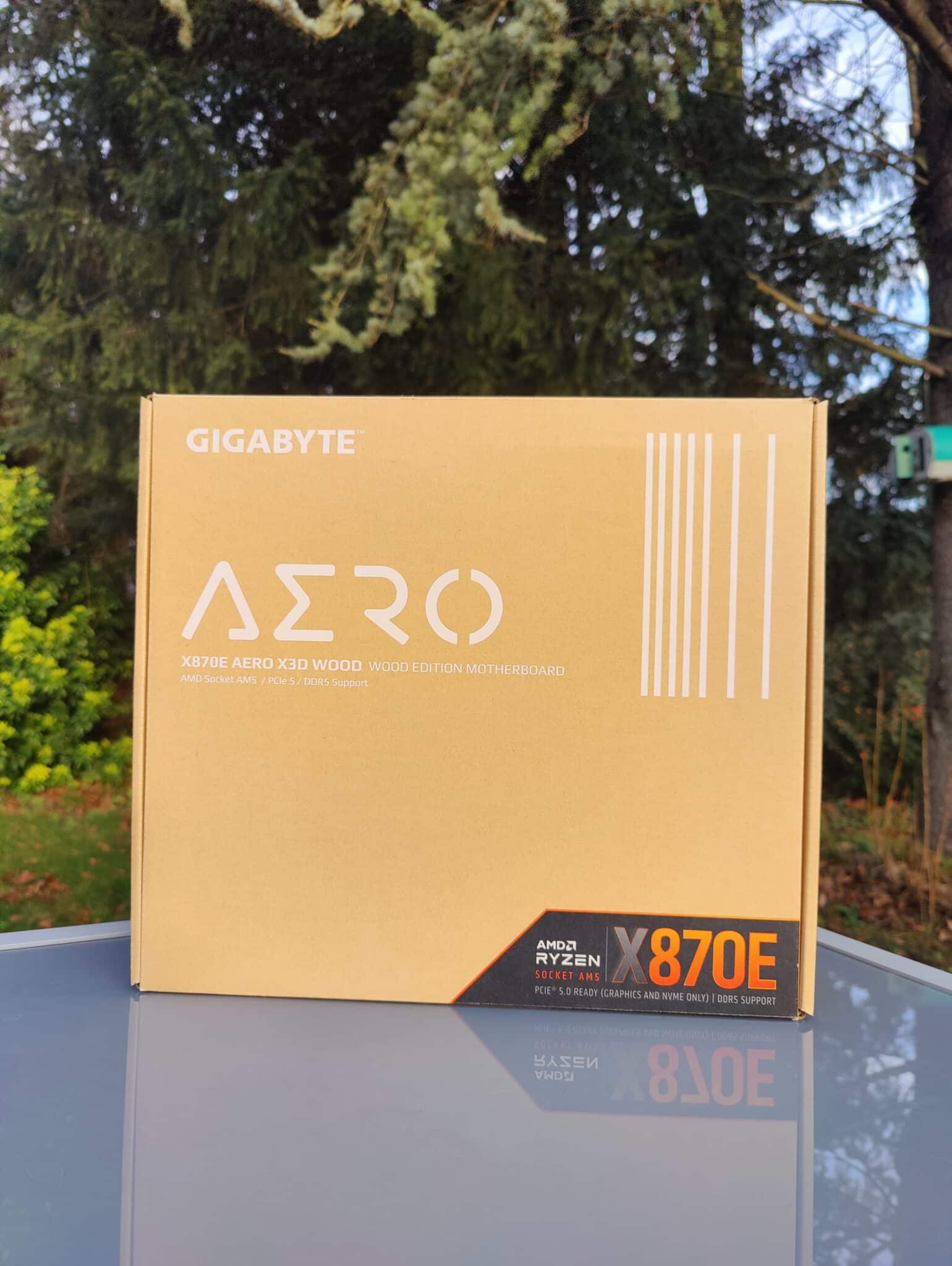
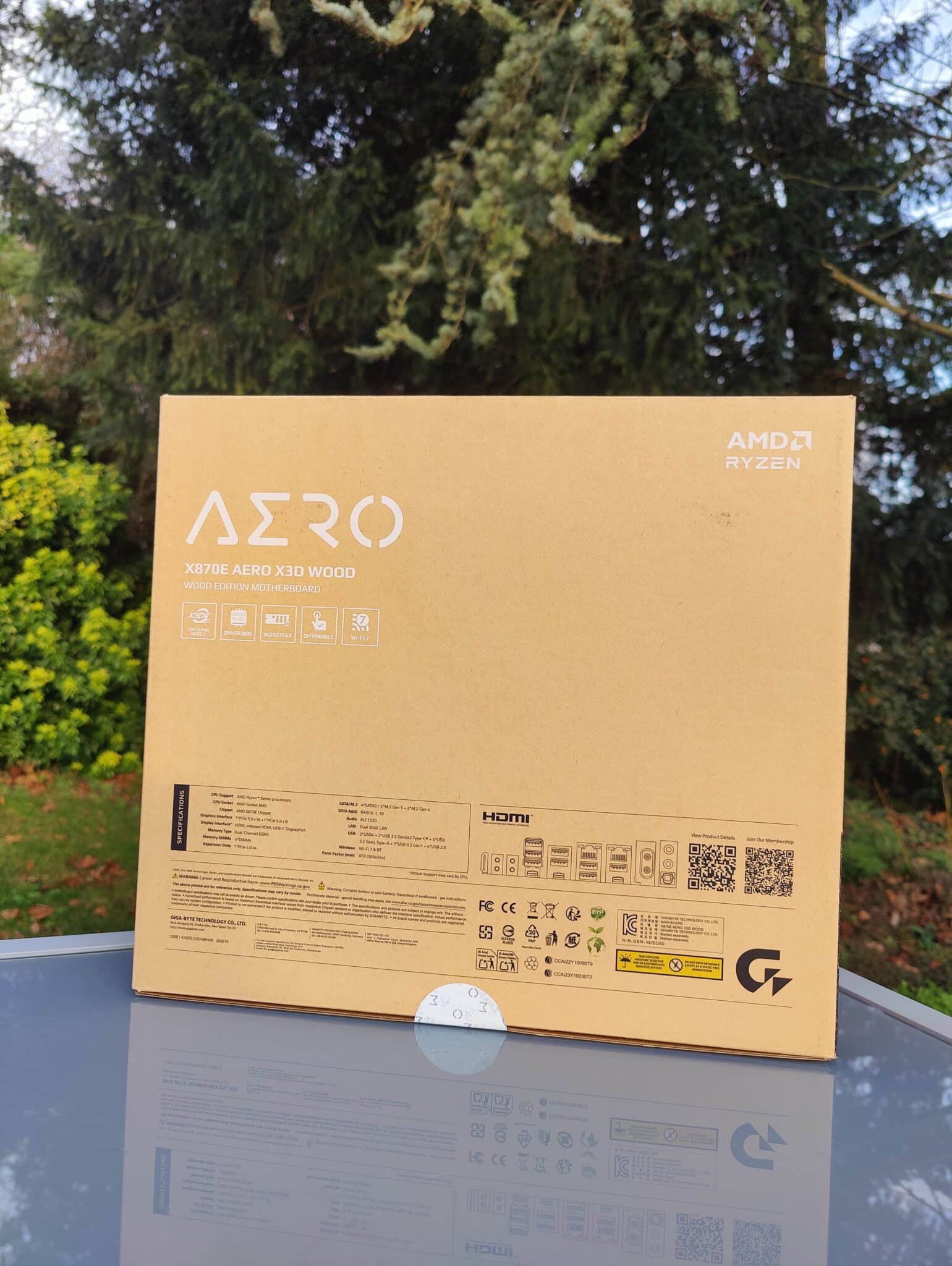
The motherboard box has a very sleek and premium design, with a light wood pattern in a yellow/brown color covering almost the entire box. On top, in white lettering, is the name of the motherboard model, the brand name, and other information.
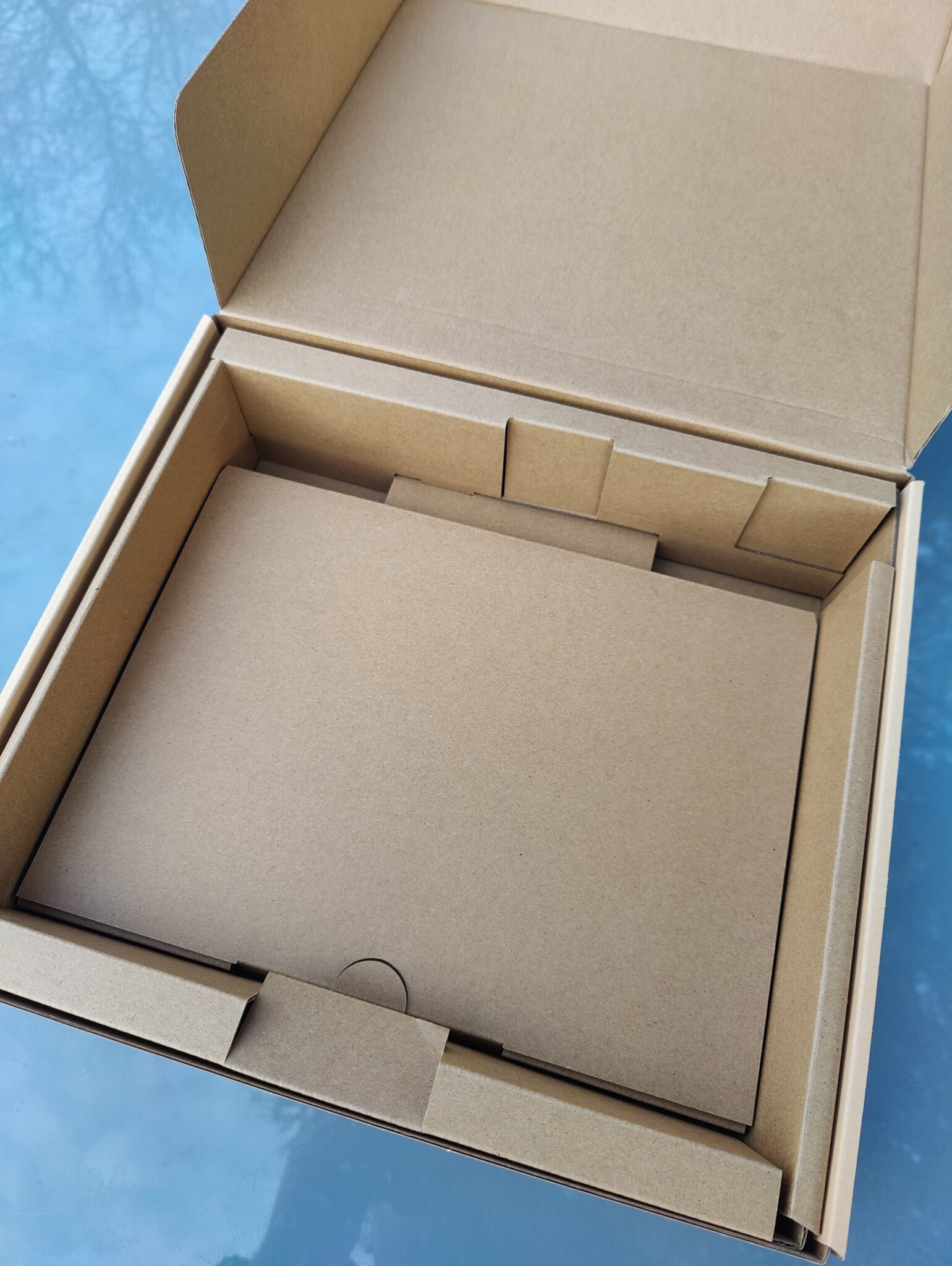
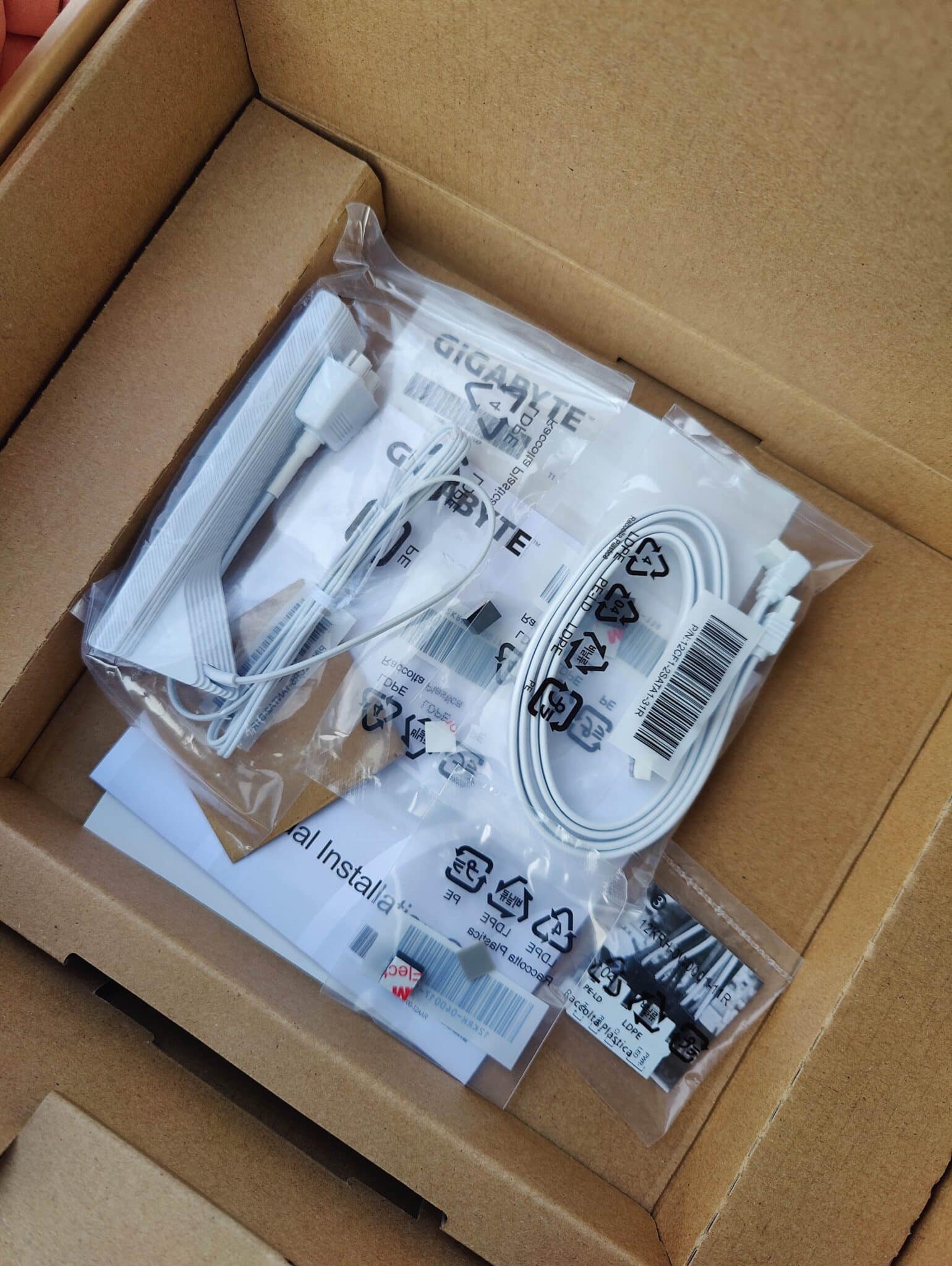
Once the motherboard has been removed, the box has a bottom that opens to reveal all the accessories: the Wi-Fi 7 antenna, SATA cables, and other extras that I found quite useful, such as the G-Connector.
This allows you to connect the various cables in the case, such as the power button, reset button, etc., to a kind of adapter for the motherboard. This simplifies assembly and connection.
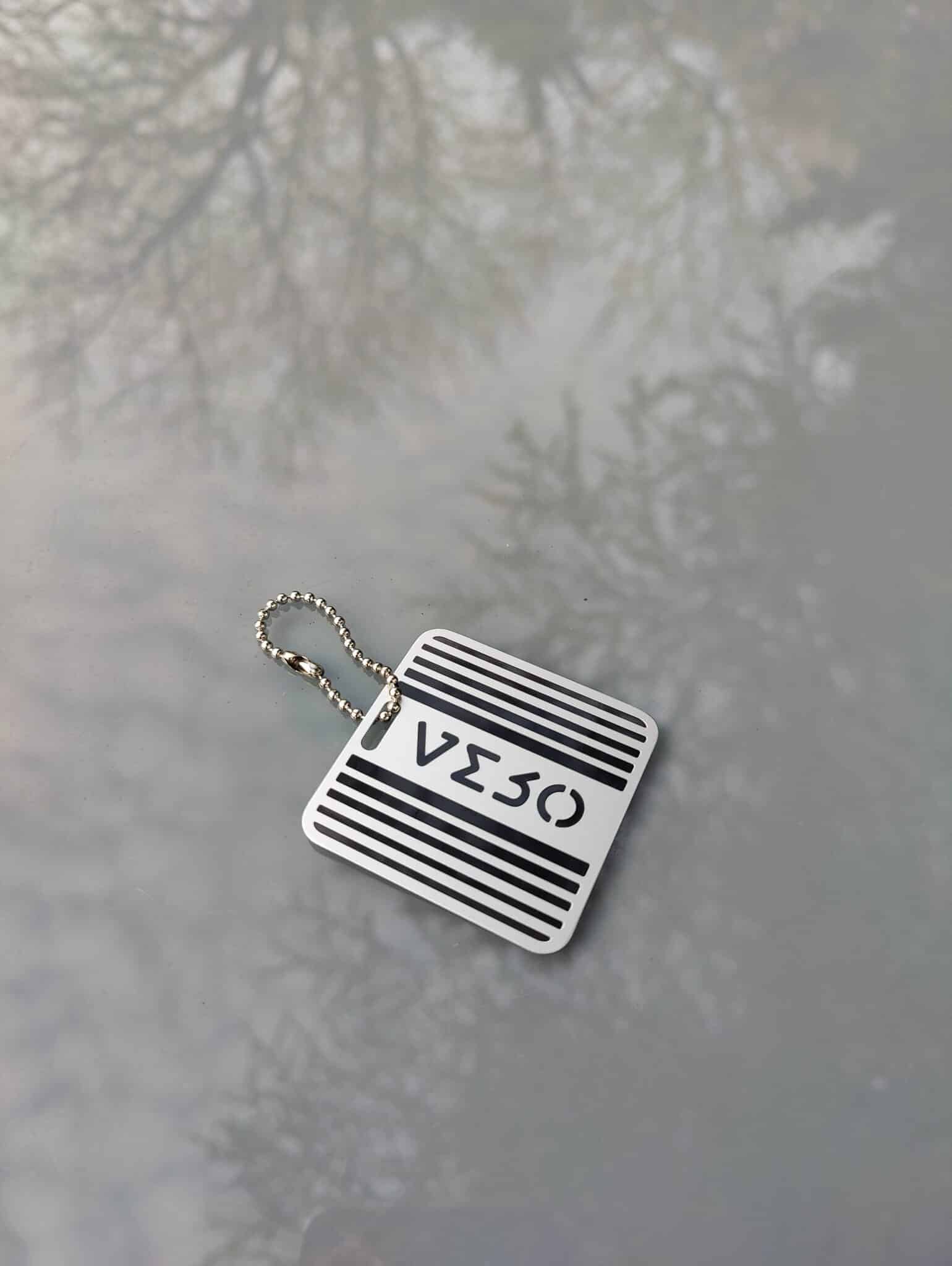
Finally, you also get a small AERO keyring.
The AM5 socket:
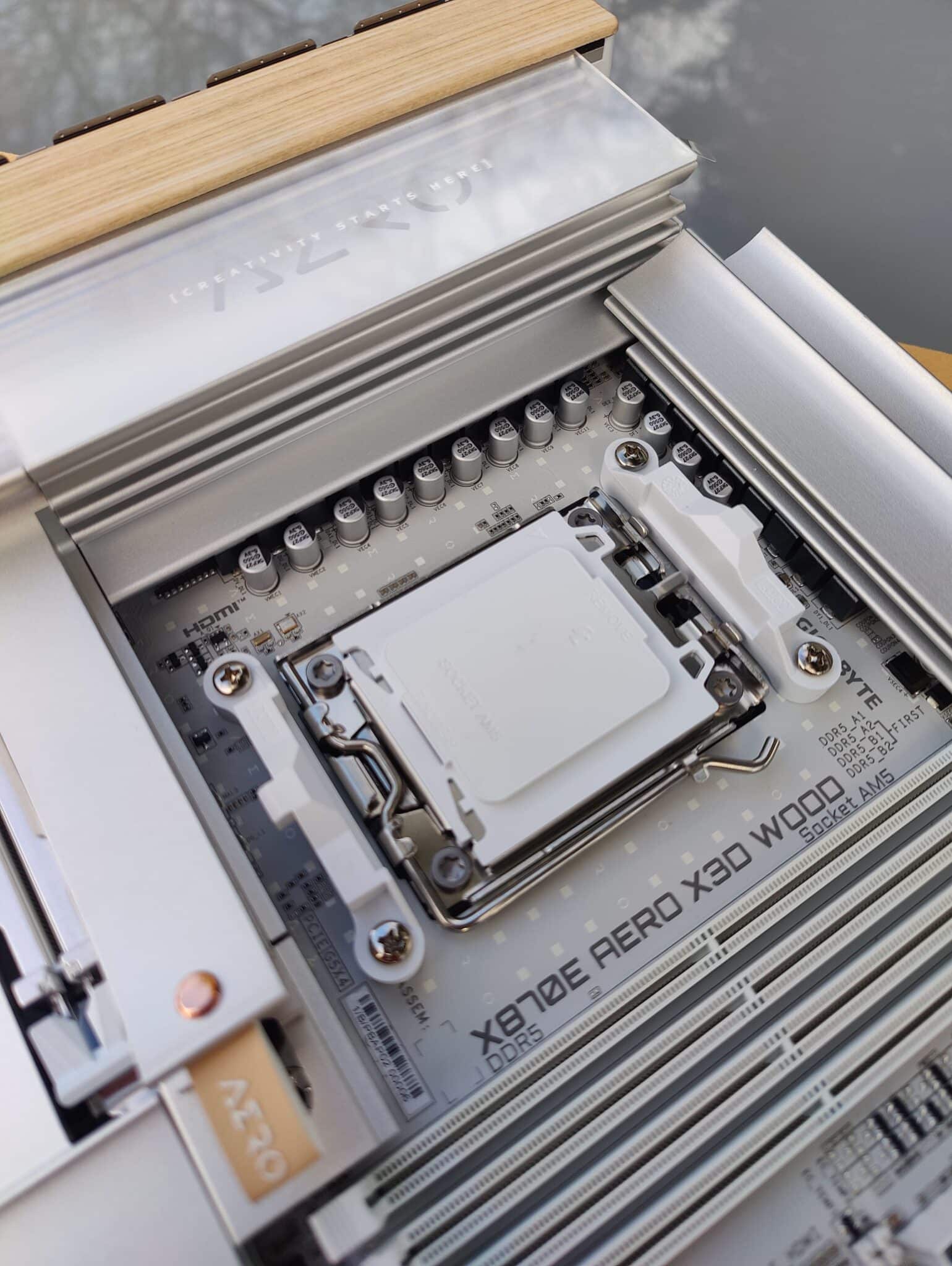
For the processor, we find the AM5 socket with its four holes on each side, in 6-32 UNC format, allowing you to install your cooling system on the ILM (the processor locking mechanism).
Note that tightening the AM5 ILM may seem surprising, due to the force required to lock the CPU. Don’t worry, this strong pressure is normal and is part of the socket’s design.
What is notable about this Gigabyte card is the space around the processor, both on the sides of the radiators and capacitors and on the side of the RAM slots. This provides plenty of room to install the cooling system of your choice.
It offers more space than some other motherboards, which can sometimes be very narrow, which is convenient and makes installing the cooling system much easier. This is especially true when installing water blocks for custom water cooling, which can be quite large.
The different radiators:
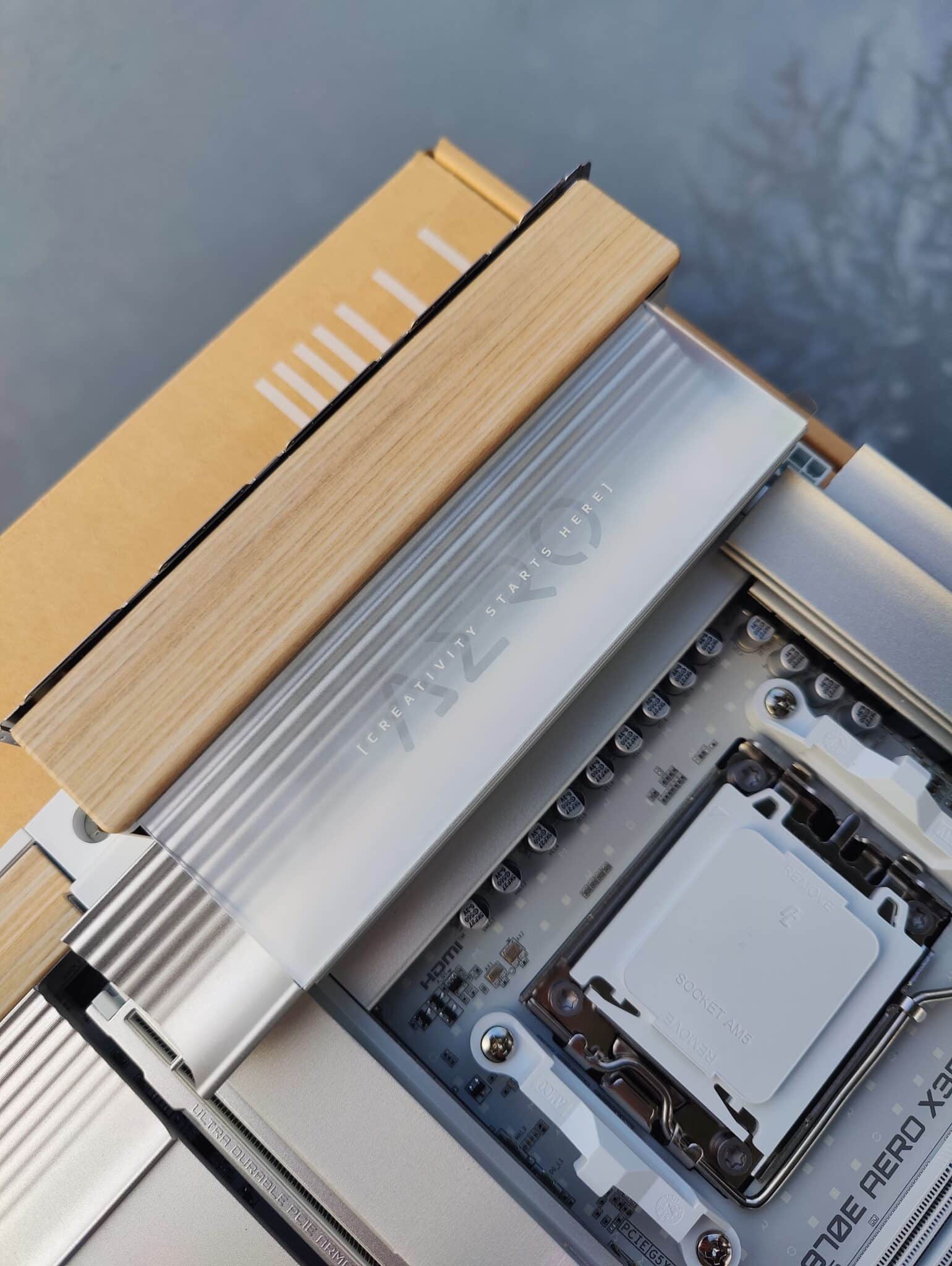
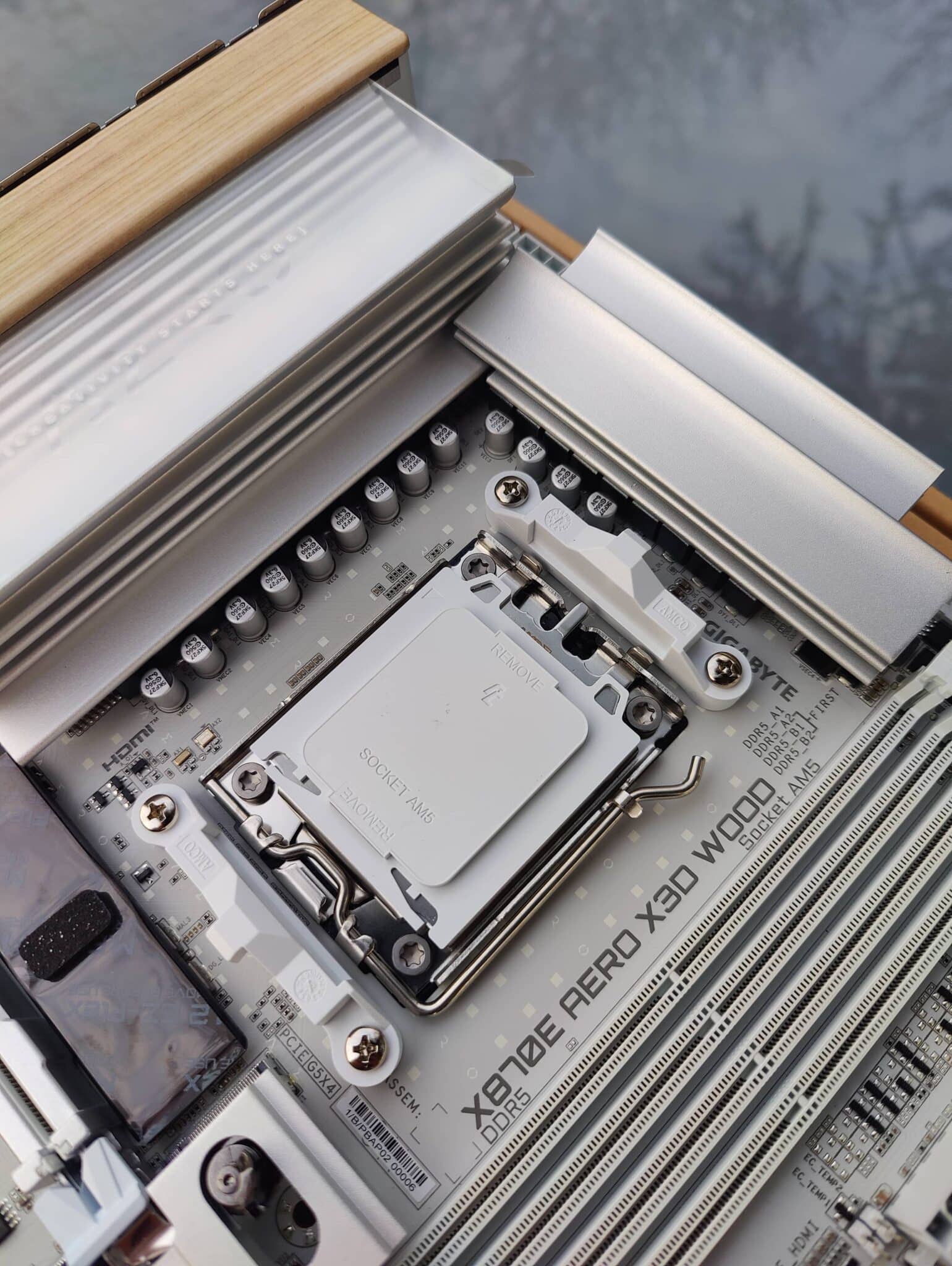
The radiators include very thick models that completely cover the power stages, which is clearly reflected in the overall weight of the motherboard.
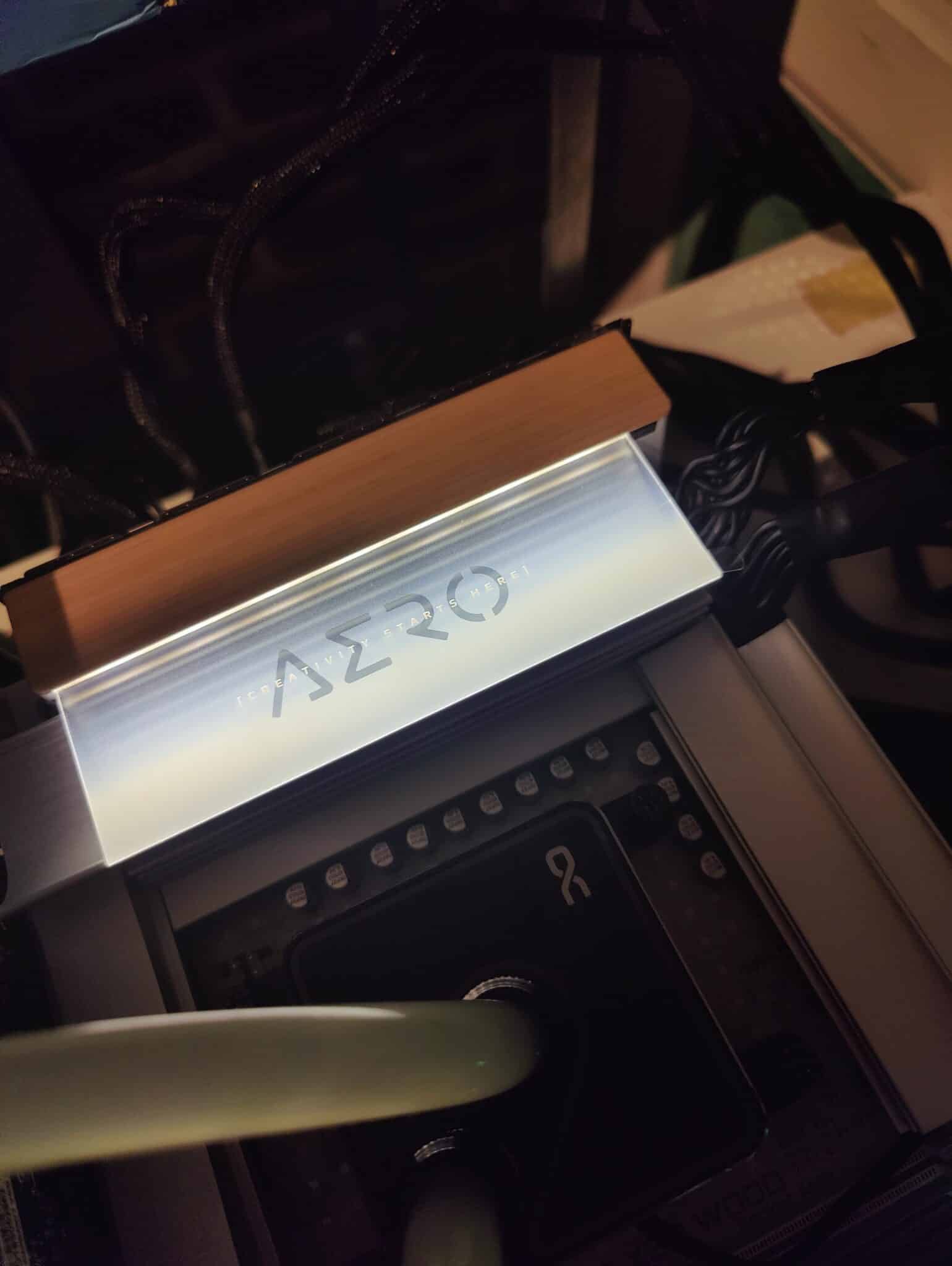
The wood finish is clearly visible, as is a mirror effect with the AERO logo on the large heat sink on the I/O Shield side.
The metallic gray color, combined with the wood finishes and white PCB, gives a very high-end, ultra-smooth finish. And that is clearly Gigabyte’s goal with this motherboard.
The memory section:
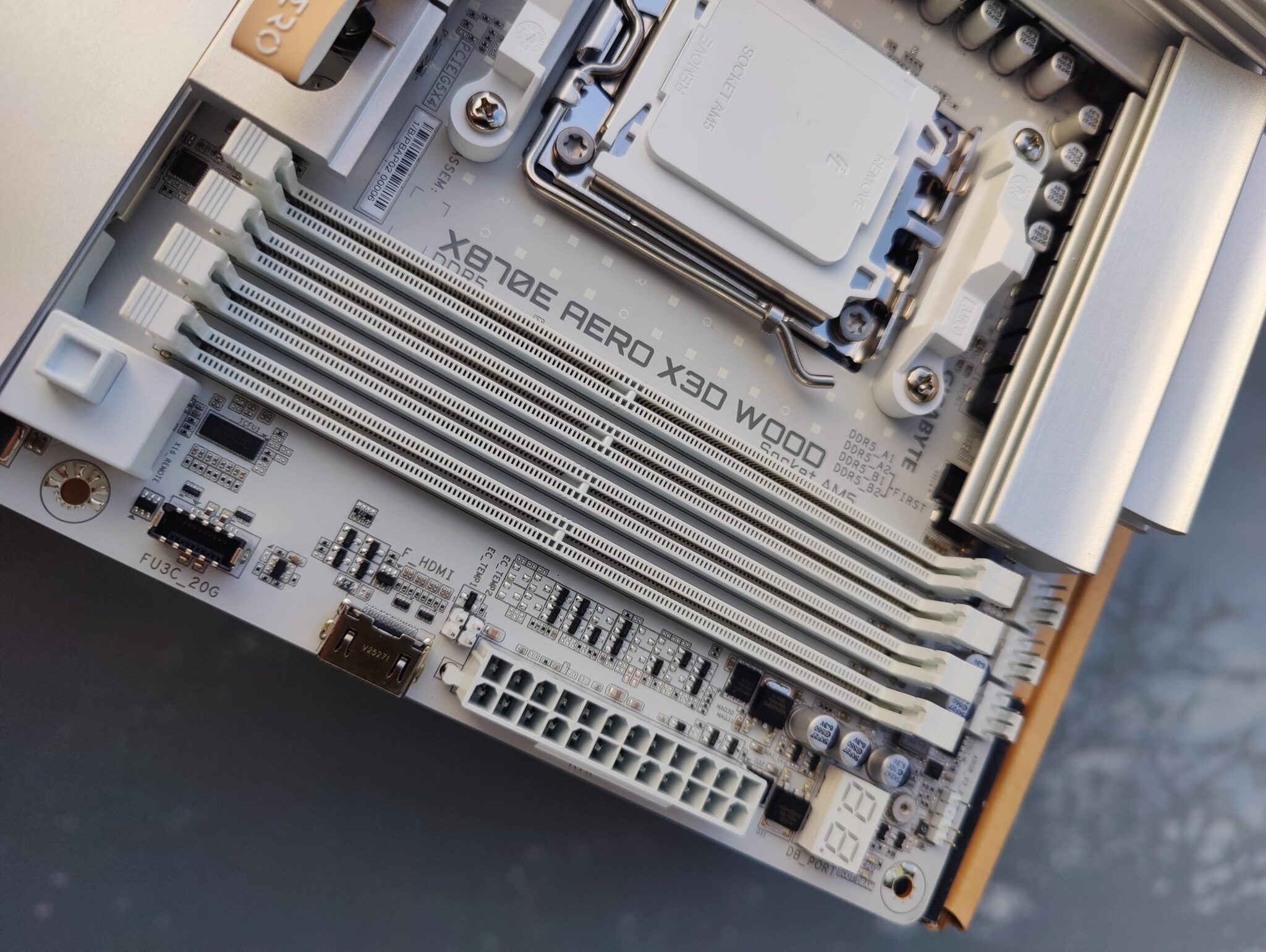
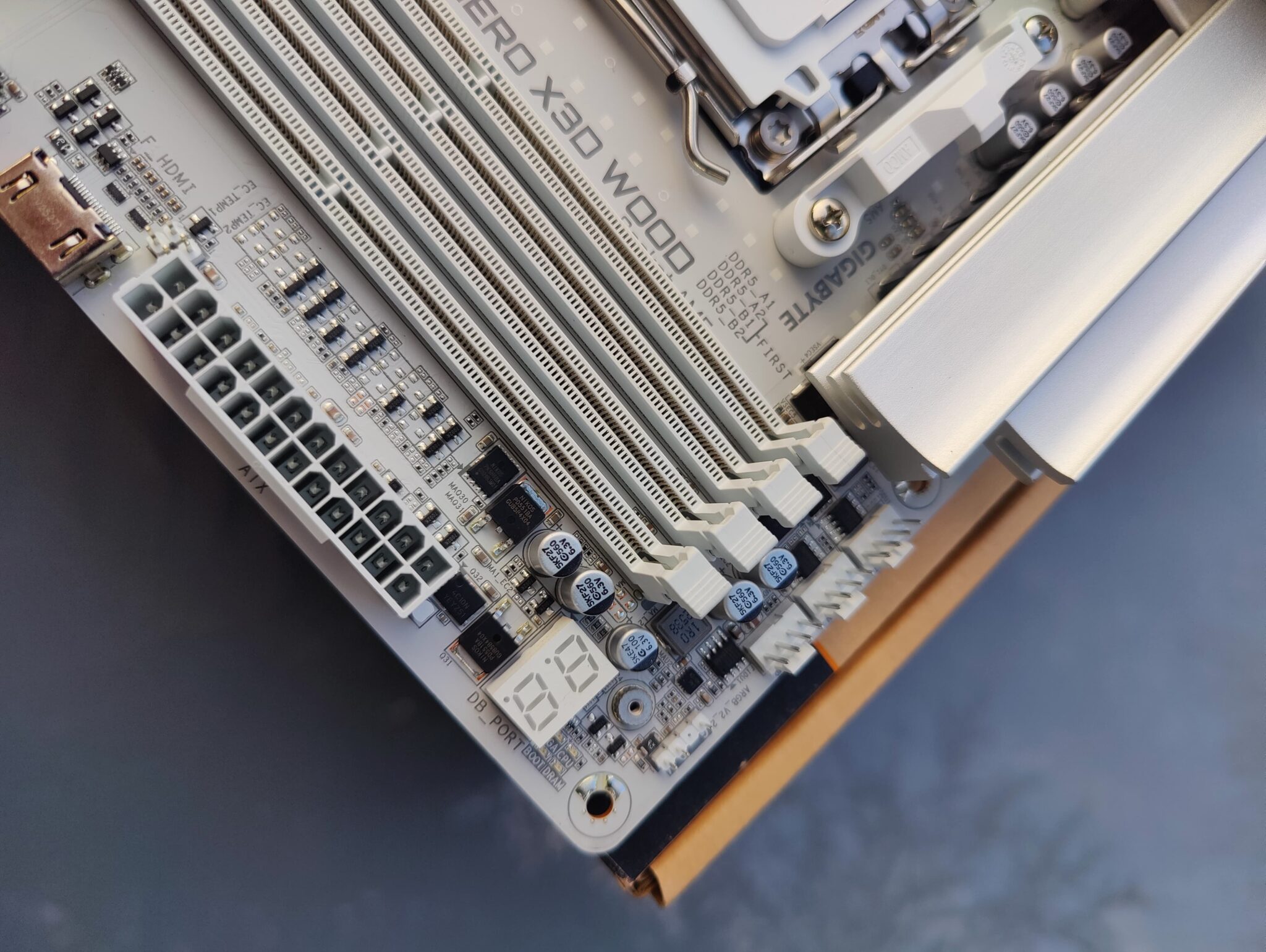
For the memory section, there are four non-reinforced RAM slots, with Gigabyte announcing support for up to 9000 MT/s. Obviously, this value is mainly highlighted for APUs (Ryzen 8000), but it bodes very well for memory with “classic” Ryzen processors, such as the Ryzen 9000.
The 800 series motherboards benefit from improved RAM support compared to previous generations, in order to adapt to the increased RAM capacities and frequencies on the Ryzen 9000. These can exceed 8000 MT/s, which was not possible on the Ryzen 7000.
Gigabyte was one of the first manufacturers to offer high RAM frequencies on 4-slot motherboards, starting with the 600 series.
PCIe 5.0 ports:
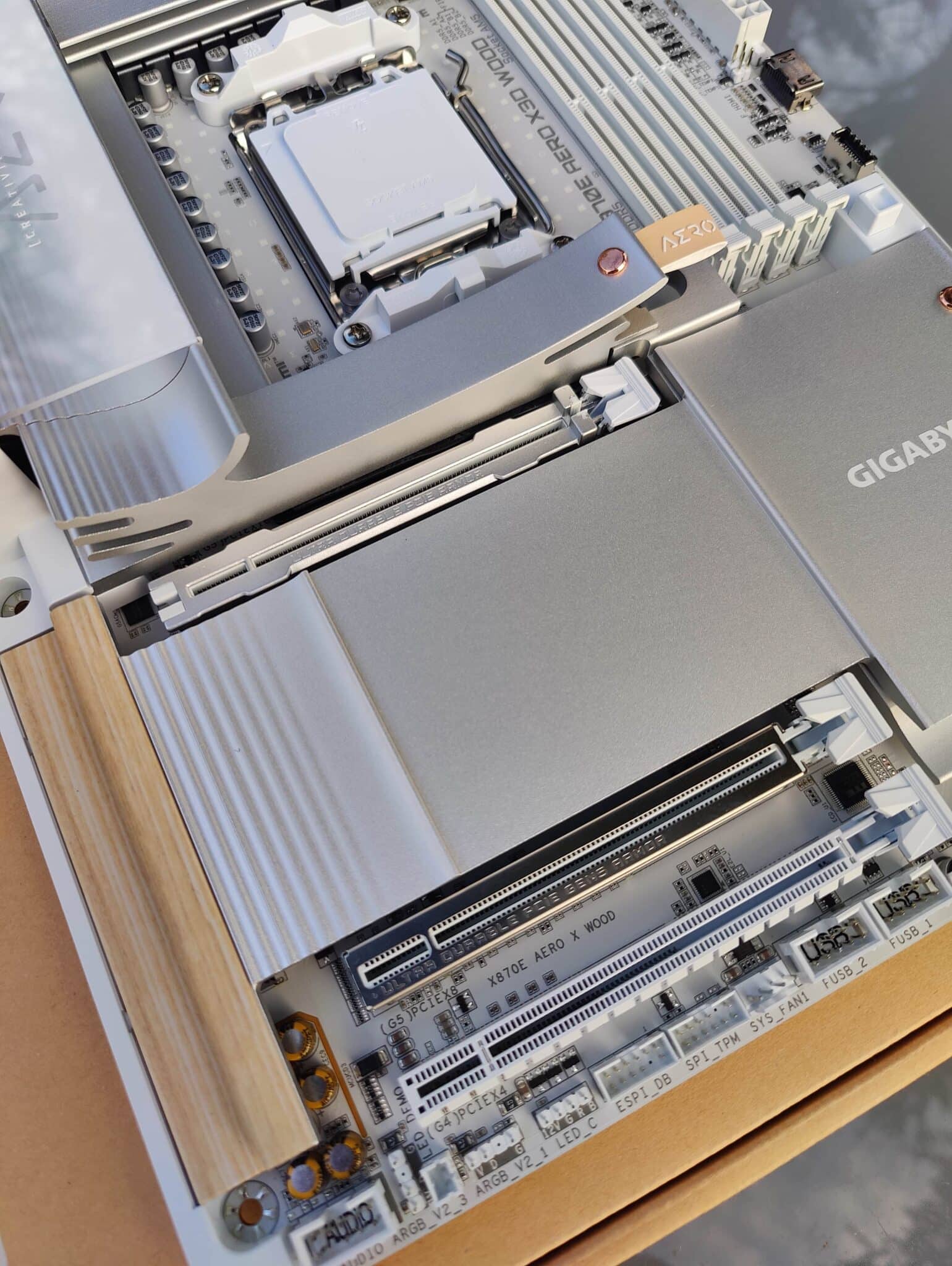
To begin with, the X870E AERO WOOD Edition is equipped with a reinforced PCIe 5.0 slot, incorporating the EZ-Latch Plus system. This is a button that allows you to easily unlock the port for removing the graphics card.
The second PCIe port is also reinforced, while the third PCIe port is not.
Next, there is the part that covers a portion of the motherboard, both for aesthetic reasons and to provide passive cooling for the chipset and NVMe SSD chips.
The fairing:
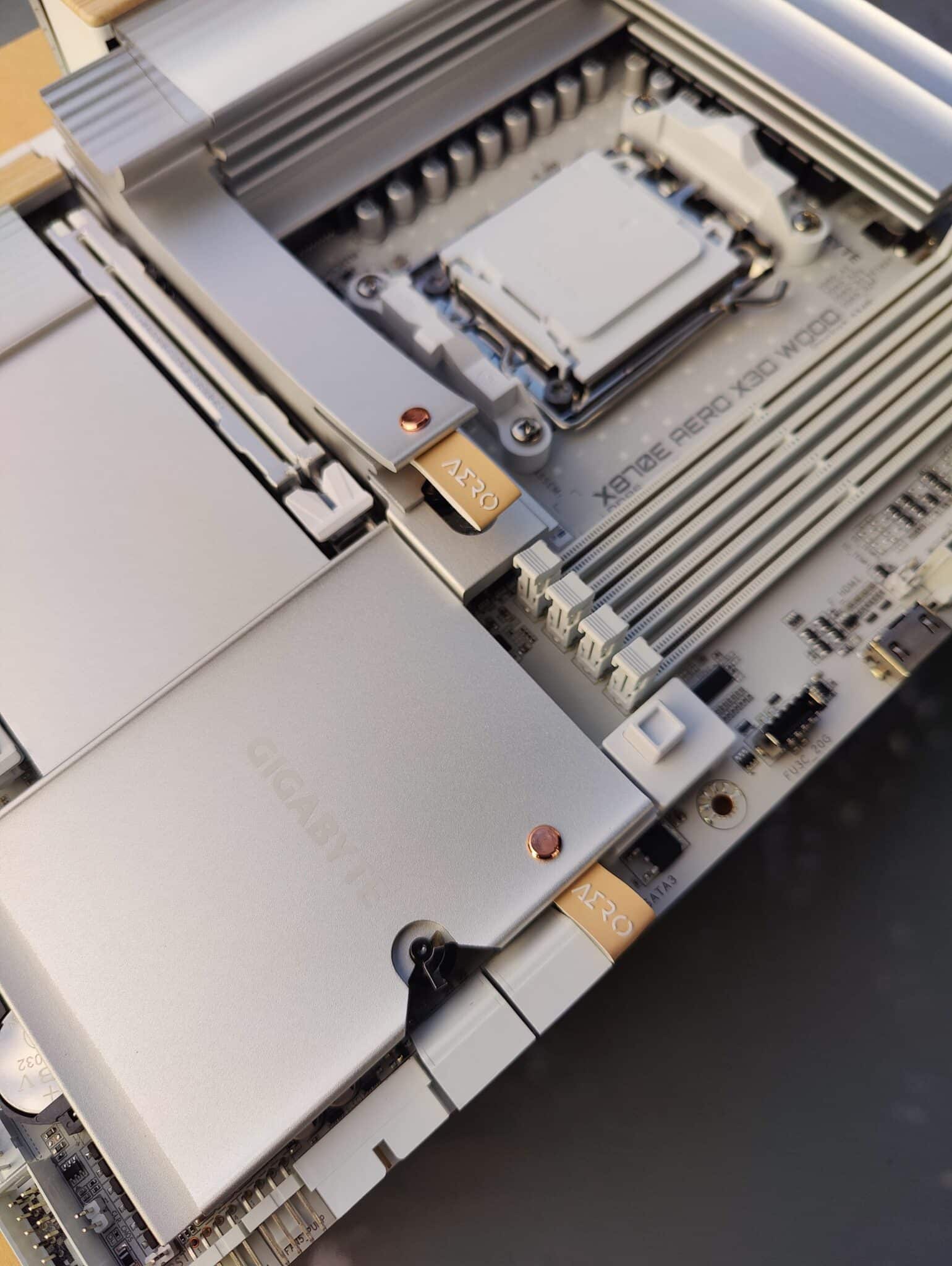
The entire structure is made of metallic gray aluminum, like the power stage heatsinks, with wood accents on the sides of the motherboard and faux leather tabs to accentuate the high-end finish.
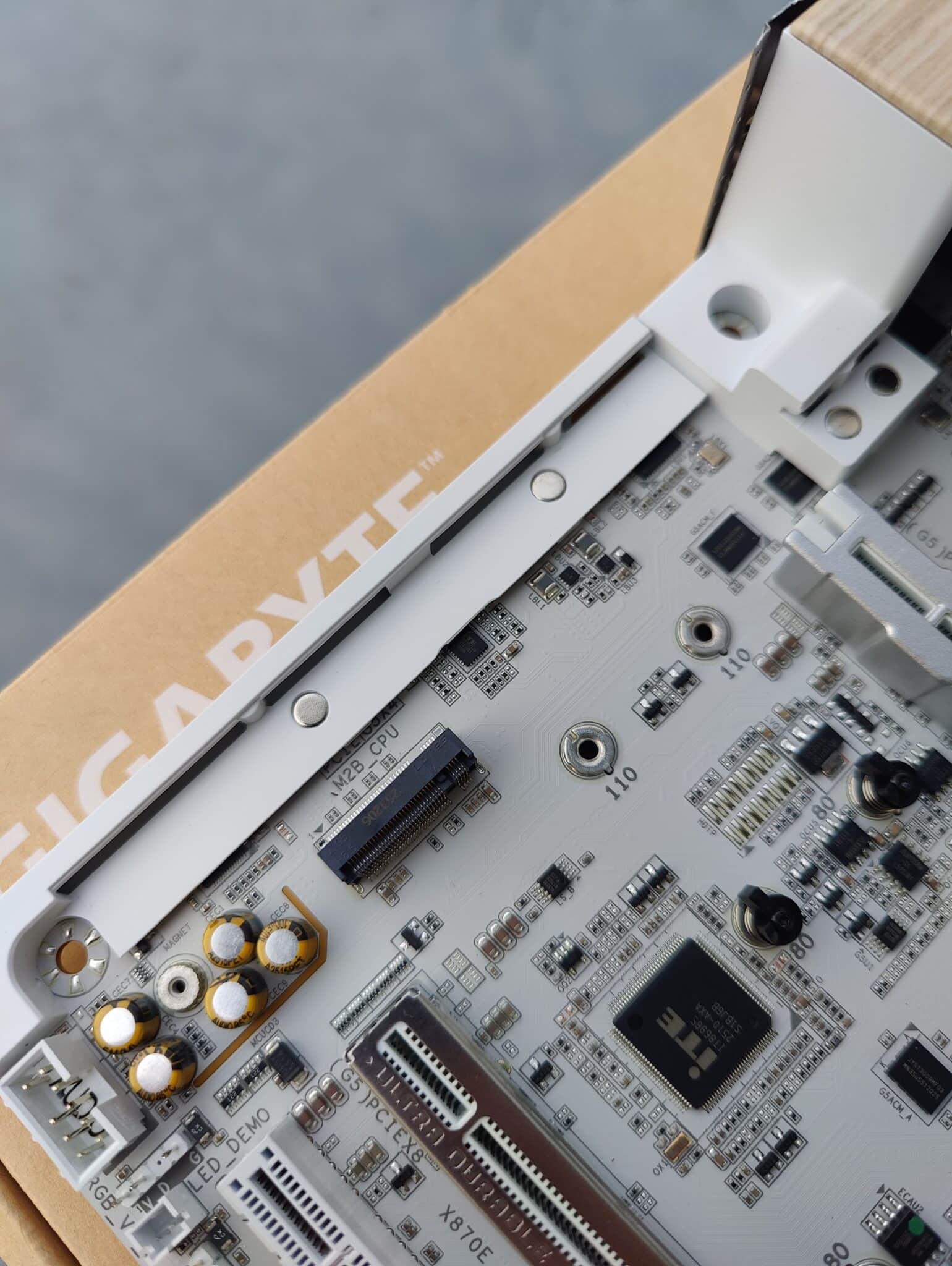
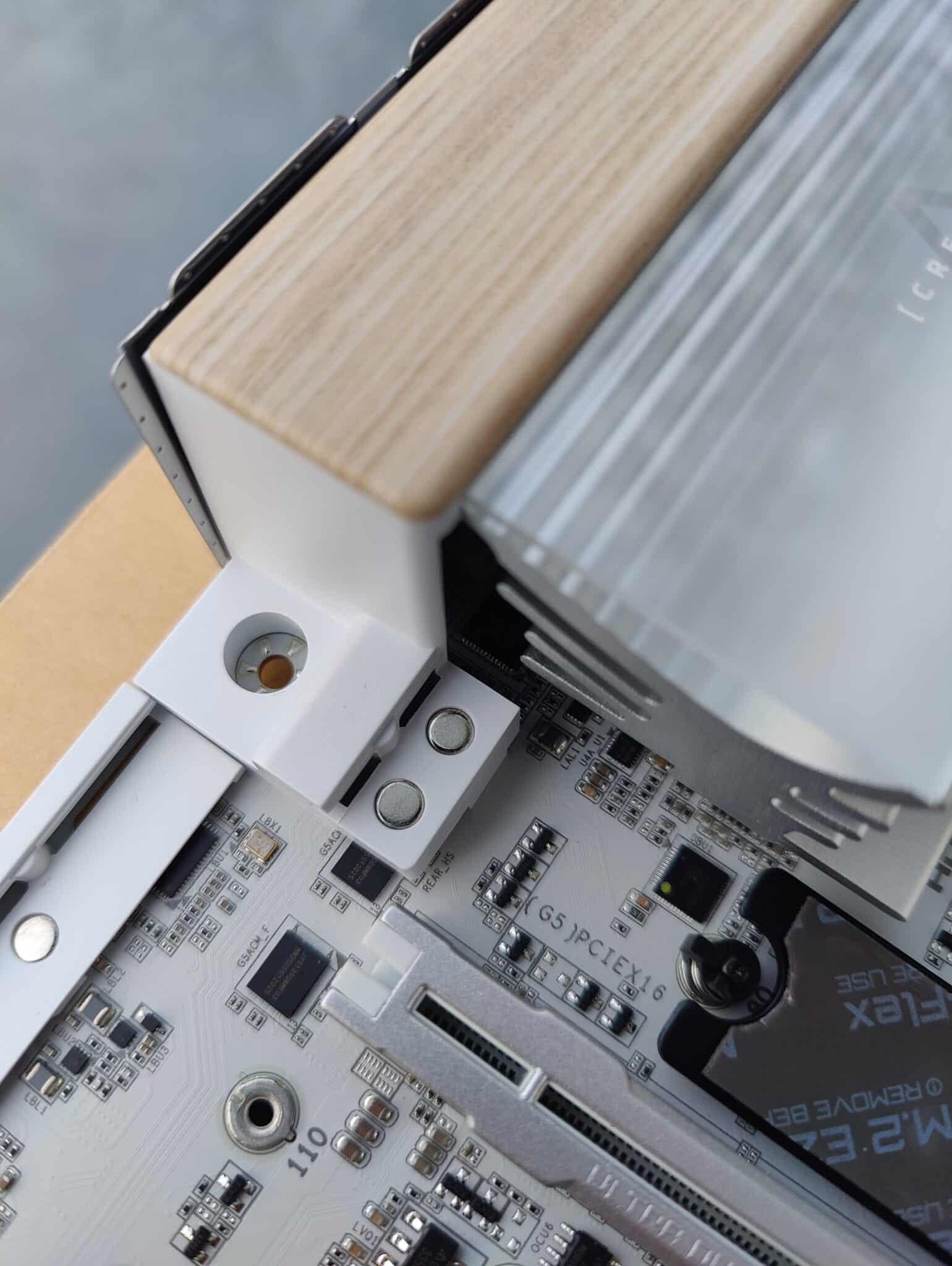
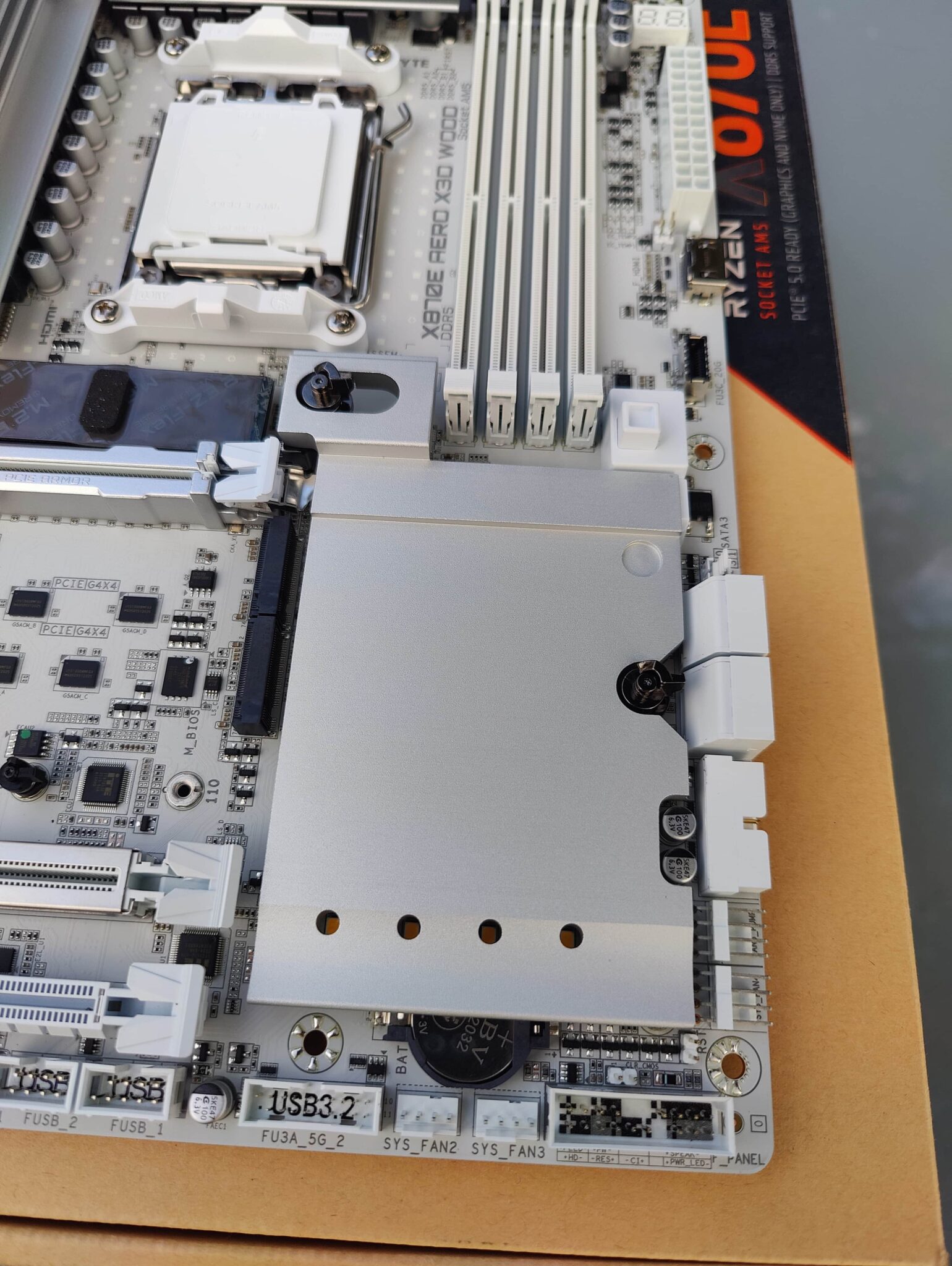
For mounting the heatsinks, Gigabyte has integrated a latch lock/unlock system, which is activated when the passive heatsinks are removed to allow easy access to the M.2 slots.
And here we discover a wonderful surprise: Gigabyte has integrated magnets, enabling a magnetic system to position and snap the heat sinks into place. This is a huge plus, as it greatly facilitates alignment, installation, and above all, disassembly and reassembly, which can sometimes be complicated on other motherboards. This is the first time I’ve seen this type of solution on a motherboard.
Honestly, when disassembling and reassembling, I was pleasantly surprised by how it feels, how simple it is, and how easy it is to use.
Gigabyte calls this system the M.2 EZ-Latch, and it’s clearly an excellent idea.
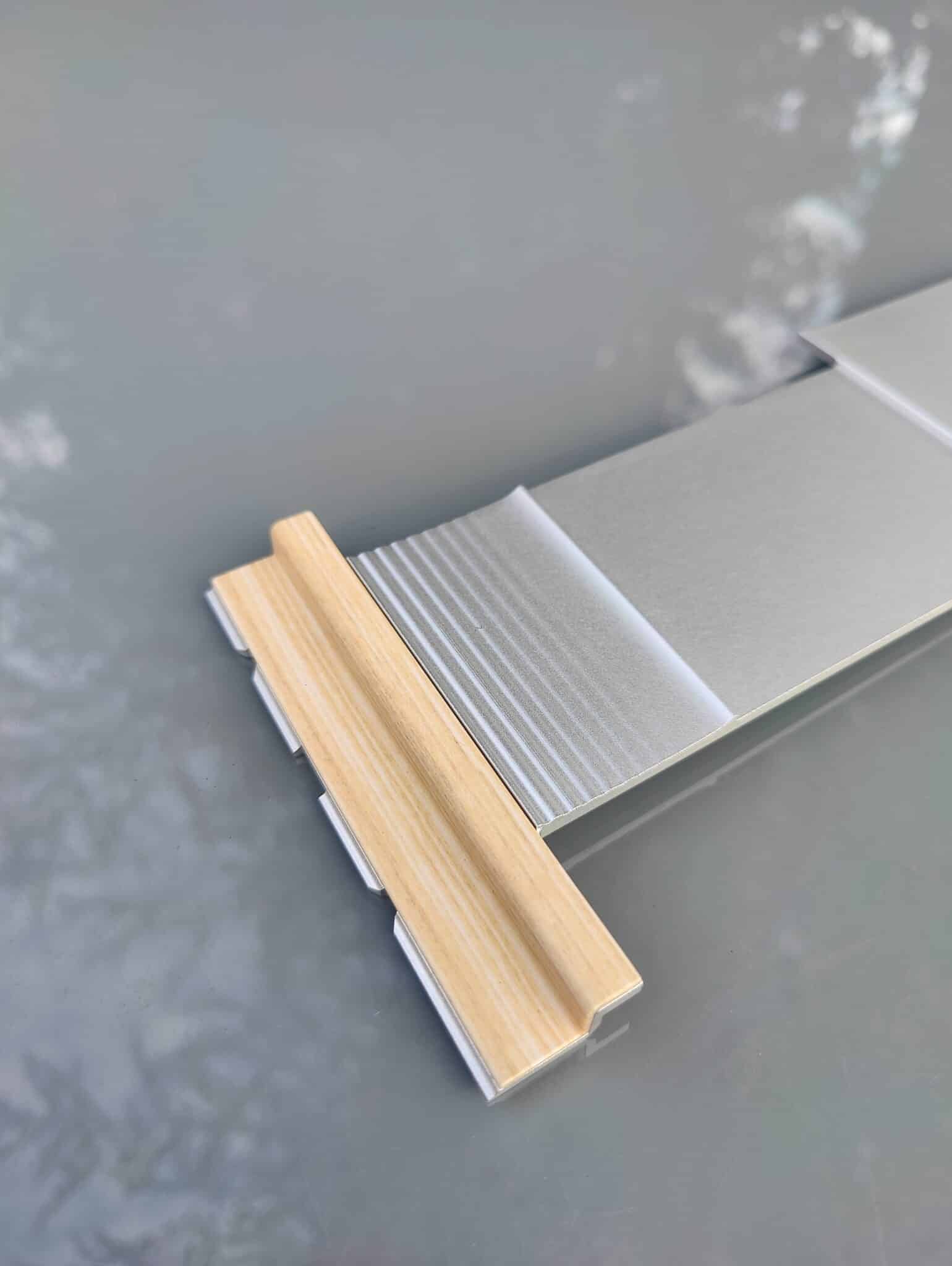
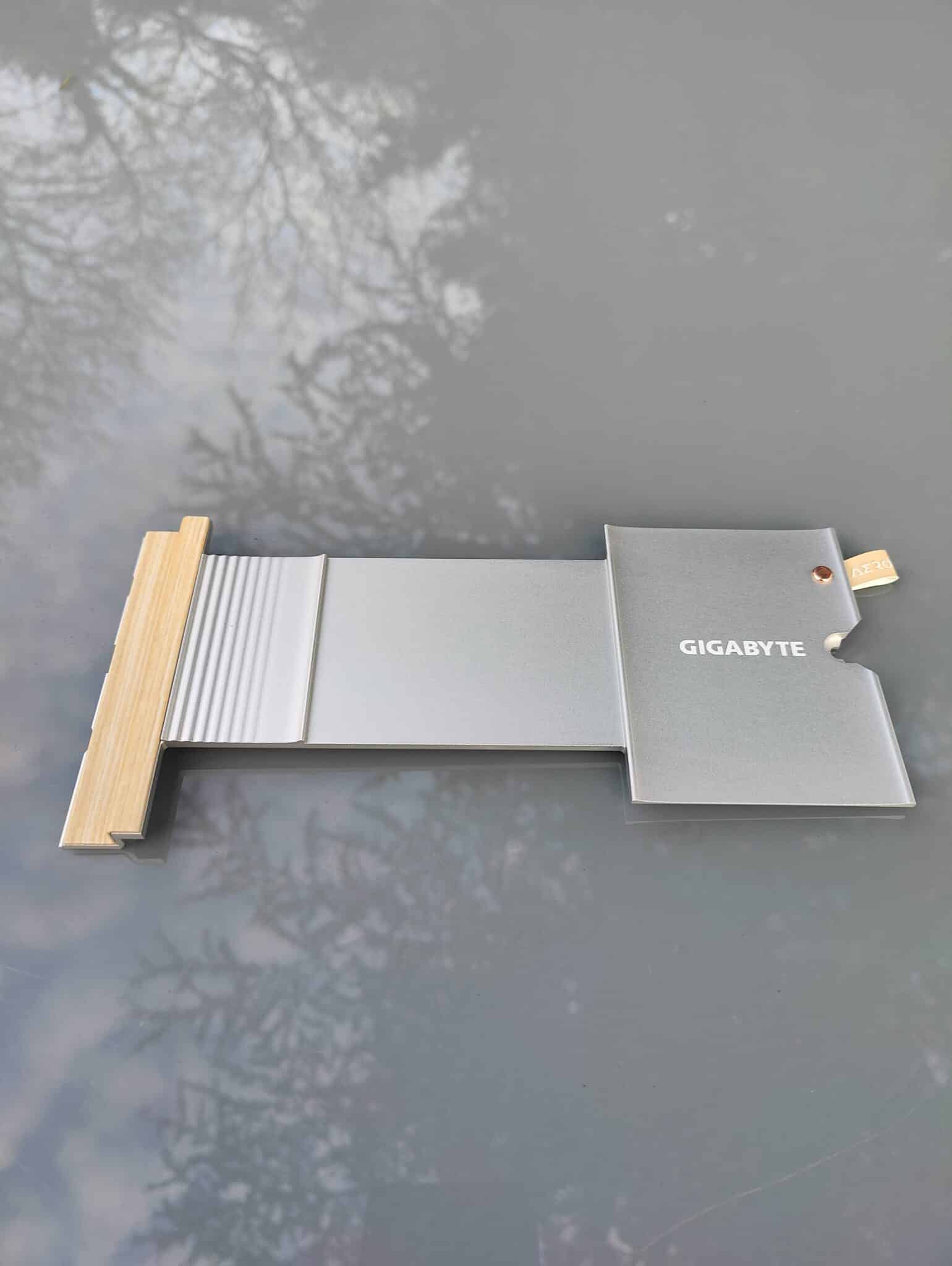
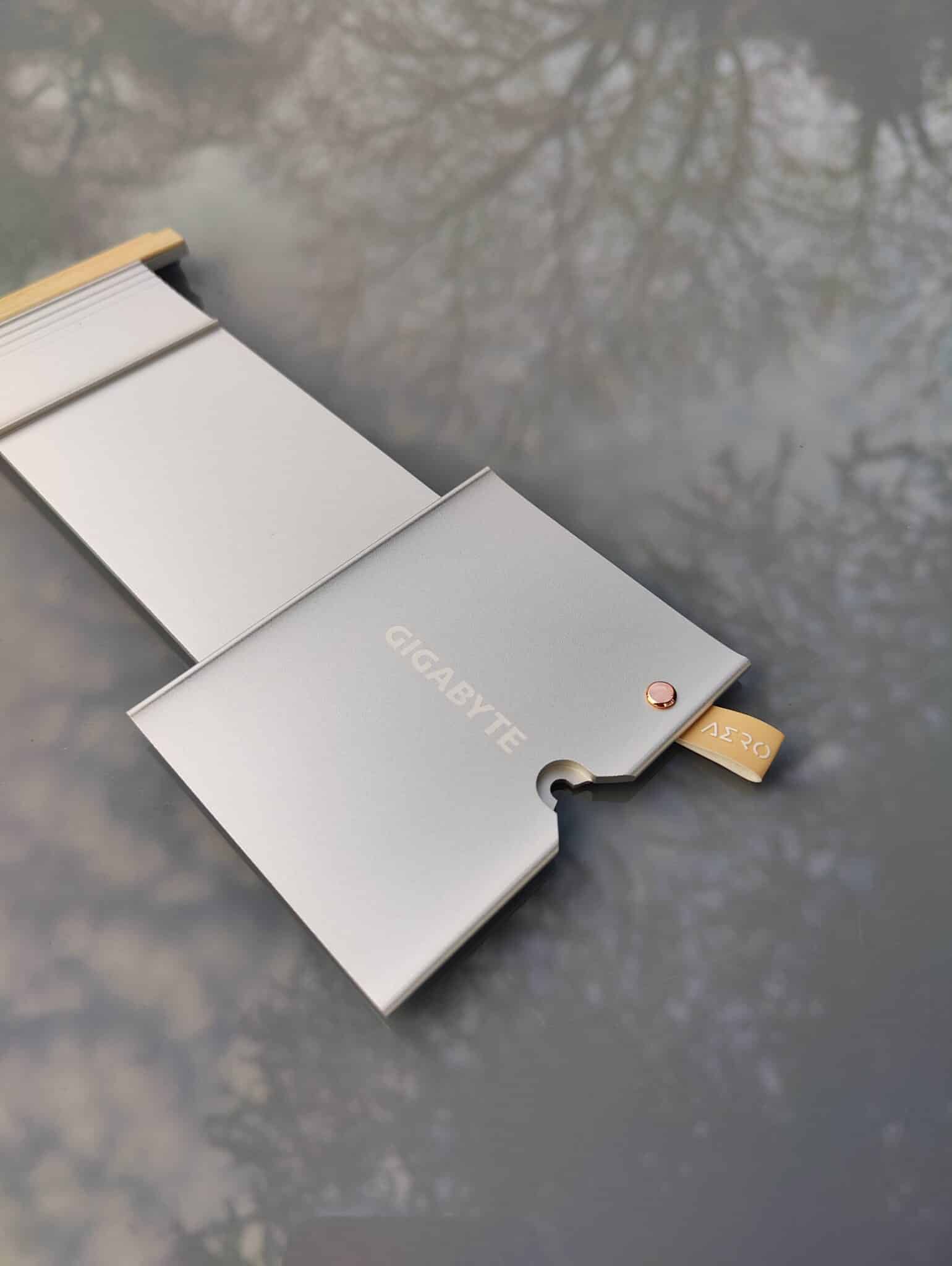
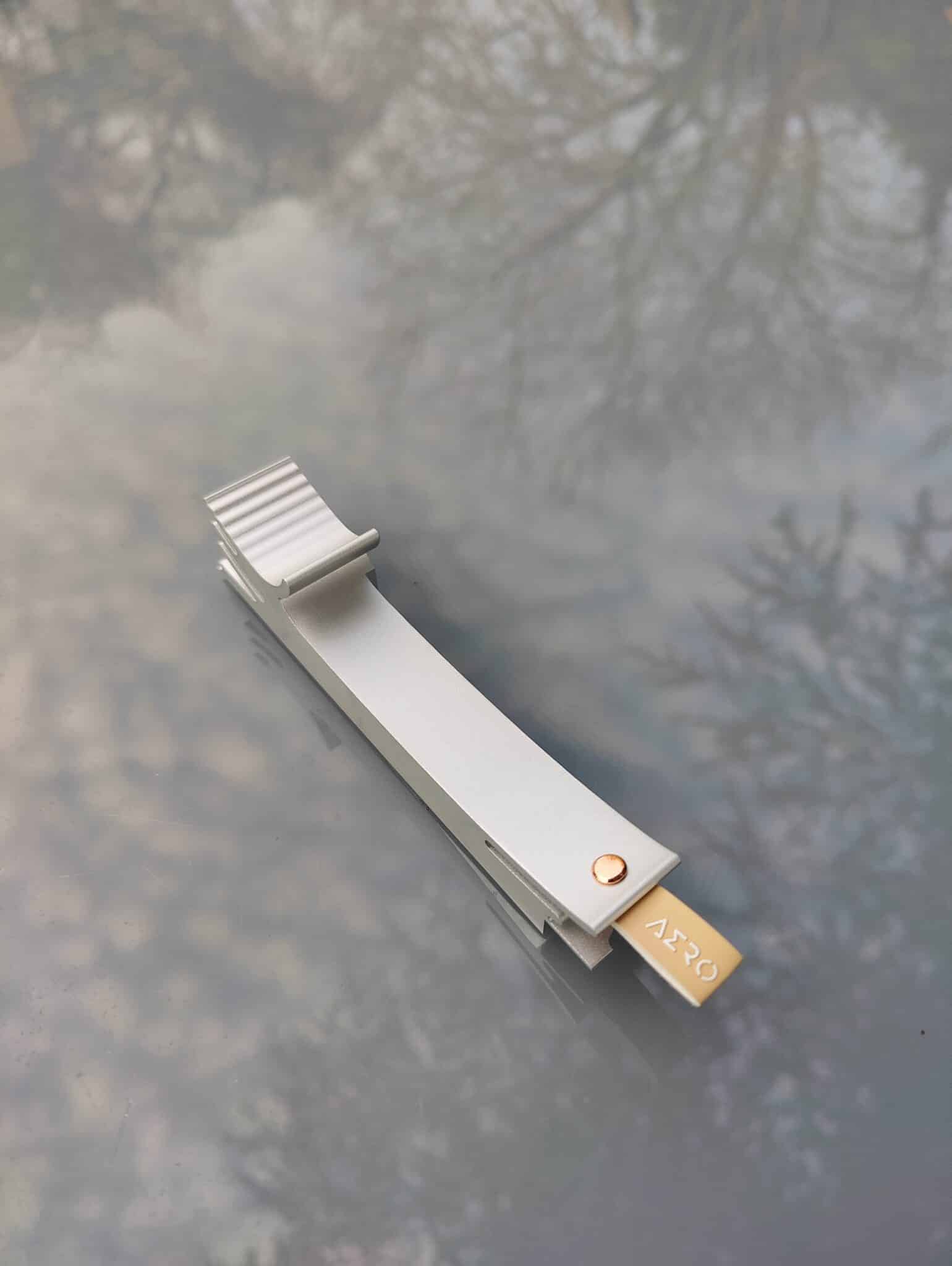
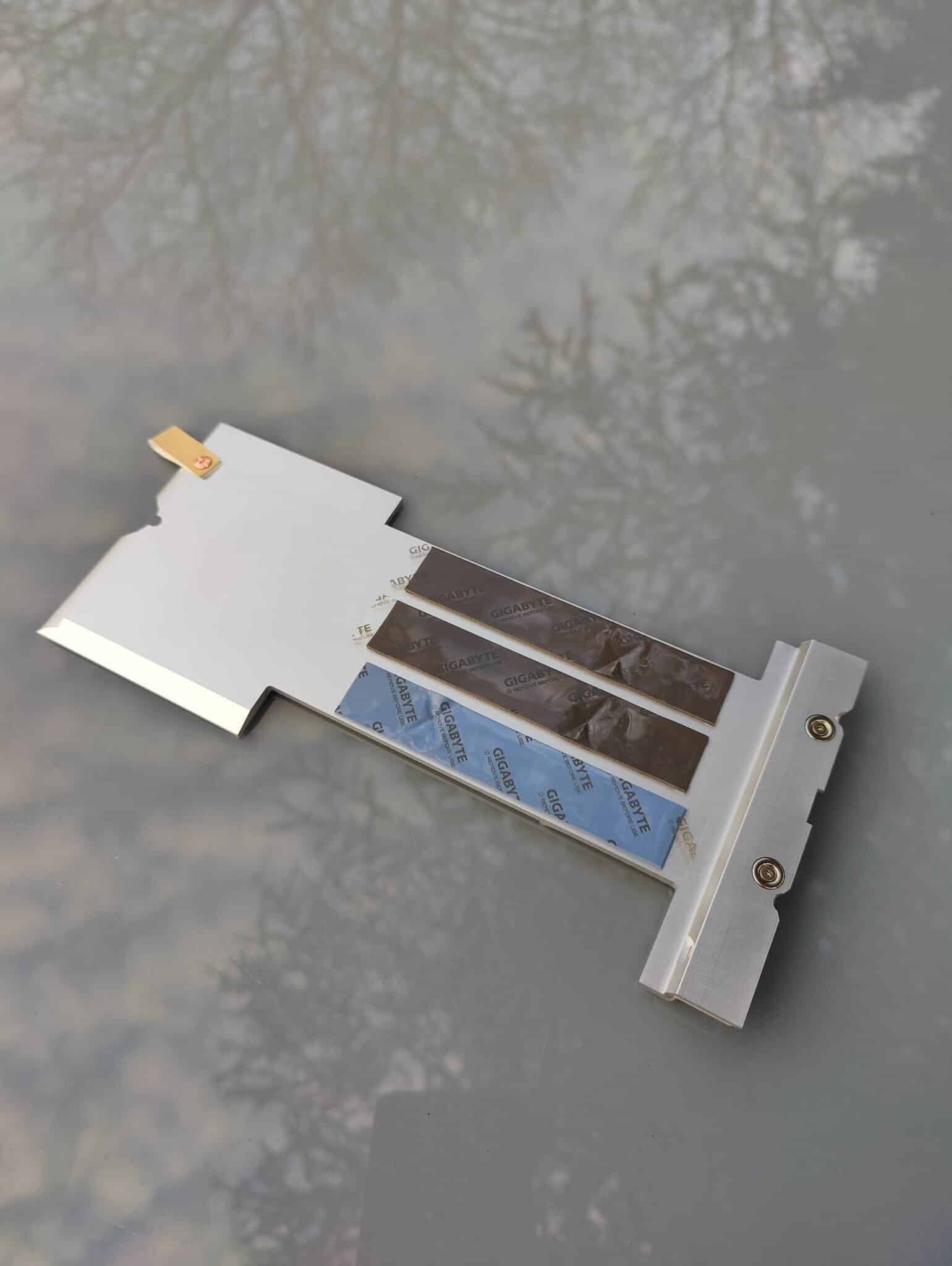
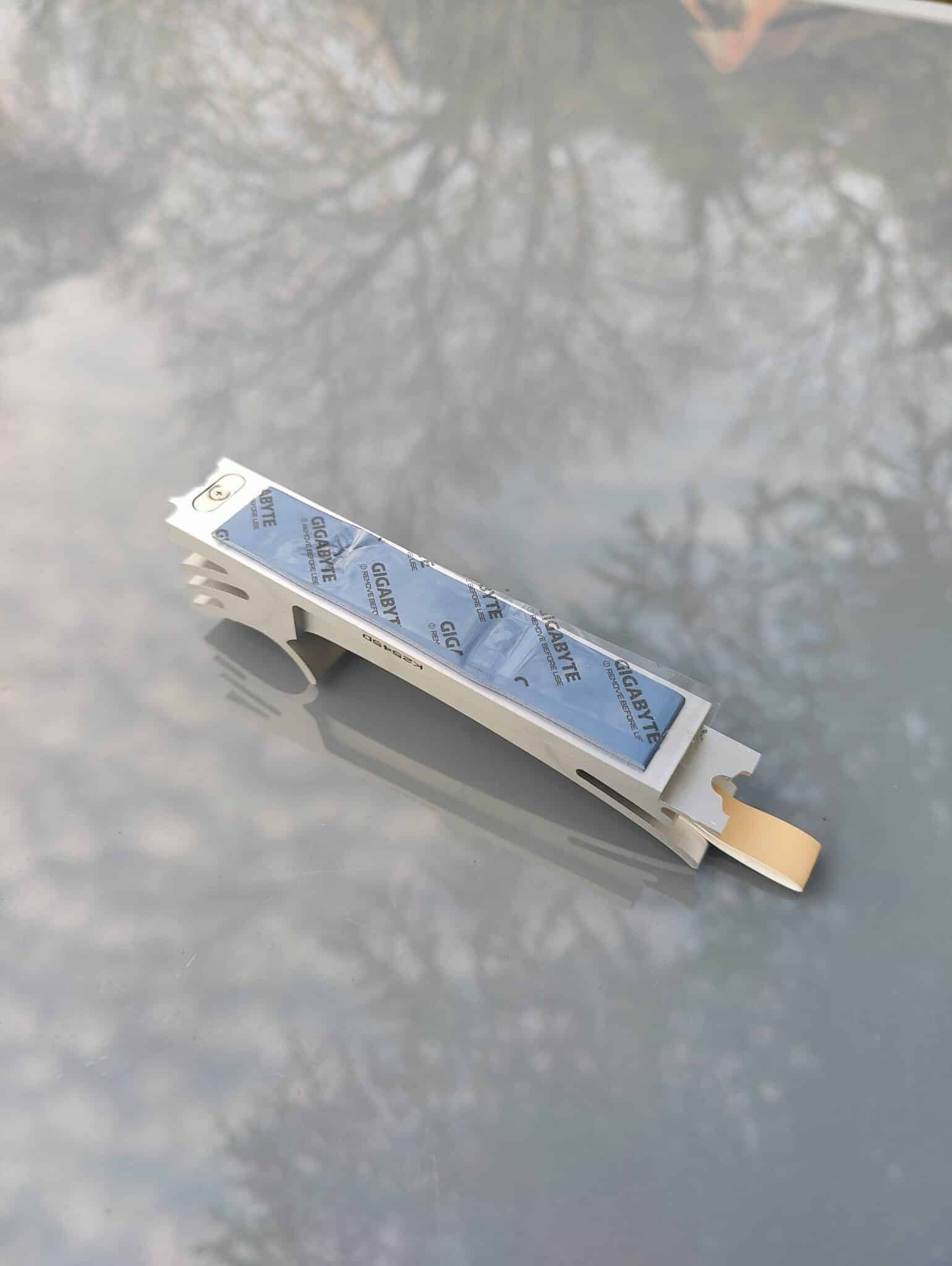
The finish on the metallic gray heat sinks is simply excellent. You can feel that they are thick and heavy, which exudes quality and inspires confidence in the NVMe’s excellent passive heat dissipation.
Of course, there are thermal pads on all NVMe slots.
I also find that the addition of tabs is a change from what we usually see. They fit perfectly with the wood and exotic feel of this motherboard, and correspond very well with the identity that Gigabyte wants to convey with this WOOD edition.
The NVMe ports:
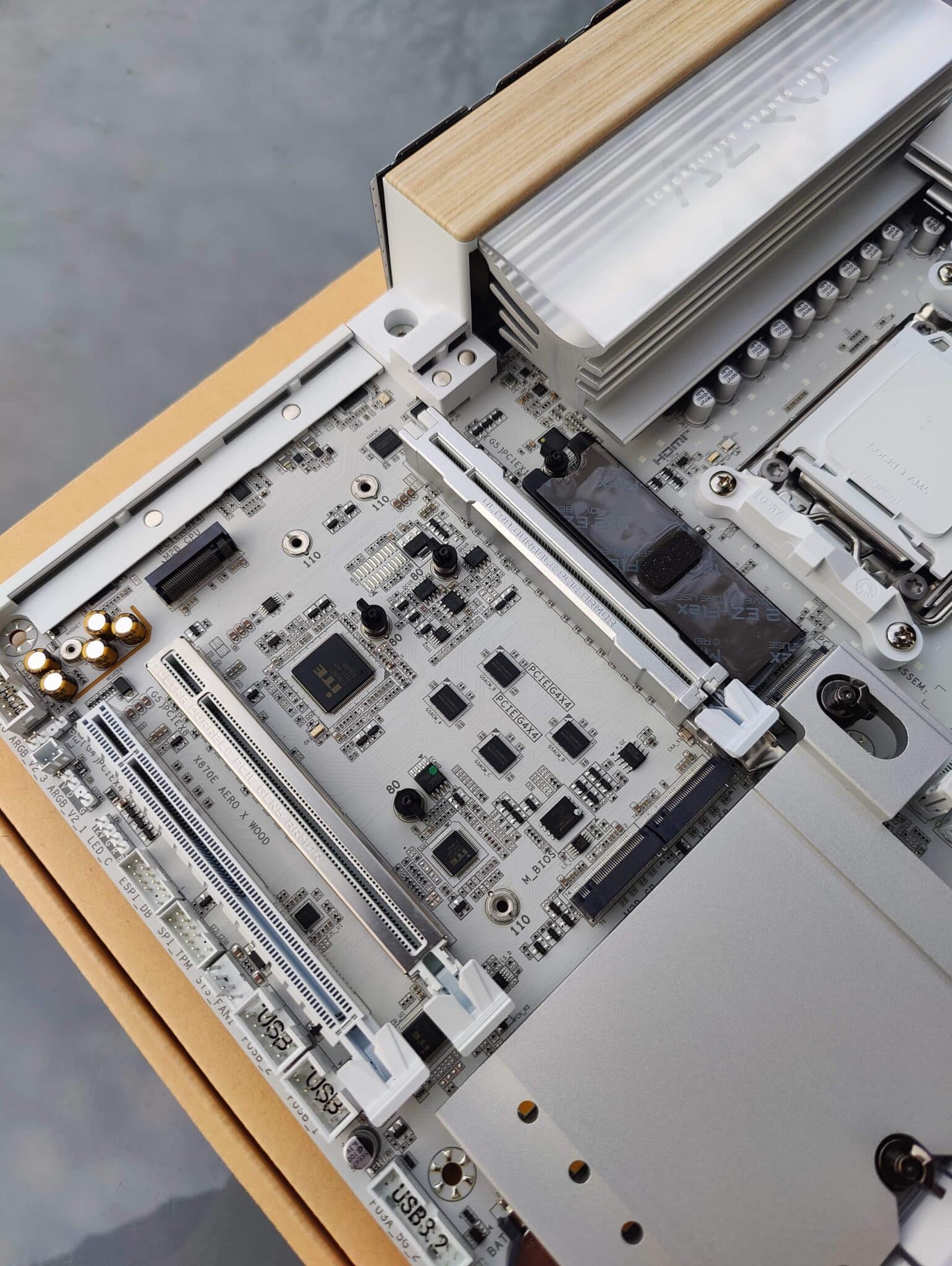
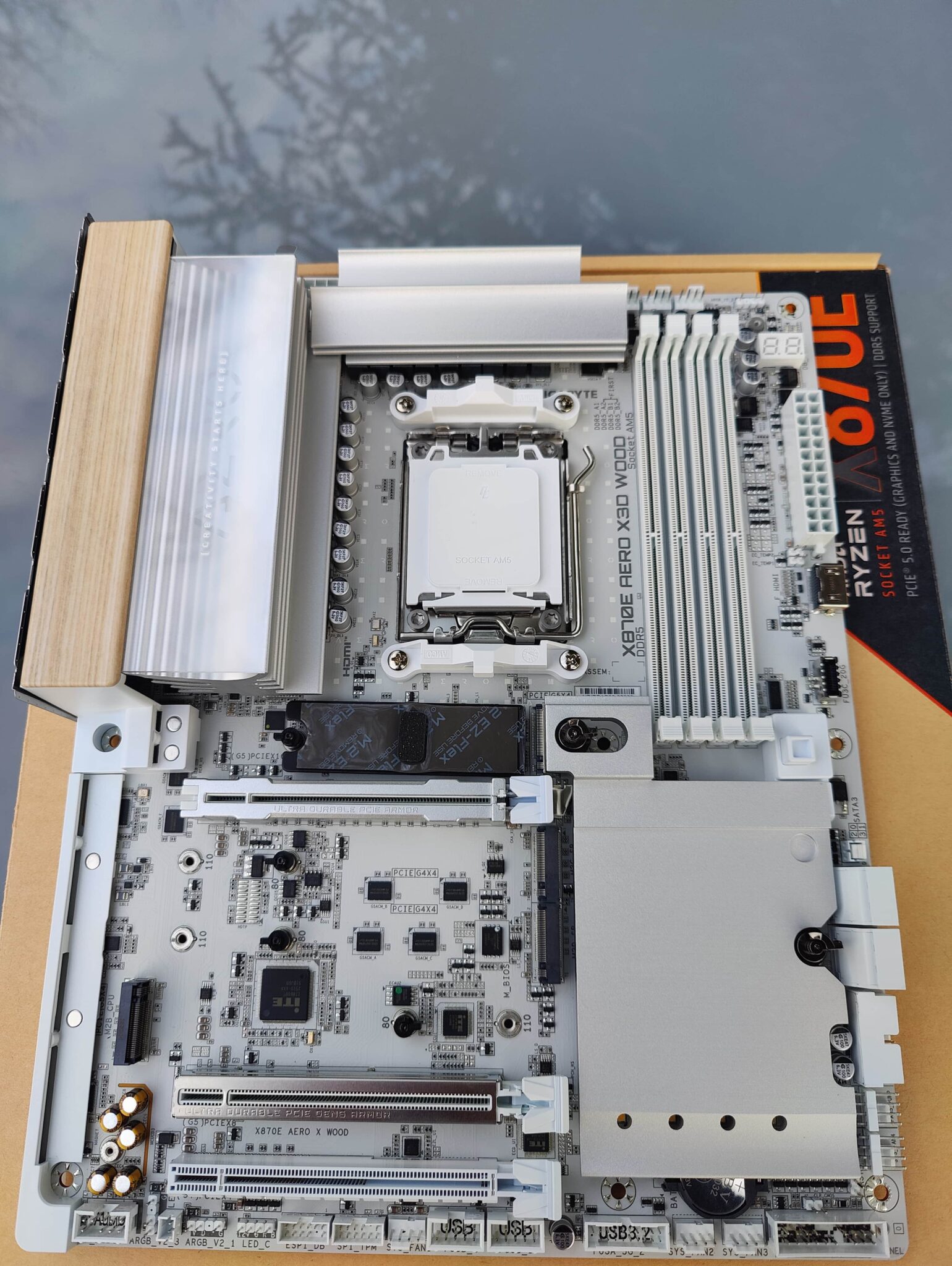
The NVMe ports are just as easy to install as the heat sinks! Simply clip the NVMe into place and lock it with the small latch. No screws are needed to install these NVMe ports. Once again, no detail has been overlooked.
PCIe ports:
- 1 × PCIe x16 (CPU)
- 1 × PCIe 5.0 x8 (shares bandwidth with the main slot).
- 1 × PCIe 4.0 x4 (Chipset)
NVMe ports (M.2):
- M.2_1: PCIe 5.0 x4 (CPU)
- M.2_2: PCIe 5.0 x4 (CPU)
- M.2_3: PCIe 4.0 x4 (Chipset)
- M.2_4: PCIe 4.0 x4 (Chipset)
[nextpage title=”PCB and connectors”]
The X870E AERO WOOD Edition is a motherboard designed for everyday use, and the motherboard PCB does not feature any overclocking buttons, power buttons, or reset buttons. It’s as understated as possible.
But of course, the motherboard doesn’t skimp on high-end features, as it includes a white Q-Code LED. Honestly, the fact that it’s white blends in very well with the RGB on the heat sink, with the mirror effect where “AERO” is written and the white PCB. It’s a change from the unattractive red, which I find tends to look old and “stained.”
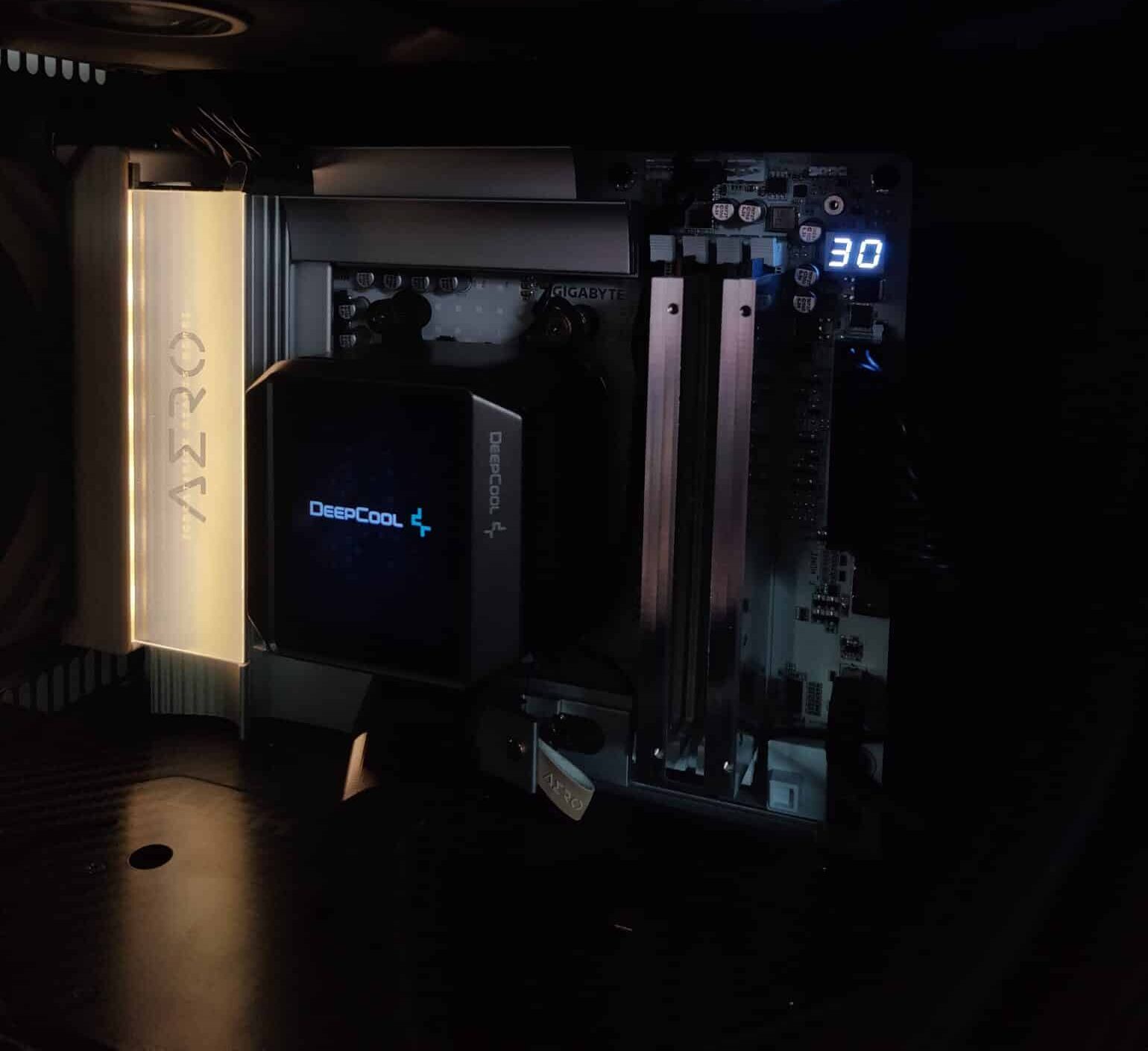
I find that the effect, with the Q-Code LED and the motherboard’s RGB, is premium, pleasant, and easy on the eye.
The PCB:
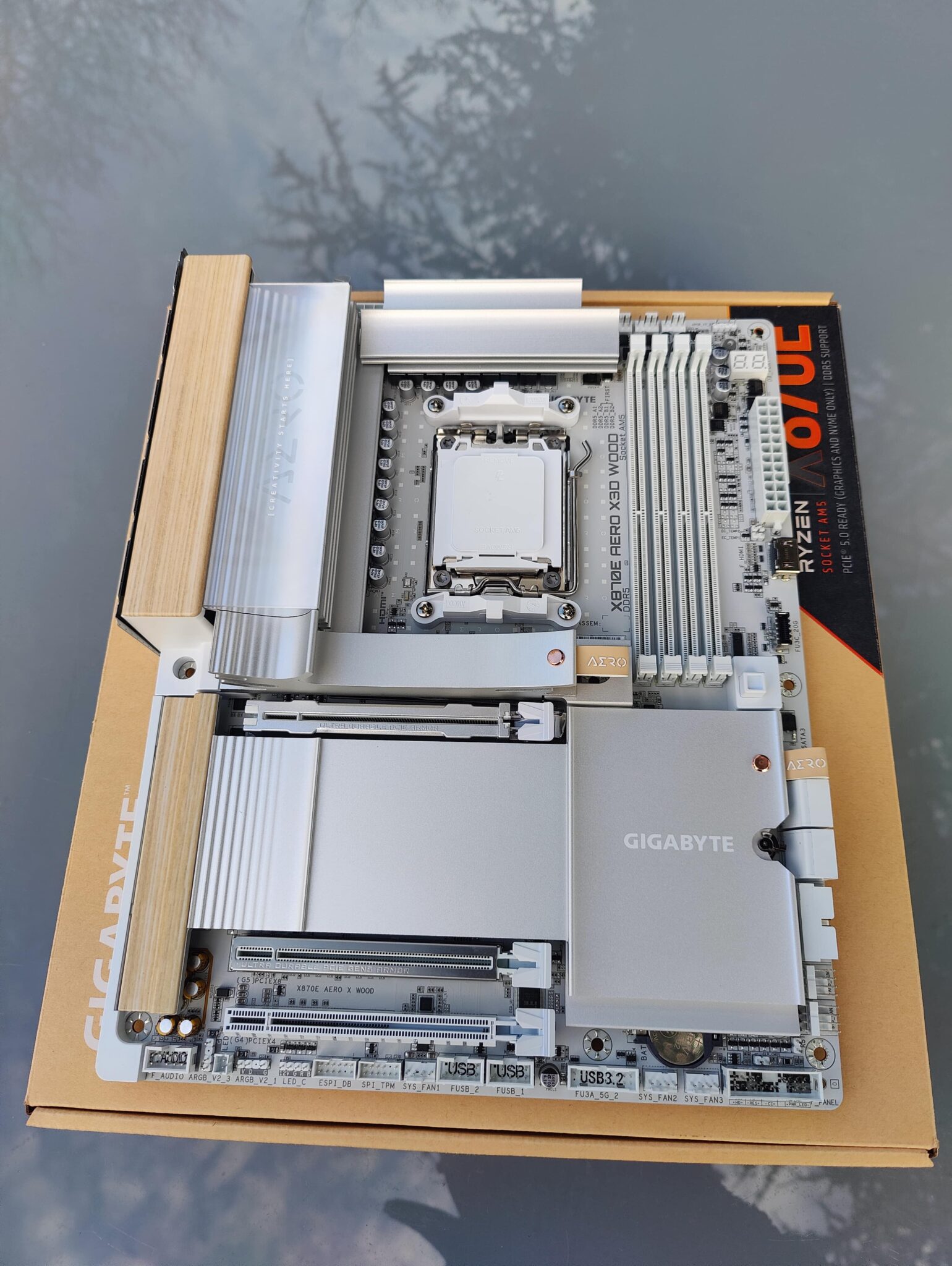
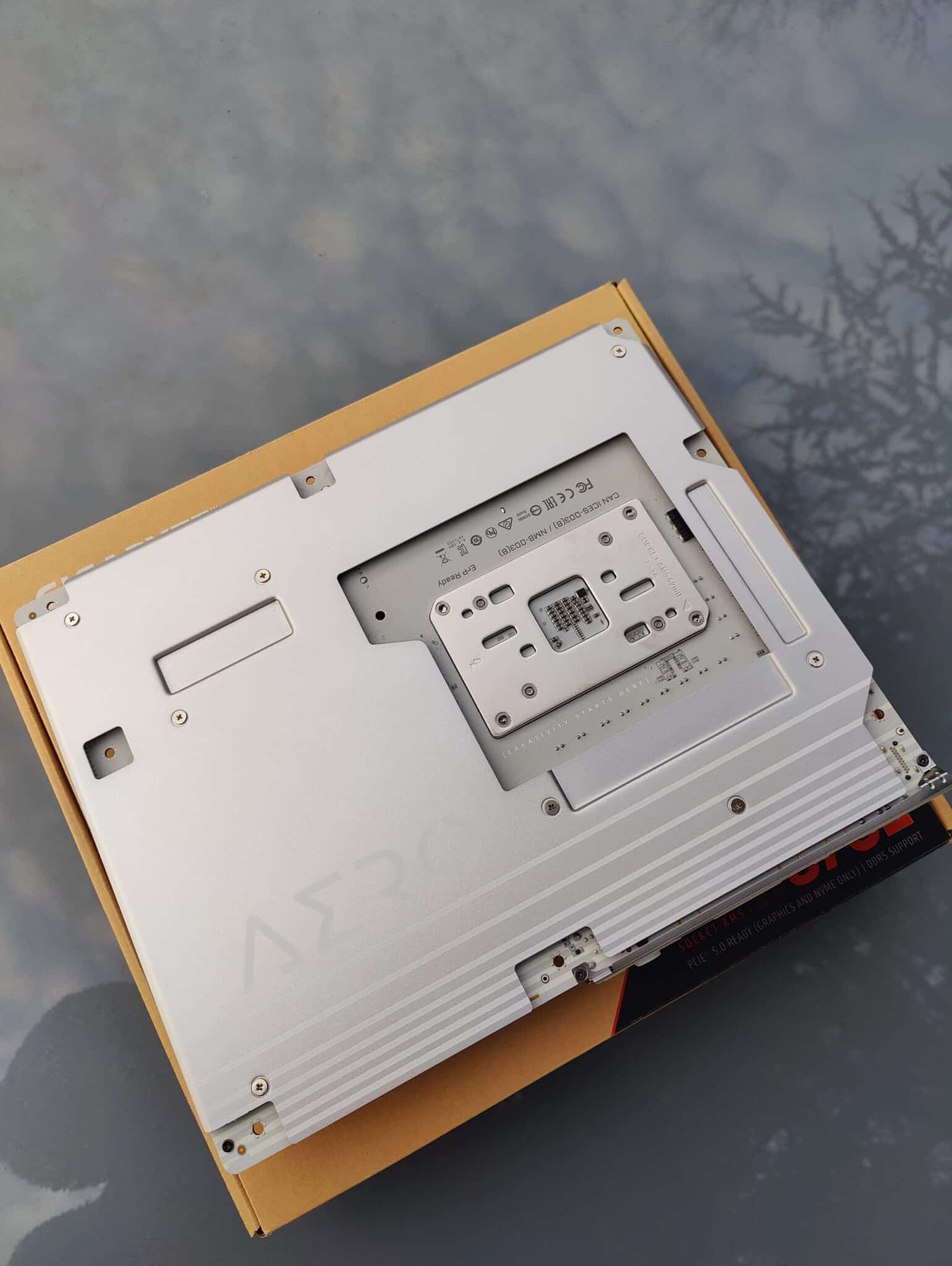
The motherboard is equipped with an 8-layer PCB and a 16 2 2-phase power configuration: 16 phases for the Vcore, 2 phases for the SoC and memory, and 2 phases for the auxiliary rails, all at 60A. This is a high-end configuration and more than sufficient, regardless of the processor that will be equipped with this motherboard. This includes a Ryzen 9 such as a 9950X3D, as well as a 9800X3D.
On the back of the motherboard, there is a backplate in the same metallic gray color as the rest of the casing. It protects the back of the PCB, while stiffening it and keeping it flat to prevent deformation.
What I noticed is that the backplate is very thick and particularly heavy. I have seen and used motherboards with backplates before, but this one is really heavier than average.
Features:
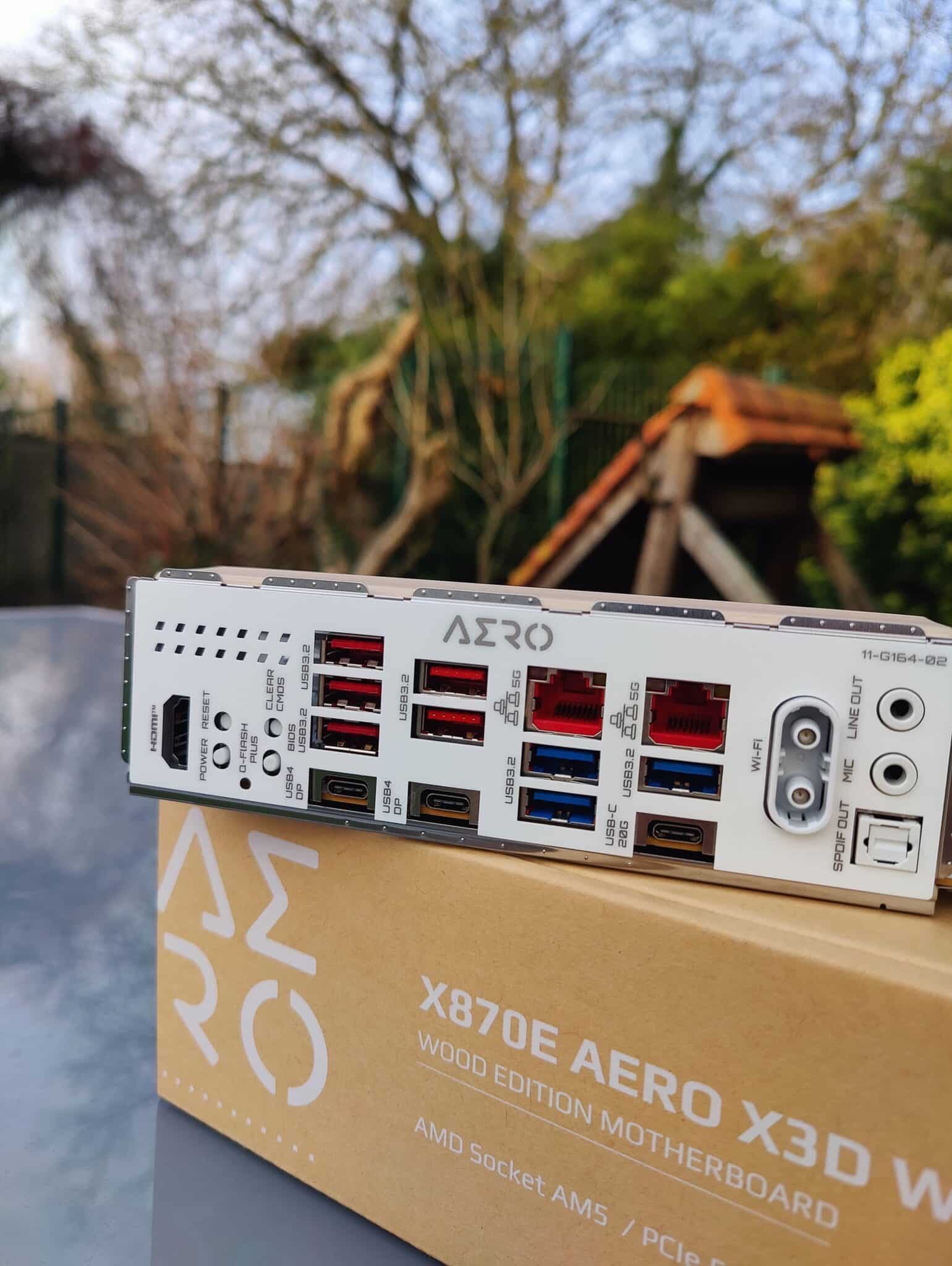 Well, as you would expect from a high-end motherboard, this card has an IO Shield (rear panel) that is extremely well equipped with USB Type-A and USB Type-C ports. What surprised me is that the motherboard is equipped with two 5 GbE Ethernet ports. We also have Wi-Fi 7, with an antenna that clips on rather than screws in, and once again, efforts have been made to make it easy to install.
As for the rest, we find the usual buttons such as Clear CMOS and Q-Flash Plus, which allows you to update the BIOS directly from the motherboard.
And surprise! The Power and Reset buttons are present on the board, but integrated into the IO Shield. They are usually found on the front of the PCB, next to the Q-Code LED. I think it’s good to have them, but the back of the motherboard isn’t necessarily the most convenient place, and the Reset button is also a recessed button. To use it, you need to use a toothpick or other thin object to press it.
IO Shield summary:
Video output:
- 1 × HDMI 2.1
USB ports:
- 2 × USB4 Type-C (40 Gb/s with DisplayPort Alt Mode)
- 1 × USB Type-C (USB 3.2 Gen2x2)
- 5 × USB 3.2 Gen2 Type-A (10 Gbps)
- 3 × USB 3.2 Gen1
Network ports:
- 2 × RJ45 5 GbE LAN (Realtek 5 GbE)
- Wi-Fi 7 Bluetooth 5.4 (2T2R directional antennas)
Buttons:
- Q-Flash Plus (BIOS flash without CPU)
- Clear CMOS
- Power (power button)
- Reset / Multi-Key (recessed reset button)
For audio:
- 2 × 3.5 mm audio jacks
- 1 × S/PDIF optical output
[nextpage title=”The BIOS”]
I find that Gigabyte’s BIOS is surely one of the most advanced, across all manufacturers. Depending on the motherboard model you have, there is a dedicated customization option. This is the case with the X870E AERO WOOD Edition, as the BIOS is entirely white, echoing the aluminum casing of the motherboard, and some elements of the BIOS feature a wood effect.
Some people may think this is pointless, but I find it adds real value and completes the concept of a special motherboard.
The BIOS interface:
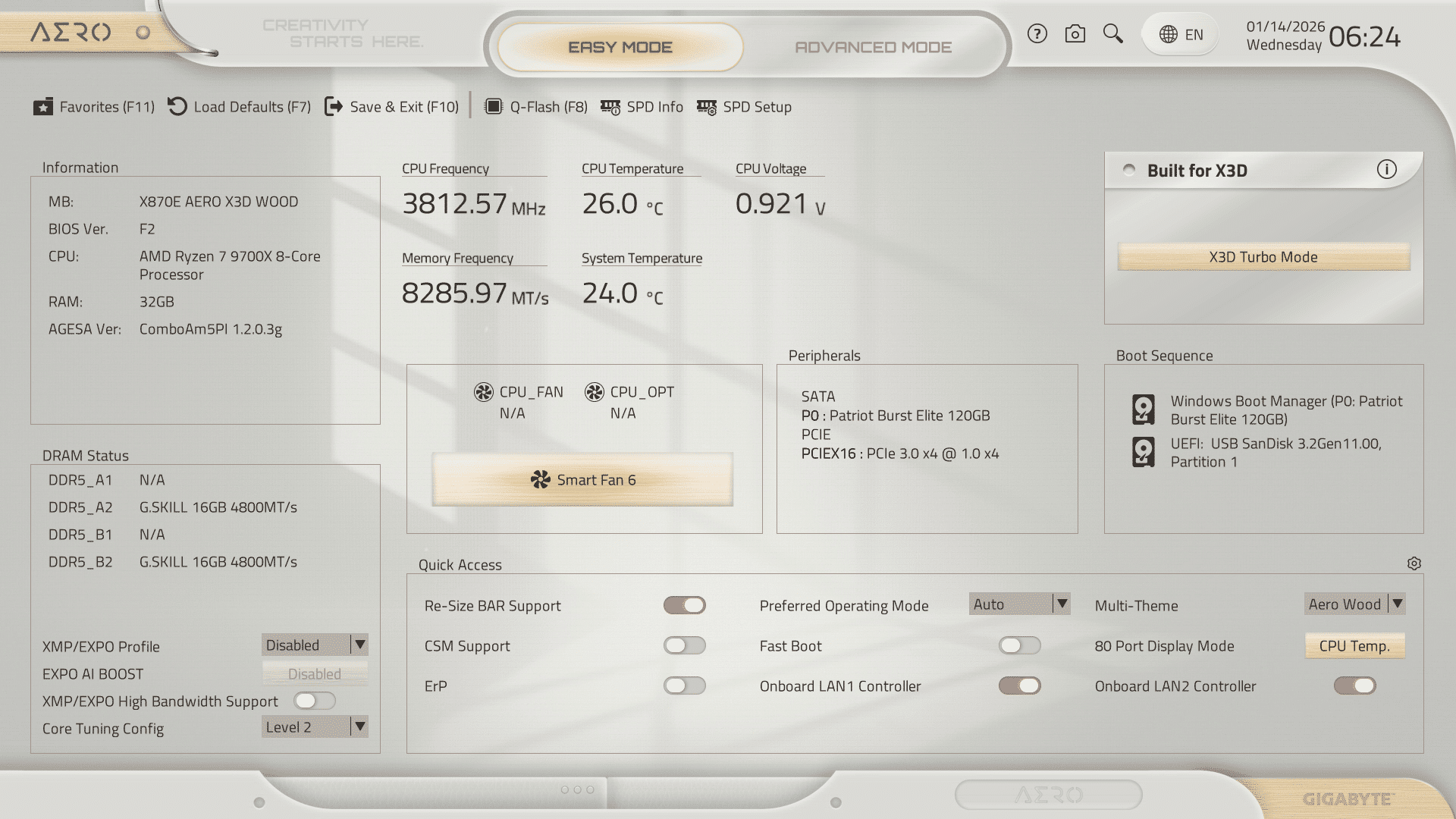
When you enter the BIOS, the first menu that appears is EZ Mode. The interface is aesthetically pleasing, with a visual reminder of the motherboard, but above all, it puts all the important options at your fingertips, without having to dig through the BIOS menus. This is particularly suitable for the average user, who is not used to navigating a BIOS.
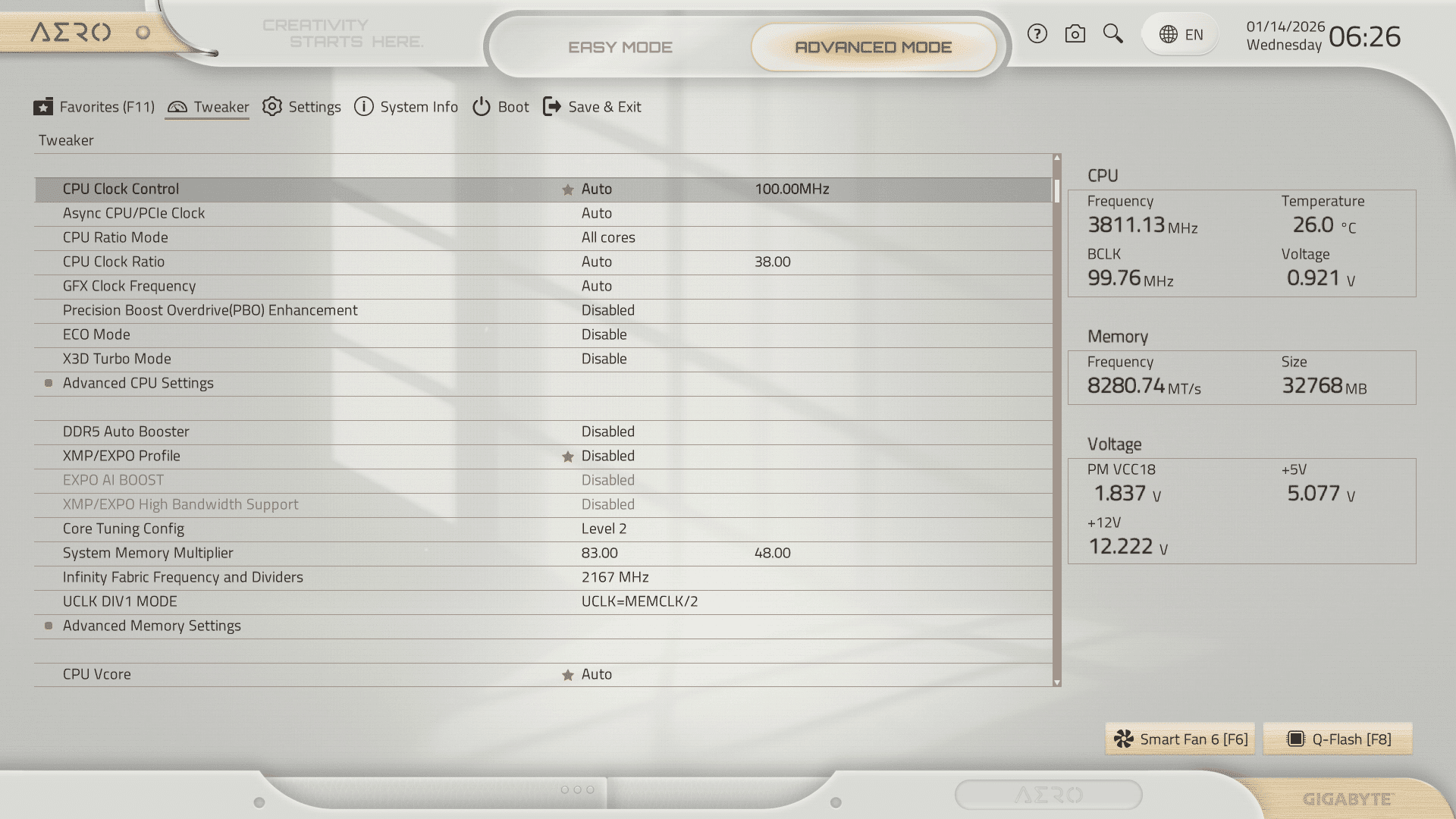
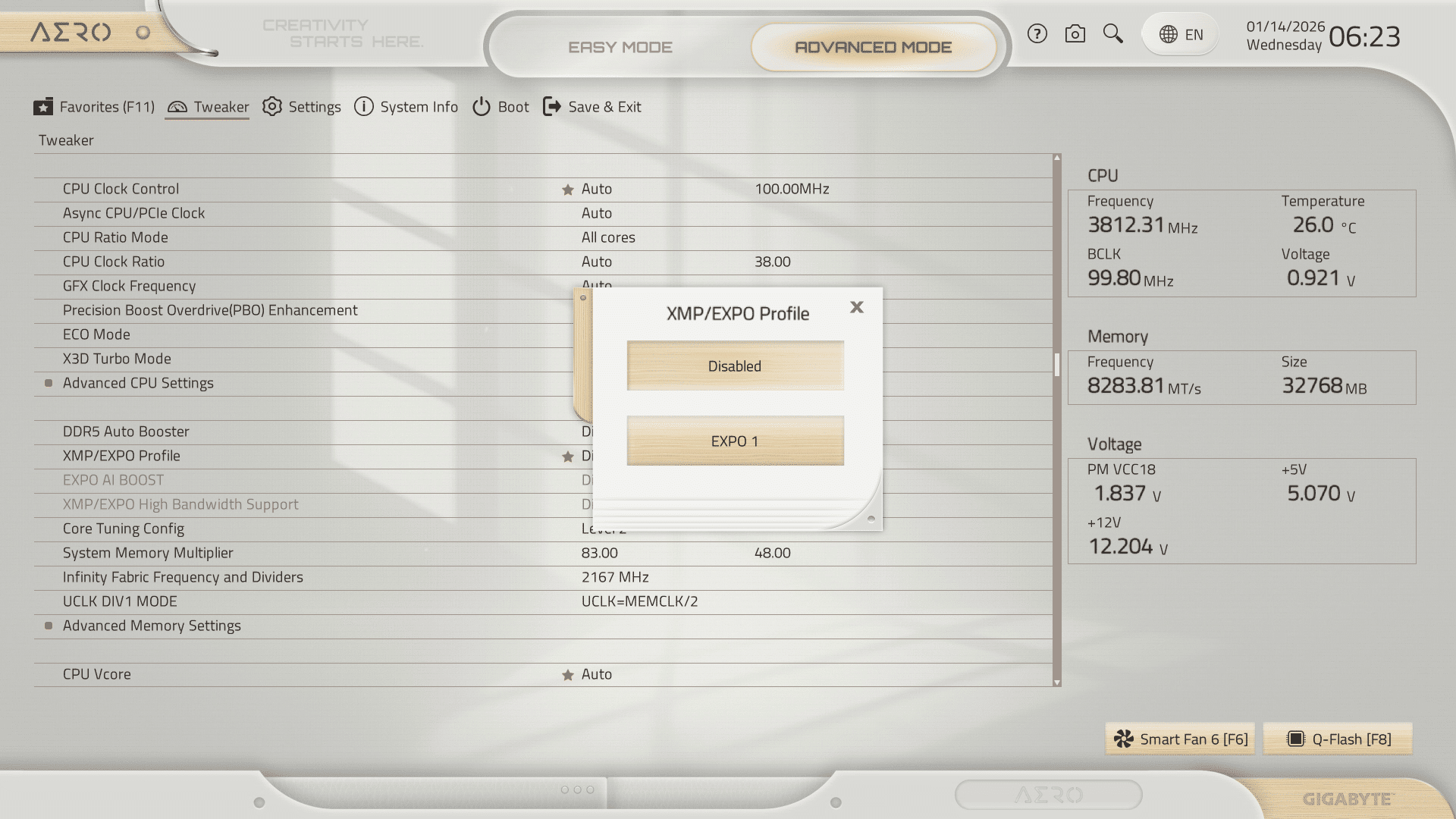
The same attention to aesthetics has been applied to the rest of the BIOS. When you need to choose a setting such as XMP or EXPO, you can select from panels with a wood effect, which I found really nice.
The same applies to overall navigation and the clarity of the options: everything is neatly organized in the Tweaker menu, which is a big plus compared to what we see from the competition. Sometimes there are lots of submenus that confuse the user and make it difficult to find an option.
With Gigabyte’s X870E AERO WOOD Edition, it’s quite the opposite. It’s definitely the most readable BIOS I’ve ever used.
The CPU section:
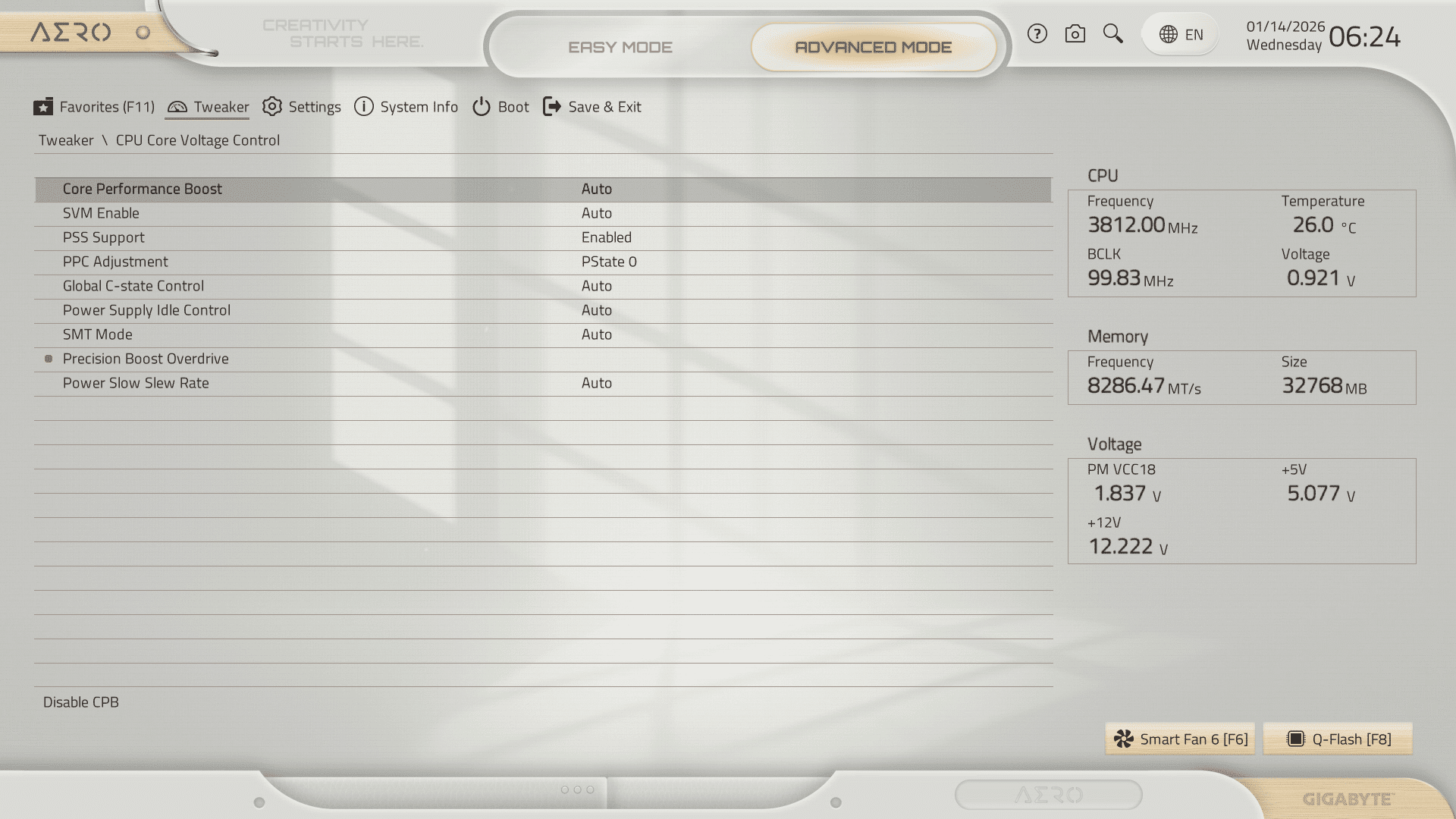
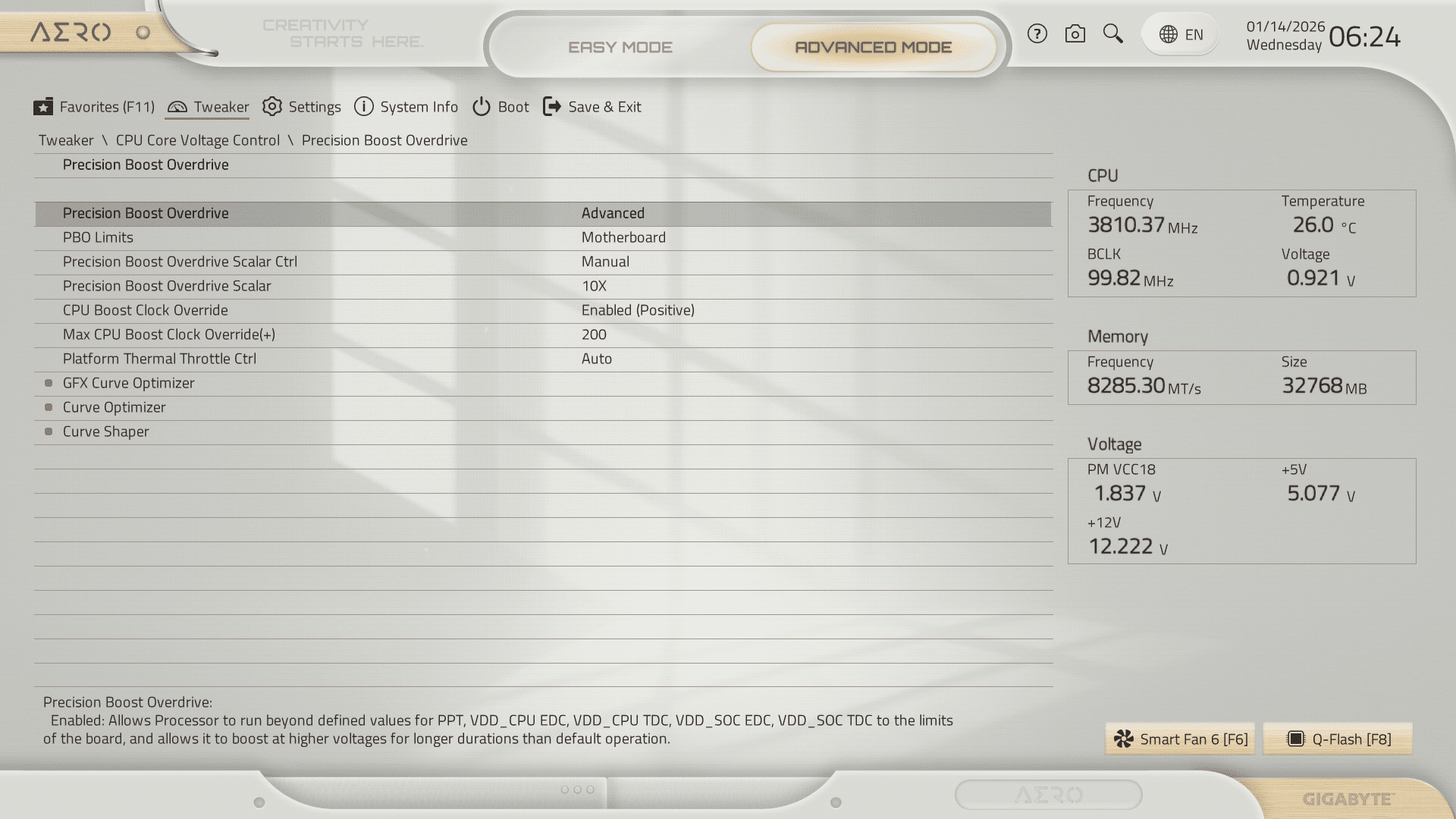
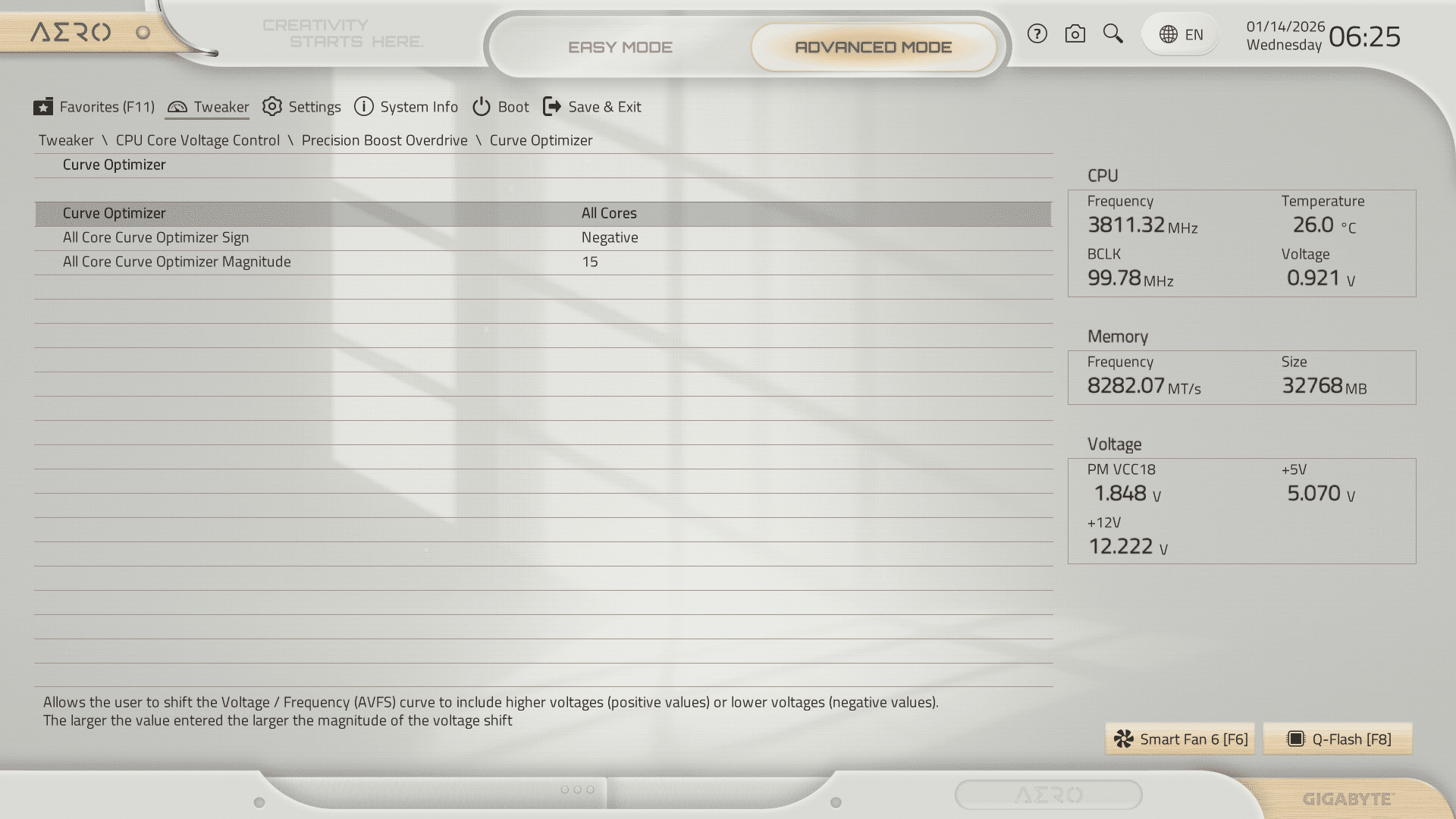
The CPU section menu, particularly the PBO, is quick to access. Just go to the CPU Core Voltage Control menu, where you’ll find essential settings such as SMT Mode, which allows you to enable or disable hyper-threading, and of course PBO.
Important options include:
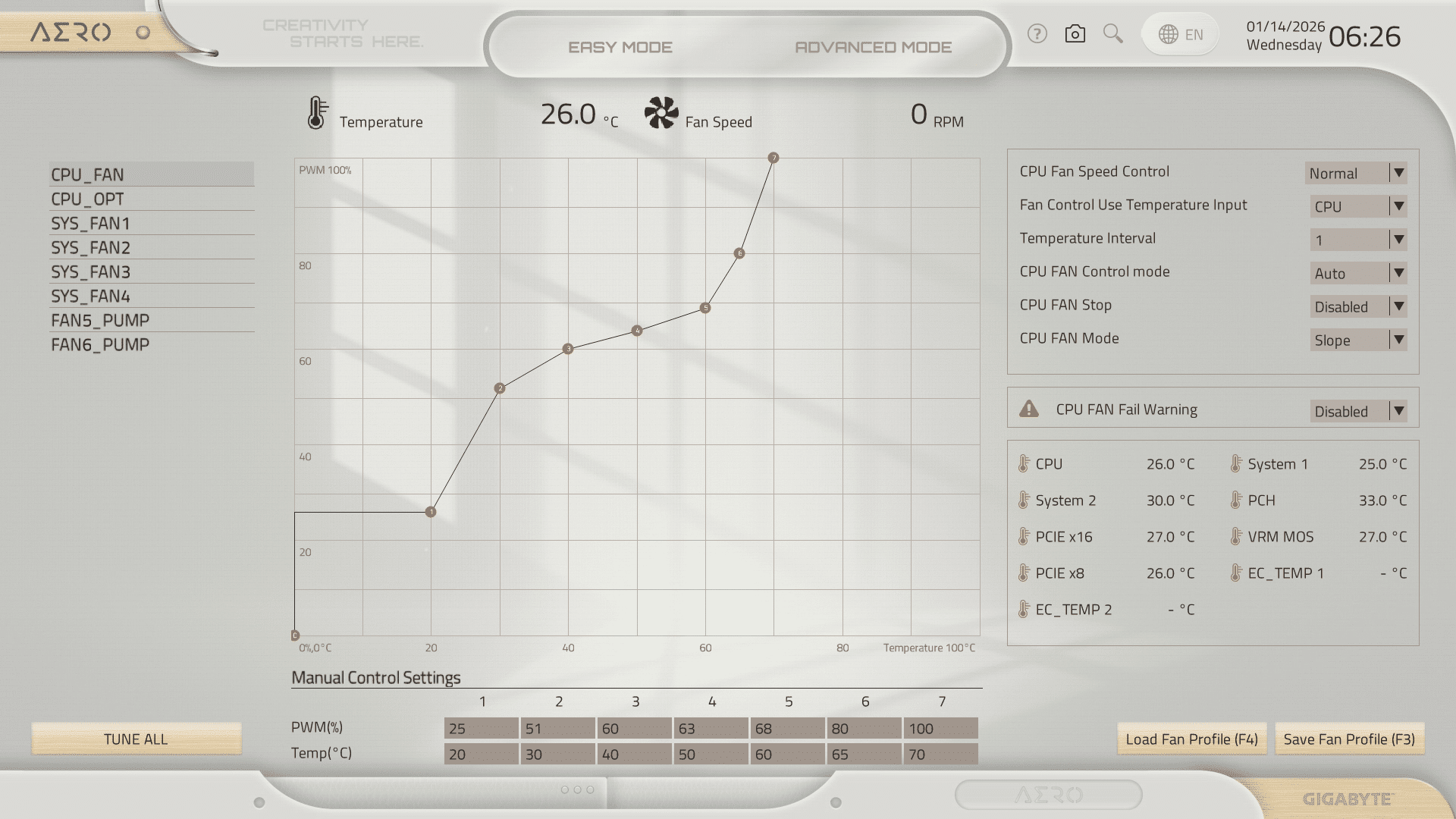
Pressing F6 in the Tweaker menu takes you directly to the settings for the fans, water cooling pump, etc. Once again, the menu is extremely easy to read.
What I like, and I’ll say it again, is the way Gigabyte groups all the options together without multiplying the submenus. And for the fan settings, which aren’t necessarily obvious to a novice, we have something clear and accessible.
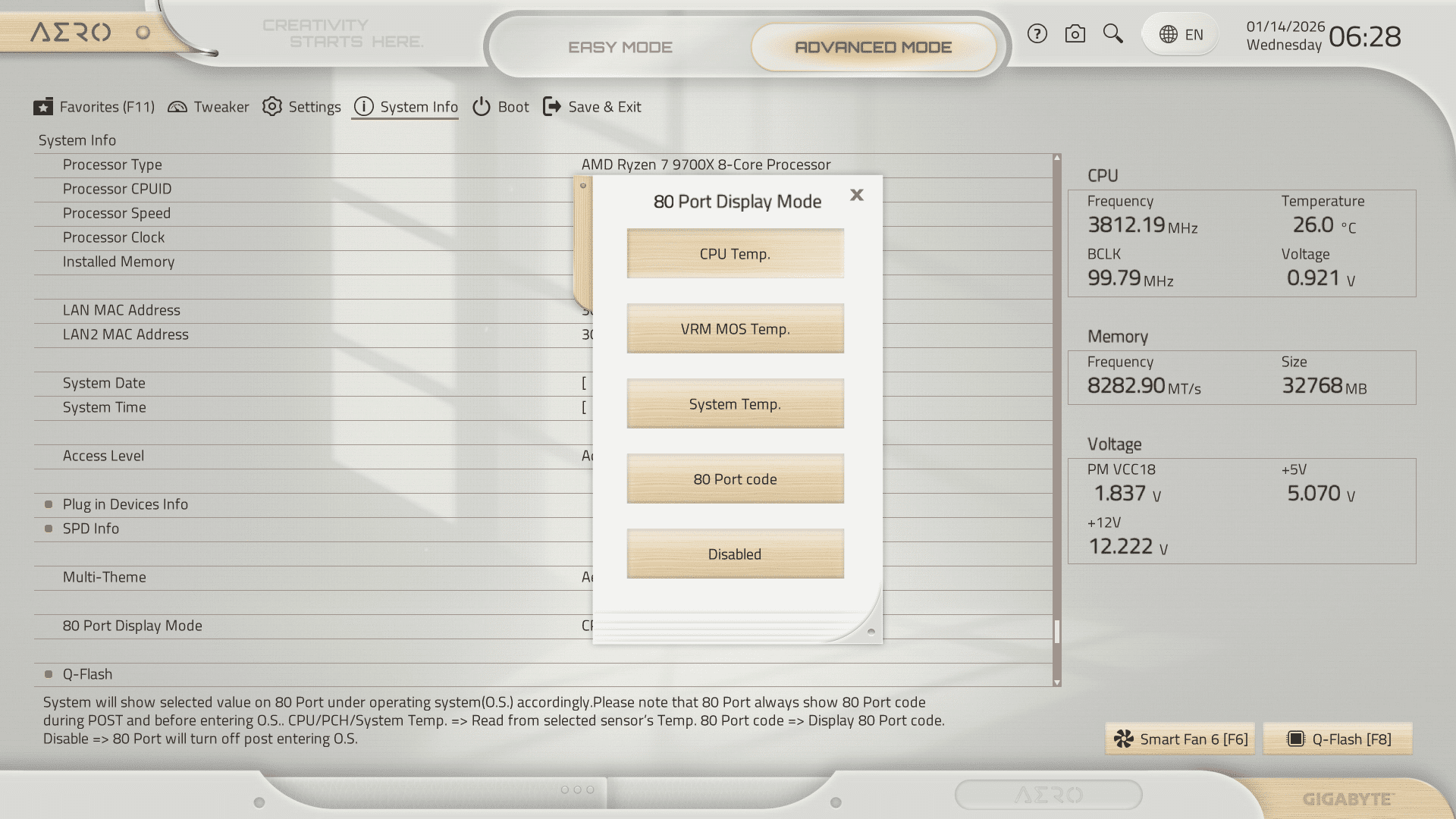
In the System Info menu, at the very bottom, there is an option called “80 Port Display Mode.” This is the Q-Code LED setting, which is configured by default to display “00” once you are in Windows.
But you can set it to display other information after startup, such as CPU temperature.
So, if you want to use the Q-Code LED in Windows to display useful information, this is where it happens.
Other options:
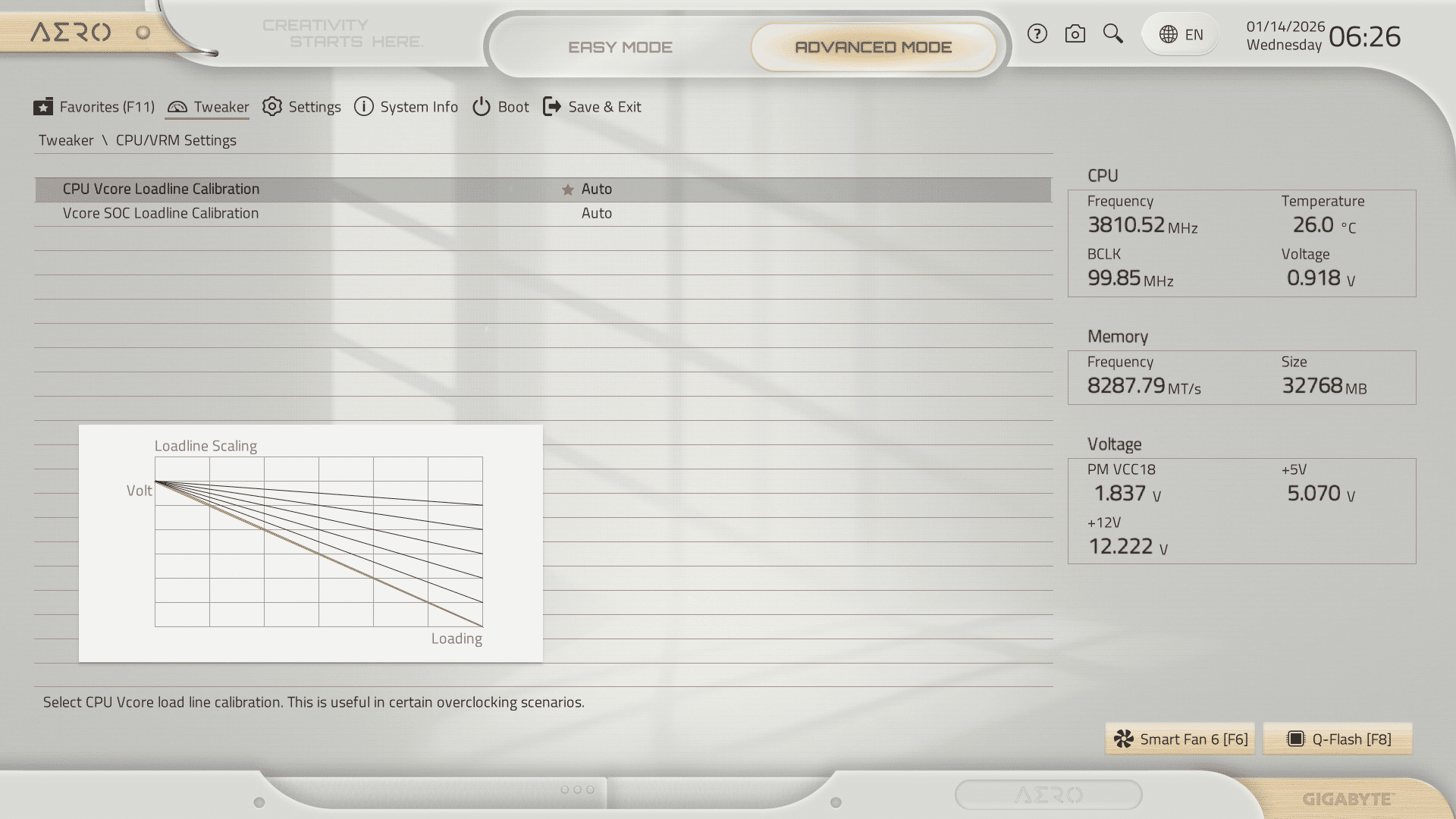
I’m also including photos of the rest of the BIOS to give you an idea of what to expect.
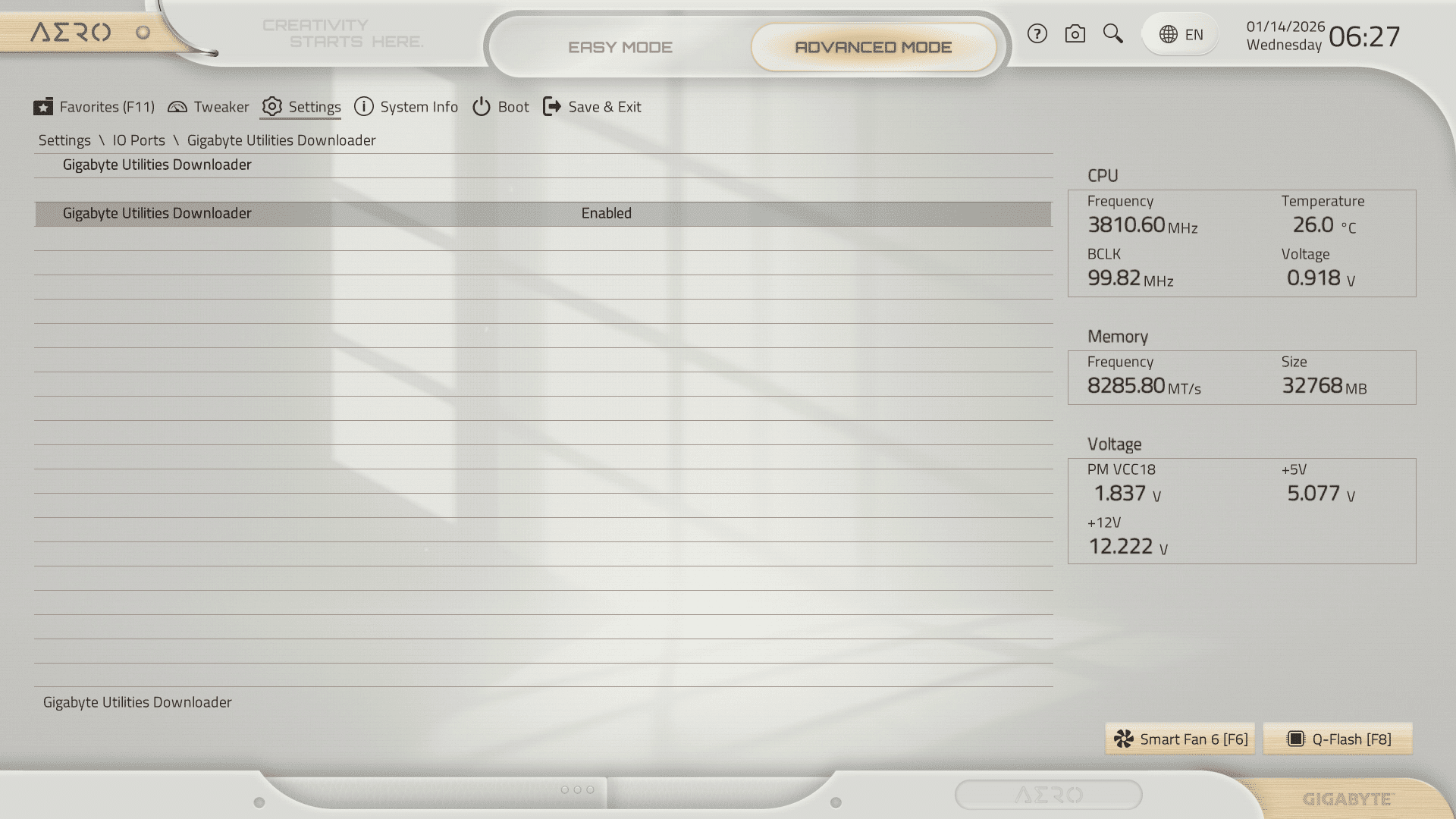
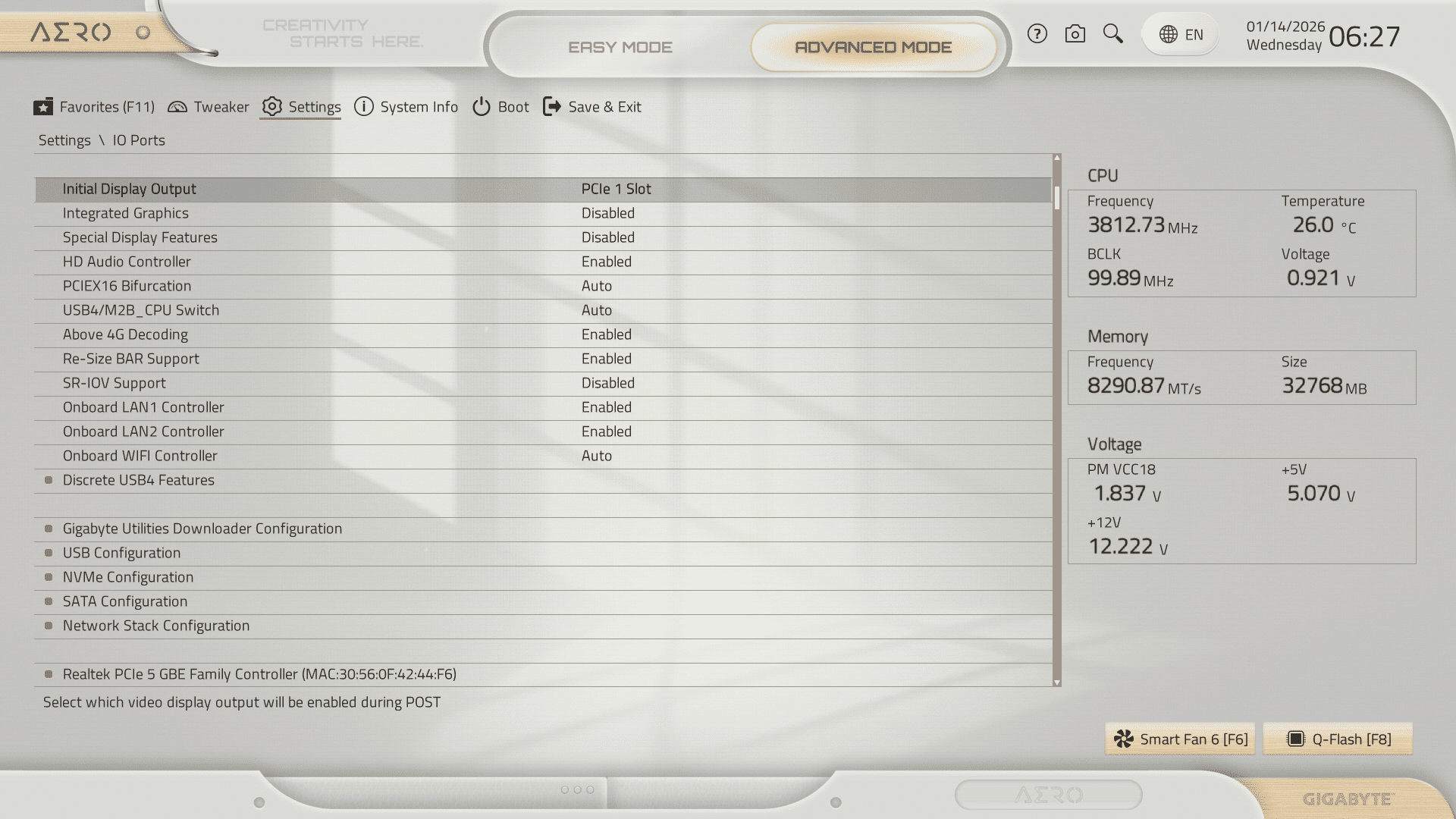
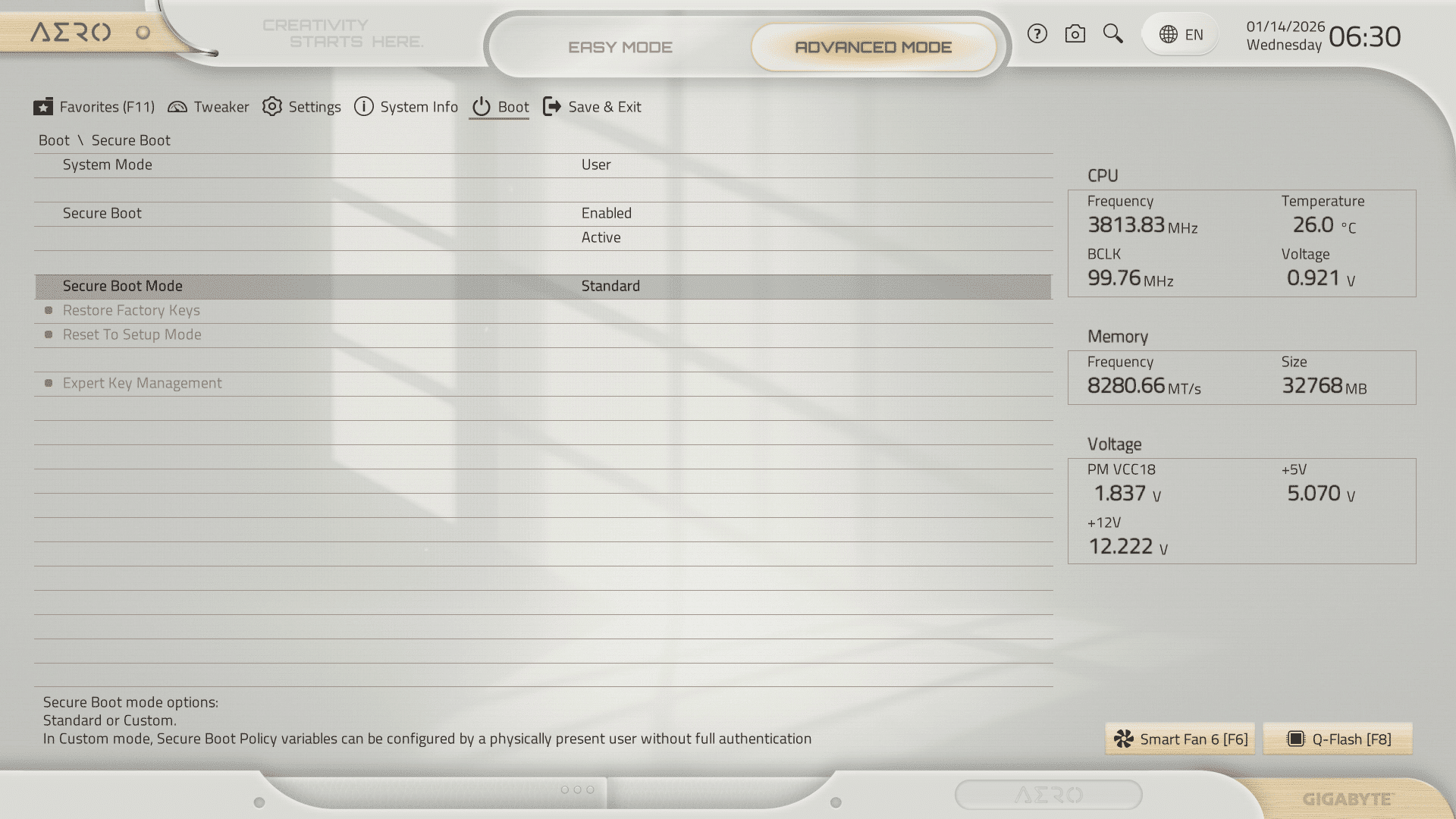
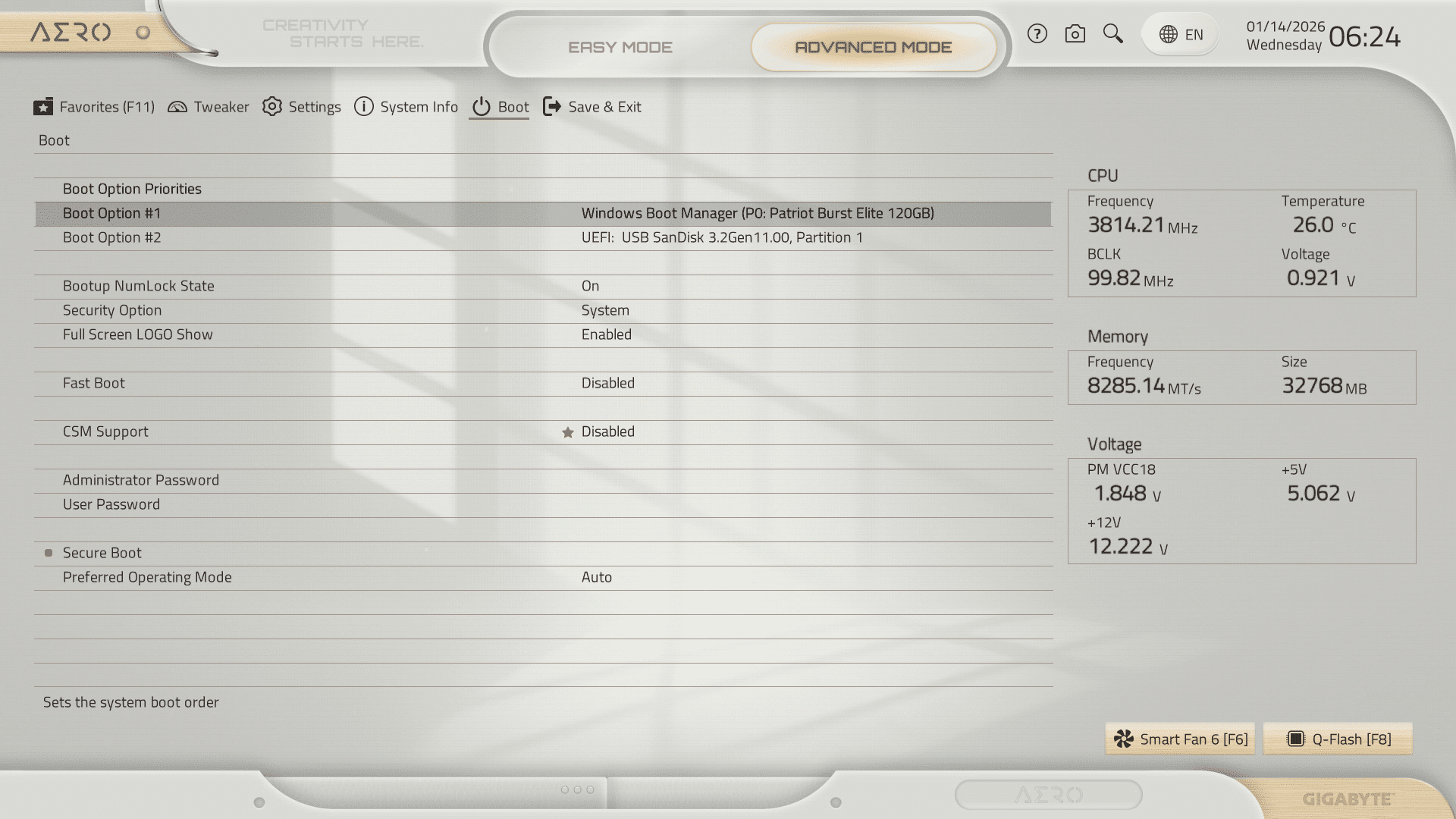
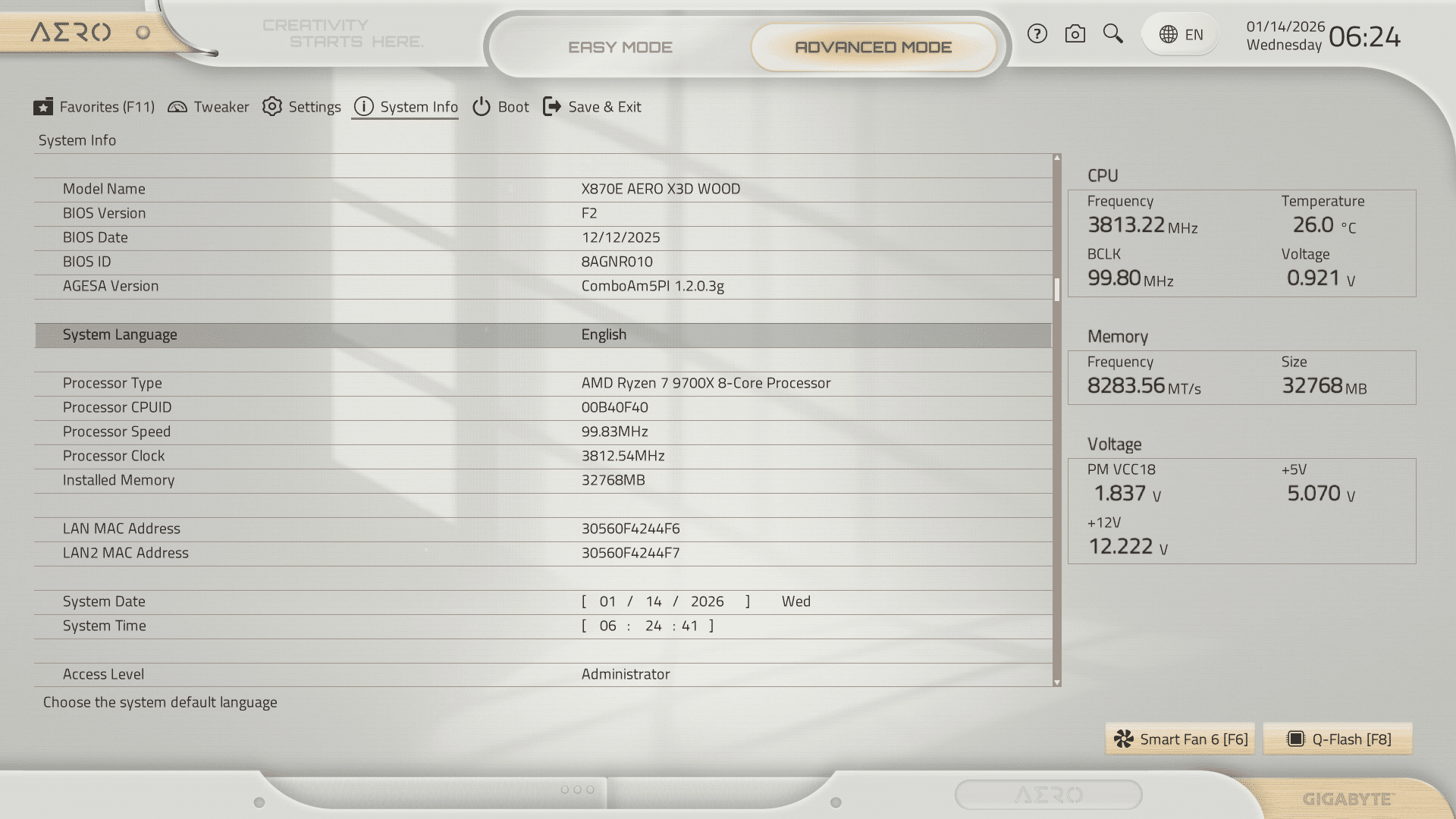
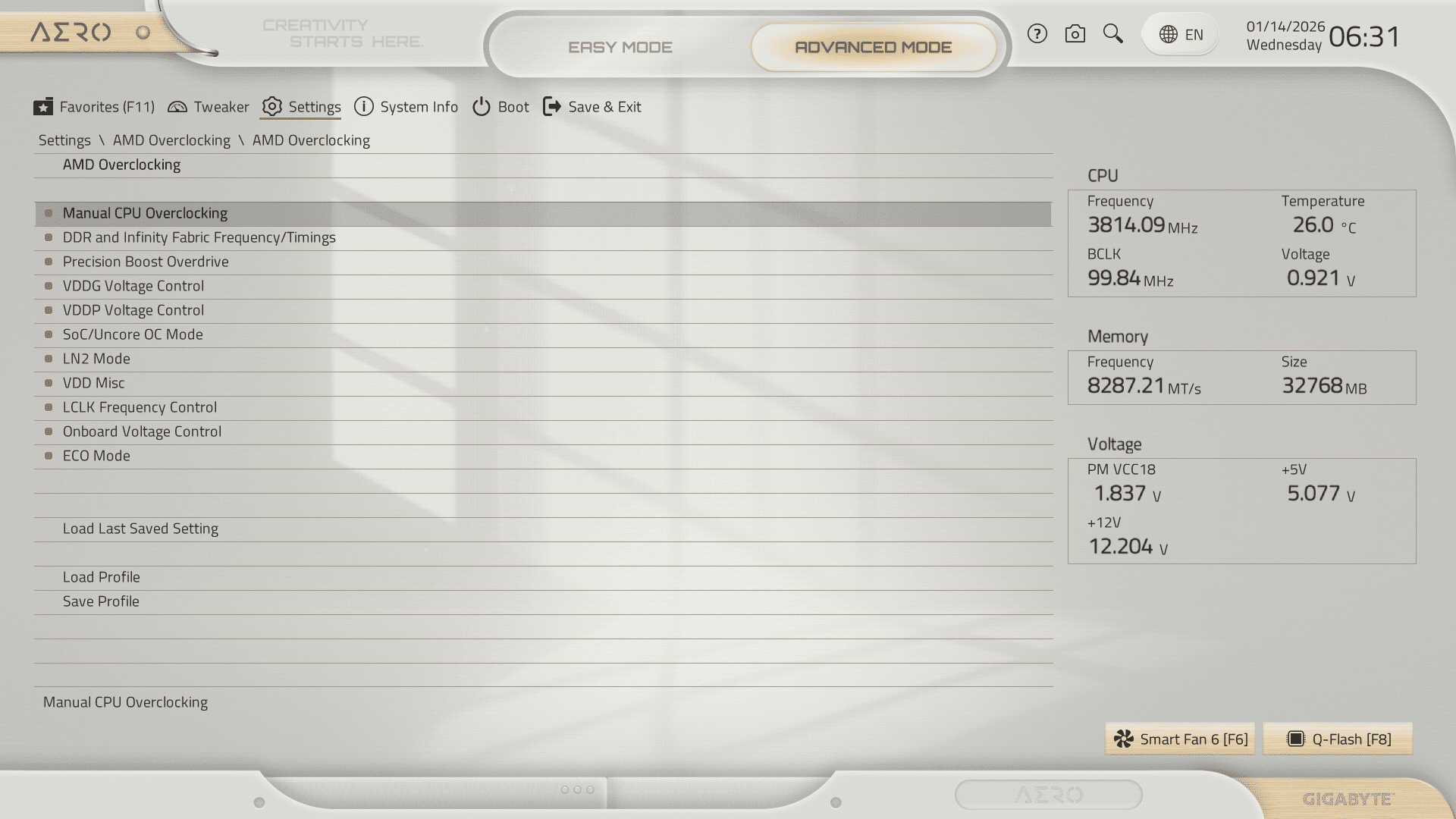
One important thing to remember about the BIOS of the X870E AERO WOOD Edition is that the motherboard is equipped with a 64 MB BIOS chip, rather than a 32 MB chip.
The manufacturers have implemented this in anticipation of future updates to support the upcoming Zen 6 and Zen 7 processors. Motherboards with a 32 MB BIOS could eventually encounter difficulties with increasingly heavy updates.
Here, with its 64 MB, the X870E AERO WOOD Edition is more future-proof and should not be limited.
[nextpage title=”The software”]
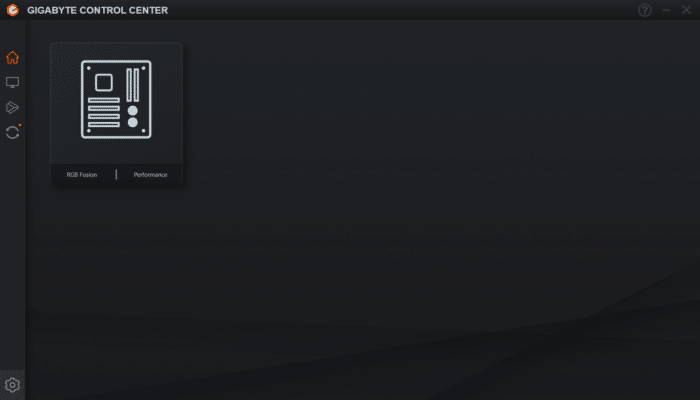
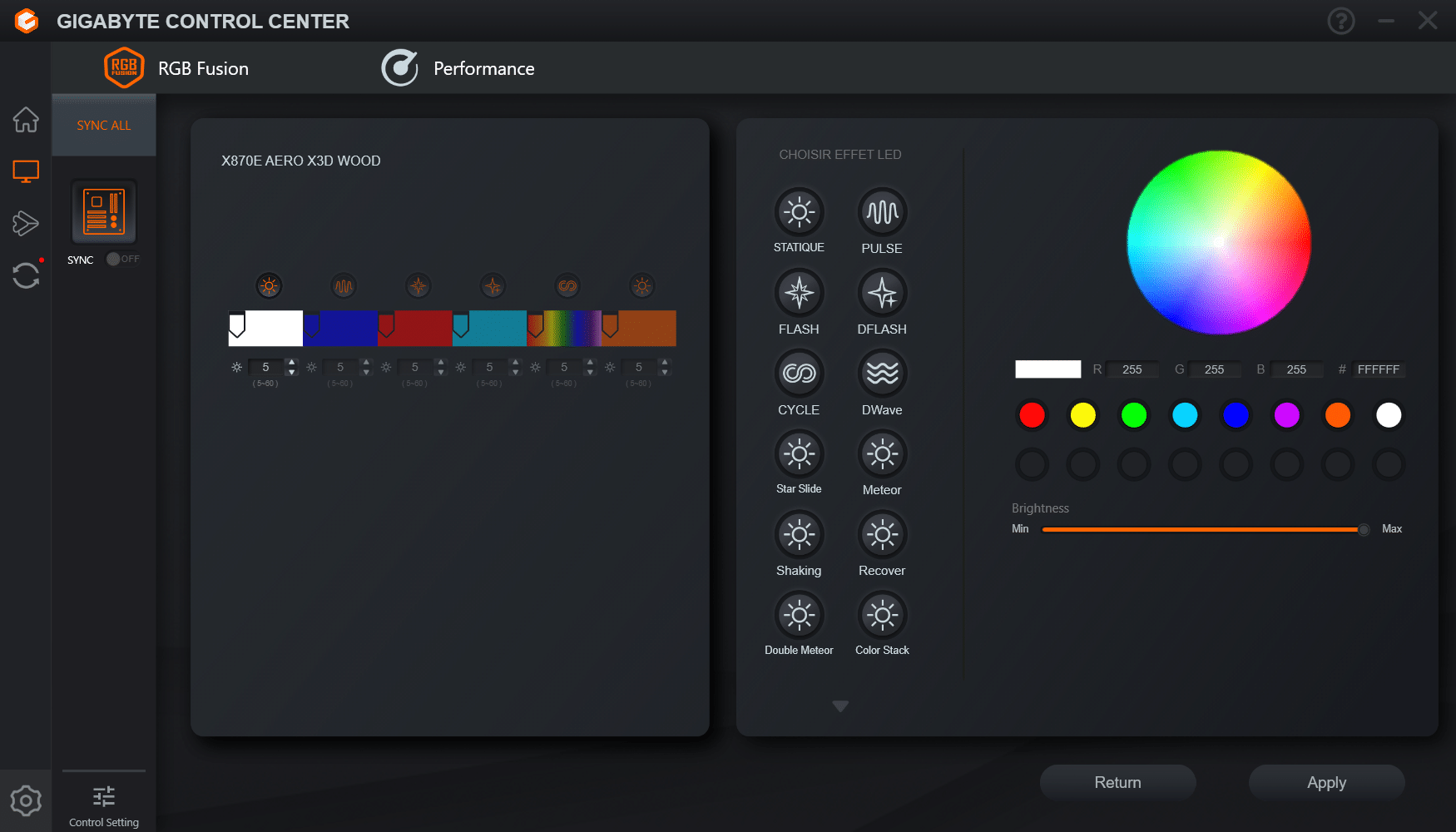
The software used to manage Gigabyte motherboards, including this X870E AERO WOOD Edition, is Gigabyte Control Center, which allows you to manage the motherboard’s RGB, as well as other Gigabyte devices such as graphics cards, peripherals, etc.
RGB:
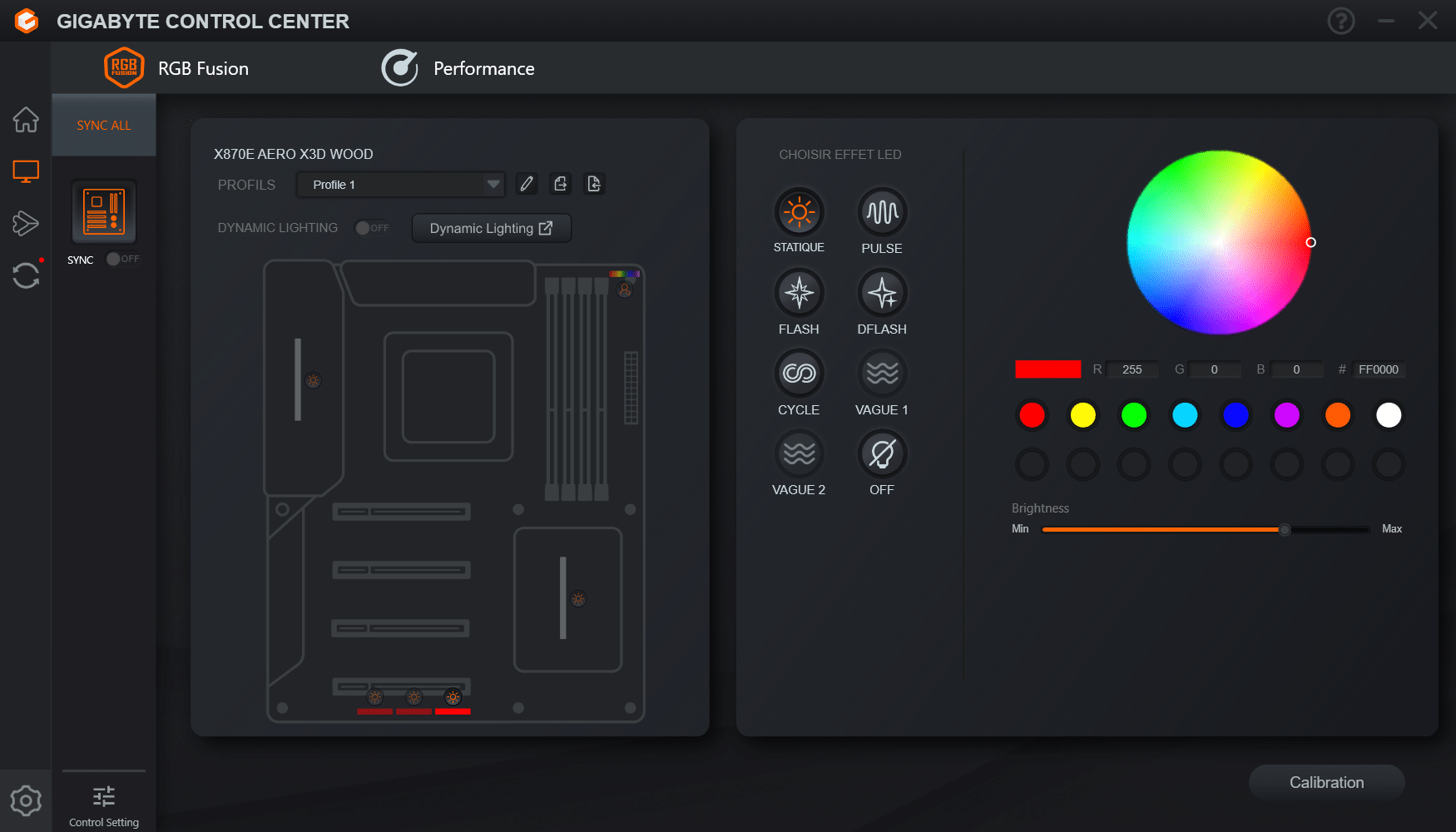
In our case, the software allows you to control the RGB zones of the motherboard, with or without effects.
However, in the case of the X870E AERO WOOD Edition, you cannot change the RGB color! You can only turn it off or adjust the effects, but nothing more.
The RGB is a single color on the LEDs, probably to stay within the wood color scheme.
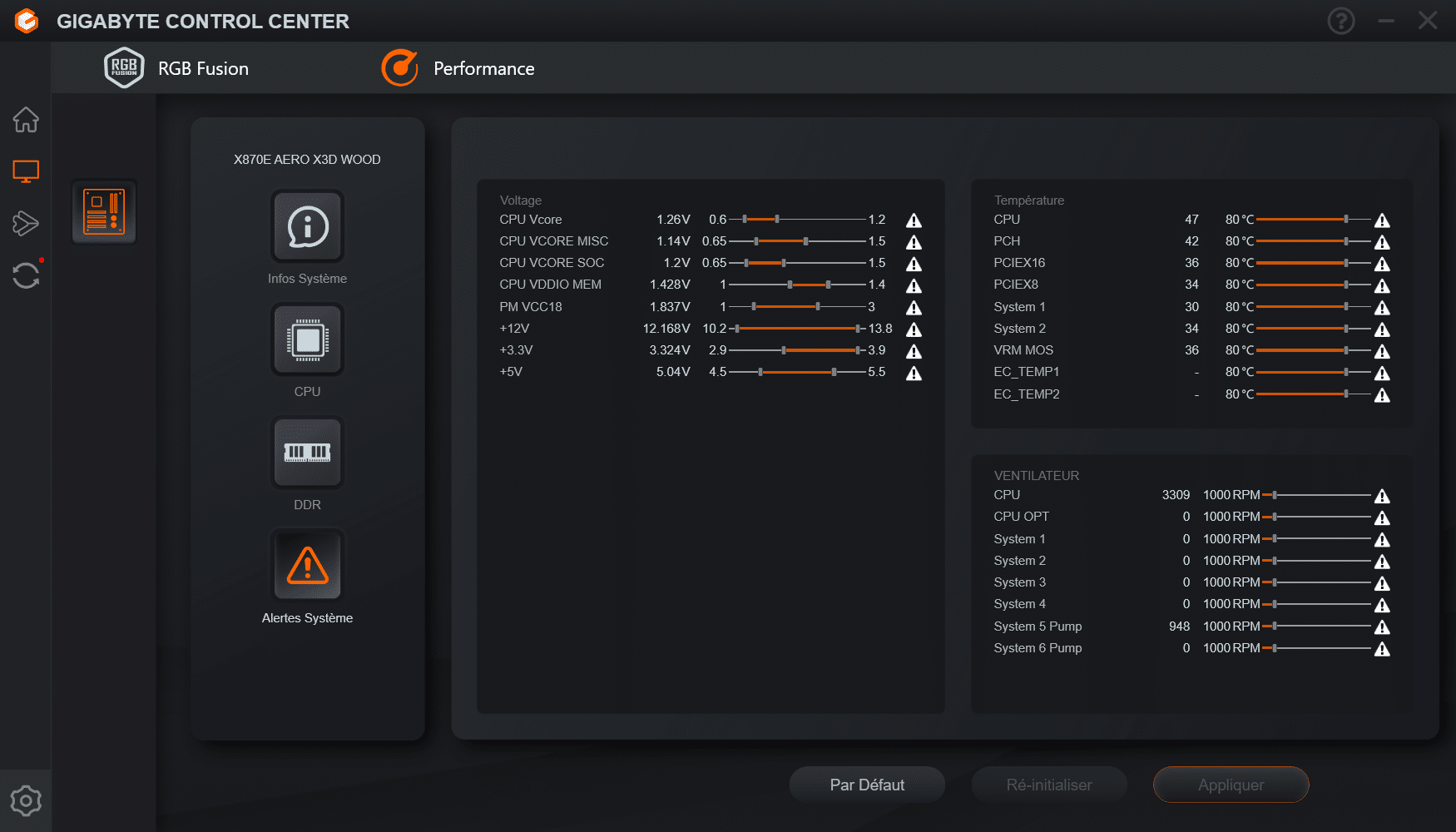
Motherboard control:
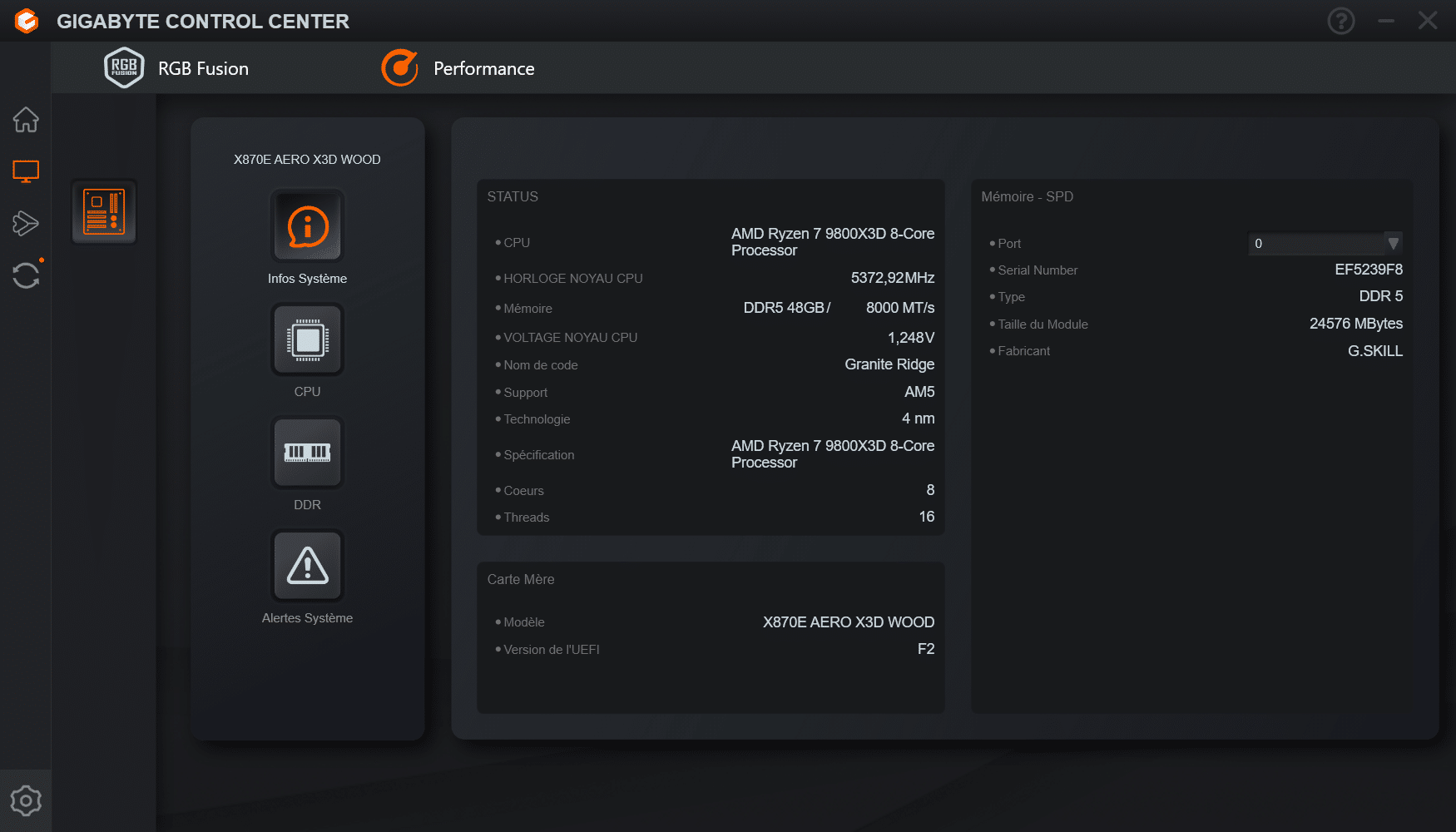
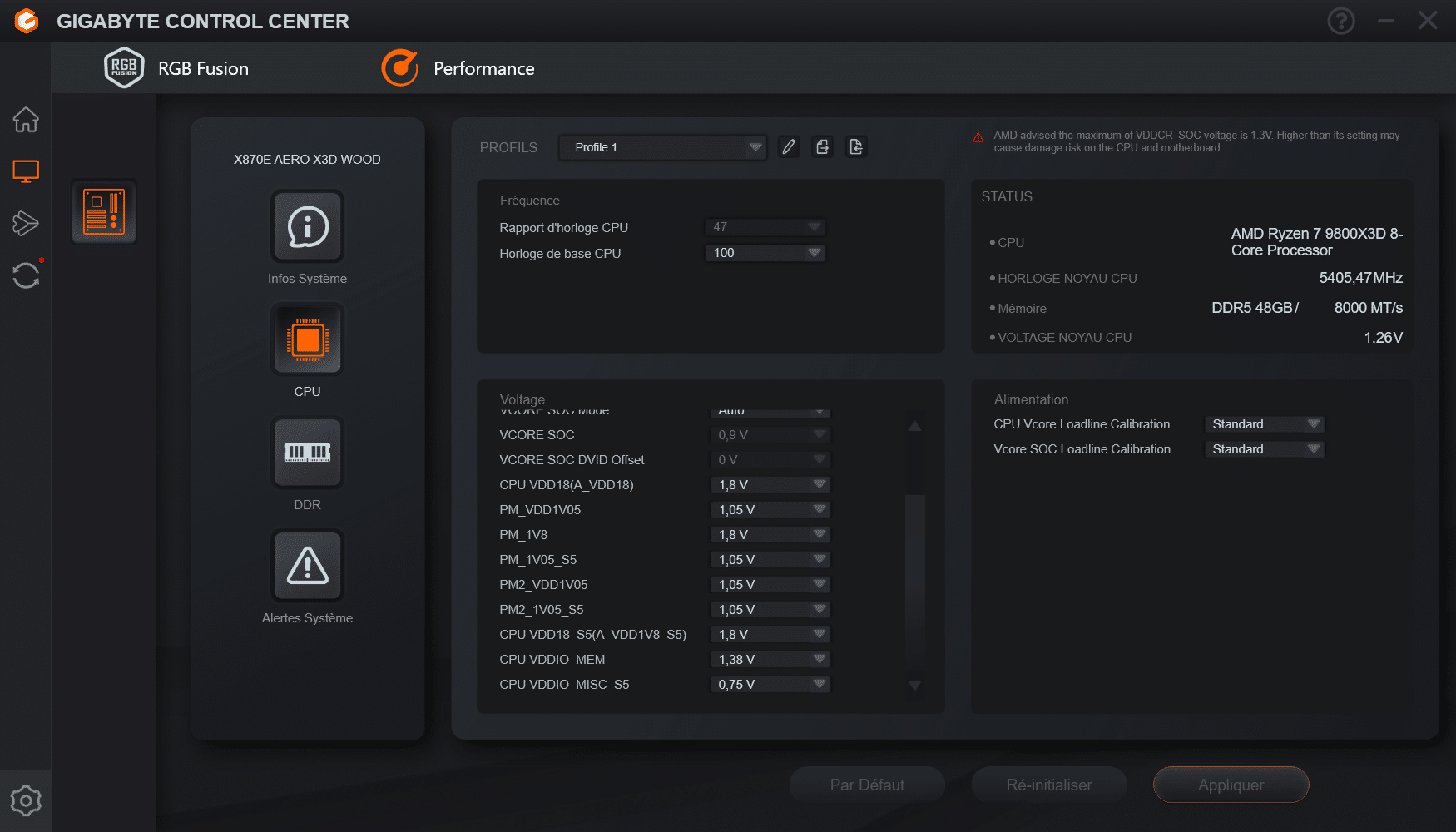
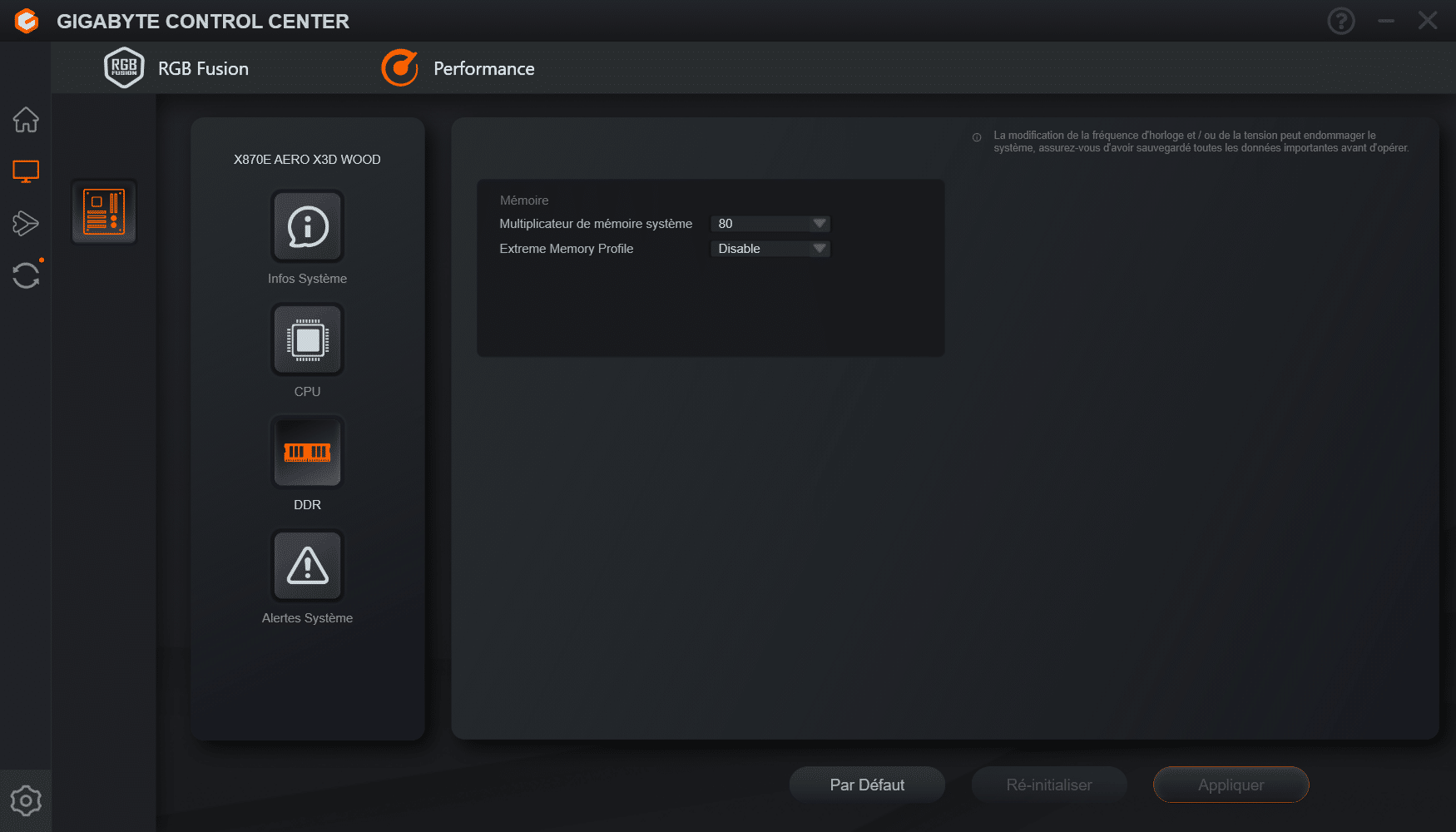
In the software, in the Performance tab, you can adjust various voltages related to the motherboard and CPU directly from Windows. Obviously, be careful not to apply anything random, as the software allows complete control, perhaps even a little too much.
You can also use the software to adjust the RAM frequency and CPU frequency. I find the software very permissive, perhaps even a little too much so. I would therefore recommend it more for experienced users.
For the rest:
In the software, you can also adjust your fans via the Fan Control tab.
But that’s not all! For users concerned with Wi-Fi usage, Gigabyte also includes a Wi-Fi Compass tab. I find this rather handy, as it allows you to test and optimize the antenna’s positioning, as well as check the signal quality to ensure the best possible placement.
The software can be found here: https://www.gigabyte.com/Consumer/Software/GIGABYTE-Control-Center/global/
[nextpage title=”The test configuration”]
Test configuration:
- Motherboard: GIGABYTE X870E AERO WOOD EDITION
- Processor: Ryzen 7 9700X
- Memory: 2×16 Gb G.Skill Trident Z5 Royal Neo 6000CL26 1.40
- Graphics card: GT 1030
- Cooling system: Custom water cooling with Alphacool Core 1 water block
- SSD:Lexar NM790 4TB
- Power supply: EVGA Supernova 1600 Watt T2 Titanium
- Operating system: Windows 11 23H2 64-bit
[nextpage title=”My feedback on daily use”]
Before talking about performance and showing you what the motherboard is capable of, I’d like to share my impressions after four weeks of use.
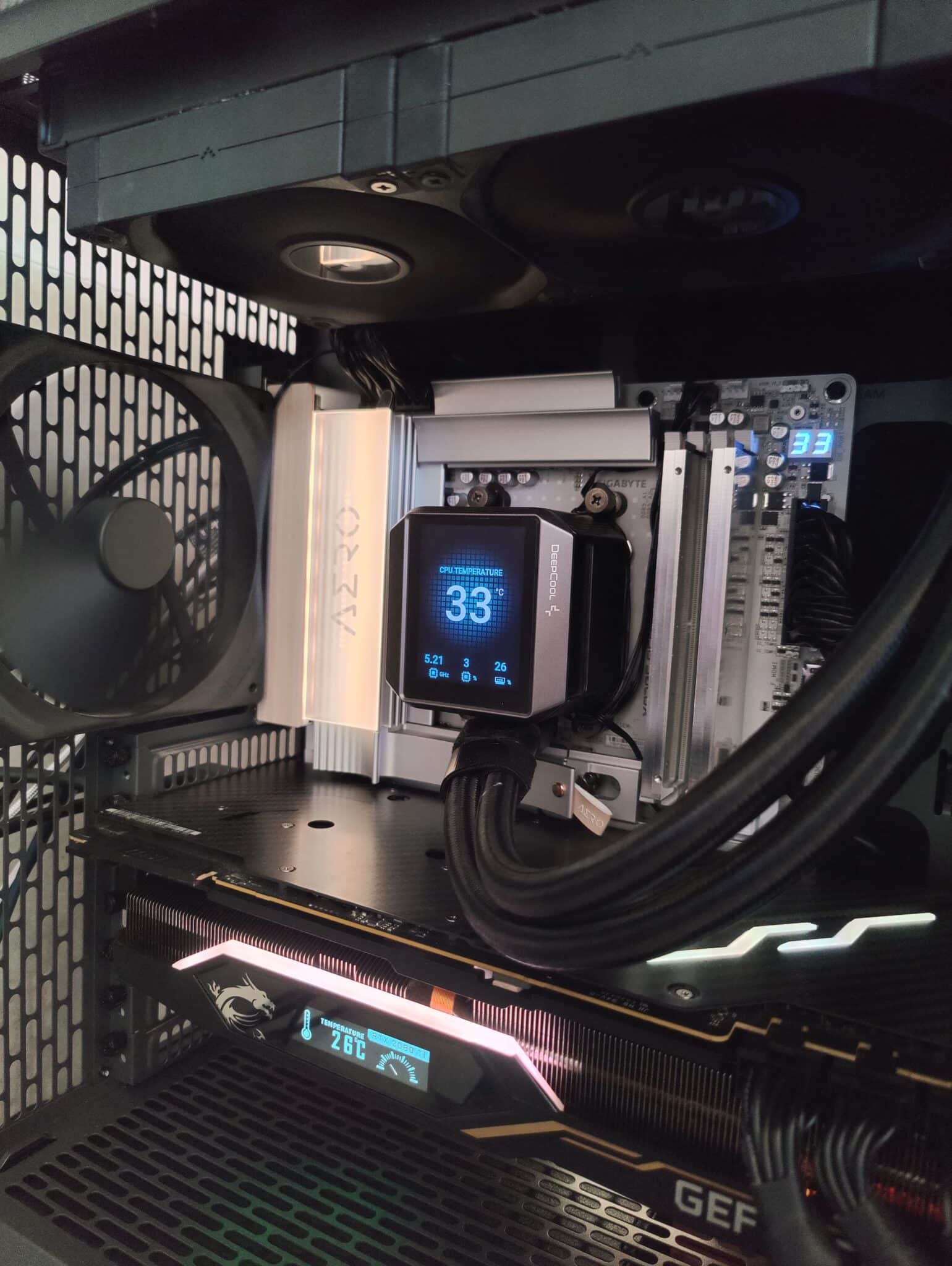
Initially, I used it on a bench table to test it, then I thought: why not also use it in daily use, to see if it really lives up to its promises as a high-end motherboard.
USB:
It’s important to note that I’m both a professional and a gaming user. I use pretty much all the USB-A and USB-C ports, basically the entire IO Shield, which allowed me to put the motherboard through its paces in everyday use.
On the USB side, for once, I didn’t encounter any USB bugs on AMD, even though I use absolutely all the ports. And yet, I’ve had multiple AMD motherboards in my hands, and there have often been minor USB issues. Here, there’s nothing to report, so that’s already a very good point.
Beyond that, the various high-speed USB ports are very handy for transferring large files, especially with external NVMe drives. And having multiple USB-C ports is clearly a plus, as more and more devices are moving away from USB-A in favor of USB-C.
The BIOS:
As for the BIOS, let’s call a spade a spade: no problems whatsoever. The automatic settings are well managed, and I haven’t noticed any bugs. The options are easily accessible, and the BIOS is extremely readable, which is great for me but also for less advanced users.
One thing I also found very pleasing is the automatically applied voltages: the CPU is not unnecessarily overclocked, whereas some motherboards apply voltages that are sometimes quite excessive, with no real benefit other than to cause the processor to heat up abnormally.
CPU overclocking:
This is one of the big advantages of this motherboard for everyday use. There are several ways to overclock your CPU, and the board already does a lot on its own.
The motherboard without anything activated:
If you don’t activate any overclocking options, the motherboard applies automatic PBO by default, without you having to touch any settings.
Ultimately, this is less powerful than manually adjusted PBO, but it may be more than enough for many people who don’t want to “tinker” with the settings. For example, the score obtained automatically is around 23,400 points on Cinebench R23.
The motherboard with manual PBO:
I wanted to test a manual PBO to compare the performance gains with the PBO options automatically activated by the motherboard. In the end, we get a significant gain of over 1,000 points in multi-core with a negative Curve Optimizer of -15 (which applies undervolting and allows for a slight performance gain).
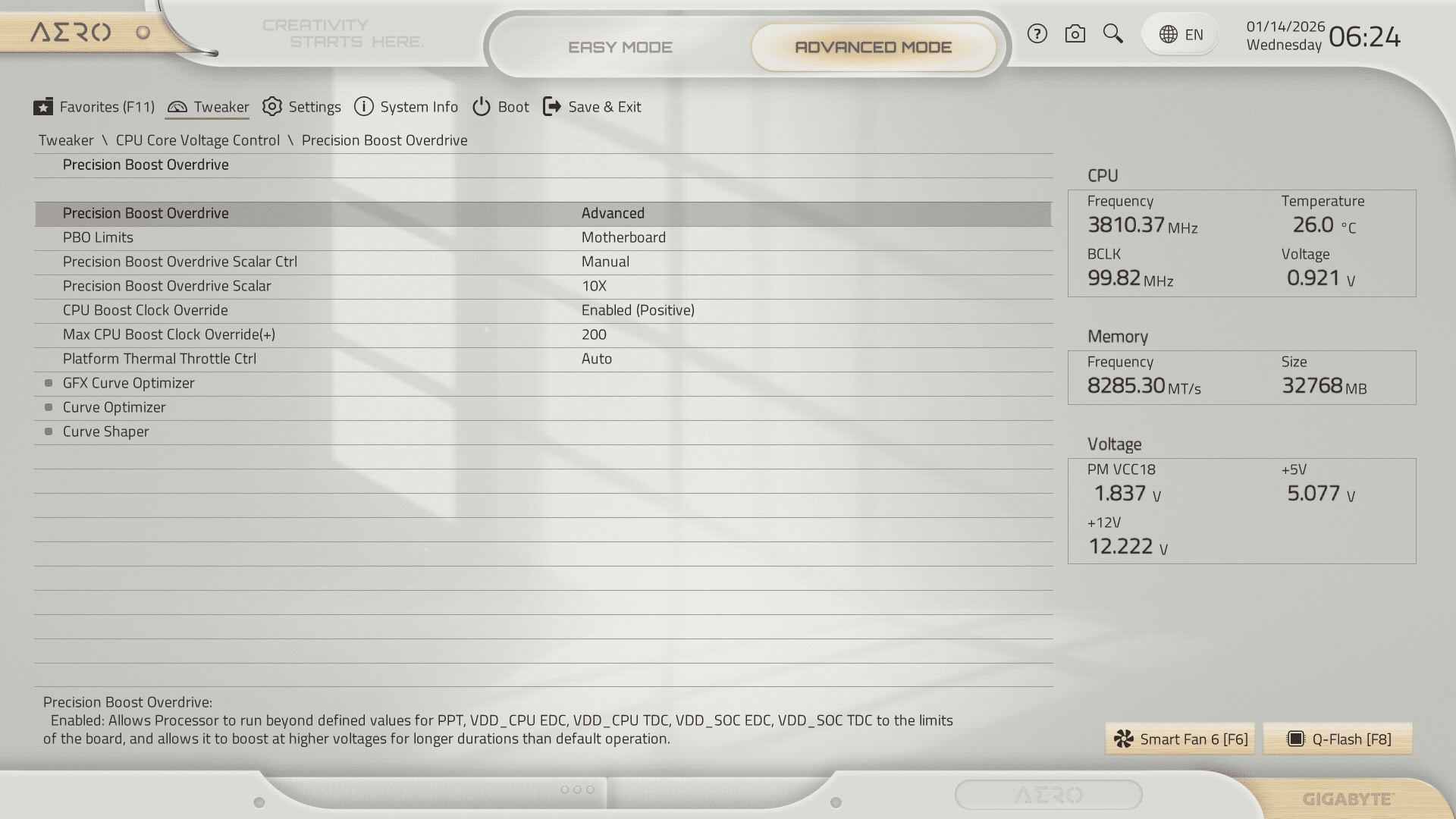
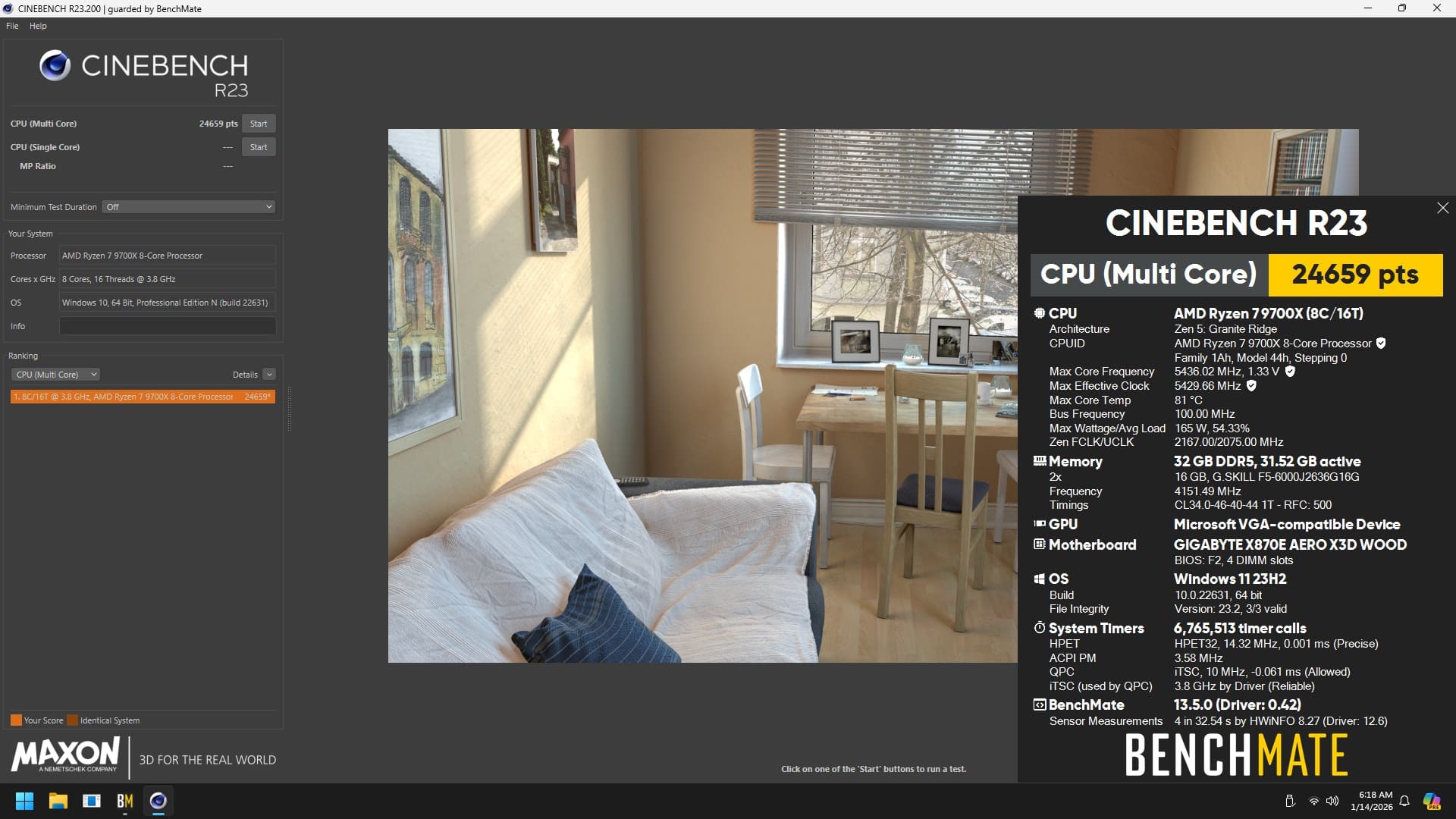
24,659 points for PBO overclocking on a Ryzen 7 9700X is a very good score. PBO performs well on this motherboard, with several runs showing similar and stable results.
The motherboard with manual overclocking:
I wanted to see how the motherboard performed with manual overclocking compared to PBO, and check if the performance remained stable, without any particular issues.
So I set the same CPU frequency on all cores as observed with the previous PBO score. And I applied a voltage of 1.25 V.
In the end, I obtained a score slightly higher than that of PBO, while losing 12 degrees, for equivalent multi-core performance.
Of course, I performed the tests at the same time, with the same ambient temperature and the same water cooling temperature , to ensure consistent and comparable conditions.
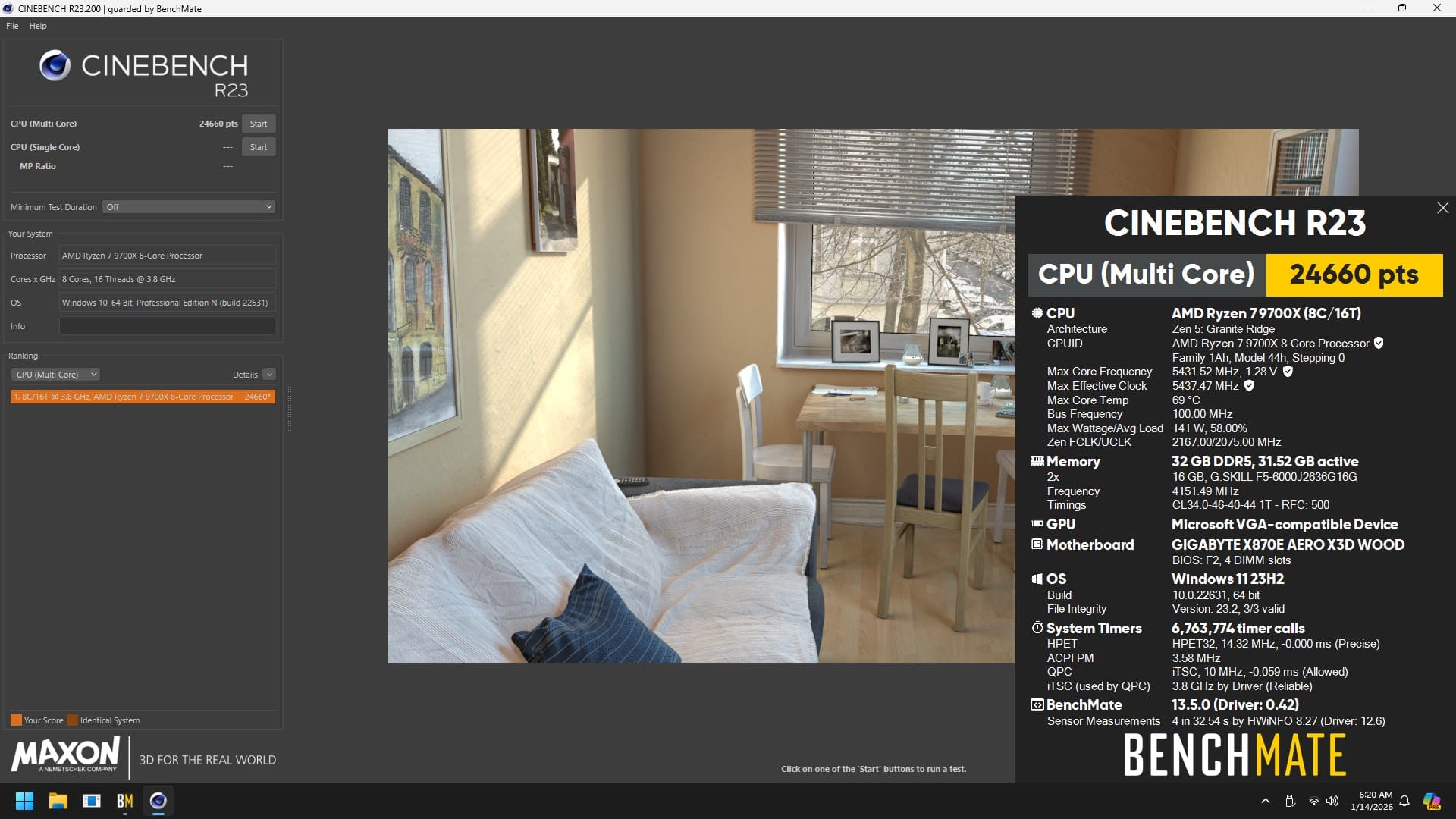
To sum up, the motherboard performs flawlessly, both in PBO and manual overclocking. The performance is clearly there. But the real test of a motherboard’s true capabilities is its memory management.
Memory overclocking:
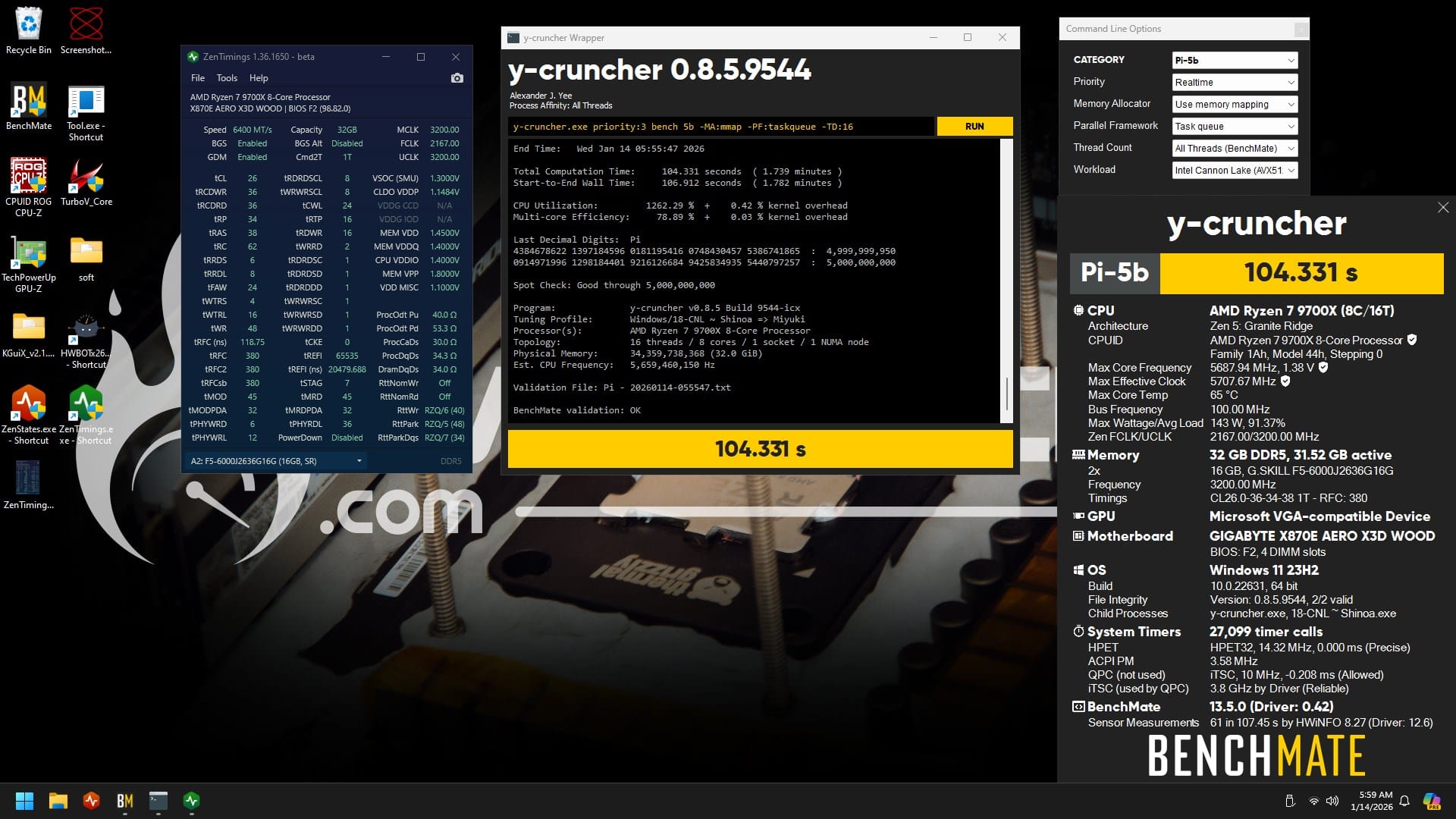
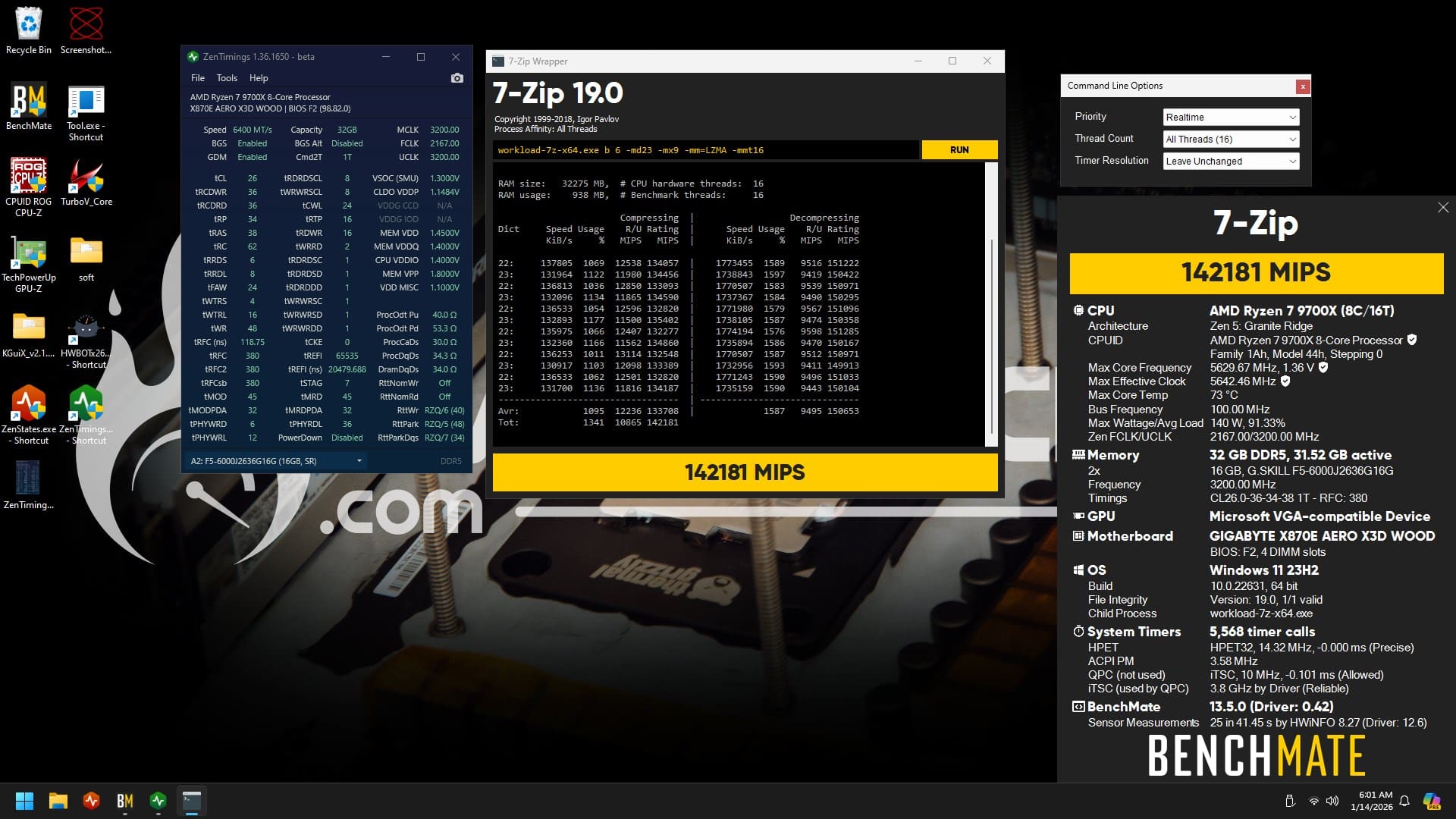
I performed two types of memory overclocking: one synchronized (UCLK = MCLK) at 6400 CL26, and another desynchronized (UCLK = MCLK/2) at 8300 CL34, in order to compare the performance and potential of the motherboard.
Of course, I should point out that this also depends on the CPU’s memory potential. Results may vary from one processor to another. But I’m lucky to have a model that performs rather well in terms of memory, which allows me to push the motherboard to its limits and evaluate its potential.
Overclocking at 6400 CL26:
The voltages required by the RAM overclocking kit are excellent, and this cannot be replicated with most kits. In most cases, you will need to apply a higher memory voltage to achieve an equivalent RAM profile.
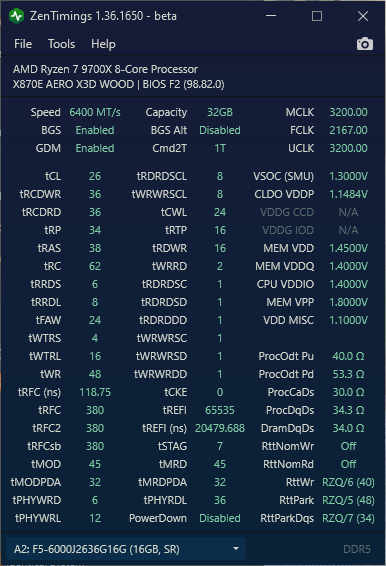
I optimized all the timings manually for stable everyday use. Obviously, these are still “light” stability tests; longer and more thorough tests would be needed to be completely categorical, but the y-cruncher 5B already gives a good idea of the level of stability.
We note that the 6400 CL26 runs without any problems, with fairly tight timings. For a 4-slot configuration, the motherboard is completely within the criteria of what we would expect. A synchronized memory profile is clearly not a complicated thing for this motherboard.
Overclocking at 8300 CL34:
The voltages required by the RAM overclocking kit are excellent, and this is not reproducible with most kits. In most cases, you will need to apply a higher memory voltage to obtain an equivalent RAM profile.
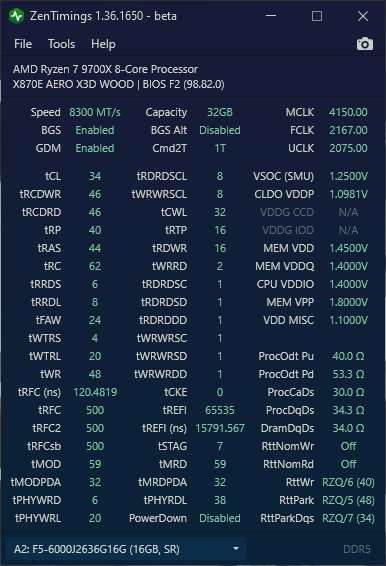
The real test of memory capabilities begins here, because a two-slot motherboard is naturally more comfortable with RAM overclocking, while a four-slot card encounters many more difficulties at high frequencies. Ultimately, few motherboards are truly capable of maintaining 7800 MT/s and above in a stable manner.
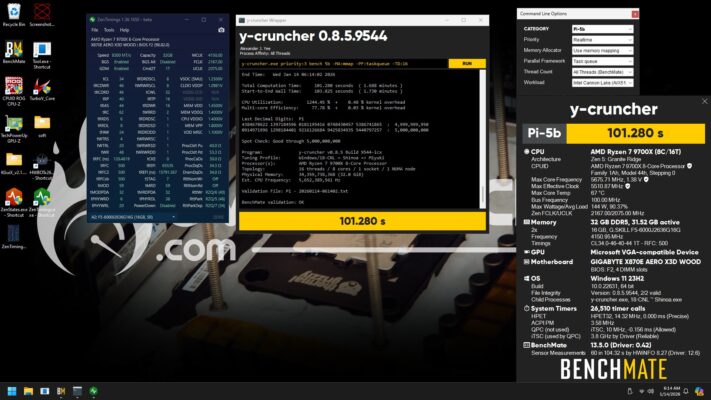
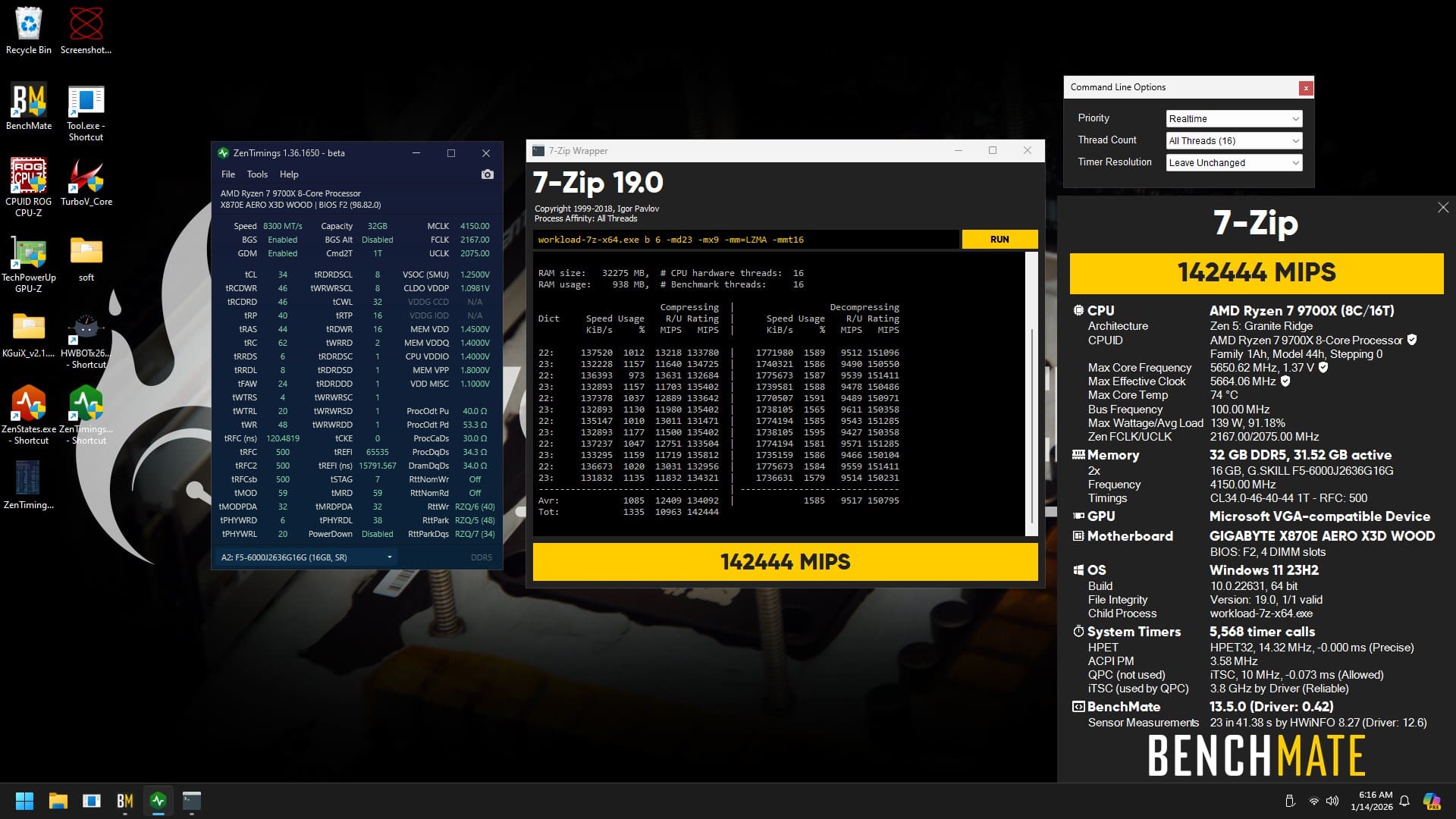
But with this X870E AERO WOOD Edition, it has no trouble handling 8300 CL34 in a stable manner. Obviously, compared to the 6400 CL26, we see a performance gain of about 3 seconds on y-cruncher, which clearly favors this type of memory overclocking.
But what’s important here is not just the raw gain, it’s the motherboard’s ability to maintain 8300 MT/s, and with tight timings at that.
It clearly performs better than any of the four-slot motherboards I’ve had in my hands at the editorial office. Gigabyte has not overlooked the memory aspect on this motherboard, and it really shows in use.
Excellent overclocking:
I’m pretty impressed by the performance of this motherboard. Obviously, there are no issues with the CPU, but it’s the memory capabilities that are particularly impressive. They are excellent, both for a solid daily profile and for running large XMP or EXPO profiles, with stability and performance levels that are clearly above average.
With this motherboard, there will be no problems on that front. And Gigabyte has not exaggerated the capabilities of this motherboard, which is advertised as being capable of handling up to 9000 MT/s in memory.
[nextpage title=”My conclusion”]
A motherboard that leaves no one indifferent:
We received this card about a month ago. Gigabyte caused a sensation when it announced an AERO motherboard made of wood. This is a first, because we had already seen cases, AIOs (water cooling), and a whole ecosystem with touches of wood. We had never had a motherboard made of wood, strictly speaking. Gigabyte was the first to do so, impressing everyone. This motherboard was therefore eagerly awaited.
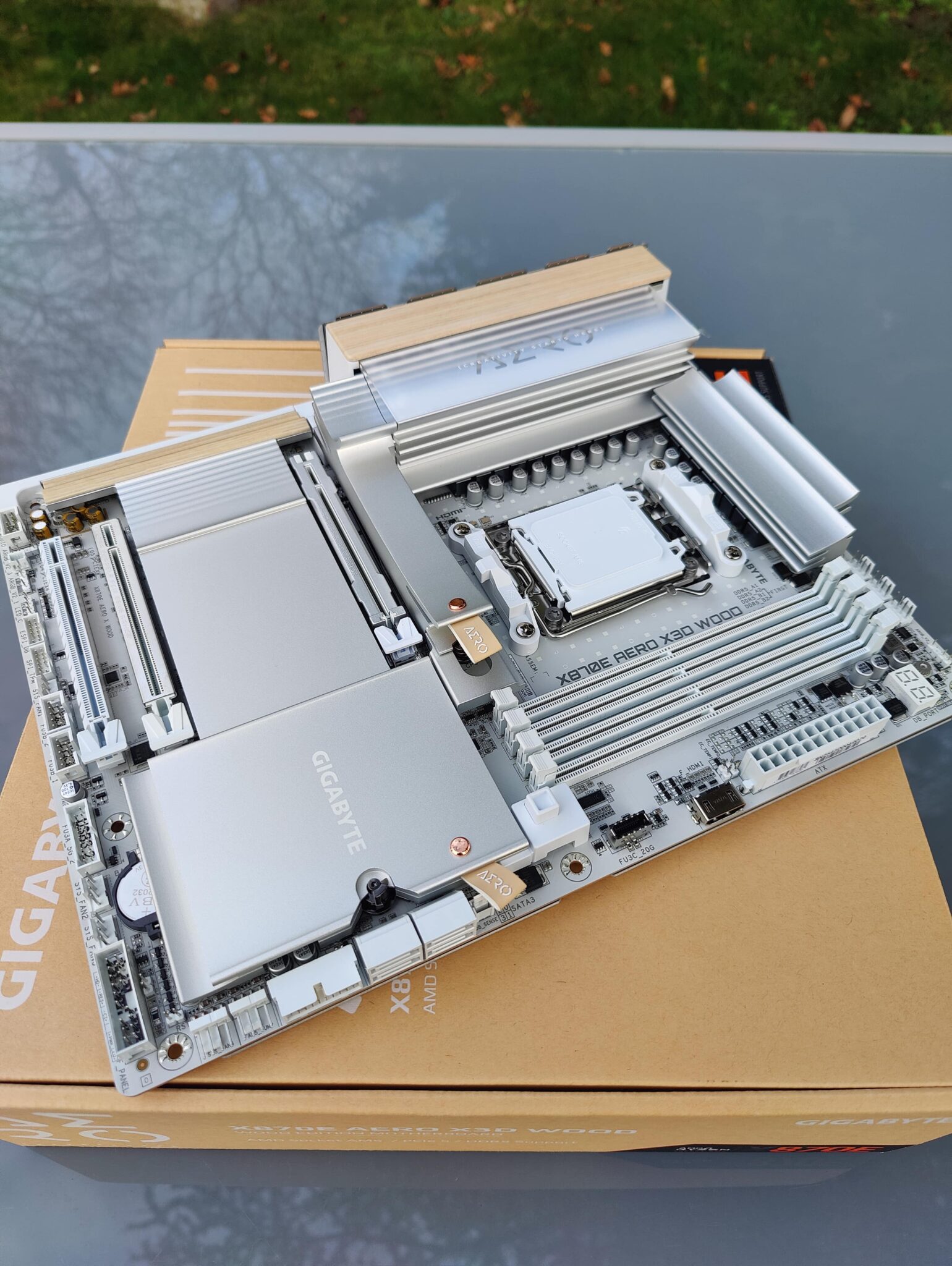 The “wow” effect when opening the box of this X870E AERO WOOD Edition is a success. The card is excellent from an aesthetic point of view and in terms of finish. It is surely one of the best-finished motherboards I have ever had in my hands. It’s on par with the best of much more expensive motherboards, even though this card, at the time of writing this review, is priced at around €400.
In terms of performance, I honestly think you can’t do better in this price range. The metallic gray paint enhances the various components of the extremely thick aluminum casing, the backplate on the rear of the PCB further reinforces the impression of a premium product, and the wood is perfectly balanced, without being overdone. There is also tasteful RGB lighting on the left side of the motherboard, where “AERO” is inscribed, adding a modern touch without looking cheap.
This motherboard is simply beautiful, and I sincerely believe that it will probably be one of the most beautiful of 2026.
A well-designed motherboard!
Beyond aesthetics, everything has been designed to simplify assembly and disassembly. The cover is easy to remove to access the NVMe SSDs, with a magnet system that allows you to reposition the various components correctly and snap them into place without difficulty. There is also a quick GPU release button, which is very handy for everyday use.
Gigabyte has thought of everything a modern motherboard should be in 2026, and above all, what we expect today: practicality, accessibility, and ease of use.
And what about performance?
No need to beat around the bush: the performance is excellent. On the CPU side, no worries, the card does the job perfectly. But it’s especially impressive when it comes to memory, with above-average performance. It’s definitely one of the best 4-slot motherboards I’ve had my hands on for overclocking and RAM management.
Exemplary BIOS and stability
As for the rest, there are no issues with the BIOS. Not being familiar with Gigabyte, I found it to be one of the best BIOSes I’ve ever used.
The motherboard has no bugs, the settings are clear and logical, and everything is very well controlled.
And a little bit of info: I’m preparing a second article with this motherboard, integrated into a wood-themed build, to show you how it performs in real-world conditions.
We liked:
- A very well-equipped I/O shield
- An elegant and well-integrated white LED Q-Code
- The most beautiful design ever seen on a motherboard
- Finishes worthy of the best high-end motherboards
- An excellent BIOS that is simple, clear, and easy to use
- Quick removal and replacement of the cover, NVMe SSDs, and graphics card thanks to quick-release fastening systems
- All essential buttons (Power, Reset, Clear CMOS) located directly on the motherboard
- Excellent RAM overclocking performance
- Excellent CPU overclocking performance
- Excellent value for money
We would have liked:
- Honestly: nothing to complain about
It’s simply the best motherboard I’ve had the chance to test at the editorial office! The X870E AERO WOOD Edition richly deserves its “Gold Award” and “Favorite” designation.


With a budget of around €400, it’s hard to find anything better today. It easily rivals high-end motherboards priced at €600–700, while offering a clearly atypical look. Its performance is on par with the best on the market.
Gigabyte has undoubtedly achieved perfection with this motherboard, which is quite simply one of the finest motherboards of 2026.

